Budget and track a job's cost
See whether each job is making money, and control who approves its costs.
Watch this in the video (2:42)
Steps
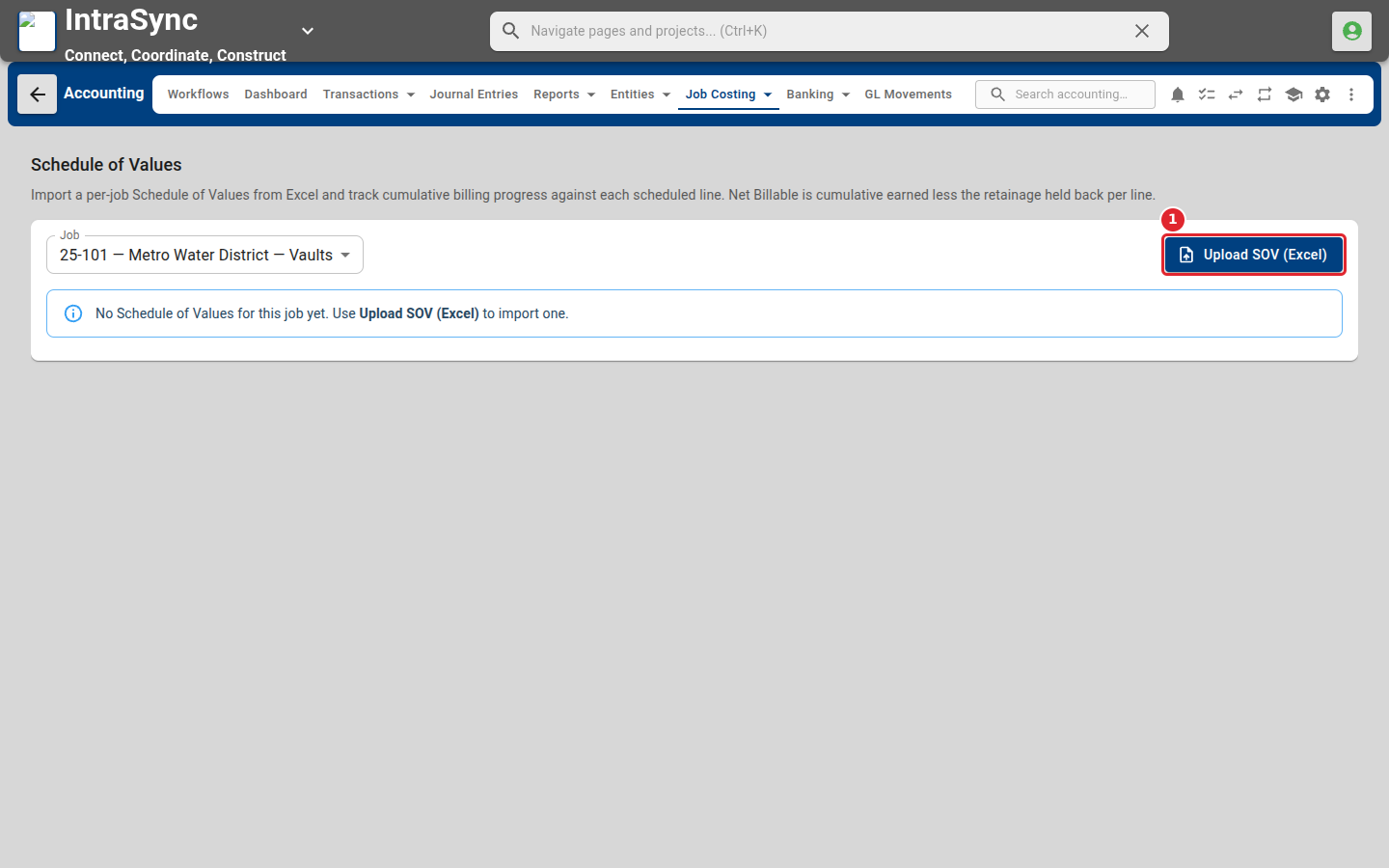
In the pictures, a numbered red box marks where to click or type. Where a picture has more than one box, the numbers give the order.
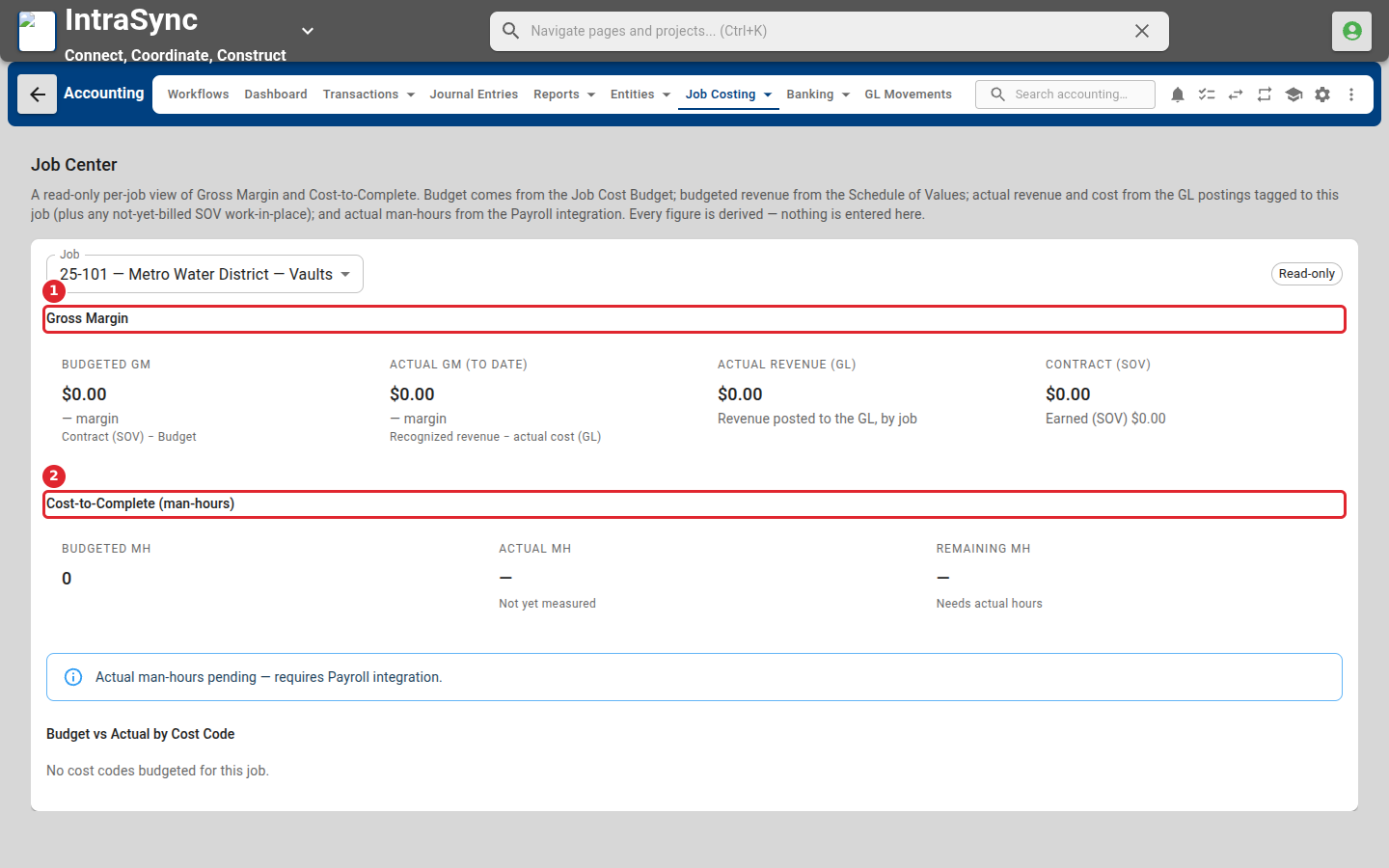
Select Job Costing > Job Center, then choose a job. It shows gross margin and cost to complete for that job.
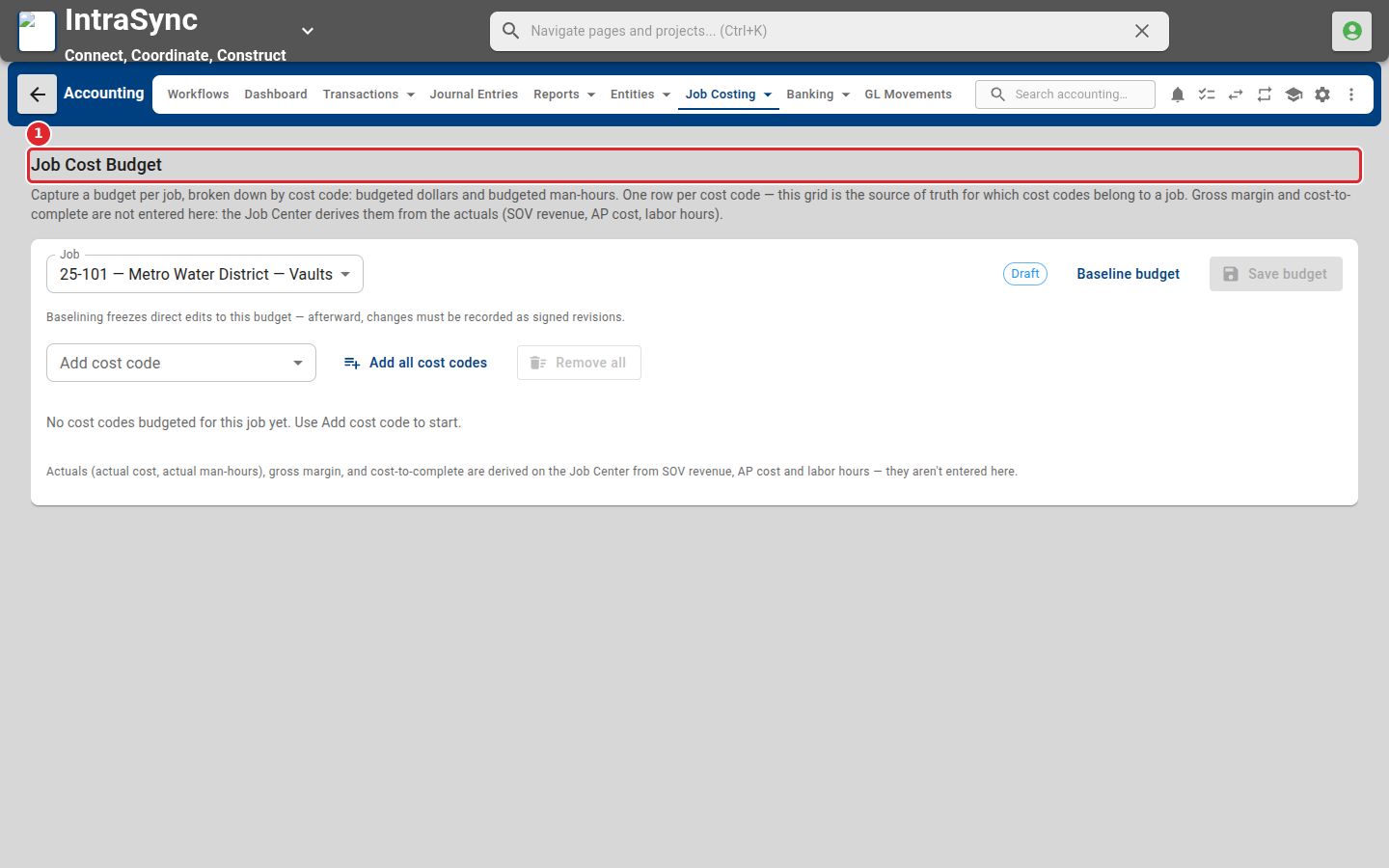
Select Job Costing > Job Cost Budget. Choose a job, add cost codes, and enter the budget for each.
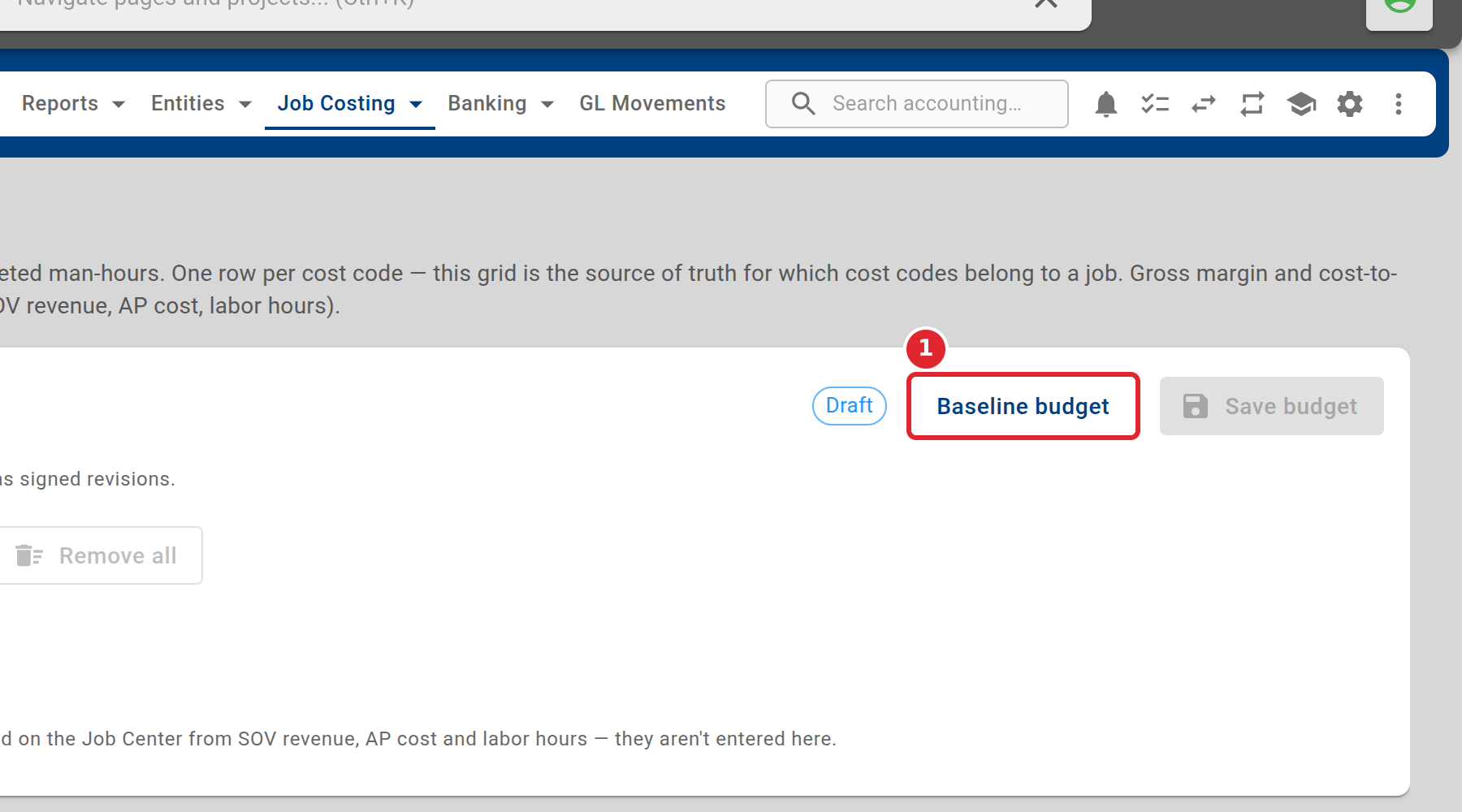
Select Baseline budget when the budget is agreed. After that, changes are recorded as revisions.
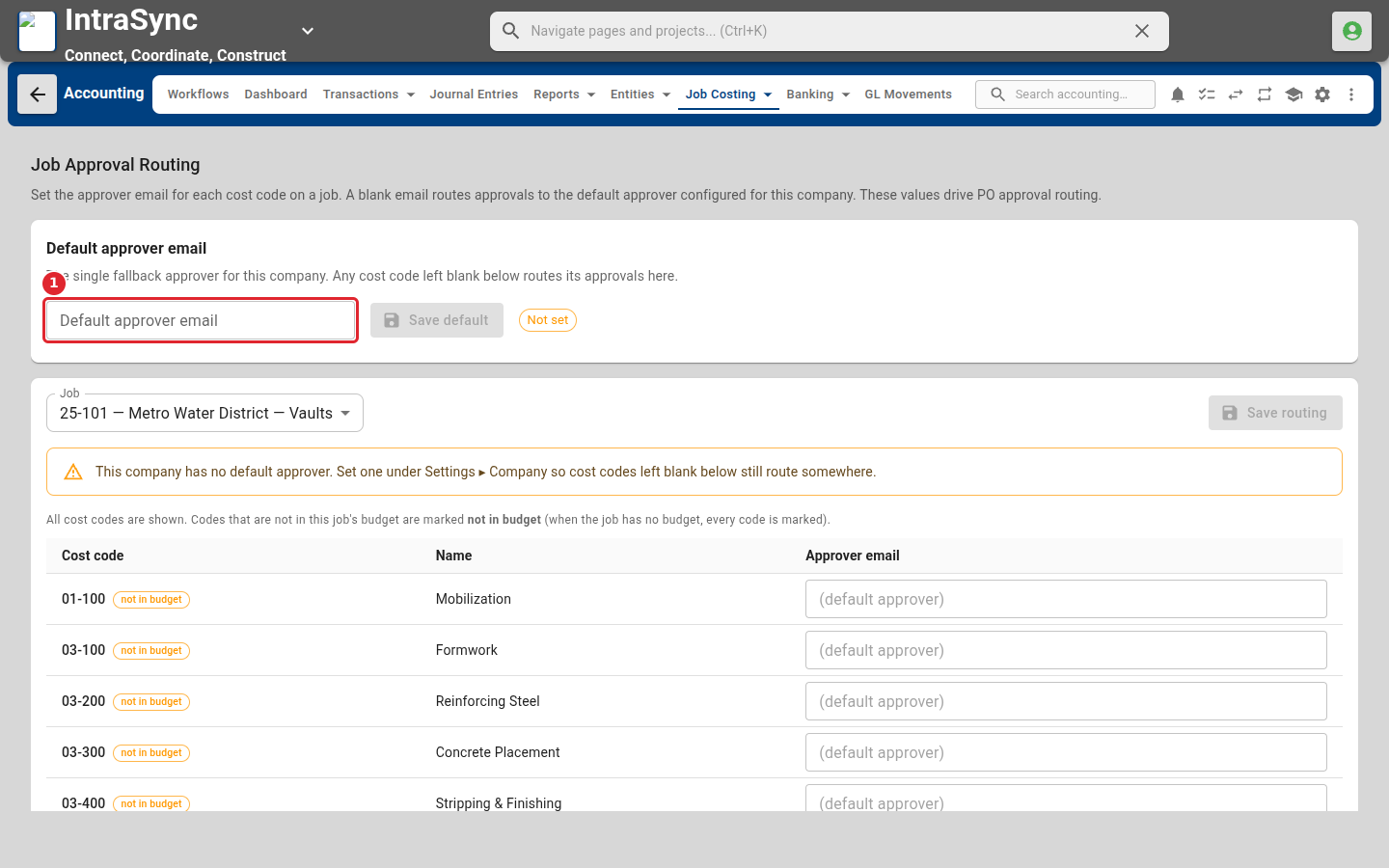
Select Job Costing > Job Approval Routing. Set a default approver email, then name an approver for each cost code on a job.
Select Job Costing > Schedule of Values. Choose a job and upload its schedule of values from Excel to track billing progress.
Tips
- Actuals are not typed in: the Job Center works them out from the schedule of values, the bills coded to the job, and labor hours.
- If the company has no default approver, set one so cost codes with no approver still route somewhere.