Core guide · section 4 of 21
Change a person's details or password
Keep someone's name, email, department, team and plant up to date, or reset a forgotten password.
Watch this in the video (0:29)
Before you start
- You are an administrator.
Steps
In the pictures, a numbered red box marks where to click or type. Where a picture has more than one box, the numbers give the order.
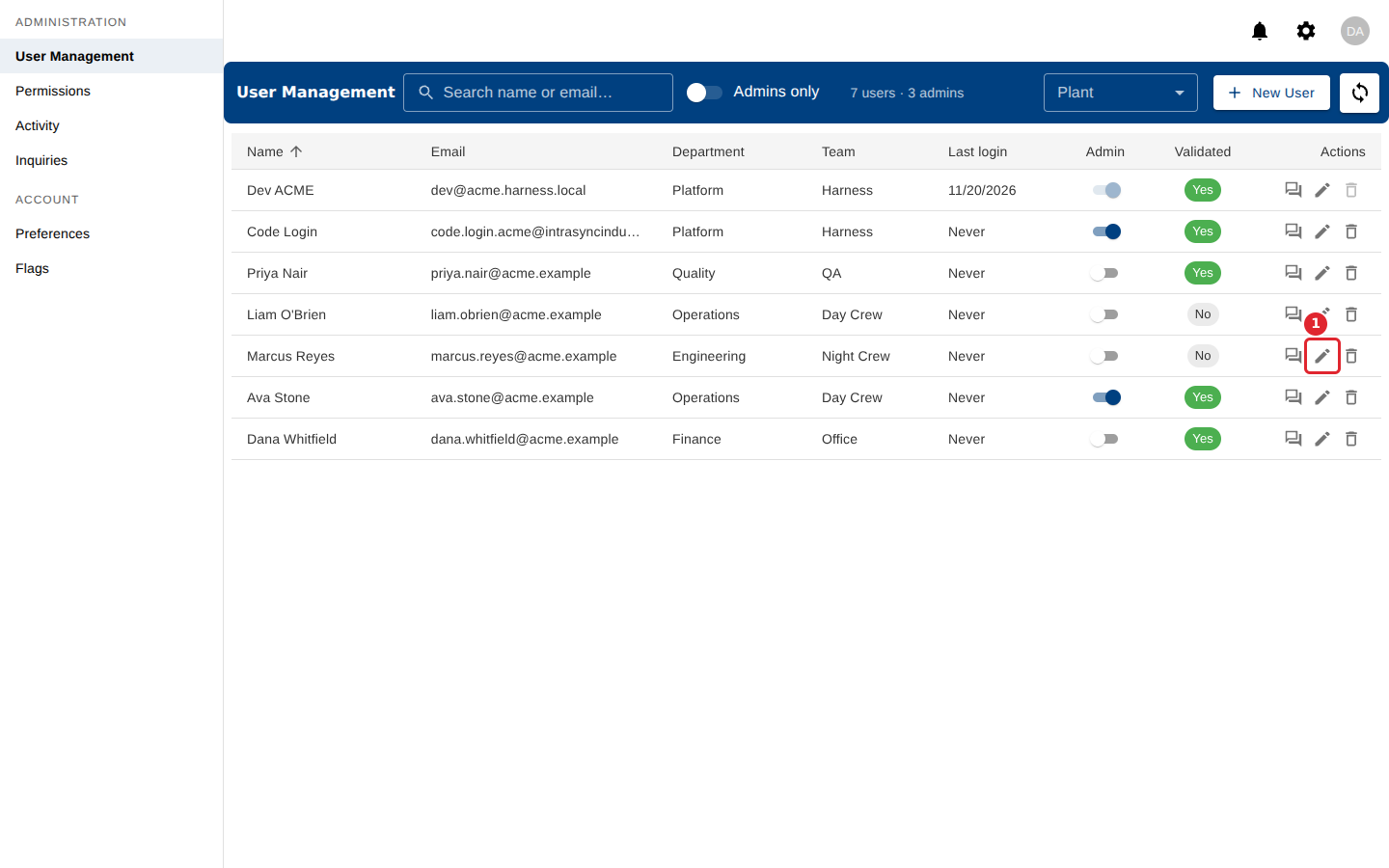
Find the person and select the pencil icon in their row.
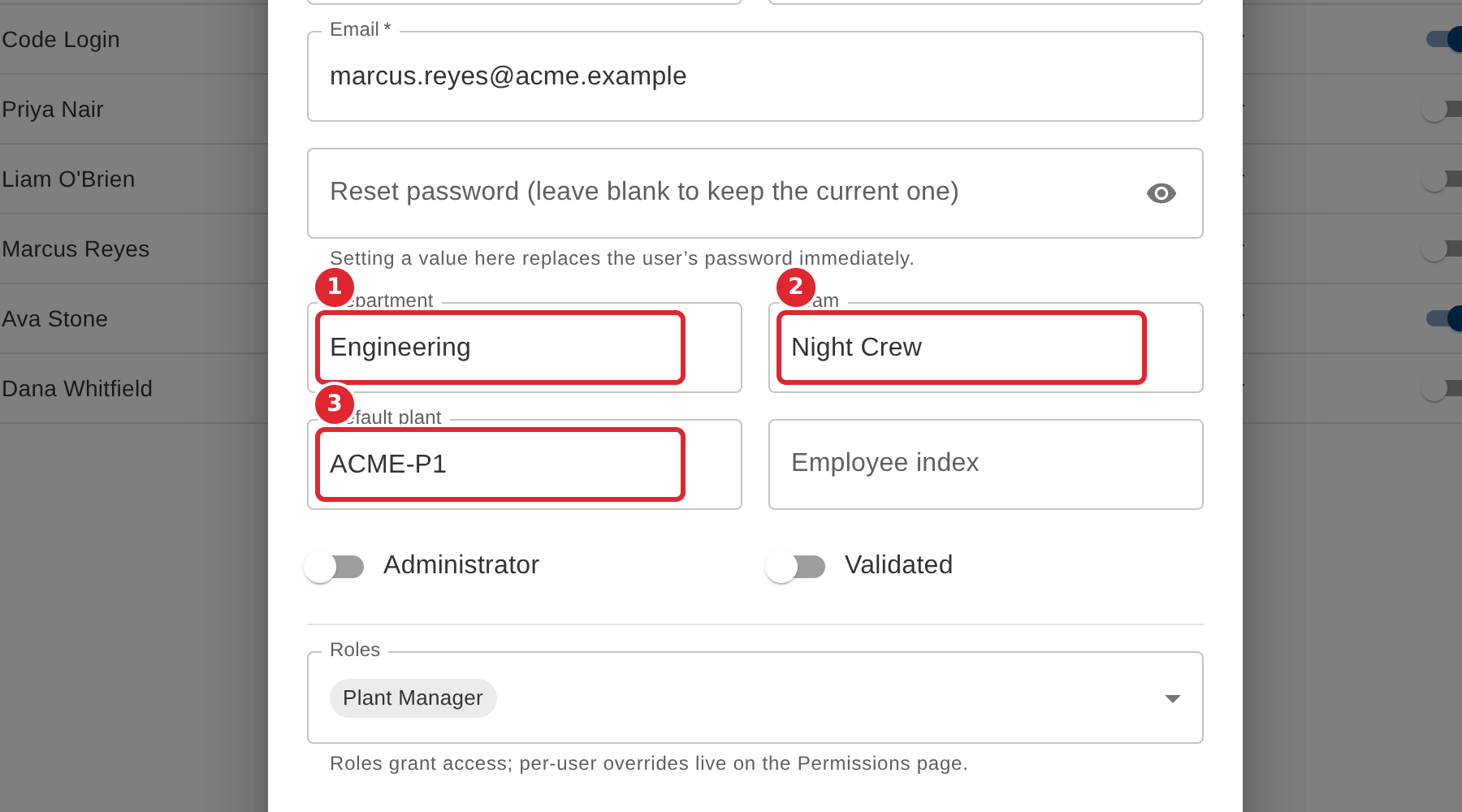
Change any of the details. Department, Team and Default plant suggest the entries your company has set up.
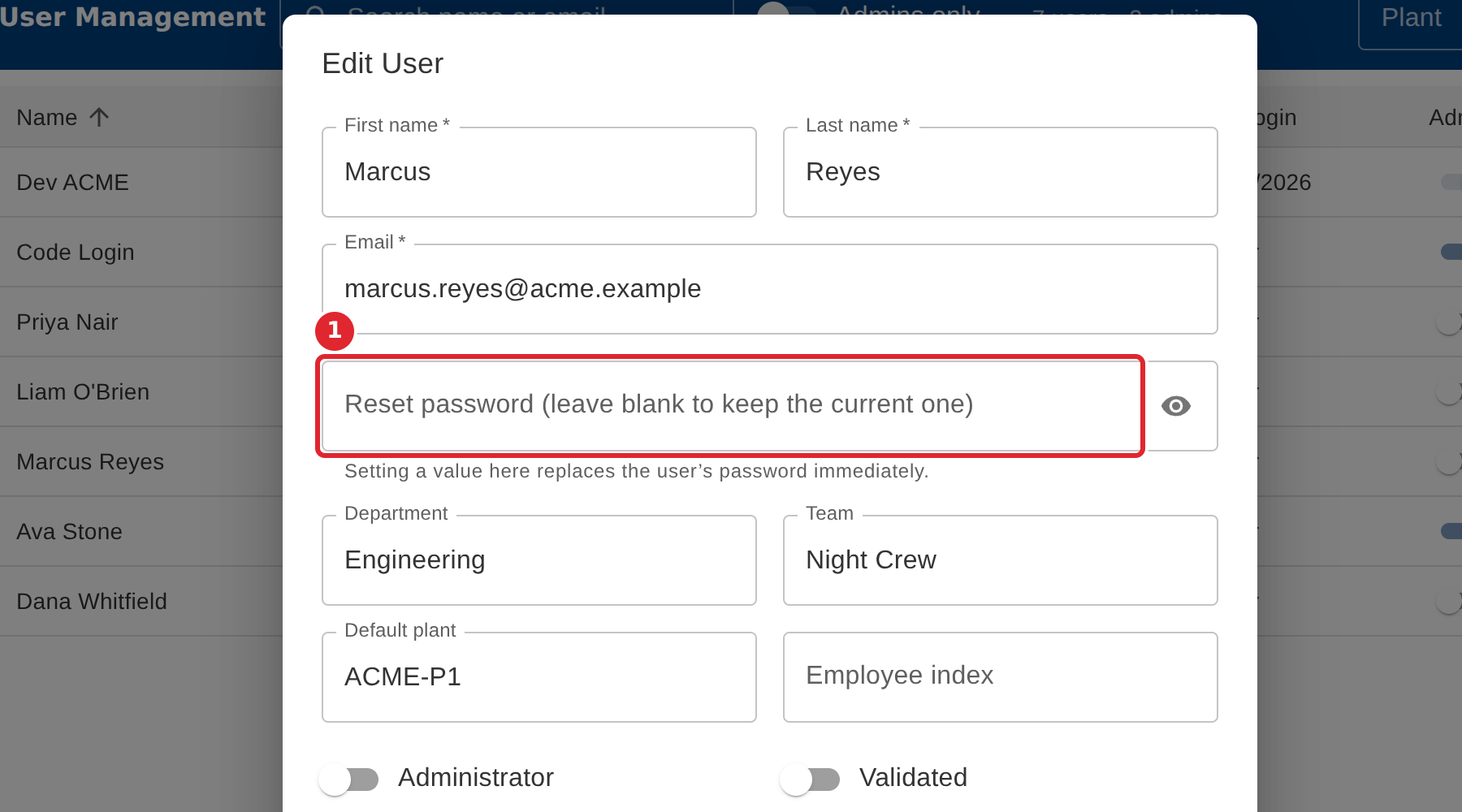
To reset the person's password, type a new one here. Leave it blank to keep the current password.
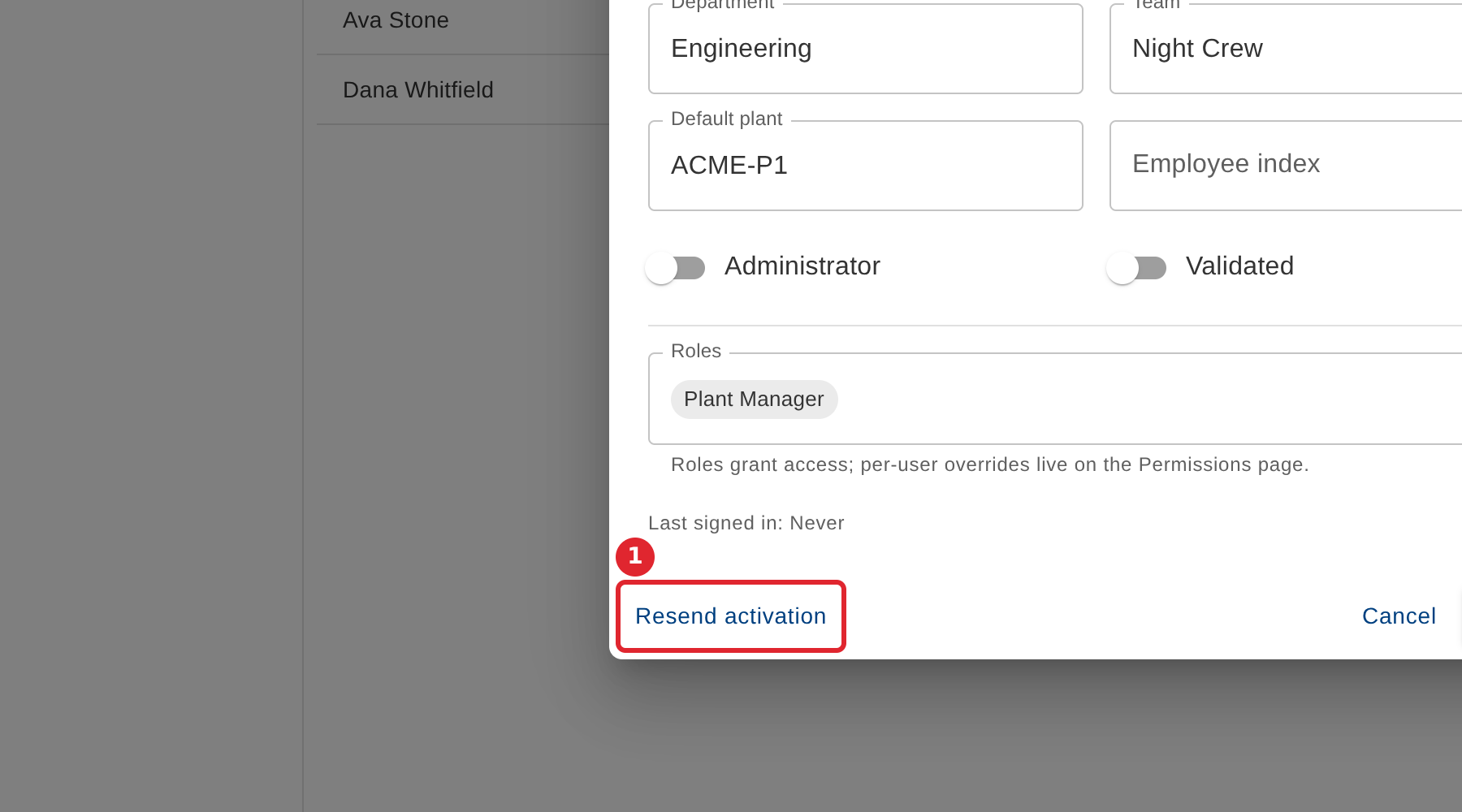
Select Resend activation to send the person their activation again.
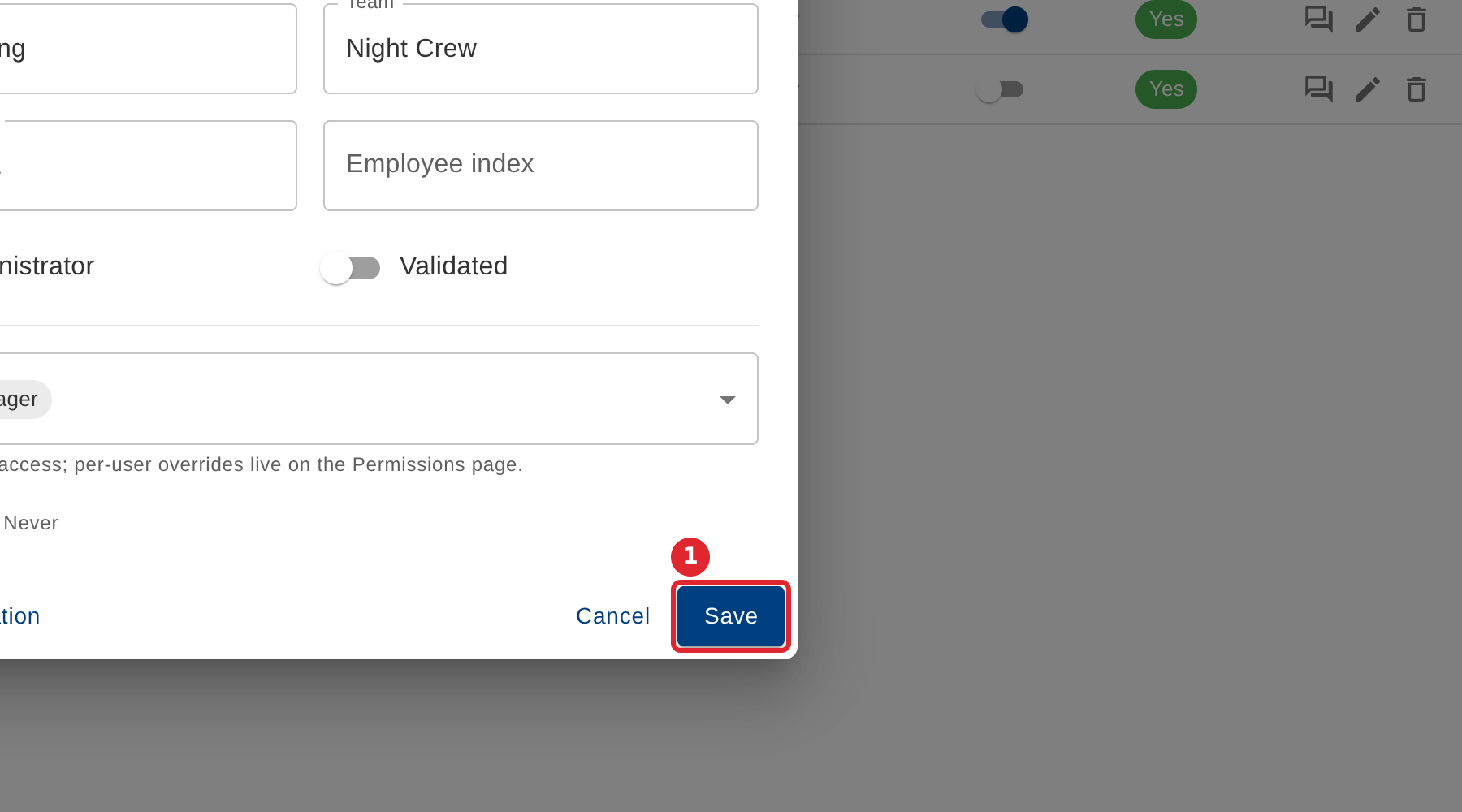
Select Save to keep your changes.
Tips
- Typing a password in Reset password replaces the person's password as soon as you save.
- The form shows when the person last signed in.
- Roles can also be changed here. Changes to one person's access that go beyond their roles are made on the Permissions page.