Core guide · section 21 of 21
Review the activity trail
See who changed what, and when, across the system, and export it for an audit.
Watch this in the video (2:38)
Steps
In the pictures, a numbered red box marks where to click or type. Where a picture has more than one box, the numbers give the order.
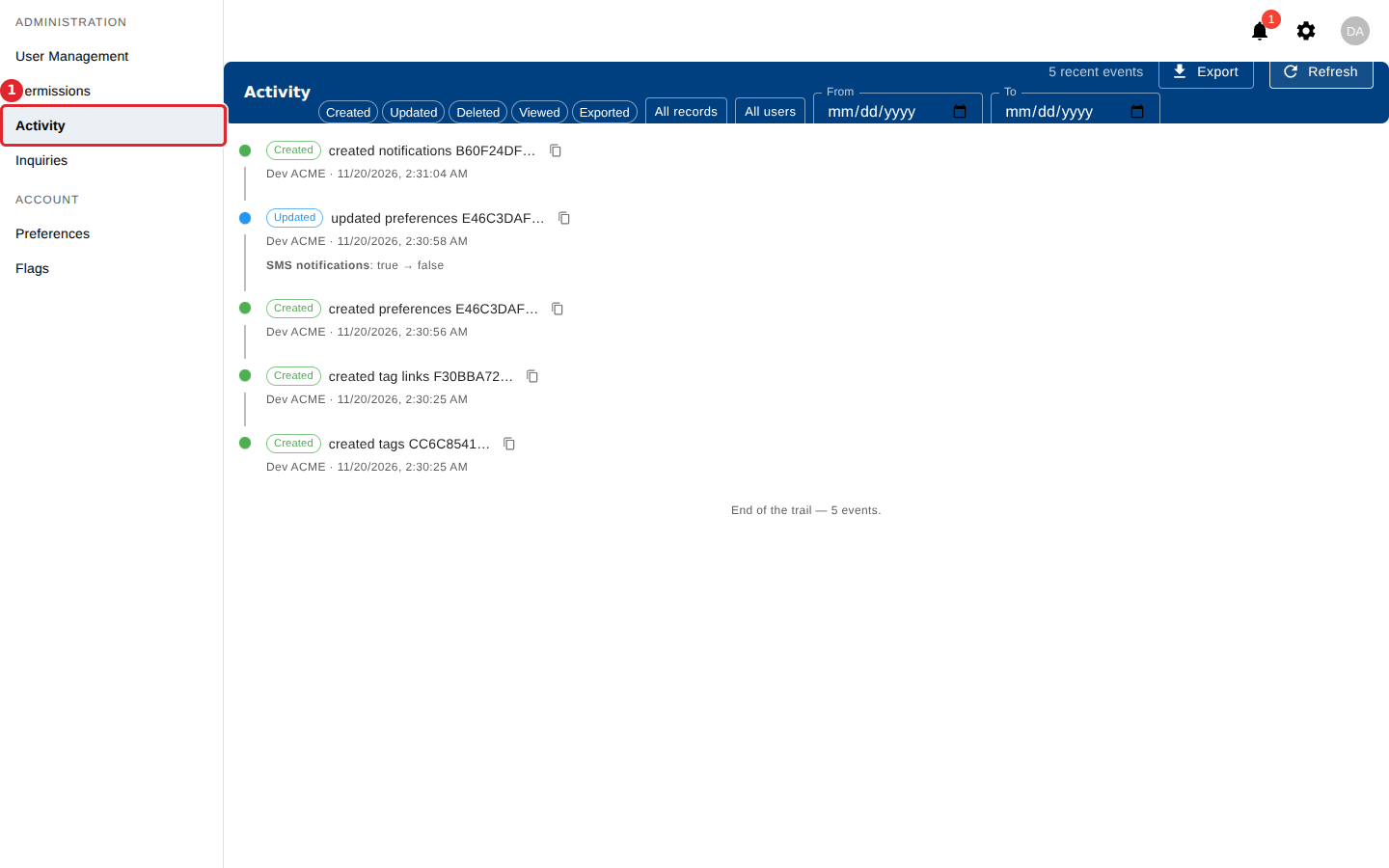
Open Activity. Each entry says what changed, who changed it and when.
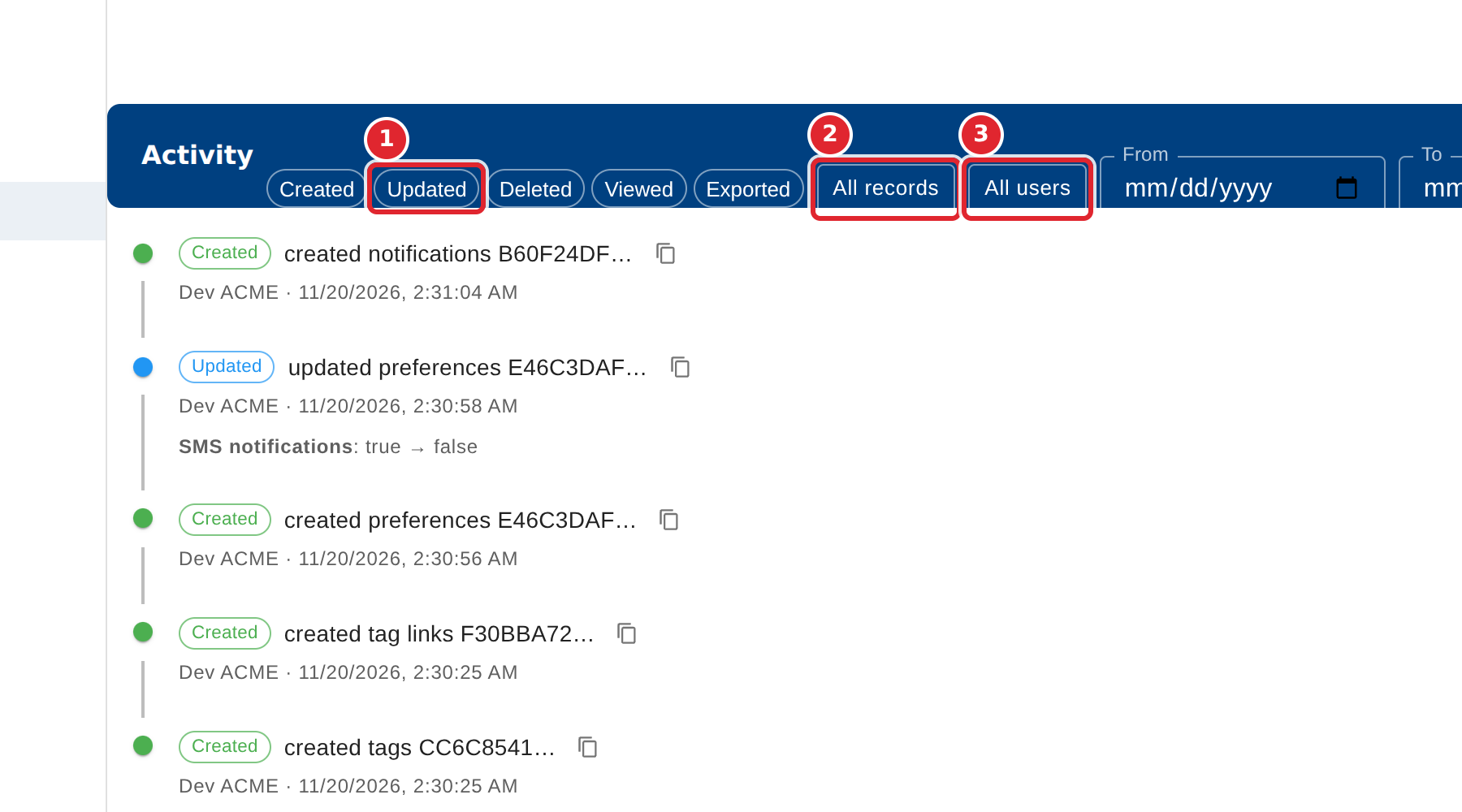
Narrow the list with the action chips, the record and user menus, and the From and To dates. Select Clear to remove the filters.
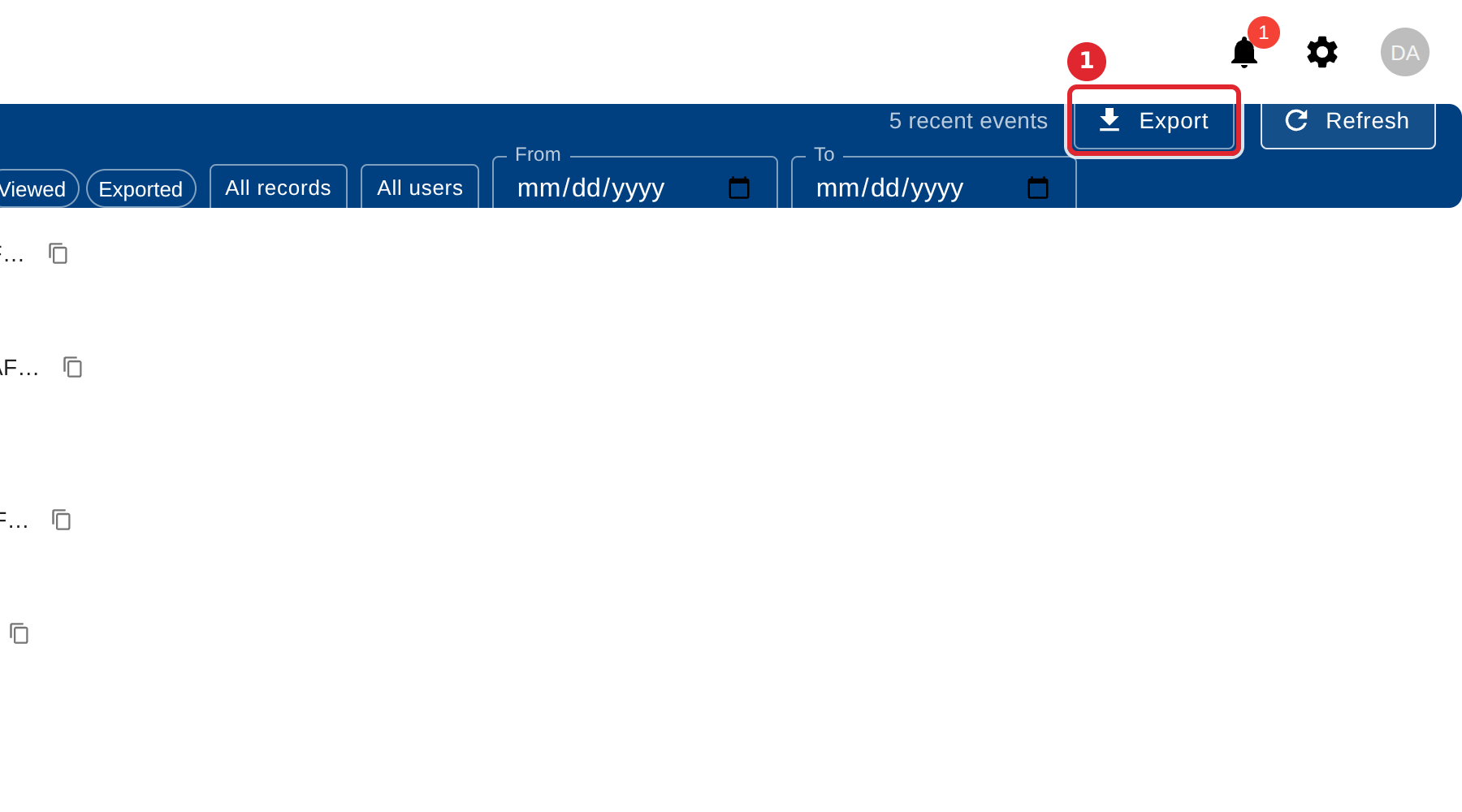
Select Export to download every matching event as a spreadsheet file.
Select the copy icon beside an entry to copy the record's id.
At the bottom, select Load more to see older events. The end of the list says when you have reached the end of the trail.
Tips
- Updated entries show each changed field with its old and new value.
- If an export could not include every event, the file name ends in partial and a message says so.