Find your way around the Estimating hub
Know where each part of the estimating work lives before you start, and see at a glance what is waiting on you.
Watch this in the video (0:03)
Before you start
- You need access to Estimating.
Steps
In the pictures, a numbered red box marks where to click or type. Where a picture has more than one box, the numbers give the order.
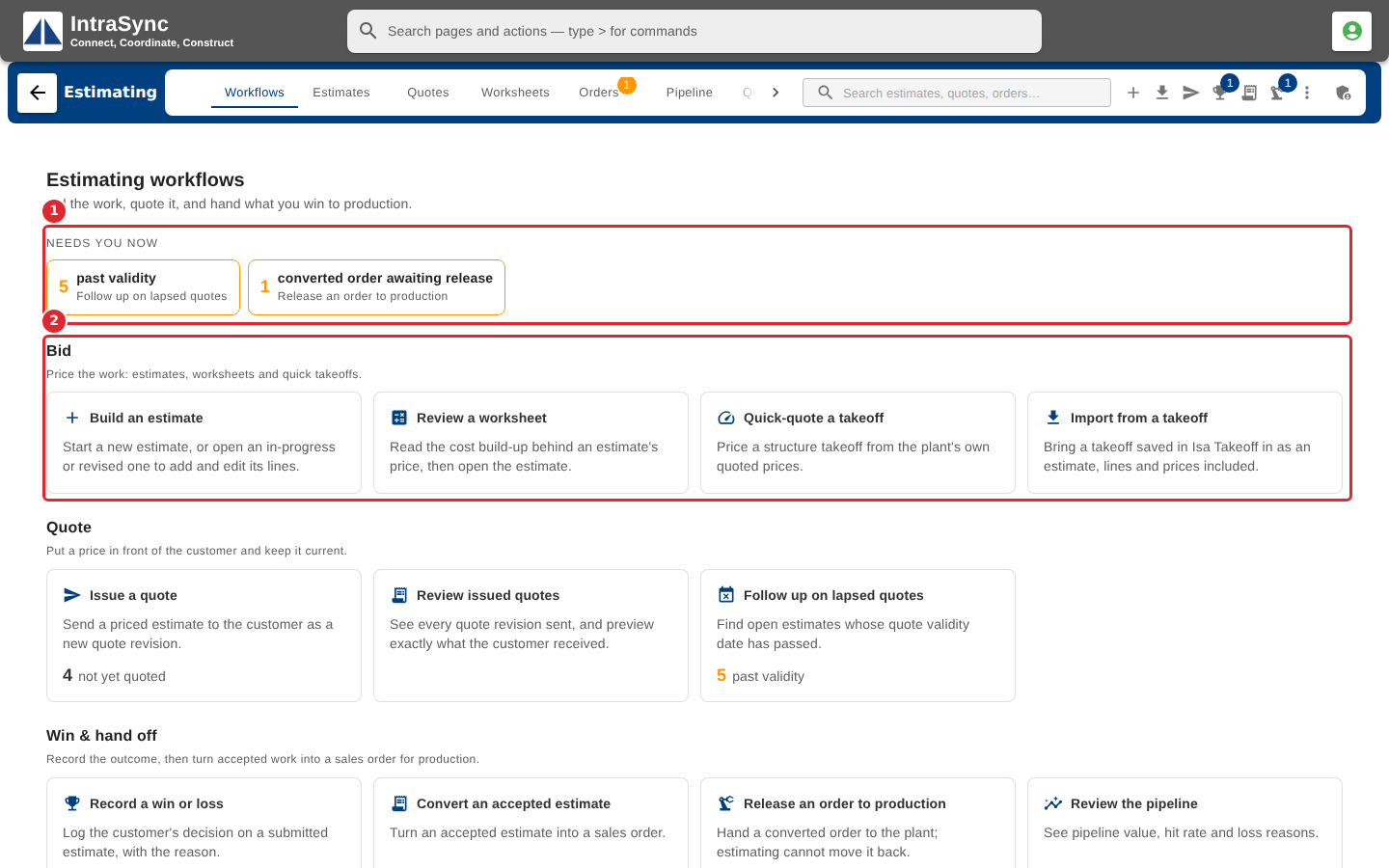
Open Estimating. The hub opens on the Workflows tab, which sets out the department's work in three stages: Bid, Quote, and Win & hand off. Anything waiting on you is listed first, under Needs you now.
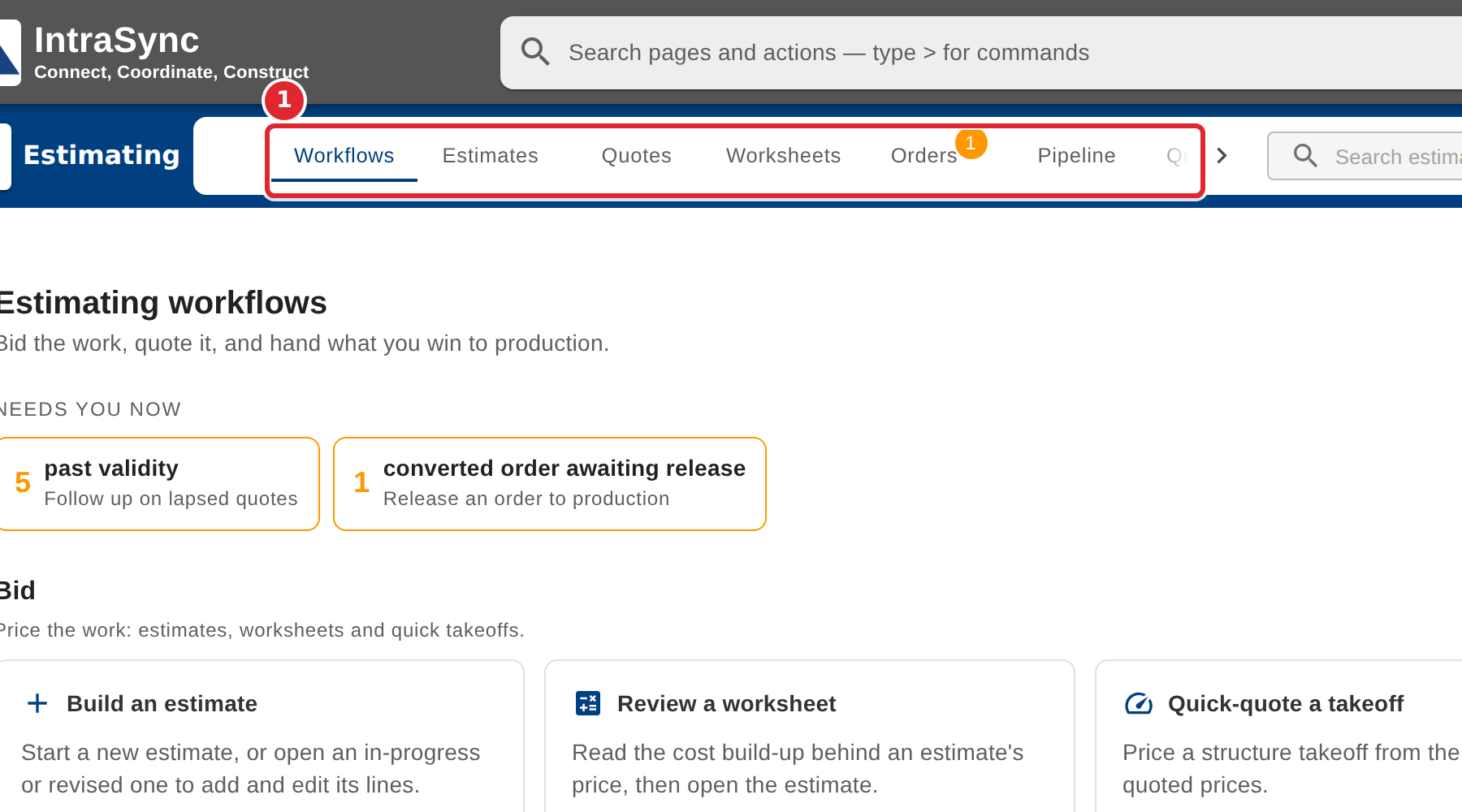
Use the tabs to move between Workflows, Estimates, Quotes, Worksheets, Orders, Pipeline, Quick Quote and Drawings. When the strip is too narrow for every tab, the arrow at its end reaches the rest. The number on the Orders tab counts converted orders still waiting for release.
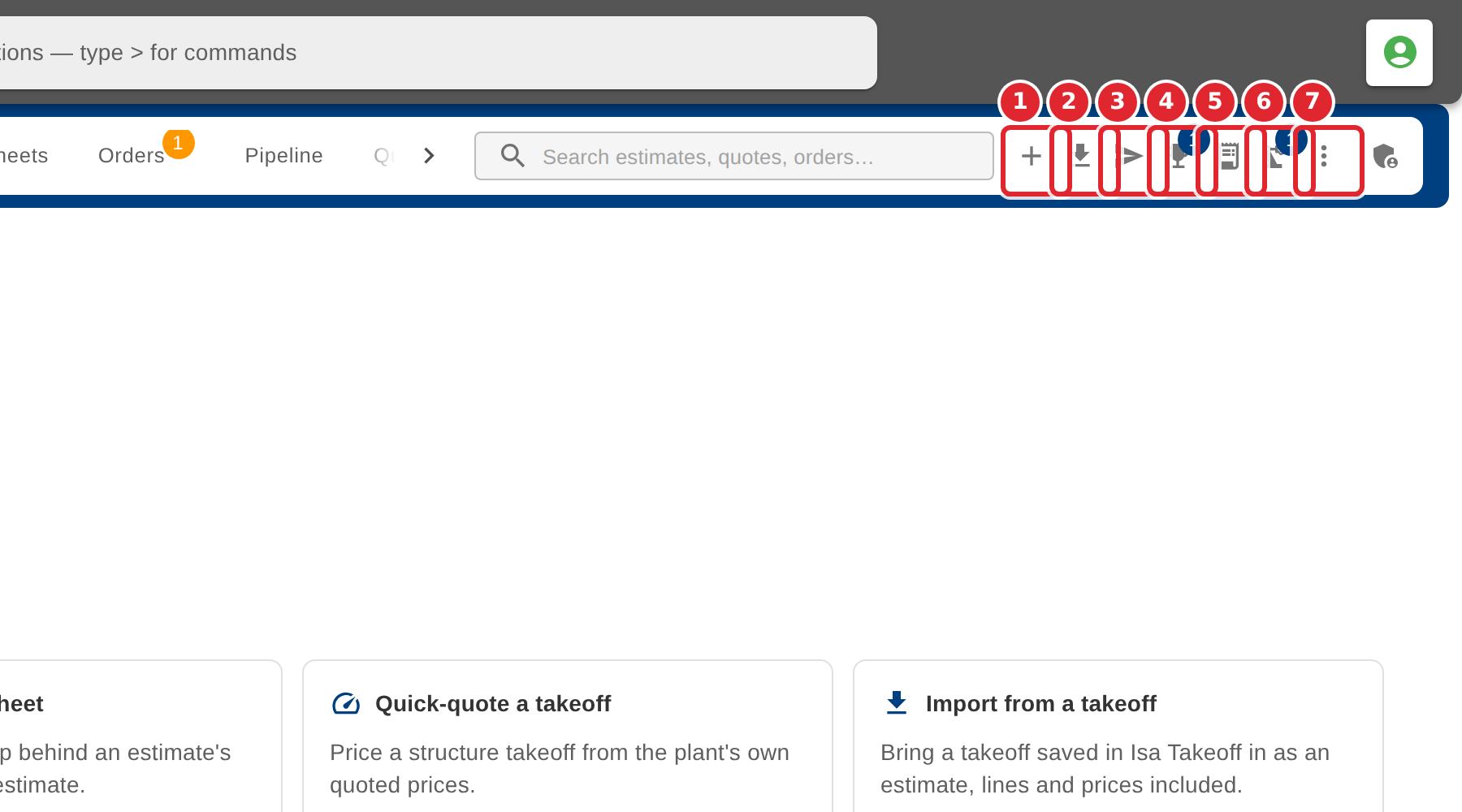
The buttons beside the search box start the main tasks: New estimate (1), Import from a takeoff (2), Issue quote (3), Record win / loss (4), Convert to sales order (5) and Release to production (6). More (7) holds Refresh. A number on a button counts the estimates waiting for that step.
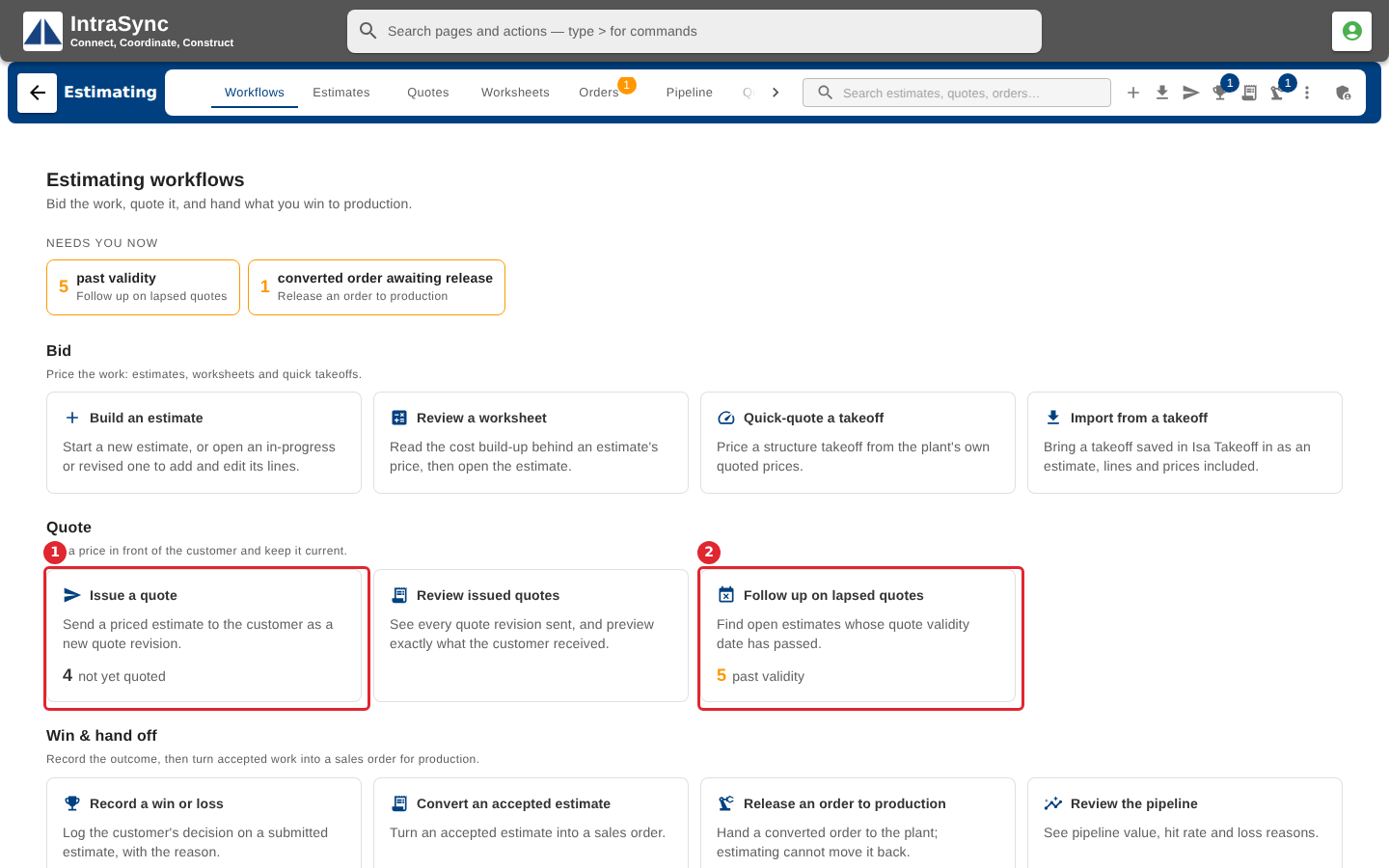
Each card on the Workflows tab starts one task. Select a card to go straight to that work; the figure at its foot counts the estimates waiting on it.
Tips
- The hub always opens on the Workflows tab. Select More > Refresh to reload everything the hub shows.