Estimating guide · section 26 of 29
Set customer and city prices
Give one customer, one city, or a customer in a city their own price or percentage on the price list.
Before you start
- You must be an Estimating administrator: the Estimating admin button appears only for administrators.
Steps
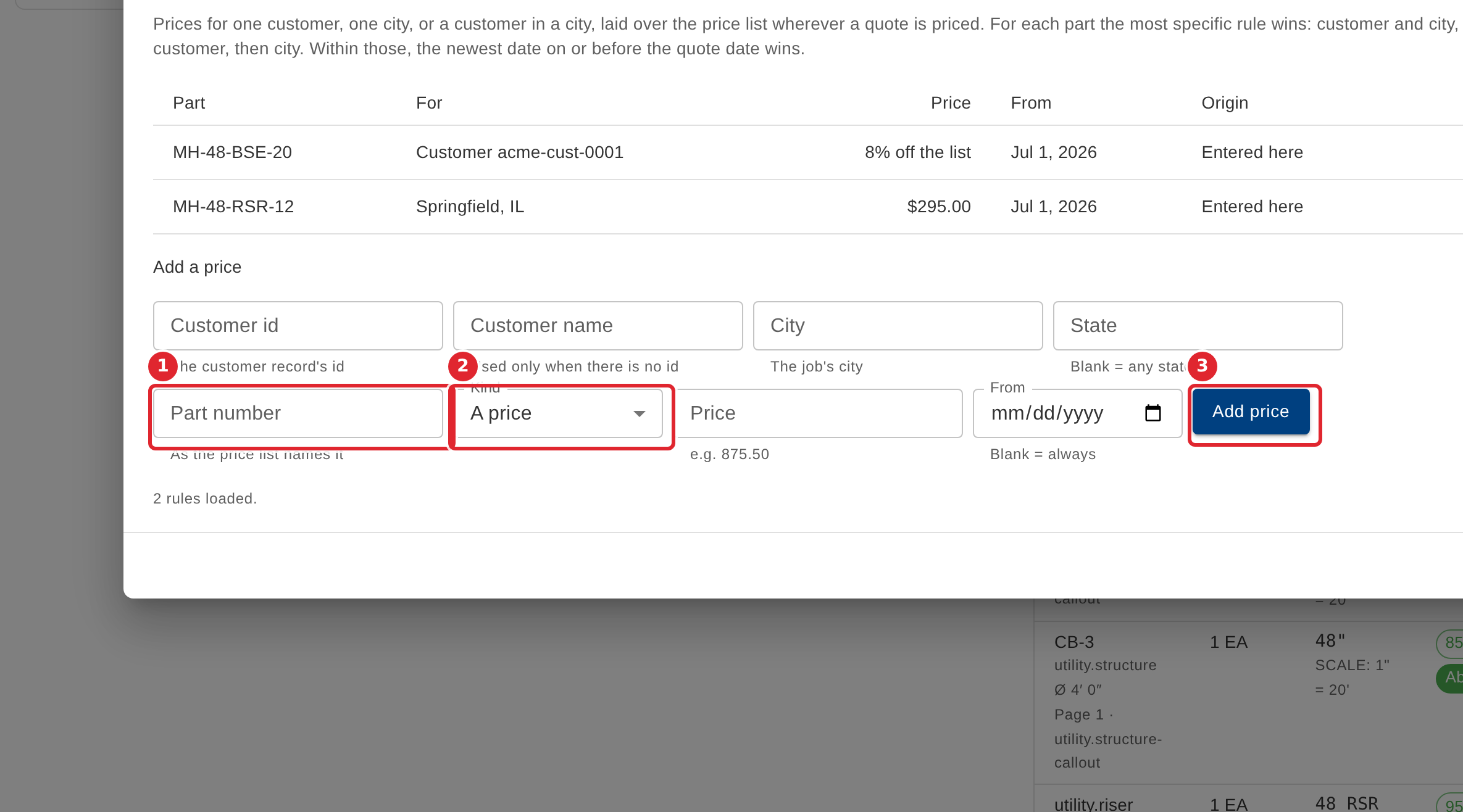
In the pictures, a numbered red box marks where to click or type. Where a picture has more than one box, the numbers give the order.
Customer prices lays prices for one customer, one city, or a customer in a city over the price list. The most specific rule wins: customer and city, then customer, then city.
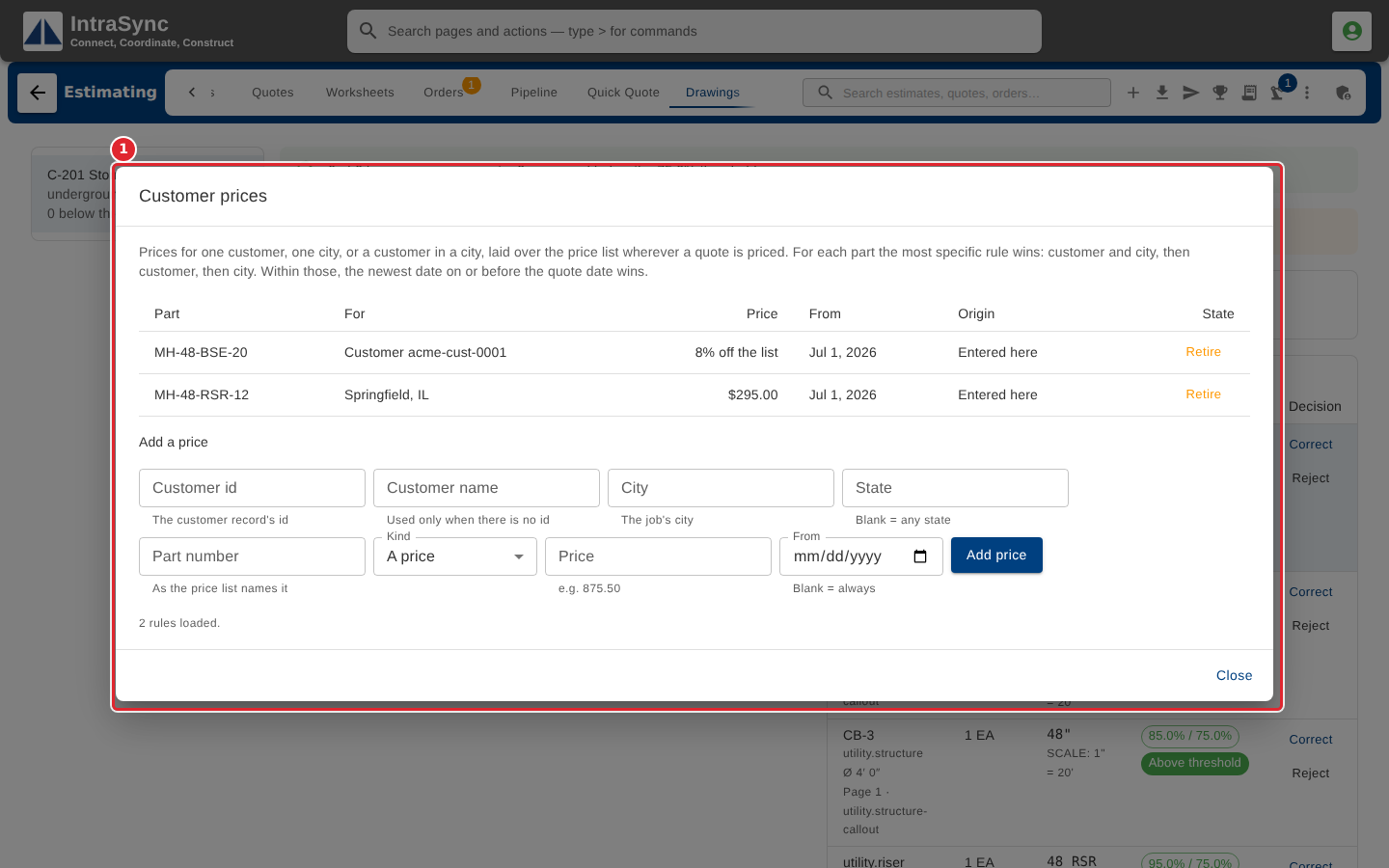
To add one, give the customer or the city, the part number as the price list names it, and either a price or a percentage on the list price (a negative percentage is a discount). Select Add price.
Tips
- A price needs a customer (an id or a name) or a city, and the part number the price list uses.
- A price of zero is refused: leave the part out instead.
- Among equally specific rules, the newest one dated on or before the quote date wins.