Find your way around Field Tracking
Know where each task lives before you start, so the crew's daily work takes a few taps.
Watch this in the video (0:03)
Before you start
- Your IntraSync account has Field Tracking access. Crew members see the daily tabs; managers and administrators also see Manage.
Steps
In the pictures, a numbered red box marks where to click or type. Where a picture has more than one box, the numbers give the order.
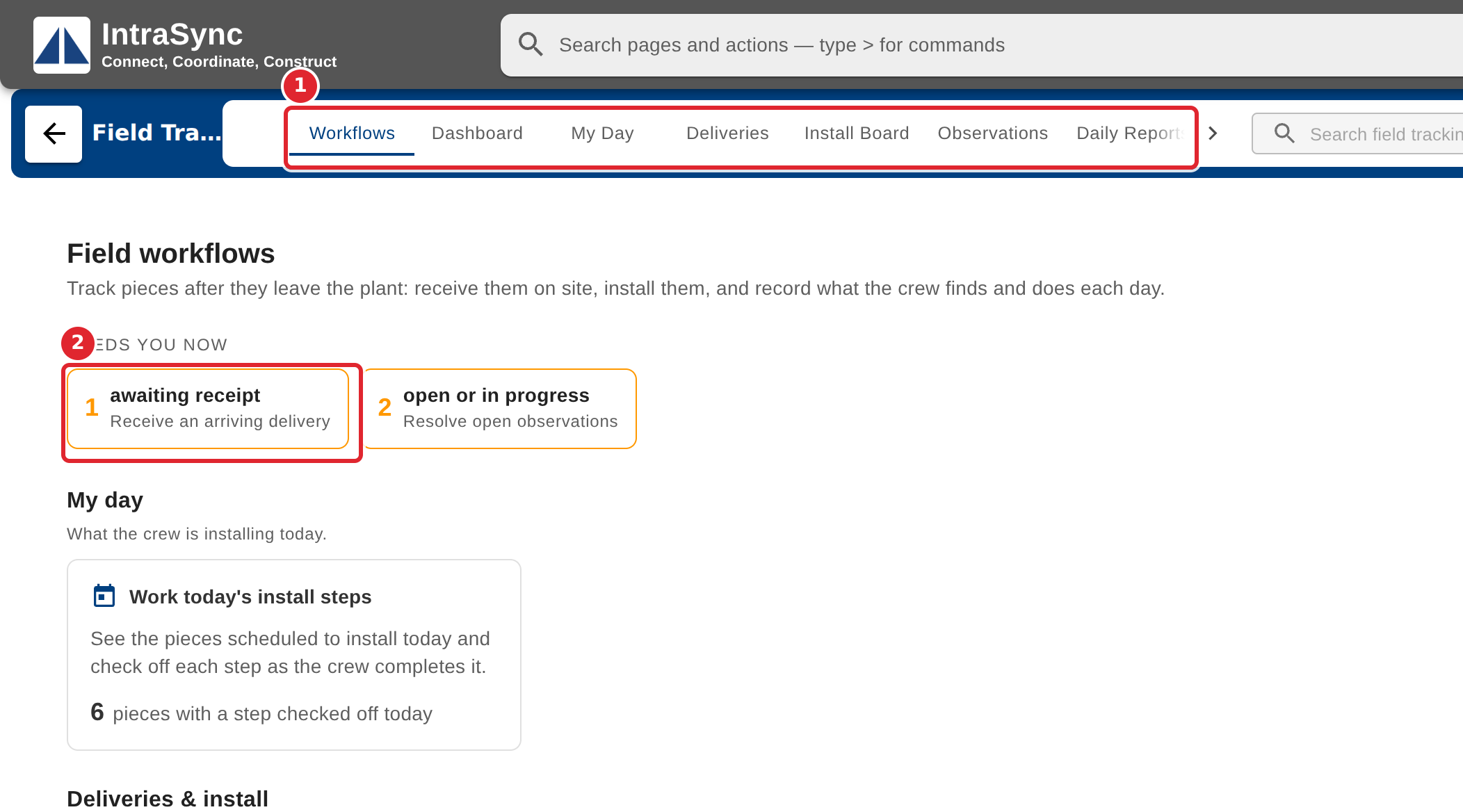
Open Field Tracking. It starts on Workflows: the jobs that need you now come first, then every workflow by stage.
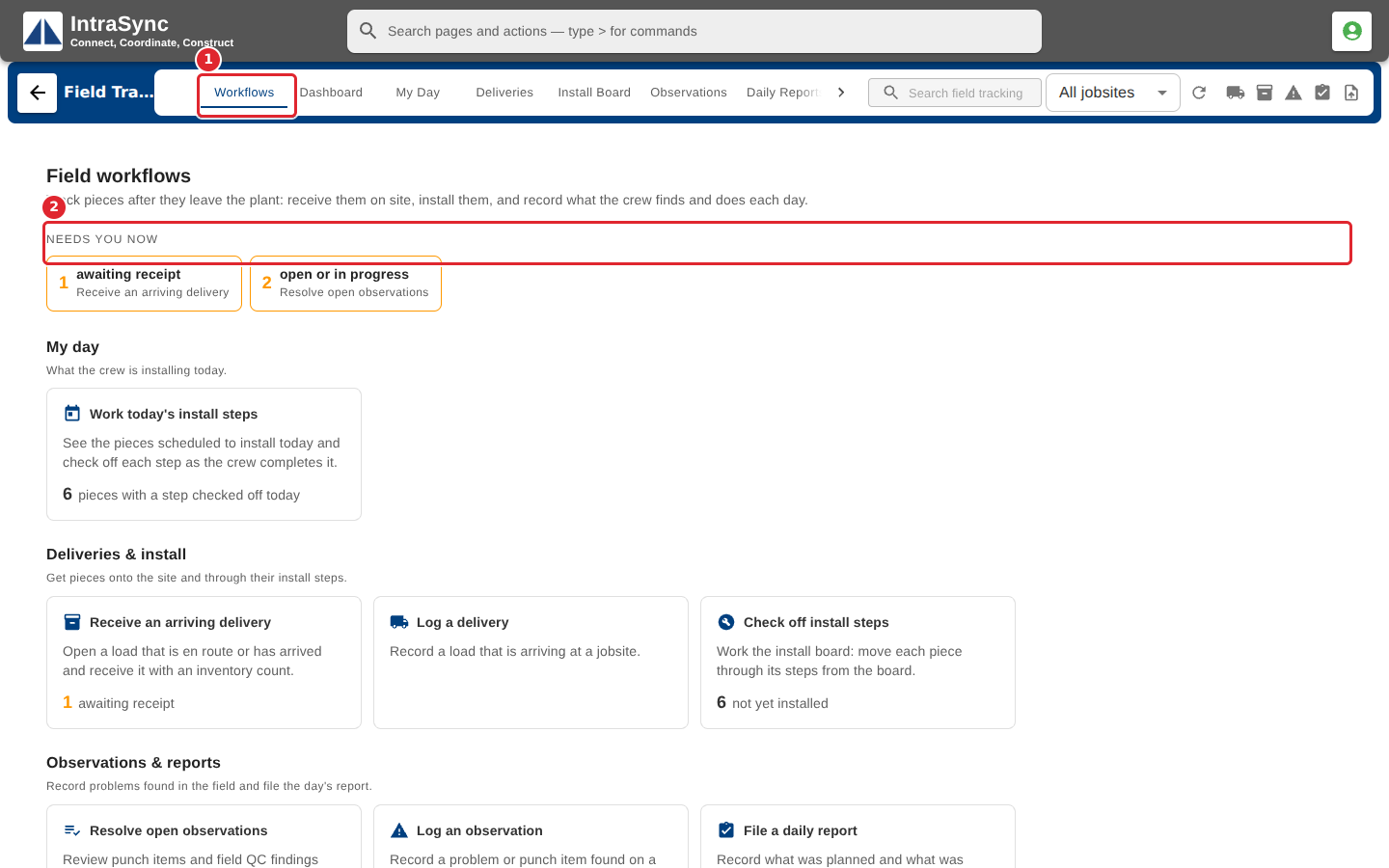
Use the tabs along the top to move between the hub's screens. Select a workflow card to jump straight to its screen.
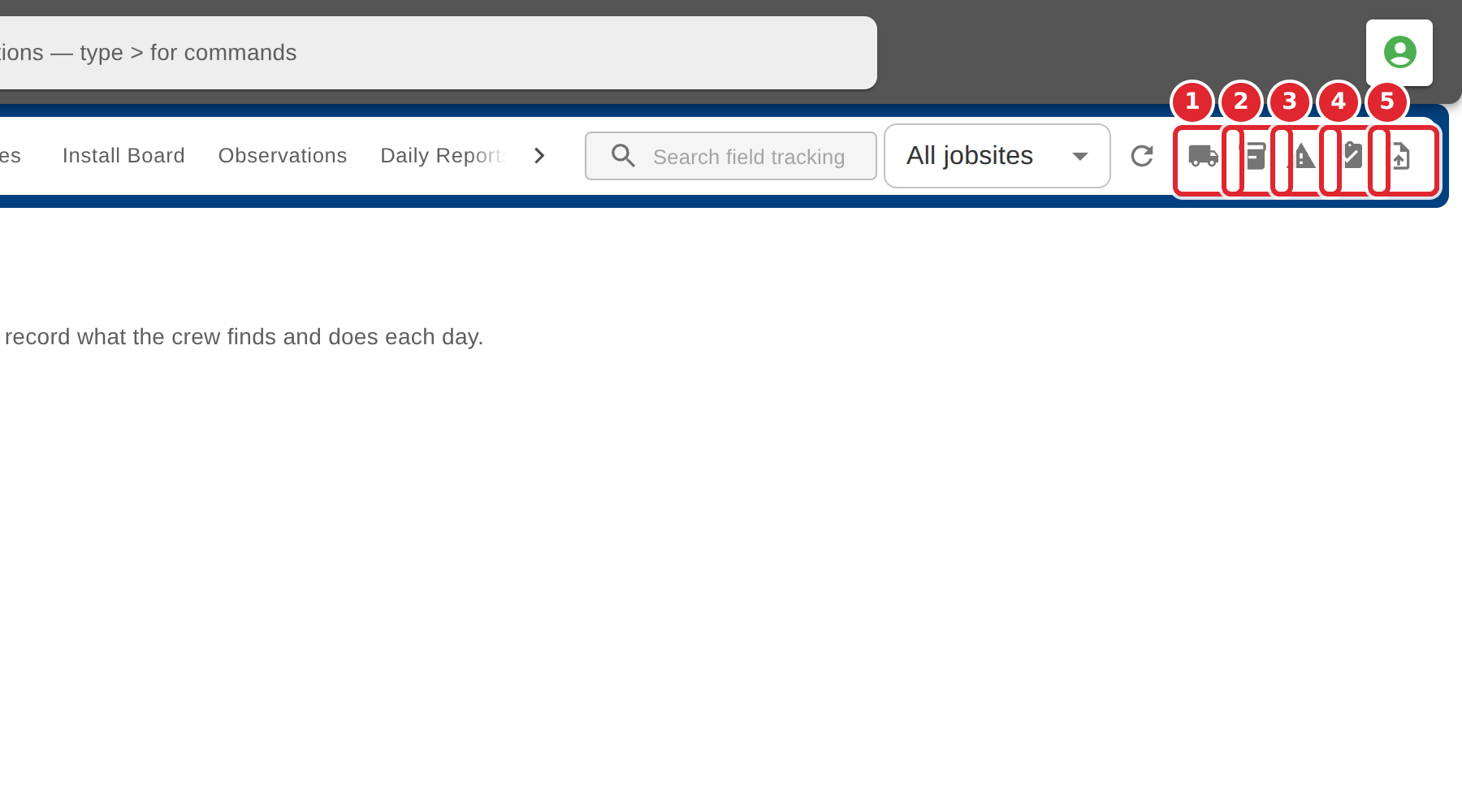
Use the quick-entry buttons in the header to log a delivery, receive a load, log an observation, start a daily report or upload a file from any screen.
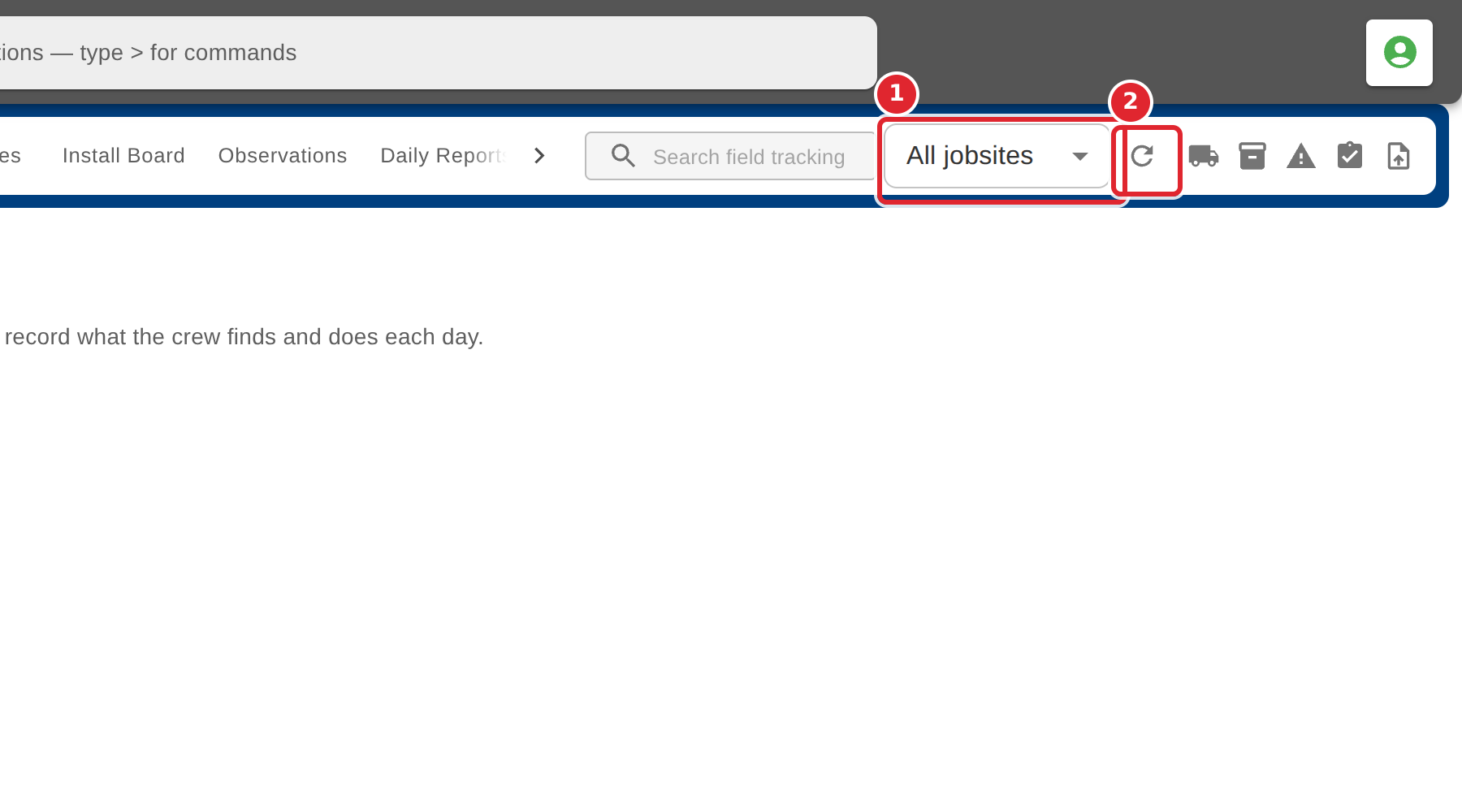
Choose a jobsite to narrow every screen to that site, or keep All jobsites. Select Refresh hub data to reload.
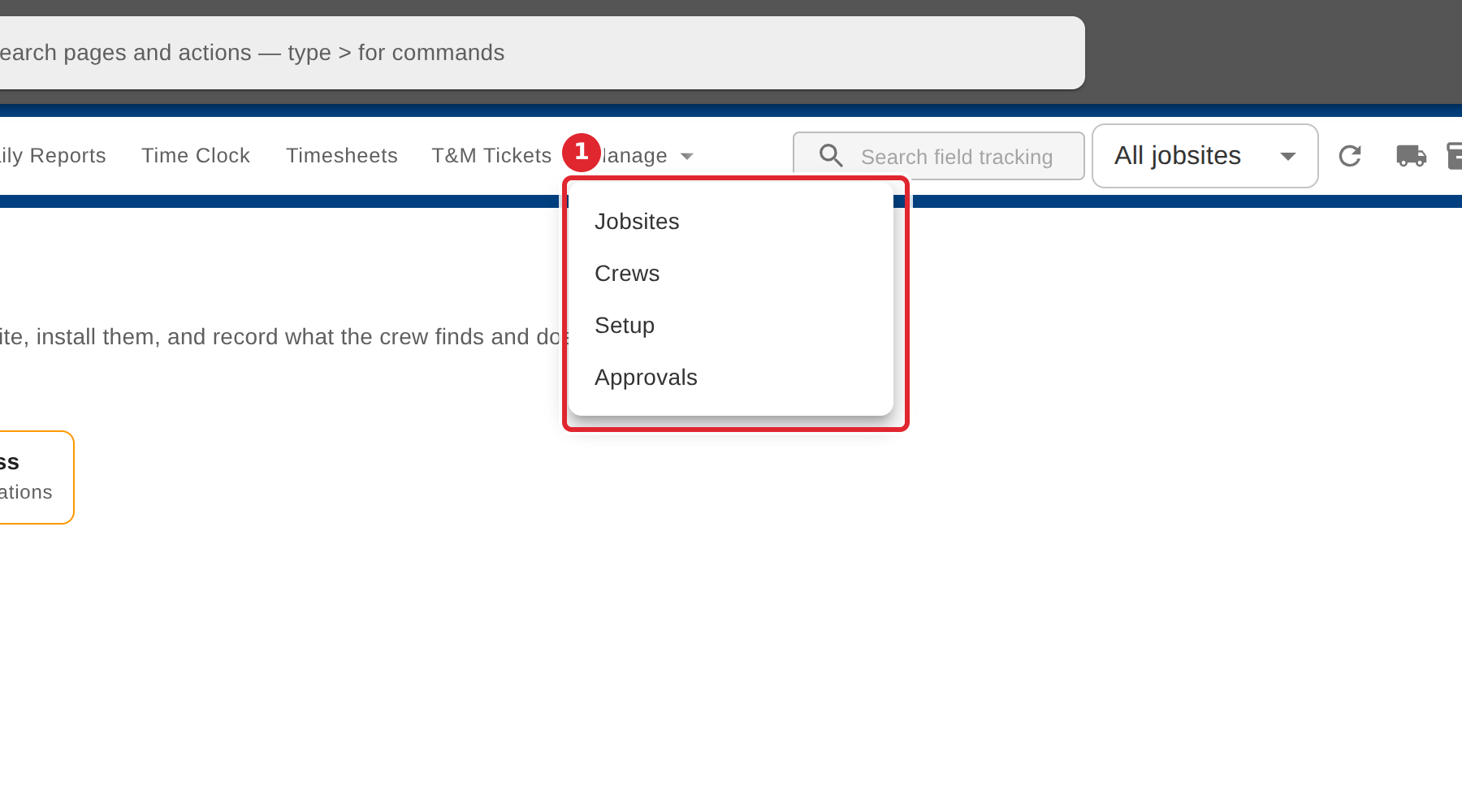
Managers open Manage for Jobsites, Crews, Setup and Approvals.
Tips
- On a narrower screen the tab strip scrolls sideways: use the arrow at its end to reach Time Clock, Timesheets, T&M Tickets and Manage.
- Time Clock, Timesheets and T&M Tickets appear only when your company has switched crew time or T&M tickets on (Manage > Setup > Time & T&M).