Field Tracking guide · section 22 of 22
Switch on crew time and T&M tickets
Decide whether your crews use the time clock, timesheets and T&M tickets, and how their periods work.
Before you start
- Manager or administrator access.
Steps
In the pictures, a numbered red box marks where to click or type. Where a picture has more than one box, the numbers give the order.
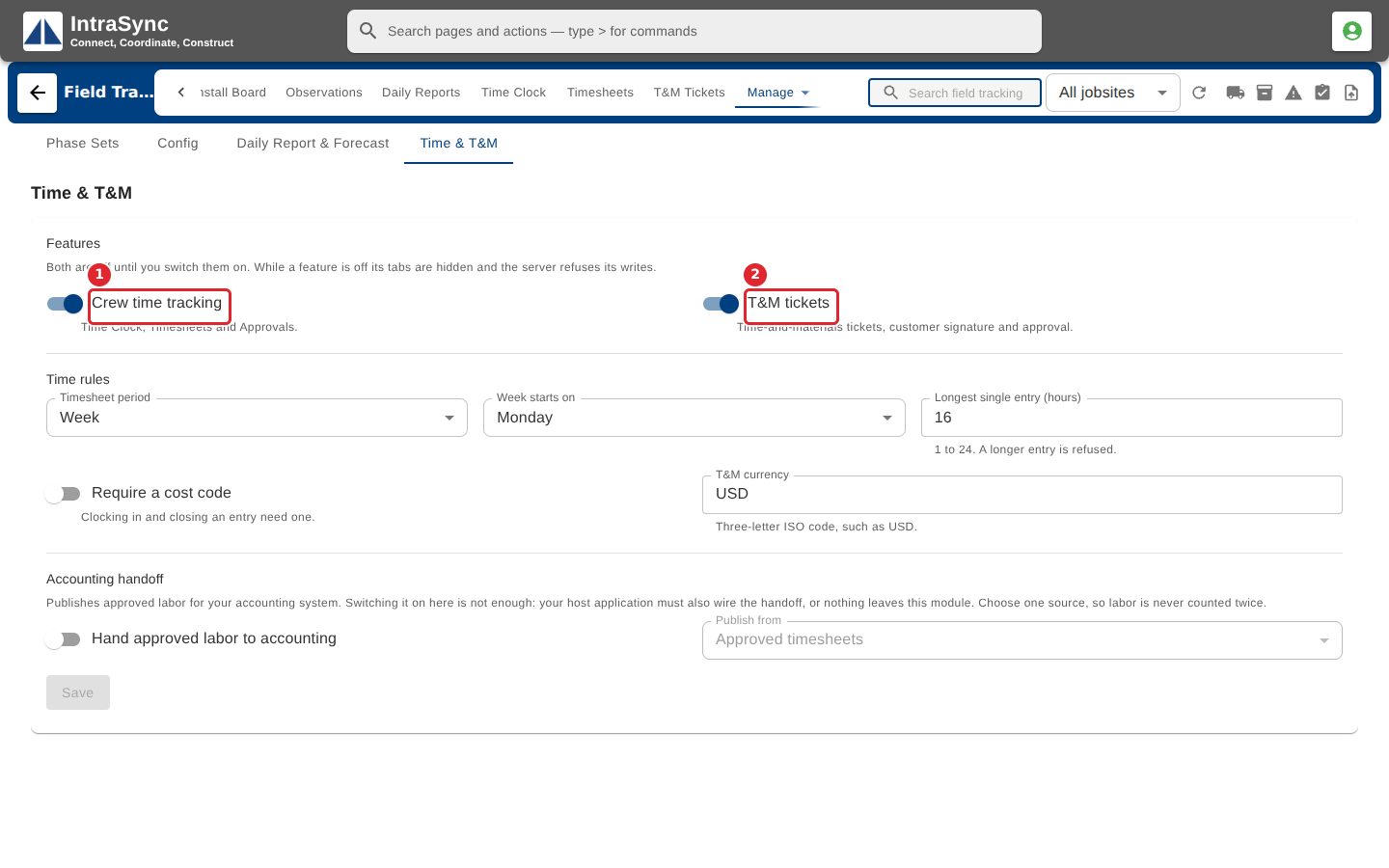
Select Time & T&M. Switch on Crew time tracking for the Time Clock and Timesheets, and T&M tickets for the T&M Tickets tab.
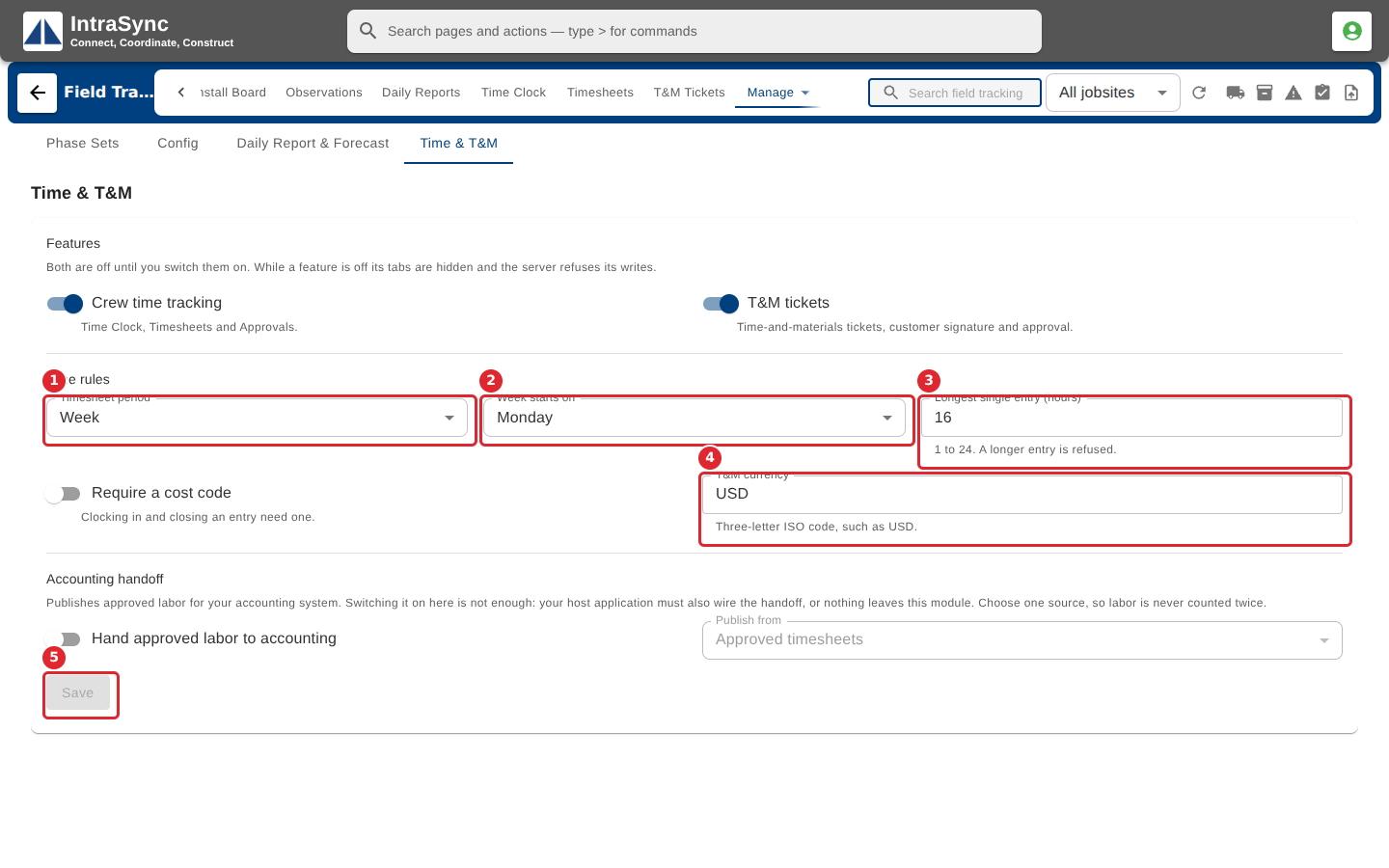
Set the timesheet period and the day the week starts, the longest single entry, whether a cost code is required, and the T&M currency. Select Save.
Tips
- Switching a feature off hides its tabs.
- The longest single entry is between one and twenty-four hours.
- The T&M currency is a three-letter code, such as USD.