Watch the team's sales work on the manager board
See across every salesperson where won orders are stuck, how big the prep backlog is, and who is carrying it.
Before you start
- Your company has the Sales Dashboard switched on.
- The department-wide figures need the permission "See the sales manager dashboard figures", given to sales managers by default. Without it, those widgets say the figure is unavailable.
Steps
In the pictures, a numbered red box marks where to click or type. Where a picture has more than one box, the numbers give the order.
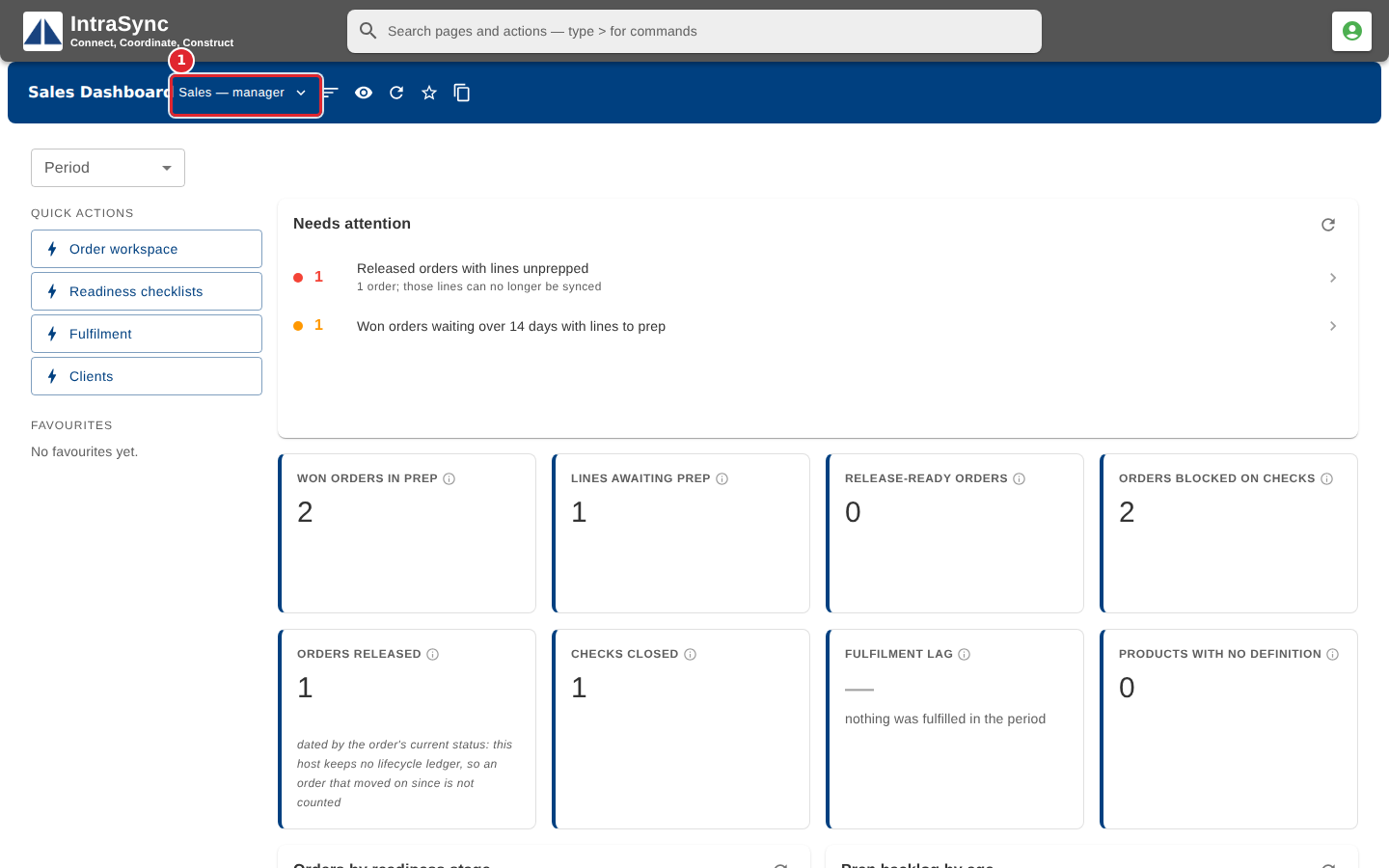
A sales manager opens the Sales — manager board. Use the board picker to switch between the boards you can see.
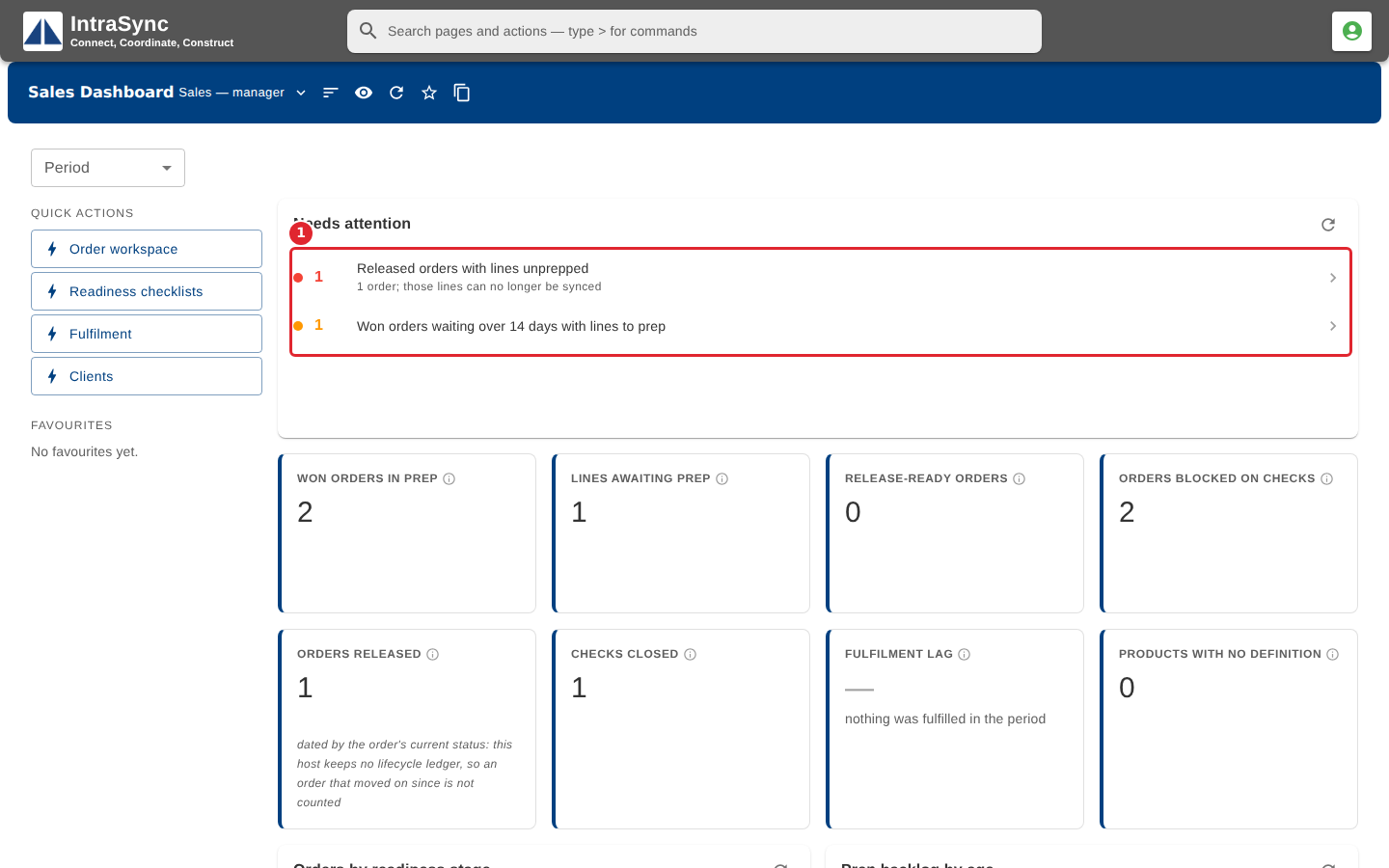
Needs attention lists what is going wrong across the team's orders, such as released orders with lines still unprepped, or won orders waiting too long for prep.
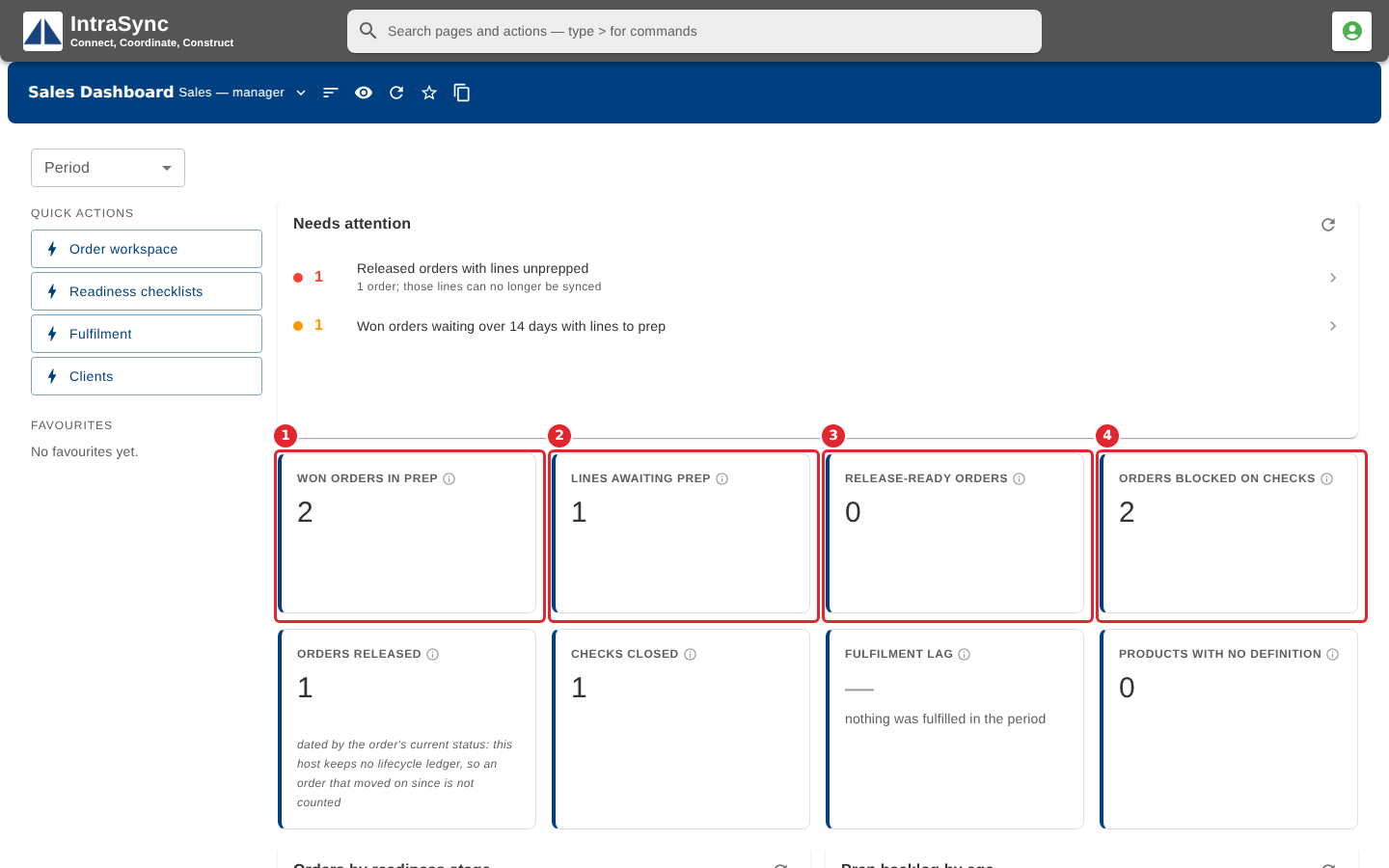
The tiles count the whole team's work: orders in prep, lines awaiting prep, orders ready to release and orders blocked on checks.
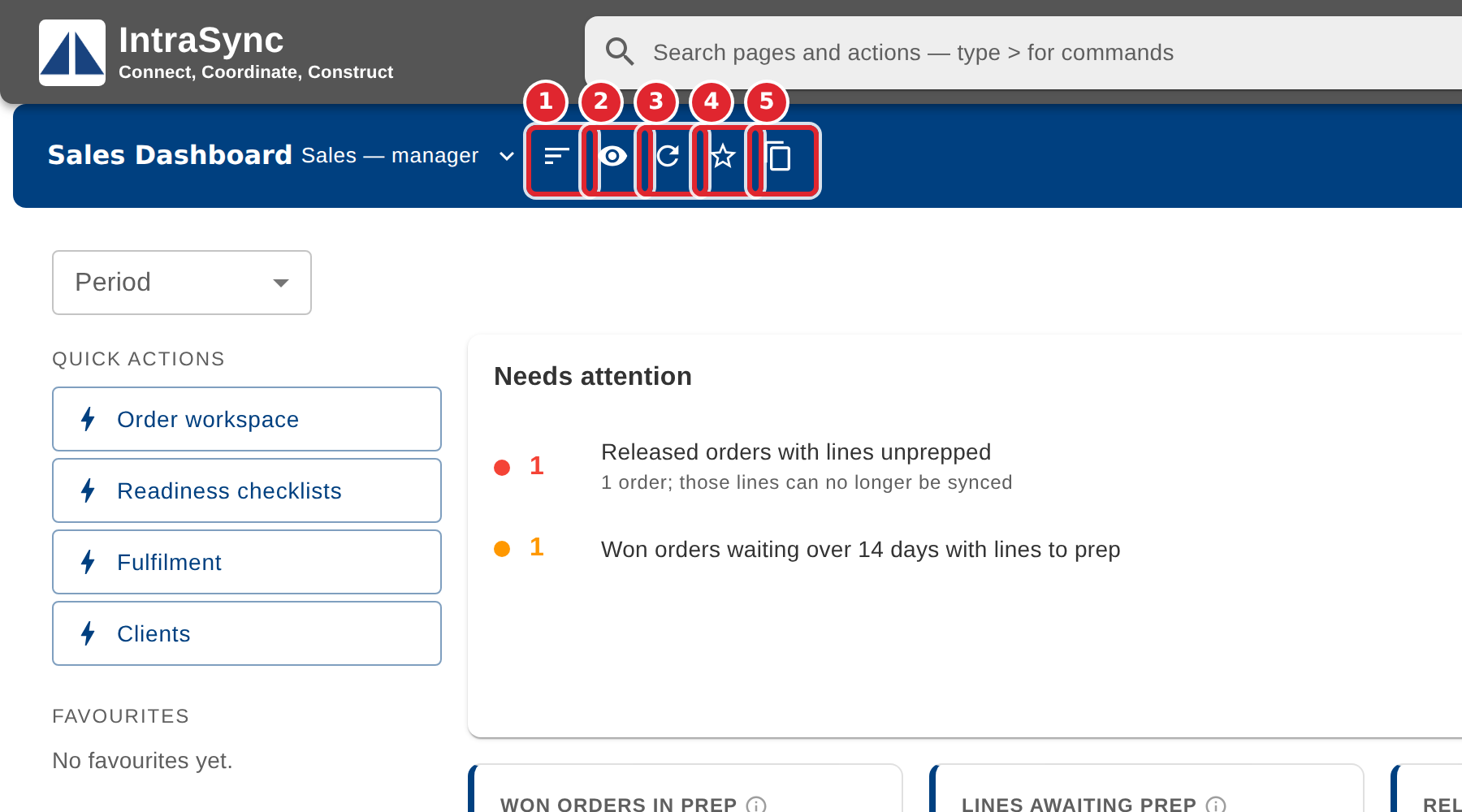
The buttons beside the board name sort the widgets worst first, choose which widgets you see, refresh them all, make this your default board, or make your own copy.
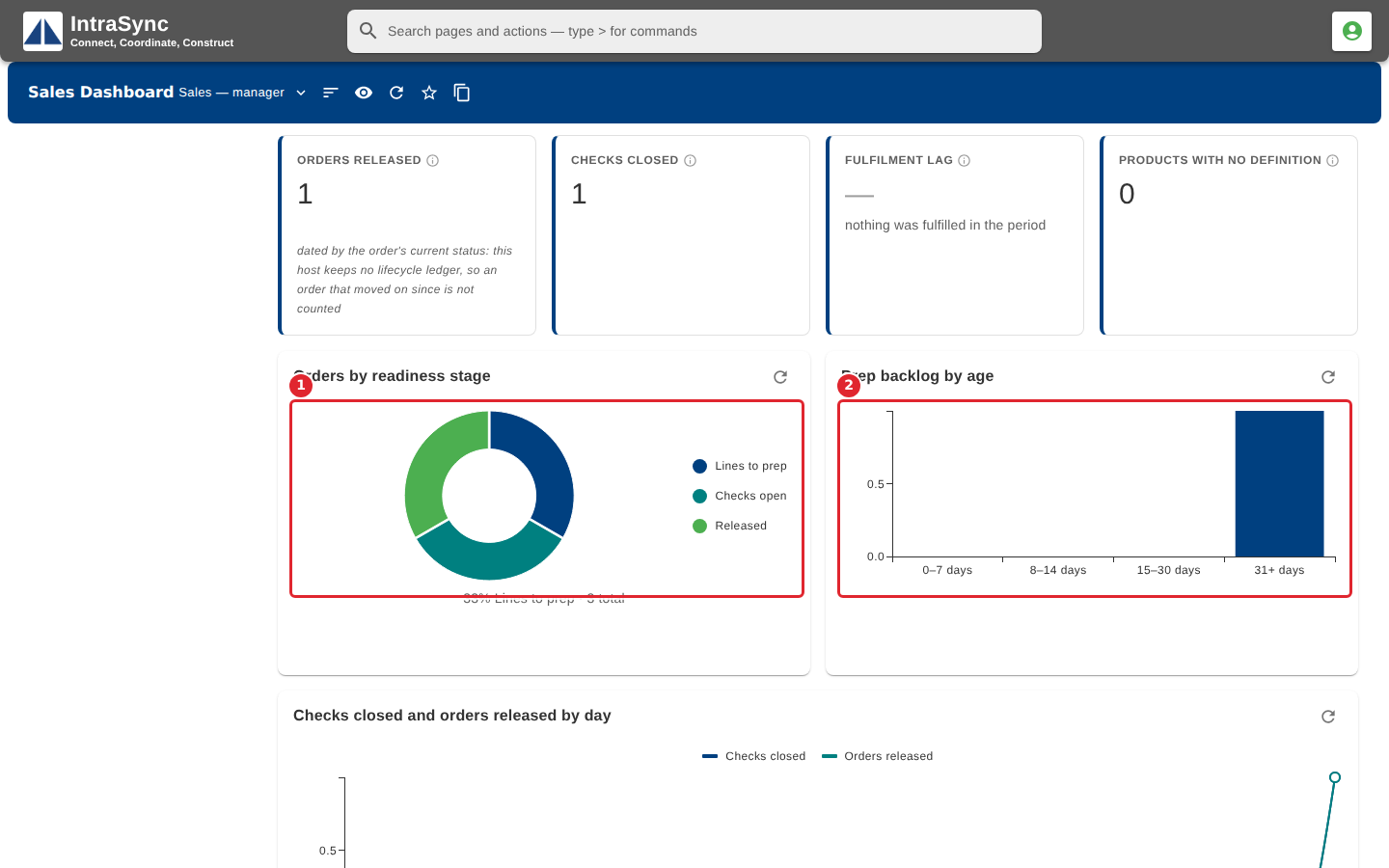
The charts show where the team's orders are: by readiness stage, and the prep backlog by age.
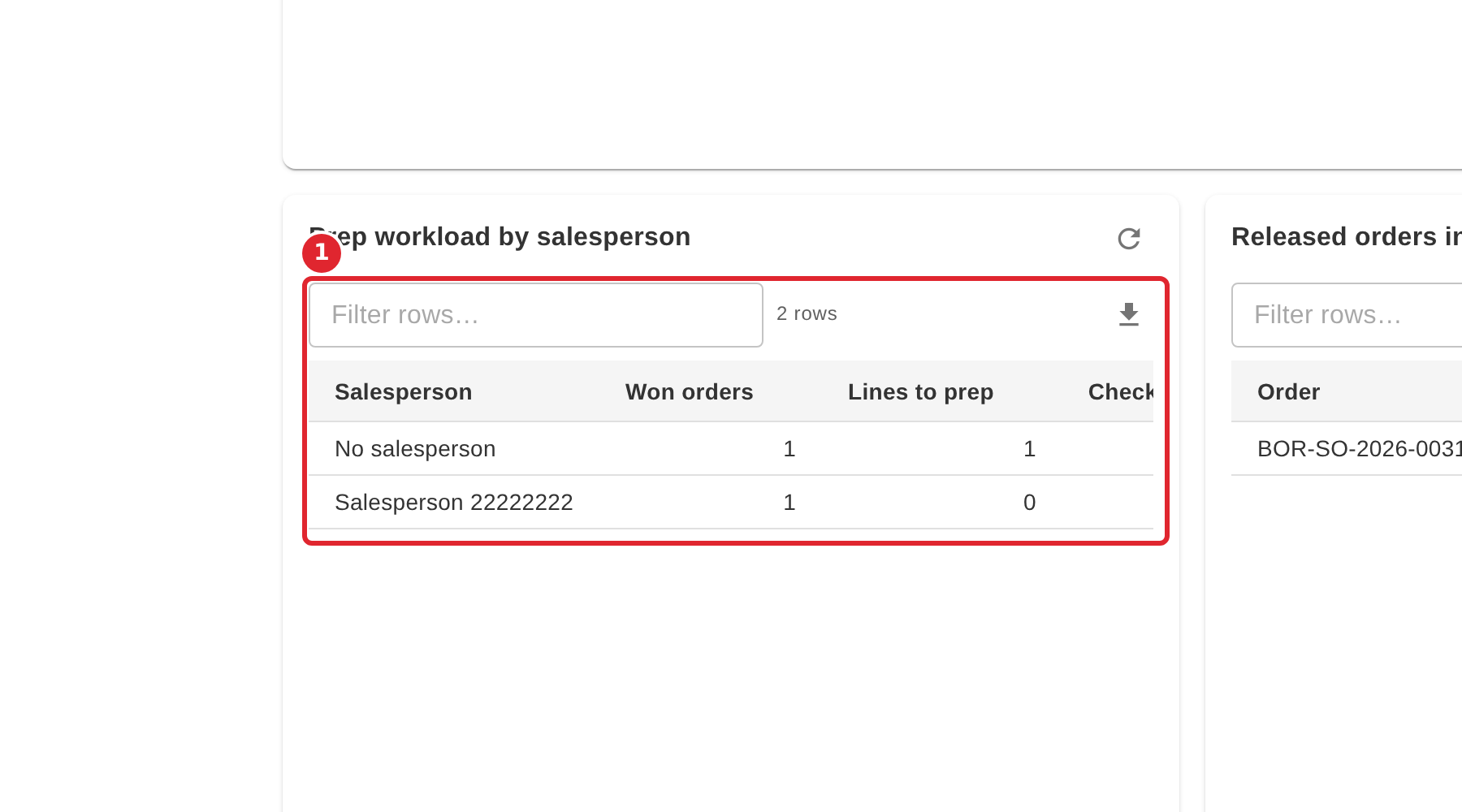
Prep workload by salesperson shows each person's won orders, lines to prep, open checks, release-ready orders and orders on hold.
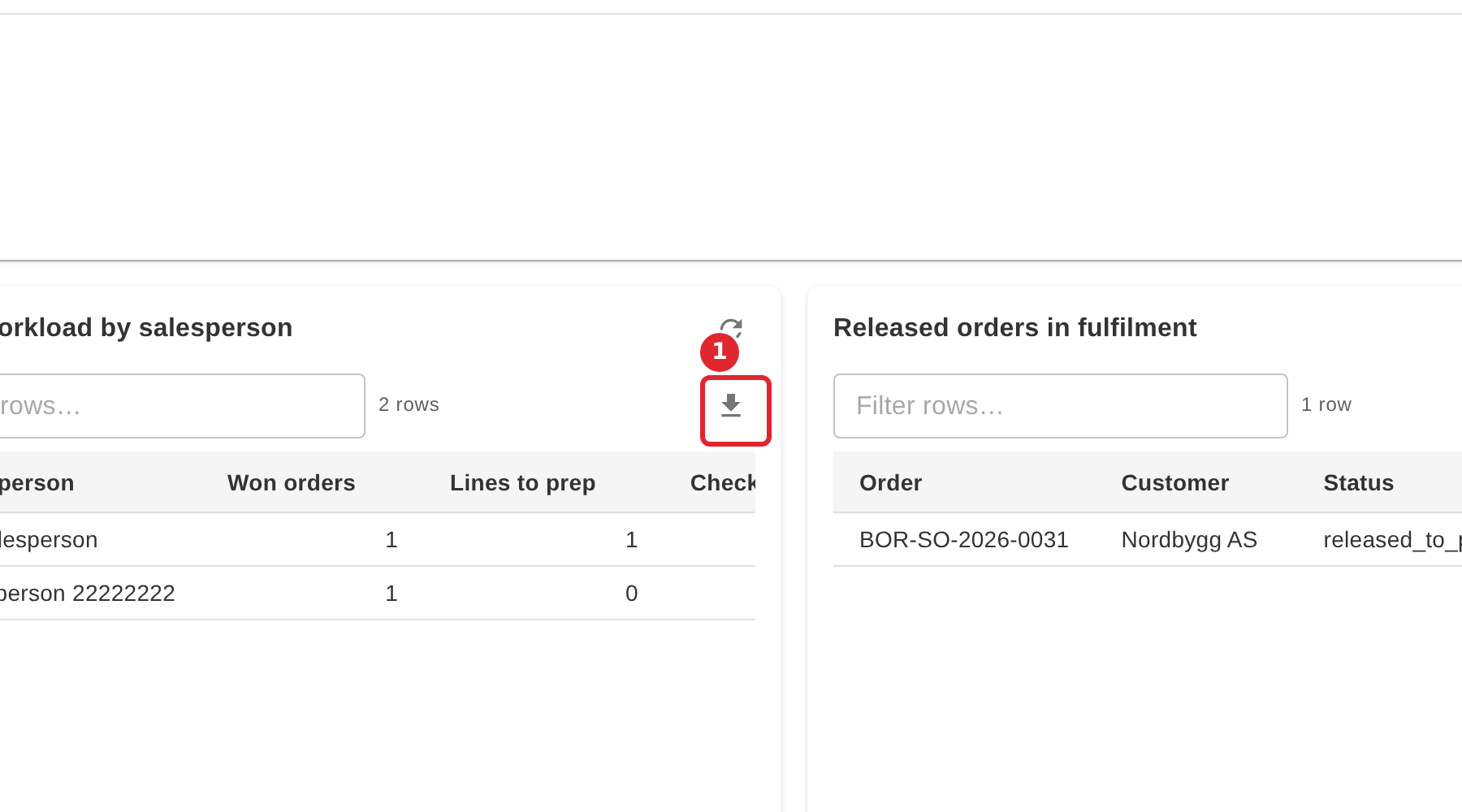
To take a table's rows into a spreadsheet, select its download button.
Tips
- Make my own copy makes a copy of the board that is yours. The shared board stays as it was.
- Refresh all widgets reloads every figure at once. Each widget also has its own refresh button.