Work with orders your own system keeps
Some companies keep their orders in their own order screens. Sales then reads those orders, so you can find them and follow them through production, but it changes none of them and keeps no prep or readiness records for them. This section shows what is different.
Before you start
- Your company keeps its orders in its own system, and Sales is set up to read them there. If your orders do not show "In this system" beside their status, none of this applies to you.
Steps
In the pictures, a numbered red box marks where to click or type. Where a picture has more than one box, the numbers give the order.
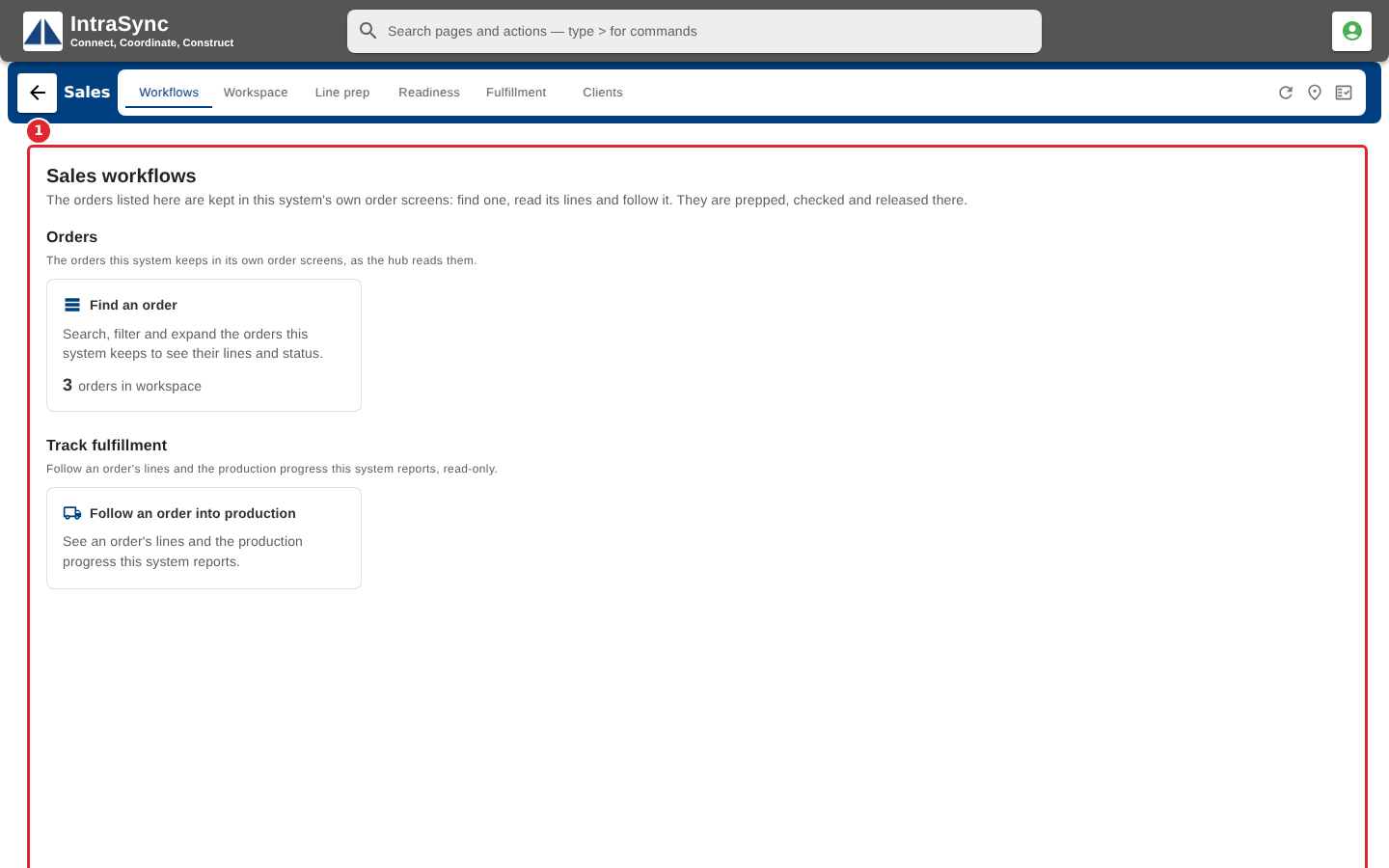
Open Sales. When your orders are kept in your own system, Workflows says so, and offers only the work Sales can do on them: finding an order and following its fulfillment.
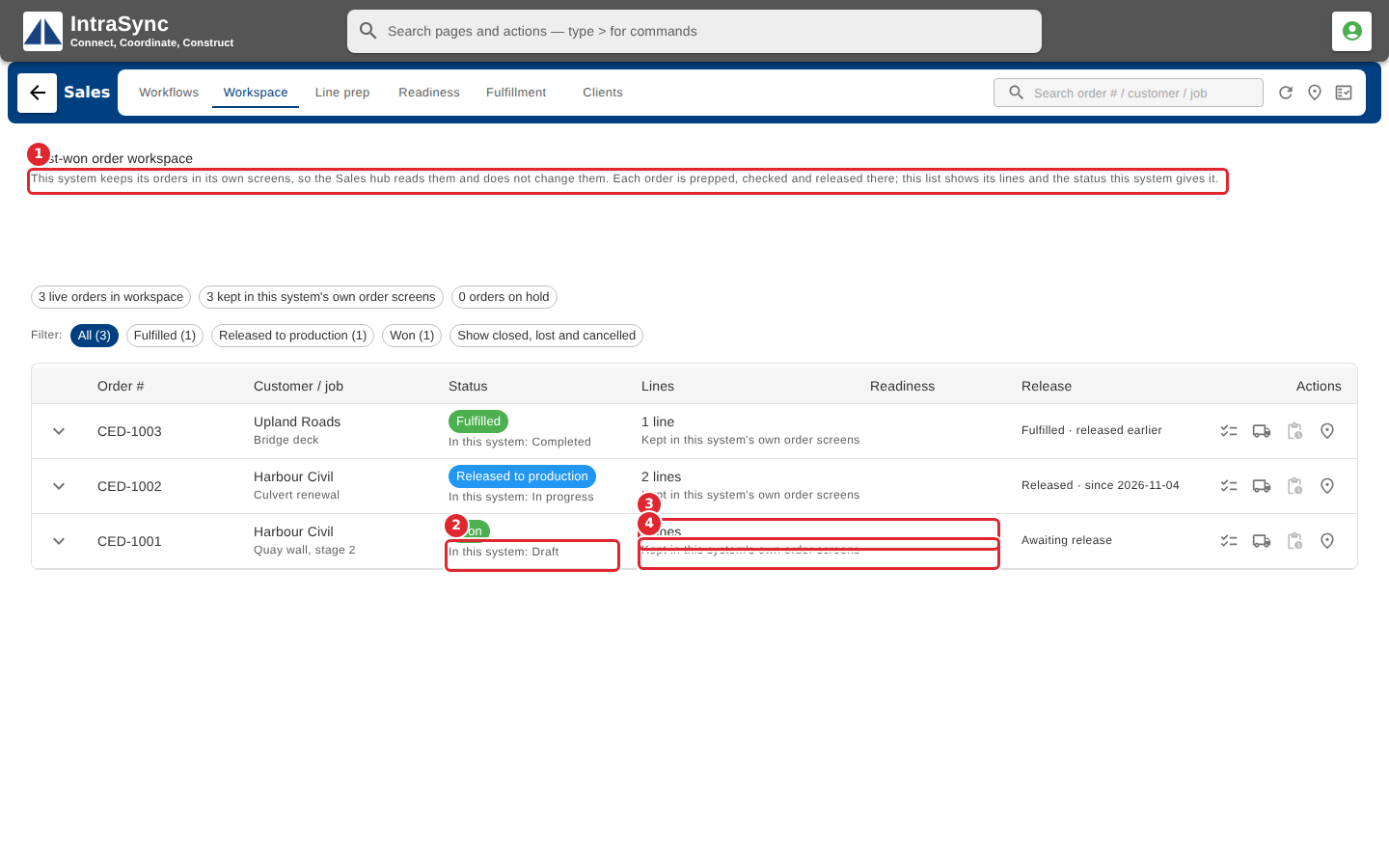
Select Workspace. A note above the list says Sales reads these orders and does not change them. Each order shows its stage in Sales, your system's own status beside it, its number of lines, and that it is kept in your system's own order screens.
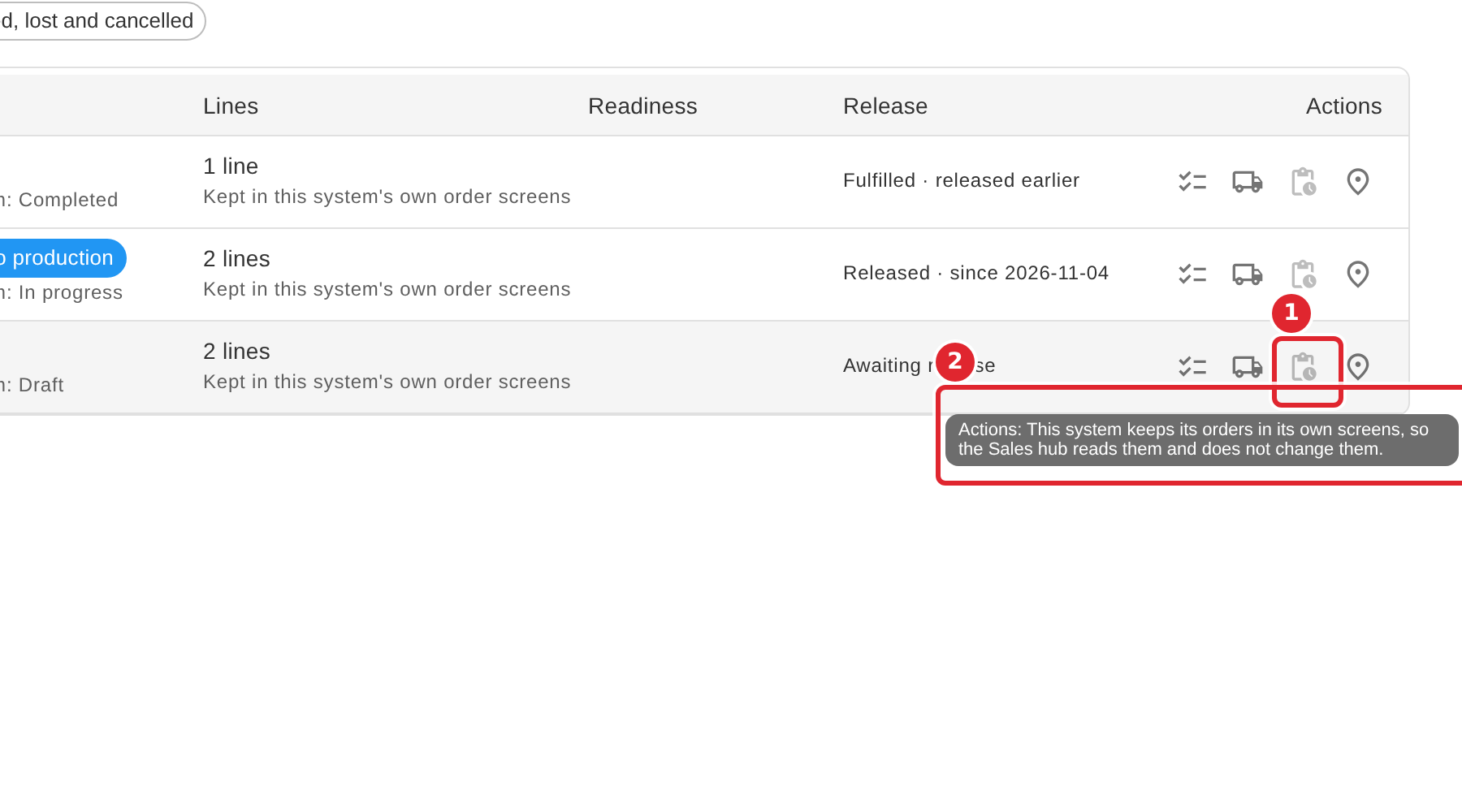
The order's Actions button is off. Point at it to read why: your system keeps its orders in its own screens.
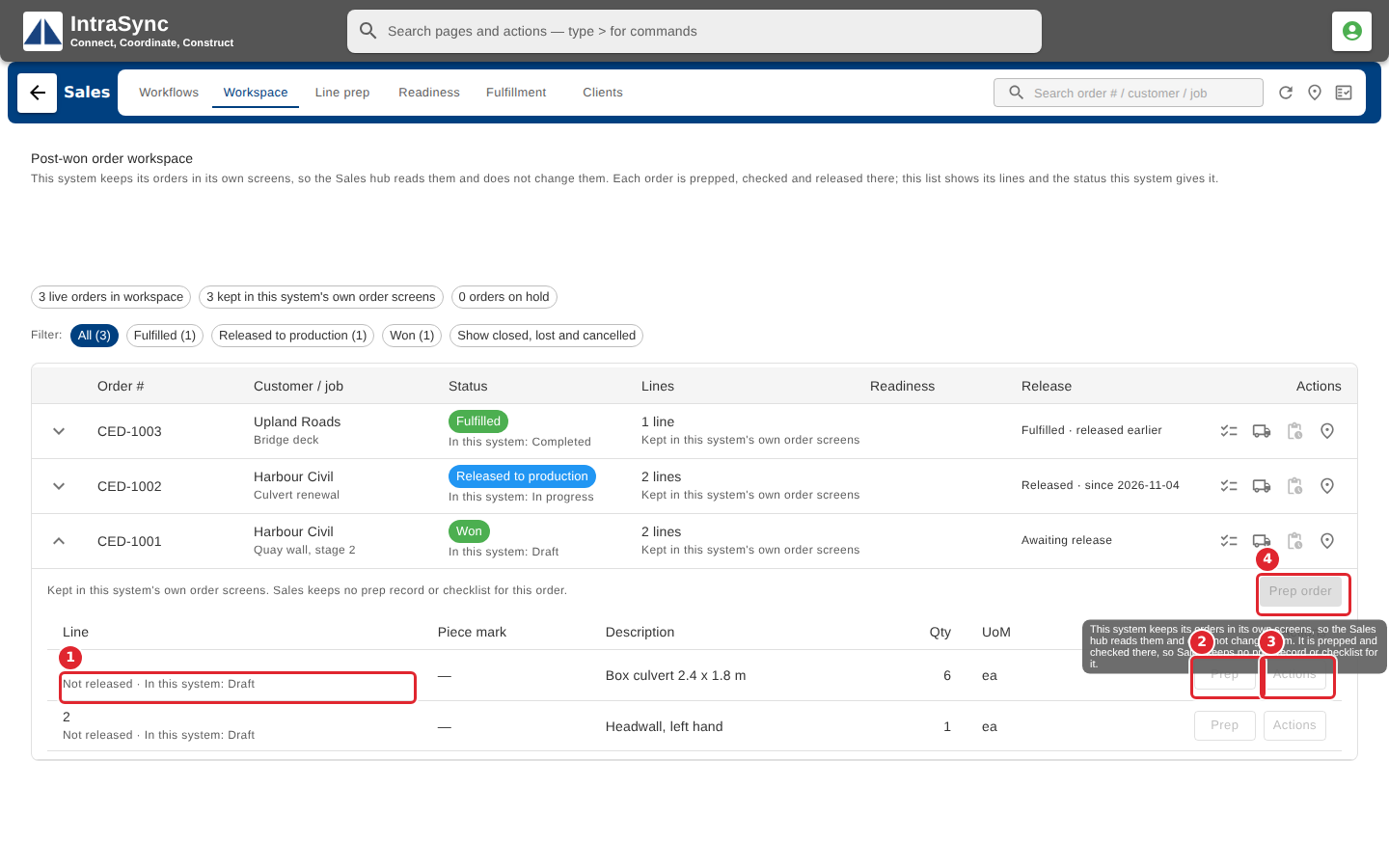
Expand the order. Each line shows its status in Sales and in your system. Prep, the line's Actions and Prep order are off: these orders are prepped and checked in your own system, so Sales keeps no prep record or checklist for them. Point at a button to read why.
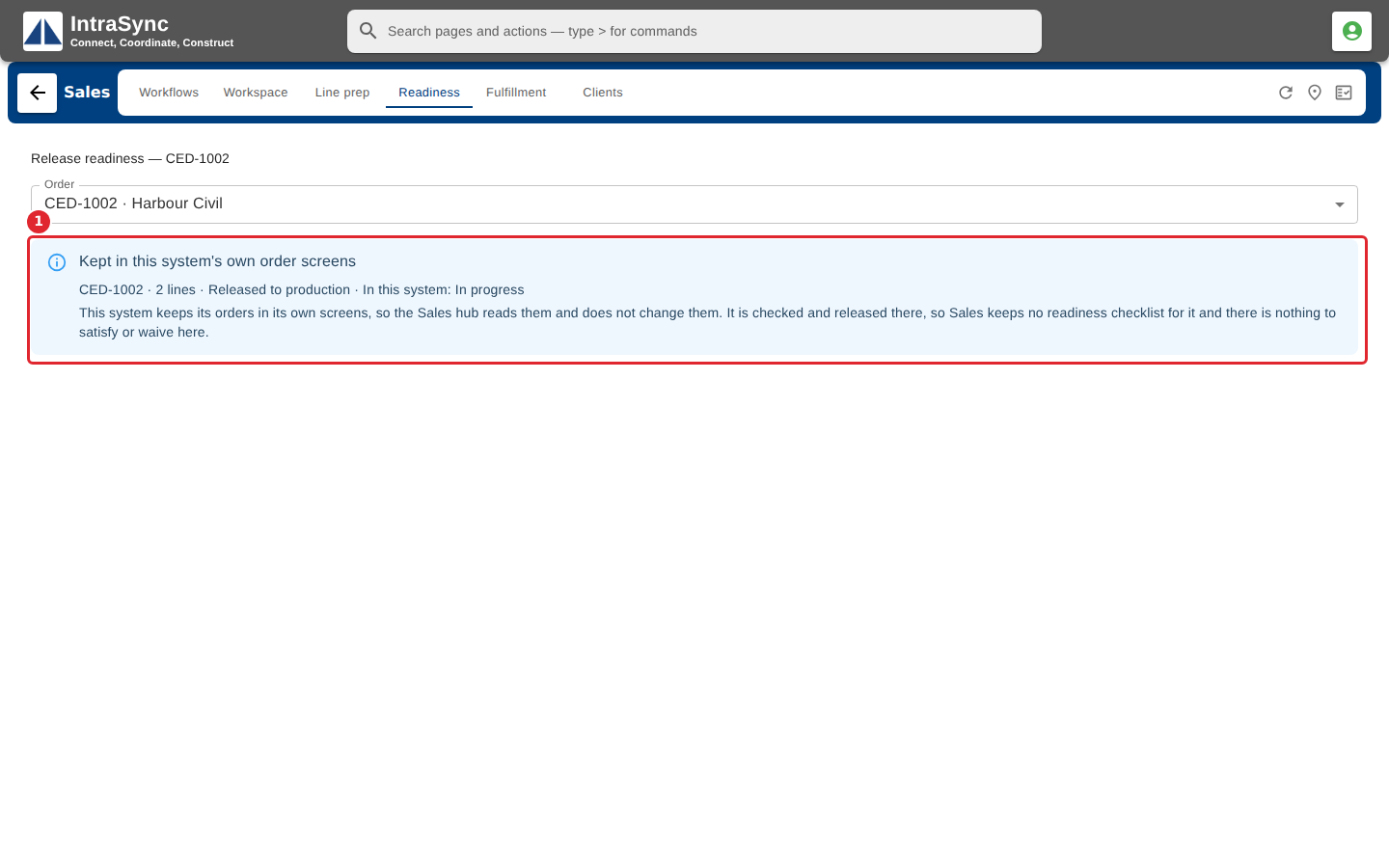
Select Readiness on an order. In place of a checklist, a notice names the order, its lines and both statuses, and says the order is checked in your own system.
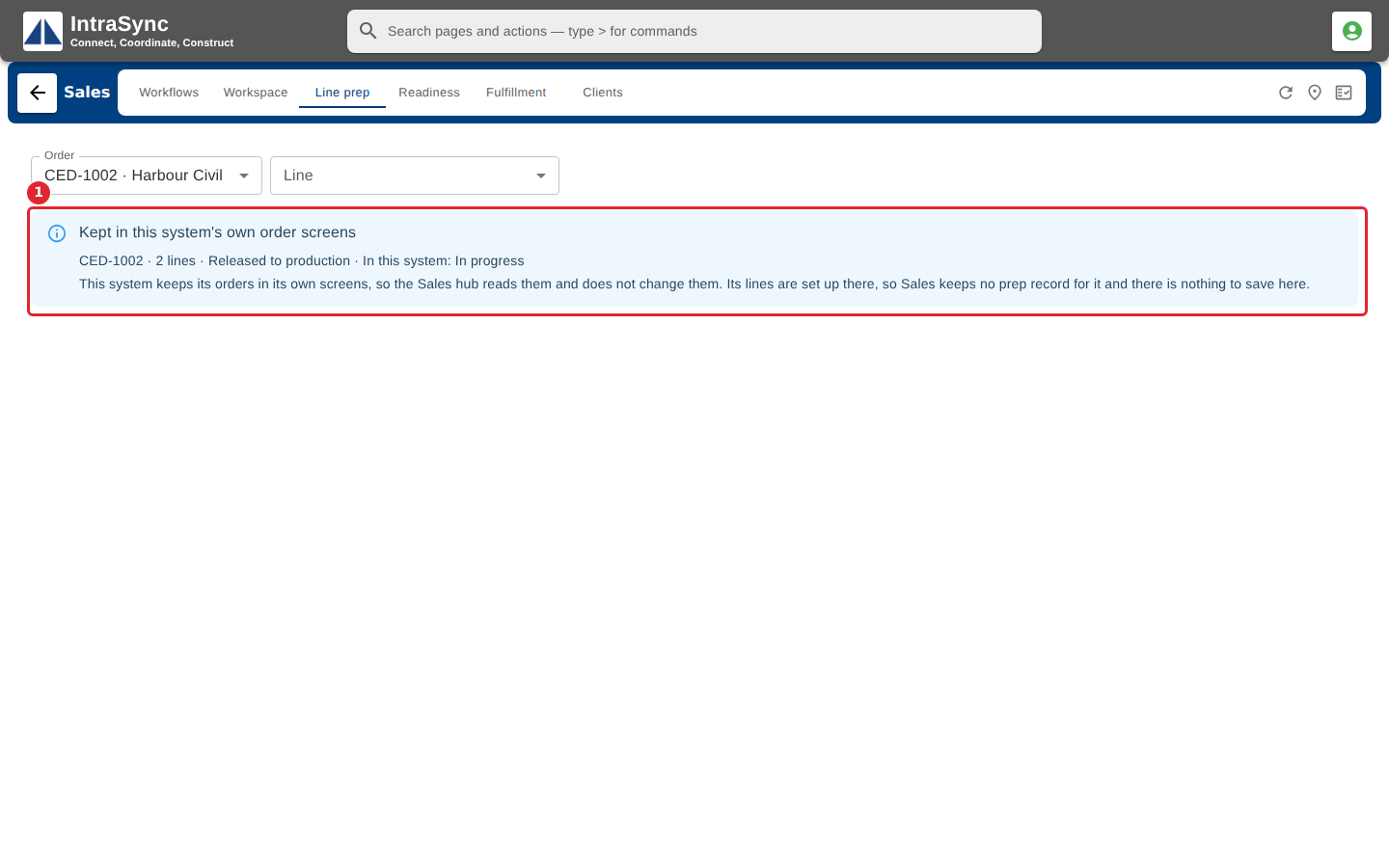
Line prep shows the same kind of notice, and no prep form.
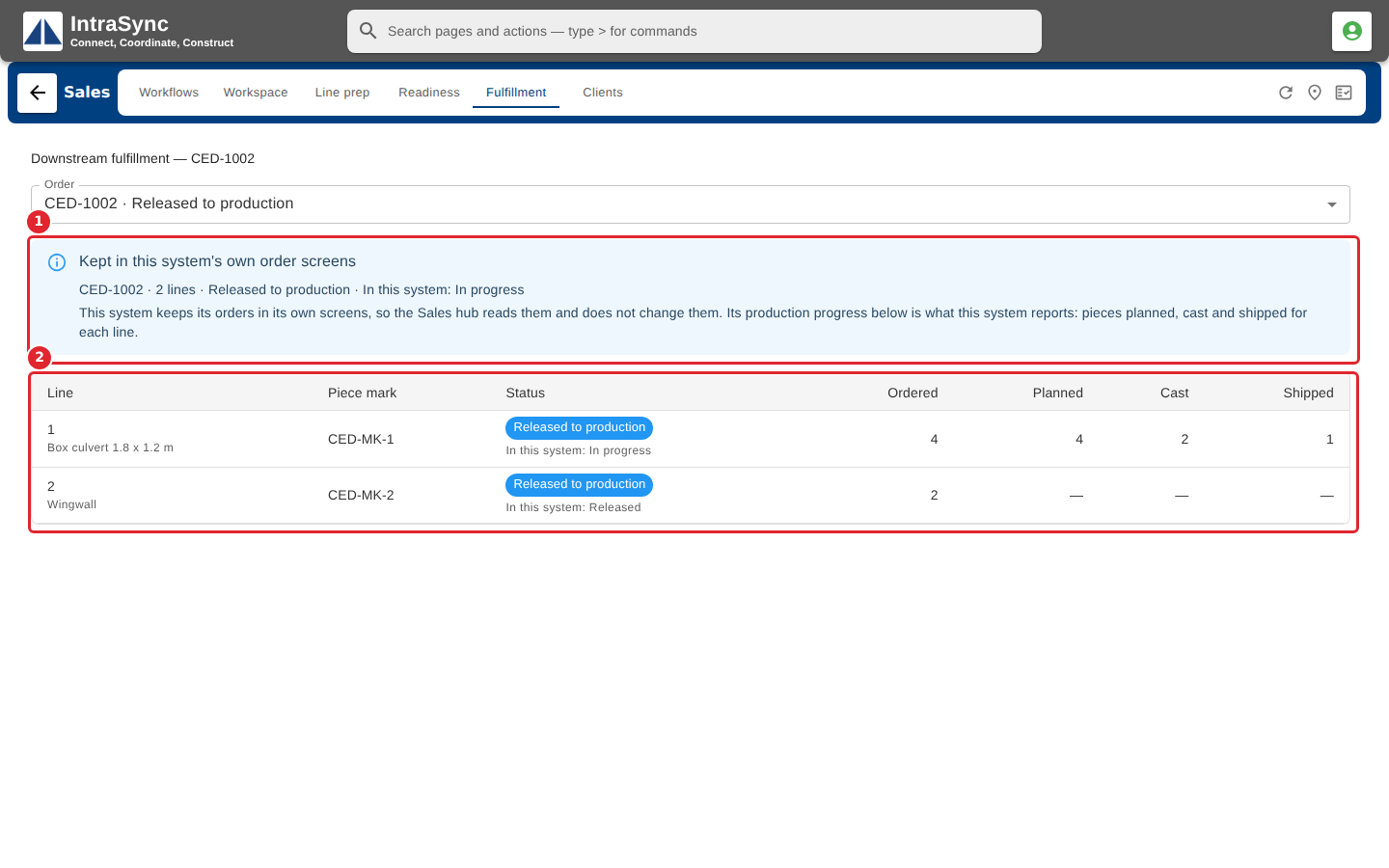
Select Fulfillment. Each line shows the pieces planned, cast and shipped as your system reports them. A dash means your system reports nothing for that line yet.
Tips
- On these orders Sales does not hold, resume, cancel or mark an order lost, and it does not prep, sync or check lines. Do that work in your own system's order screens.
- Opening these orders in Sales changes nothing in your system.
- Your system decides which of its orders Sales lists. An order it leaves out is not shown in the Workspace at all.
- Each button that is off carries its reason for screen readers too, so you do not need to point at it to find out why.