Accounting guide · section 10 of 28
Approve and send several invoices at once
Approve a batch of invoices and send them to customers in one go, instead of one at a time.
Watch this in the video (0:39)
Before you start
- The invoices exist (see Invoice a customer).
- Your company has turned on Bulk approve & send invoices in Settings > Module Features, under Sales / AR.
Steps
In the pictures, a numbered red box marks where to click or type. Where a picture has more than one box, the numbers give the order.
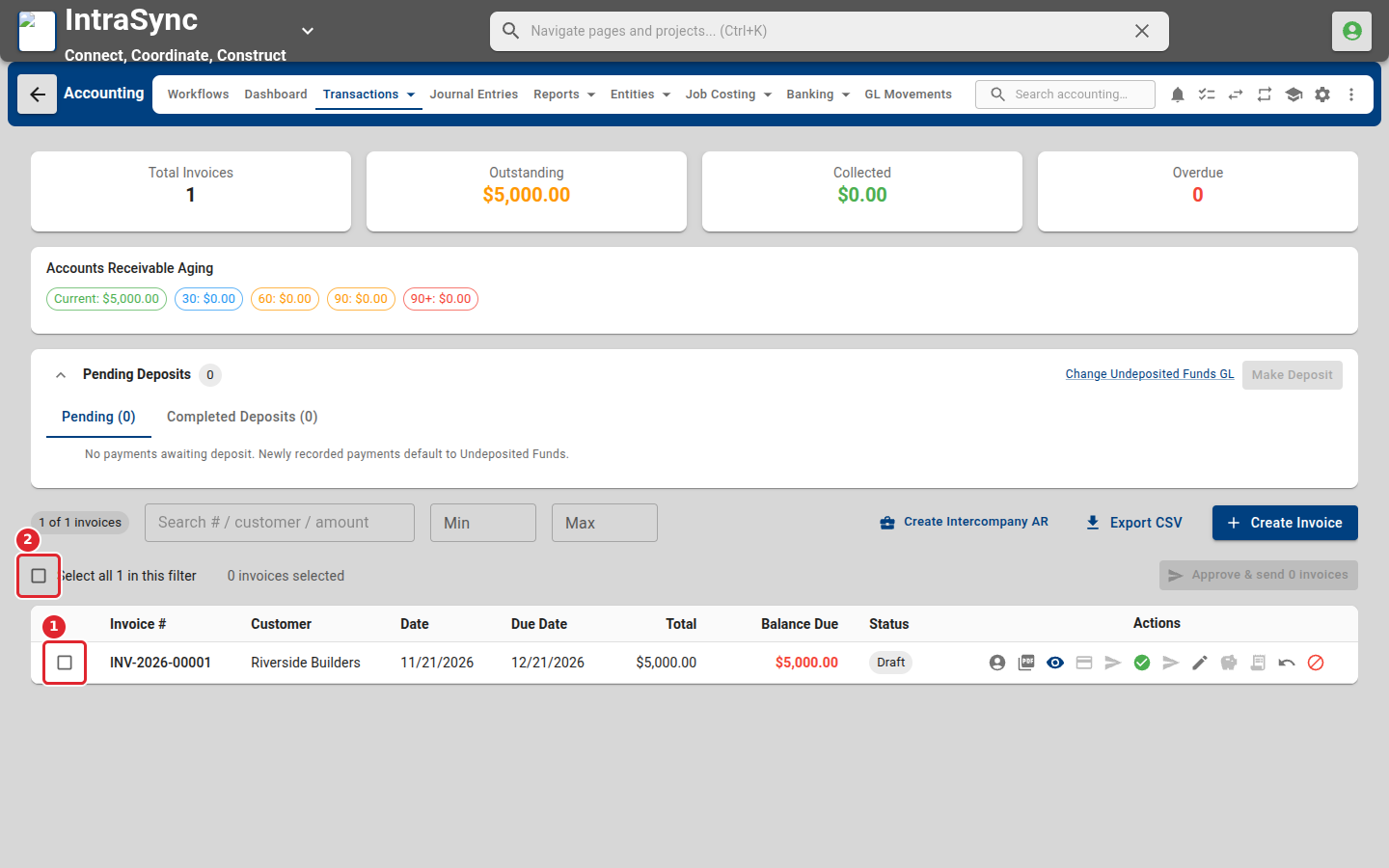
Select Transactions > Sales > Invoices. Tick each invoice to approve and send, or tick the box above the list to take every invoice in the filter that can be approved or sent.
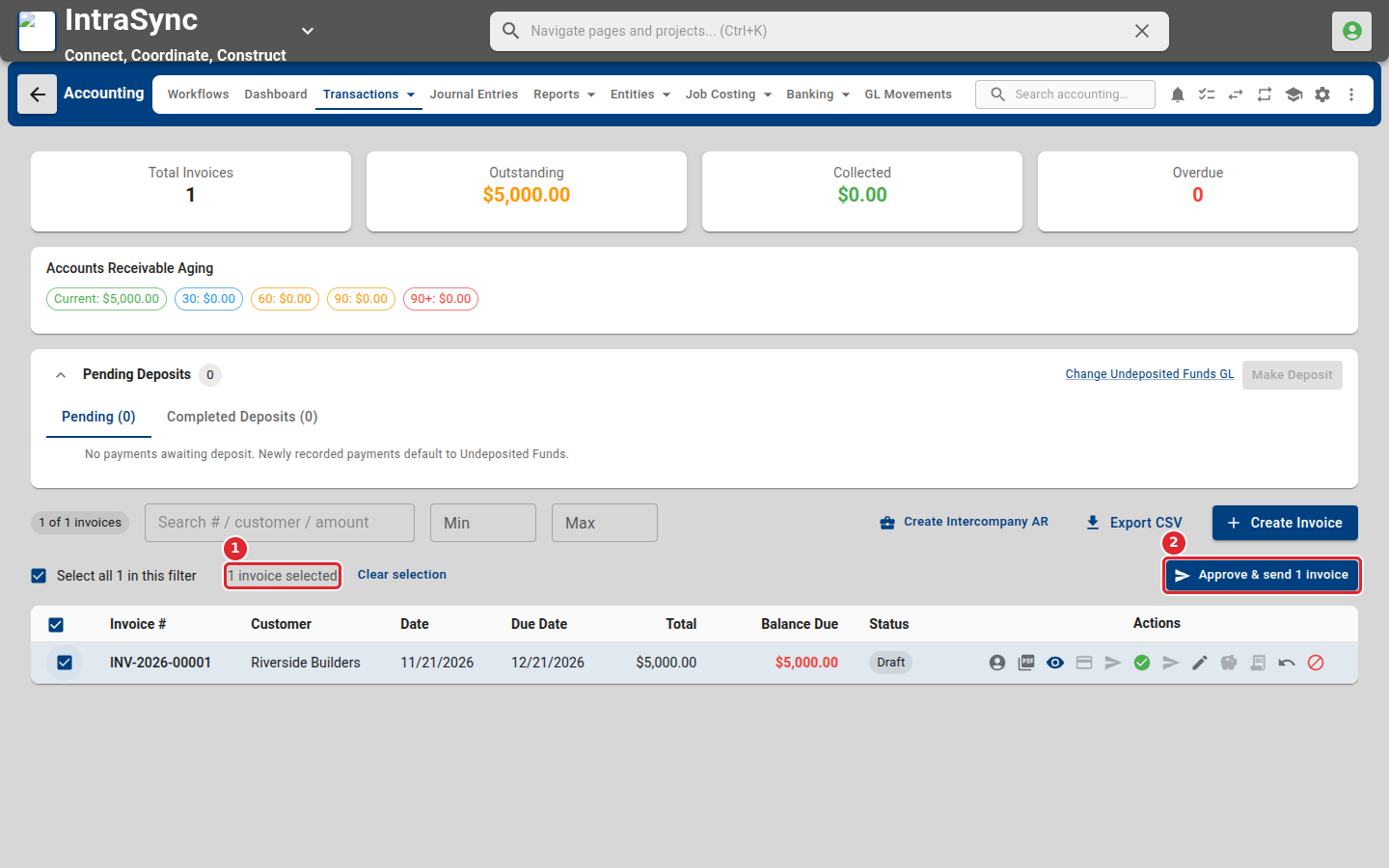
The bar shows how many invoices are selected. Select Approve & send. The run starts at once.
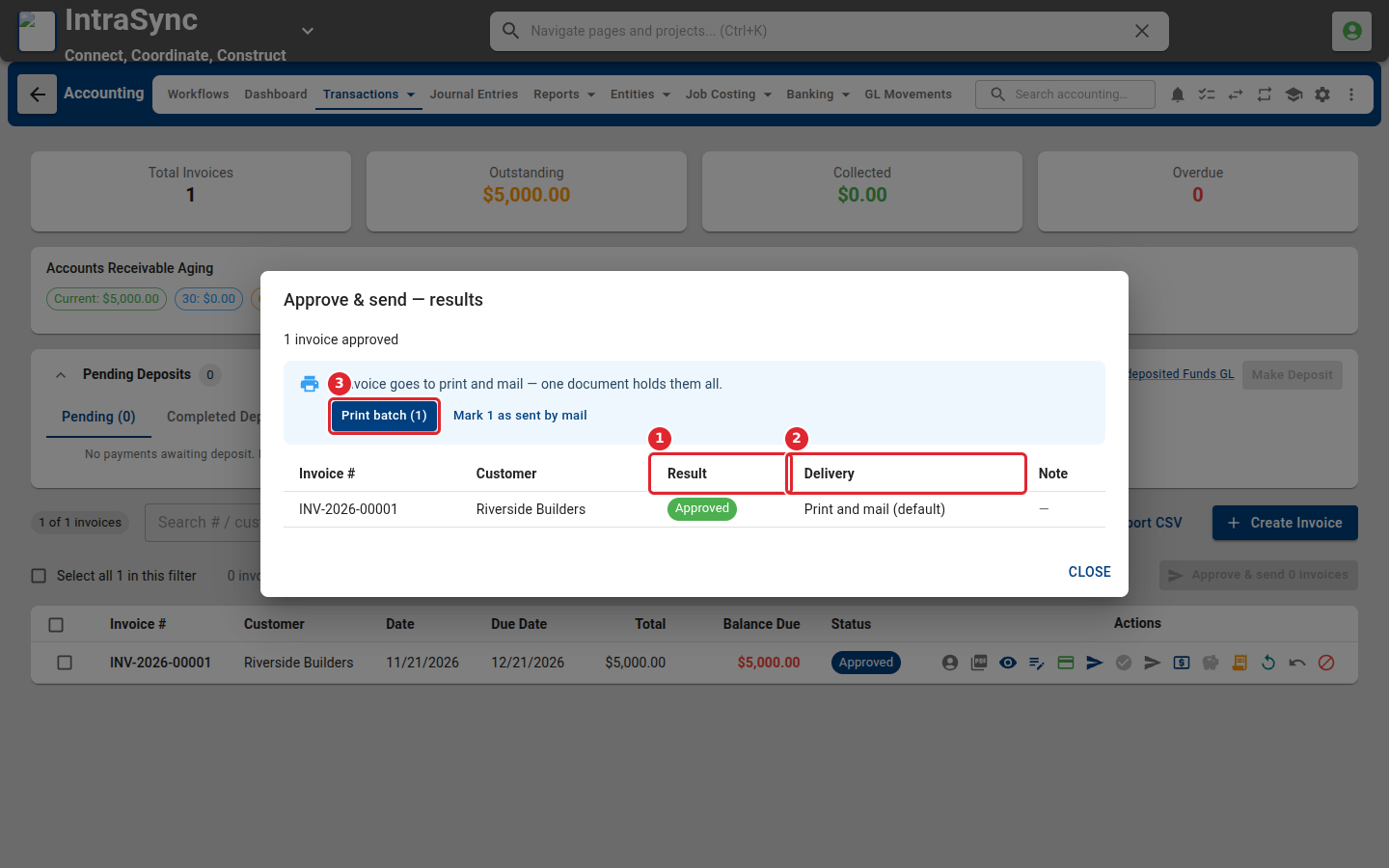
The results list each invoice with what happened to it and how it is delivered. Invoices that go by post are gathered into one document: select Print batch to print them, then mark them as sent by mail.
Tips
- Only drafts, invoices waiting for approval and approved invoices can be ticked. Point to a box you cannot tick to see why, for example because the invoice was already sent or is fully paid.
- A credit memo is never sent in a batch. Open it on its own.
- An invoice that still needs a decision, such as a sales tax decision, is left out of the run. The results say why, so you can open it on its own.
- How each invoice is delivered comes from the customer's Invoice delivery setting: email, print and mail, or both.