Accounting guide · section 21 of 28
Add a bank account and reconcile it
Link each bank account to the ledger, then prove the ledger against the bank statement.
Watch this in the video (3:12)
Steps
In the pictures, a numbered red box marks where to click or type. Where a picture has more than one box, the numbers give the order.
Select Banking > Bank Accounts. Each bank account is linked to a GL cash account.
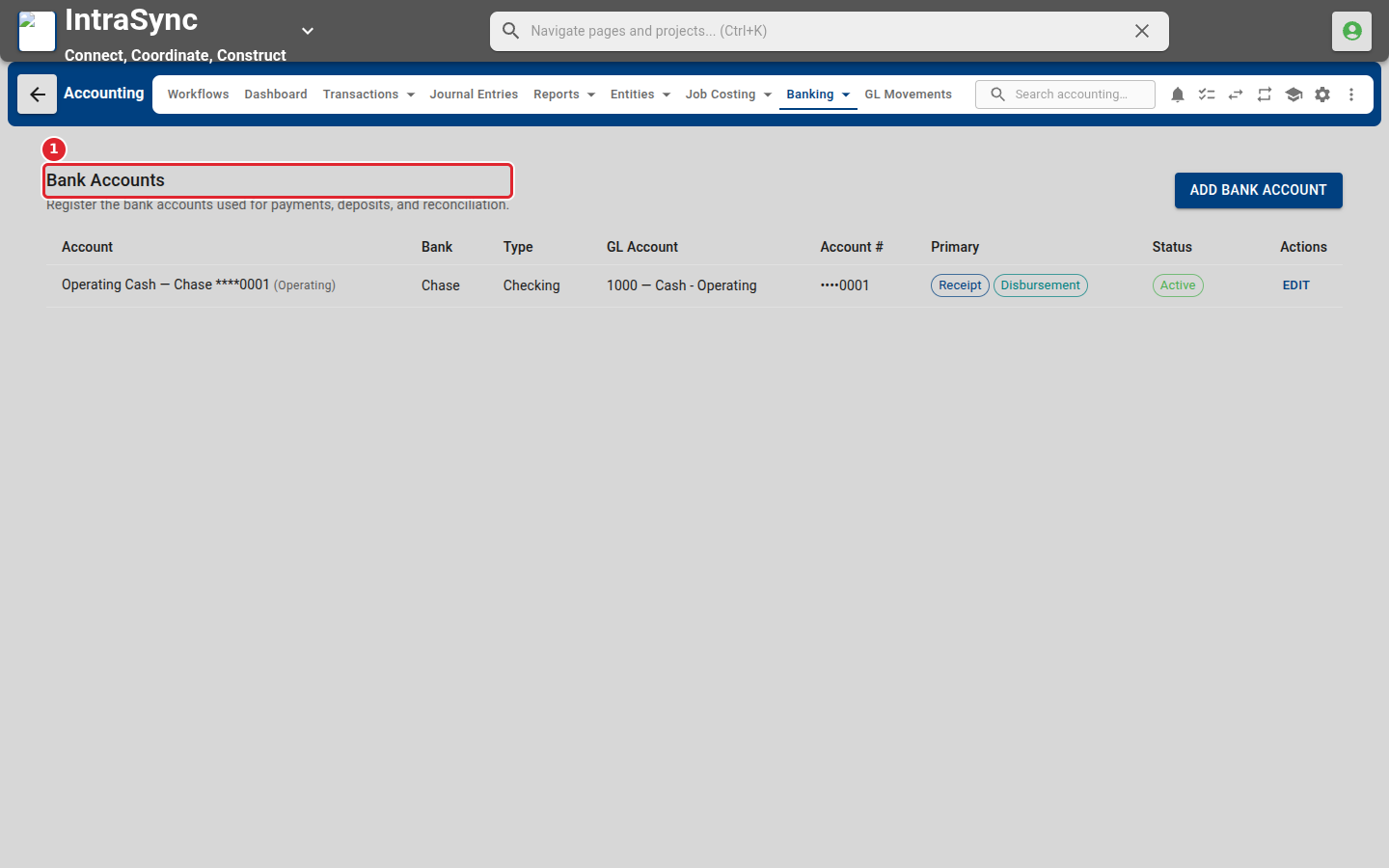
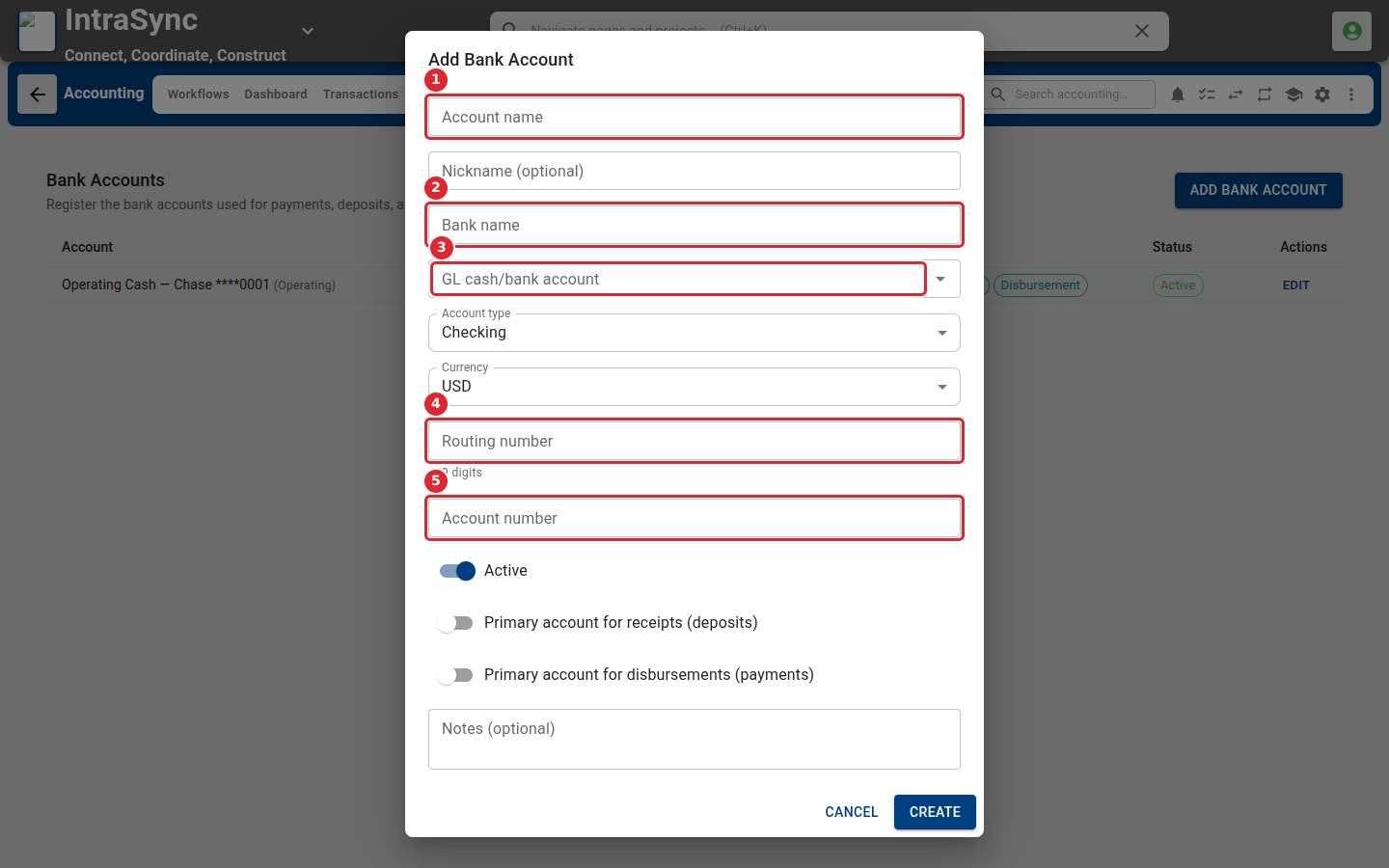
To add one, select Add Bank Account. Enter the account name and bank name, choose its GL cash account, and enter the routing and account numbers. Then select Create.
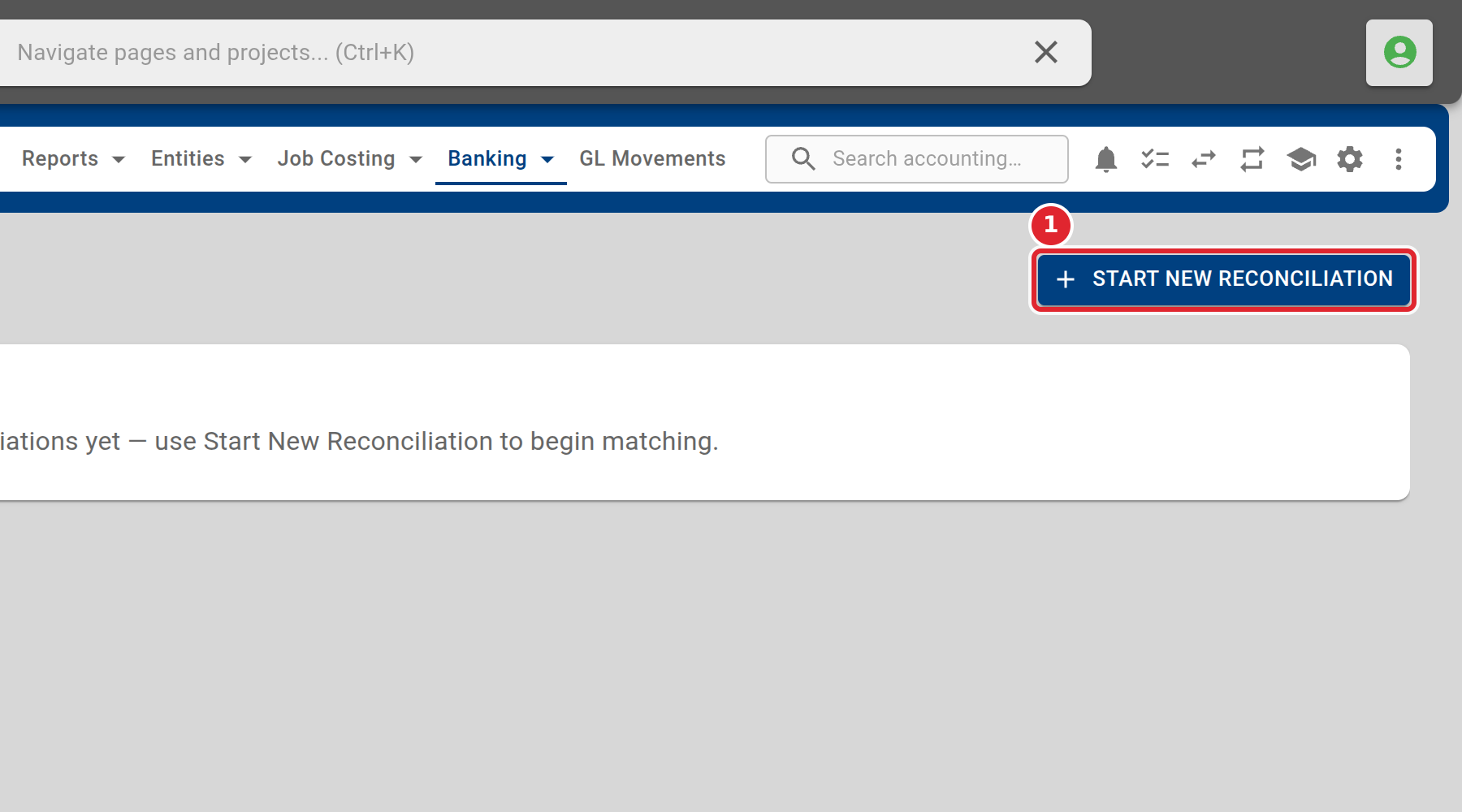
Select Banking > Bank Reconciliation, then select Start new reconciliation.
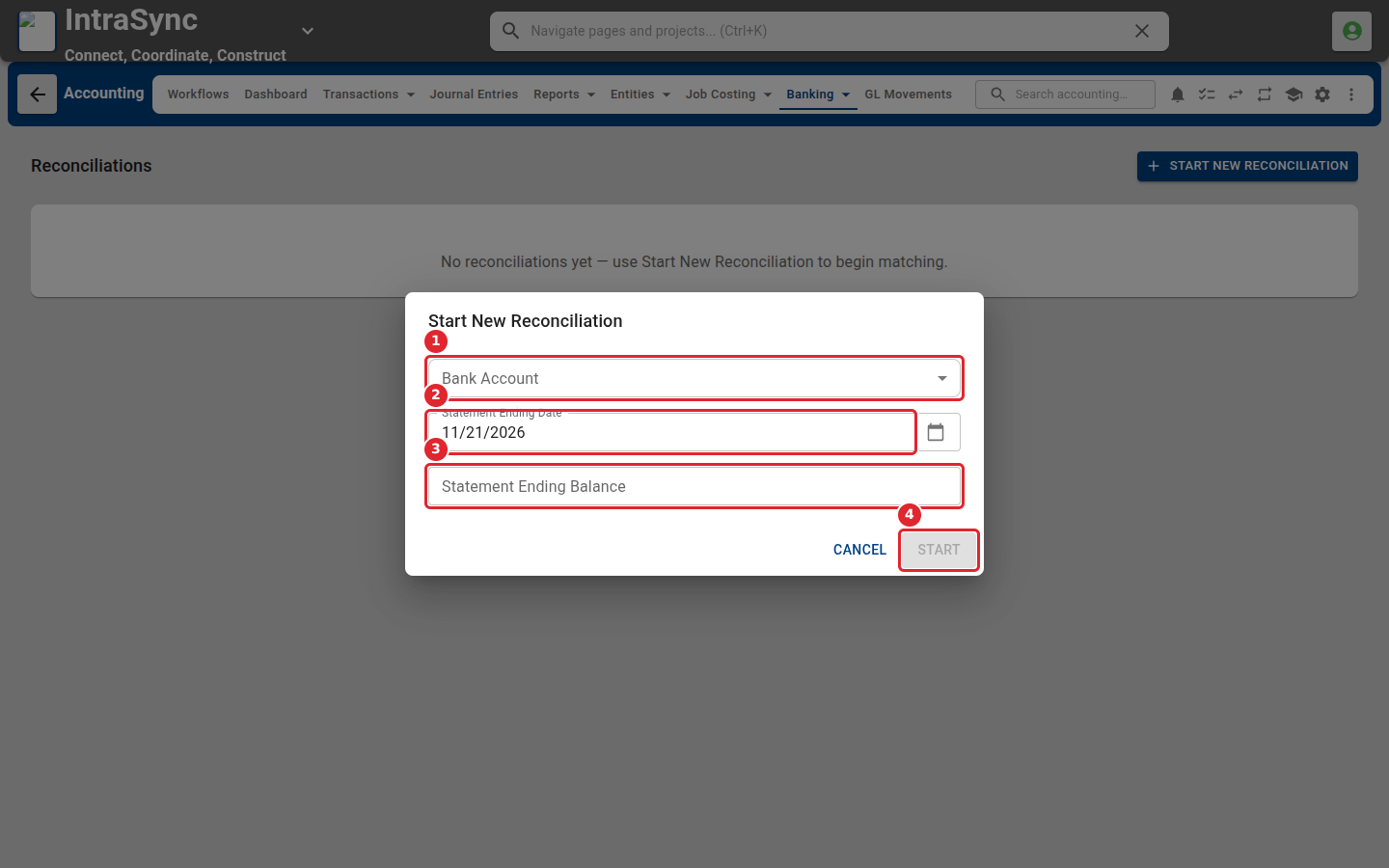
Choose the bank account, and enter the statement's ending date and ending balance. Select Start to begin matching.
Tips
- Account name, bank name, the GL cash account, the routing number and the account number are all required.
- The routing number is nine digits.
- Start stays unavailable until the bank account and the statement's ending date and balance are filled in.