Invoice a customer
Bill a customer for work or goods and track the receivable.
Watch this in the video (0:39)
Before you start
- The customer exists (see Add a customer). Until one does, the Customer field is unavailable.
Steps
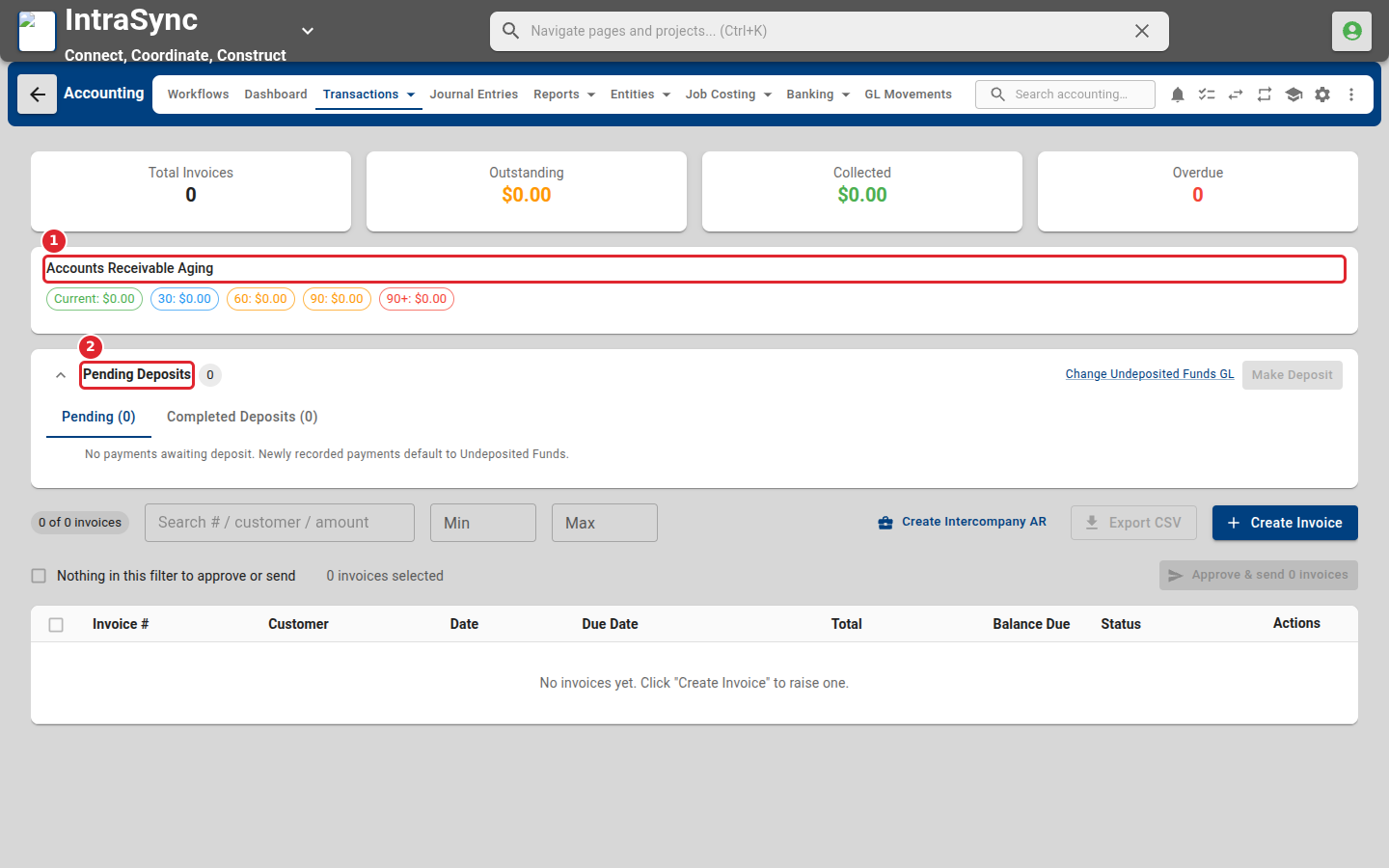
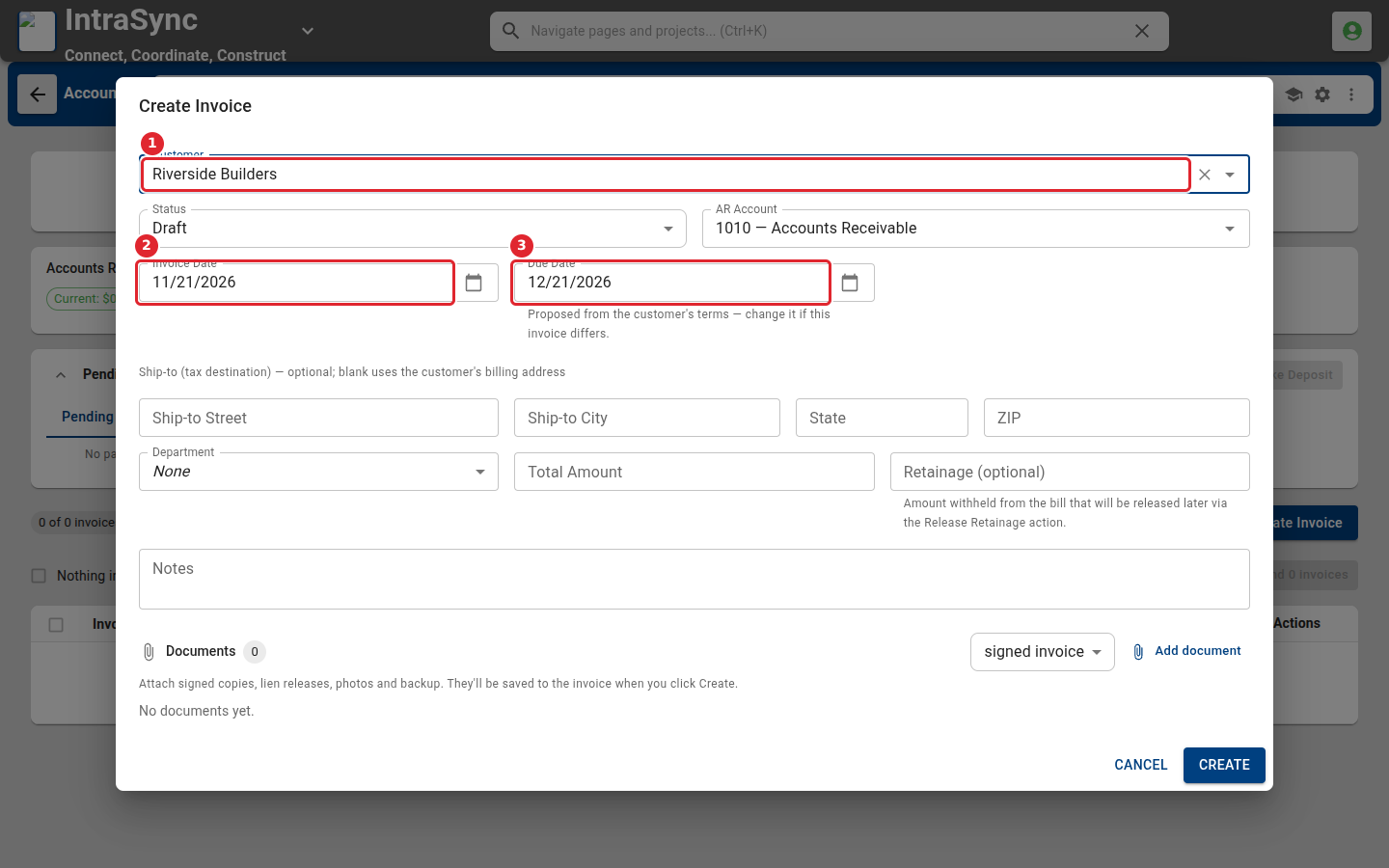
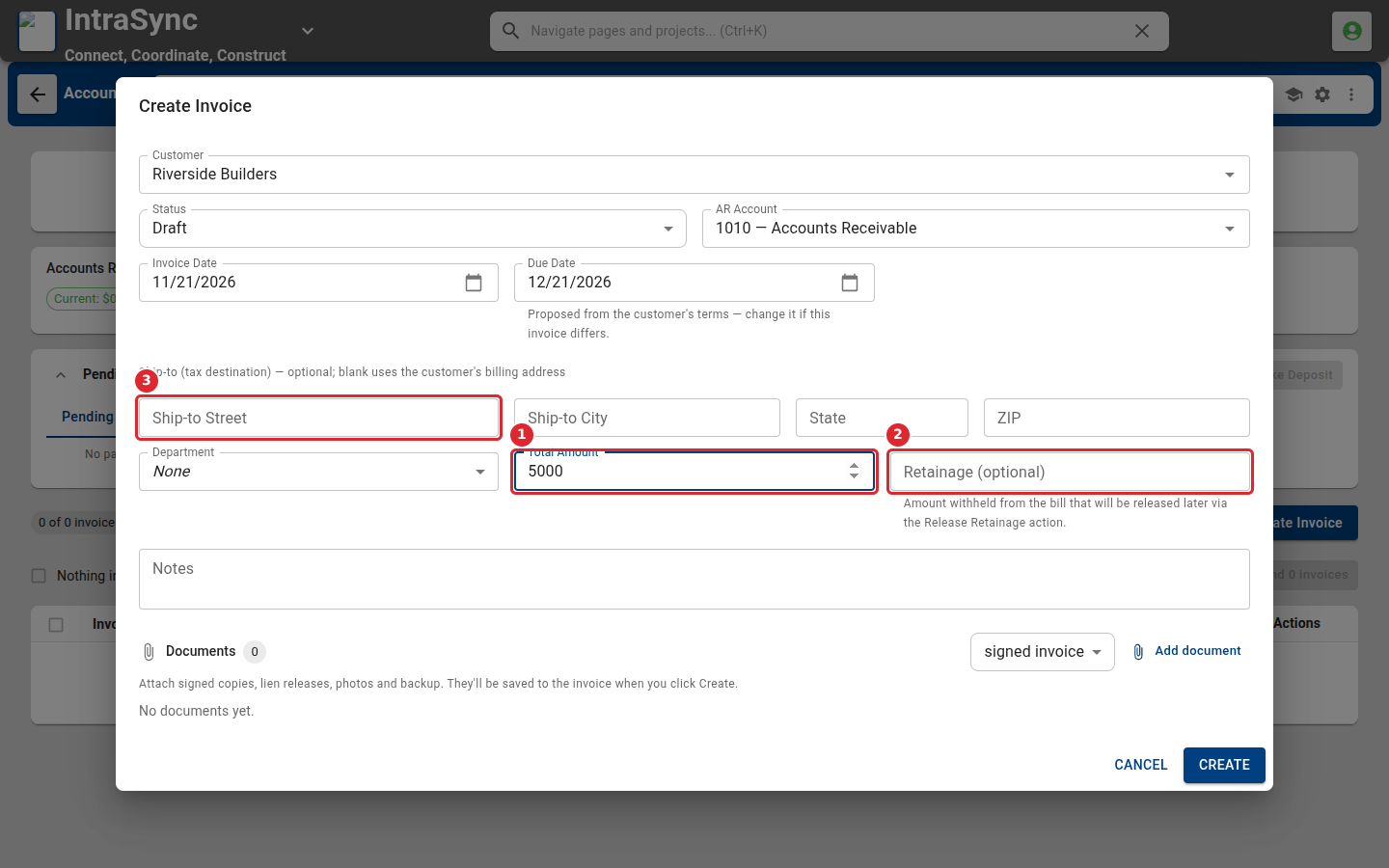
In the pictures, a numbered red box marks where to click or type. Where a picture has more than one box, the numbers give the order.
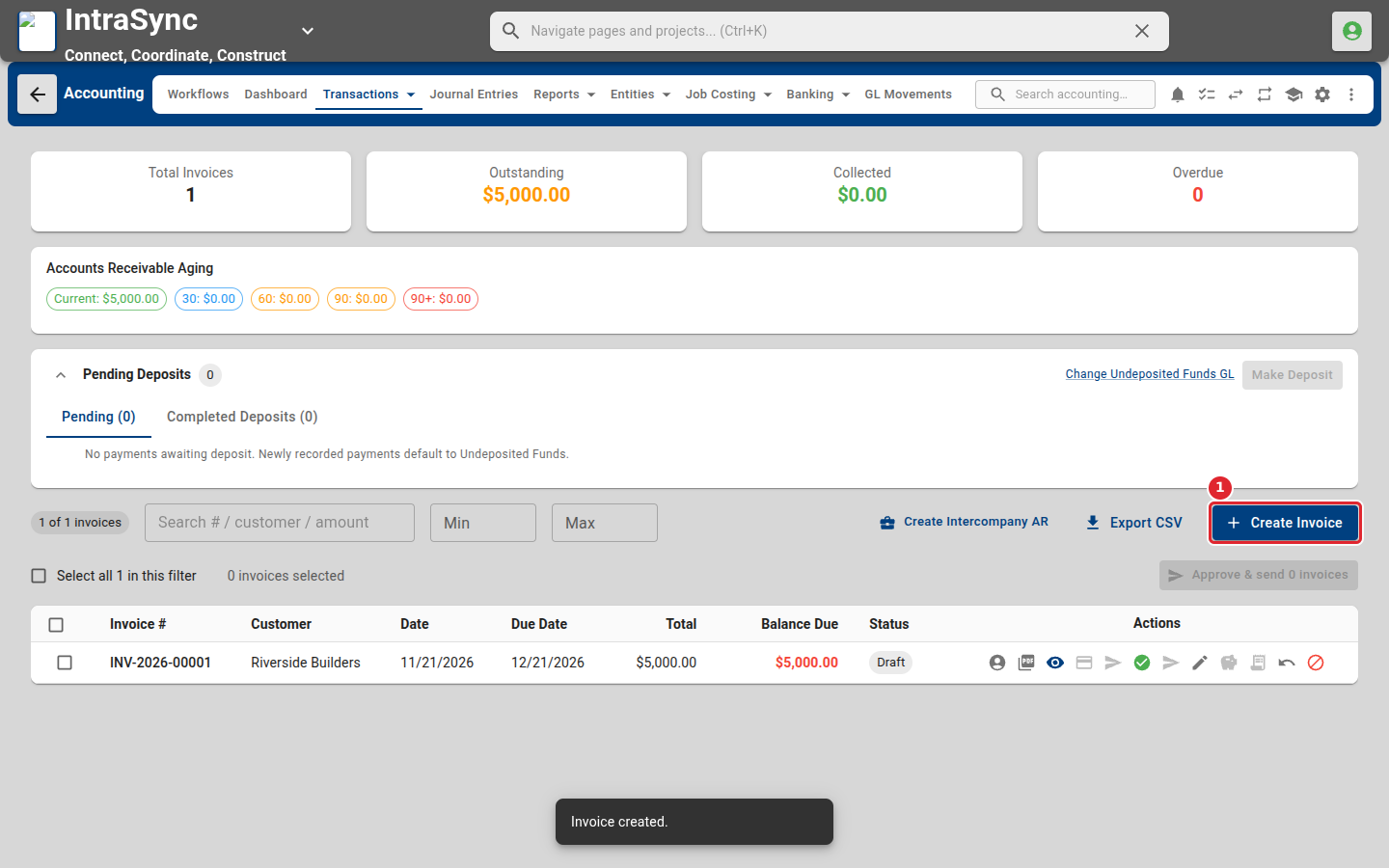
Select Transactions > Sales > Invoices. The receivables aging and pending deposits sit beside the list.
Select Create Invoice, then choose the customer and check the invoice date and due date.
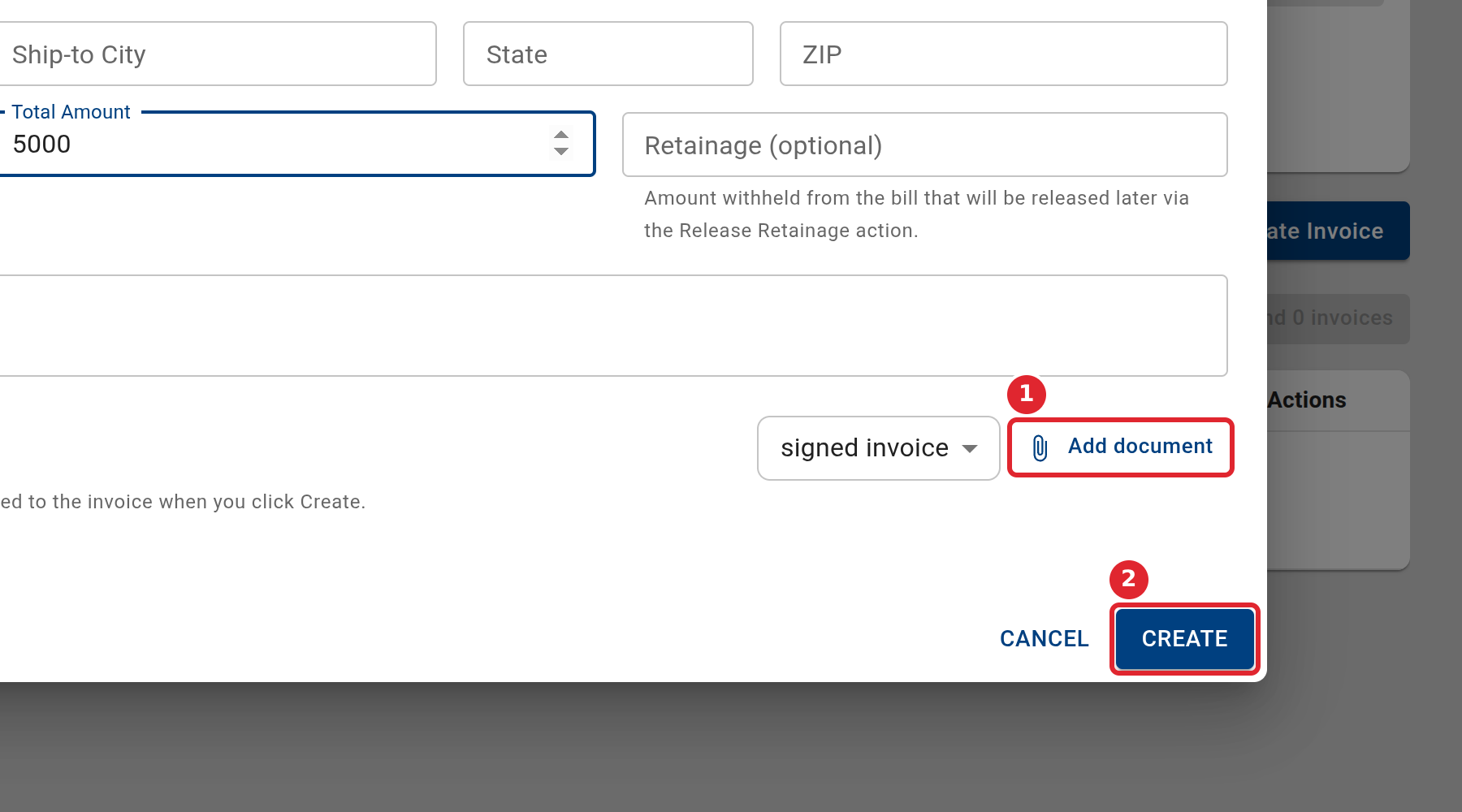
Enter the total amount, and any retainage withheld. A ship-to address is only needed when tax follows a different address than the customer's billing address.
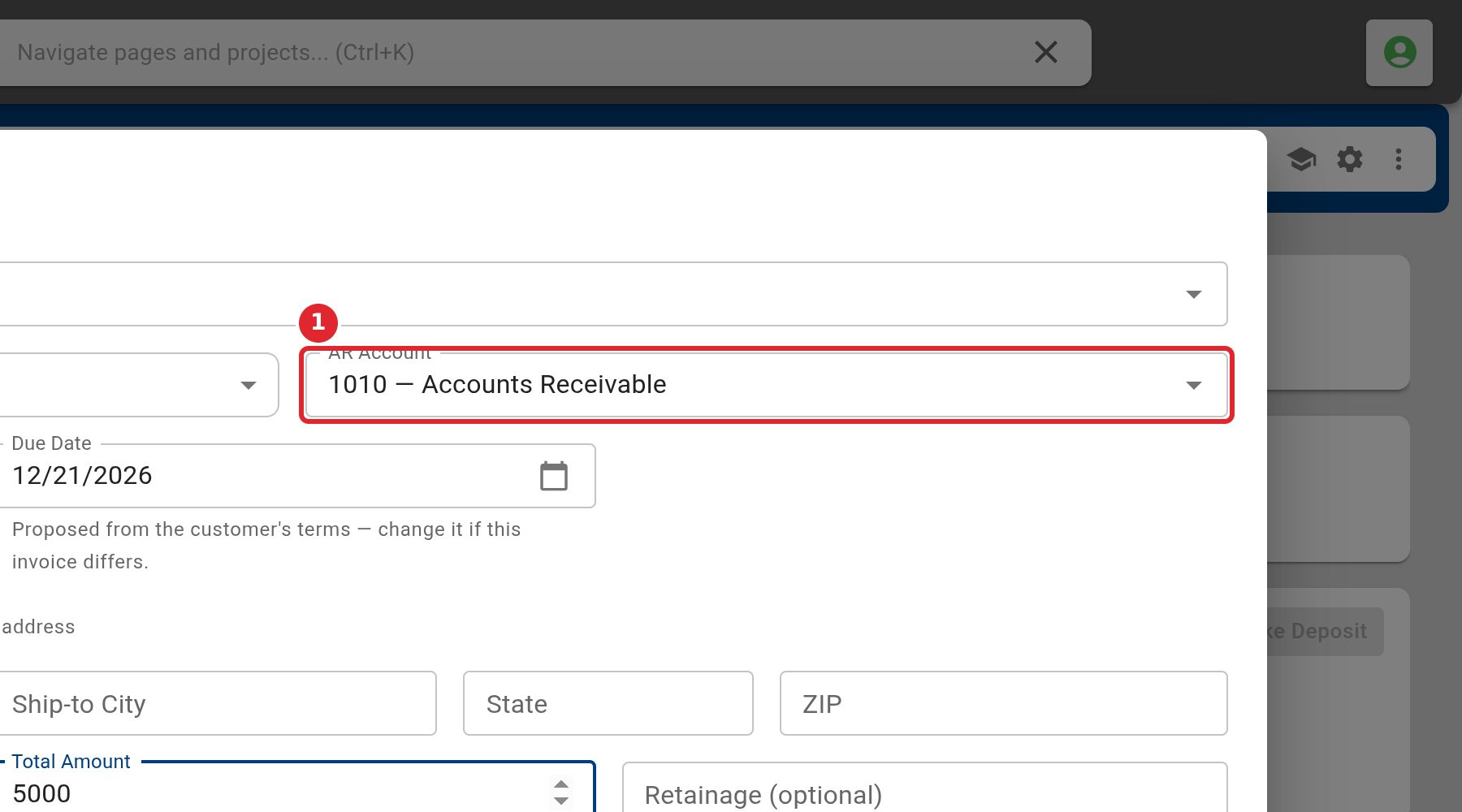
Accounting staff also see AR Account, the receivables account the invoice posts to. It is filled in from the customer, or from Settings > Control Accounts.
Attach signed copies or backup under Documents, then select Create.
The invoice appears in the list.
Tips
- The total amount must be a positive number, or the invoice is not saved.
- Retainage is the part of the invoice withheld until later. It is released with the Release Retainage action.