Enter a vendor bill
Record what a vendor has billed you so it can be approved and paid.
Watch this in the video (0:26)
Before you start
- The vendor exists (see Add a vendor).
- Bills for inventory usually come from a purchase order receipt. Use Add Bill for direct costs such as rent, insurance or utilities.
Steps
In the pictures, a numbered red box marks where to click or type. Where a picture has more than one box, the numbers give the order.
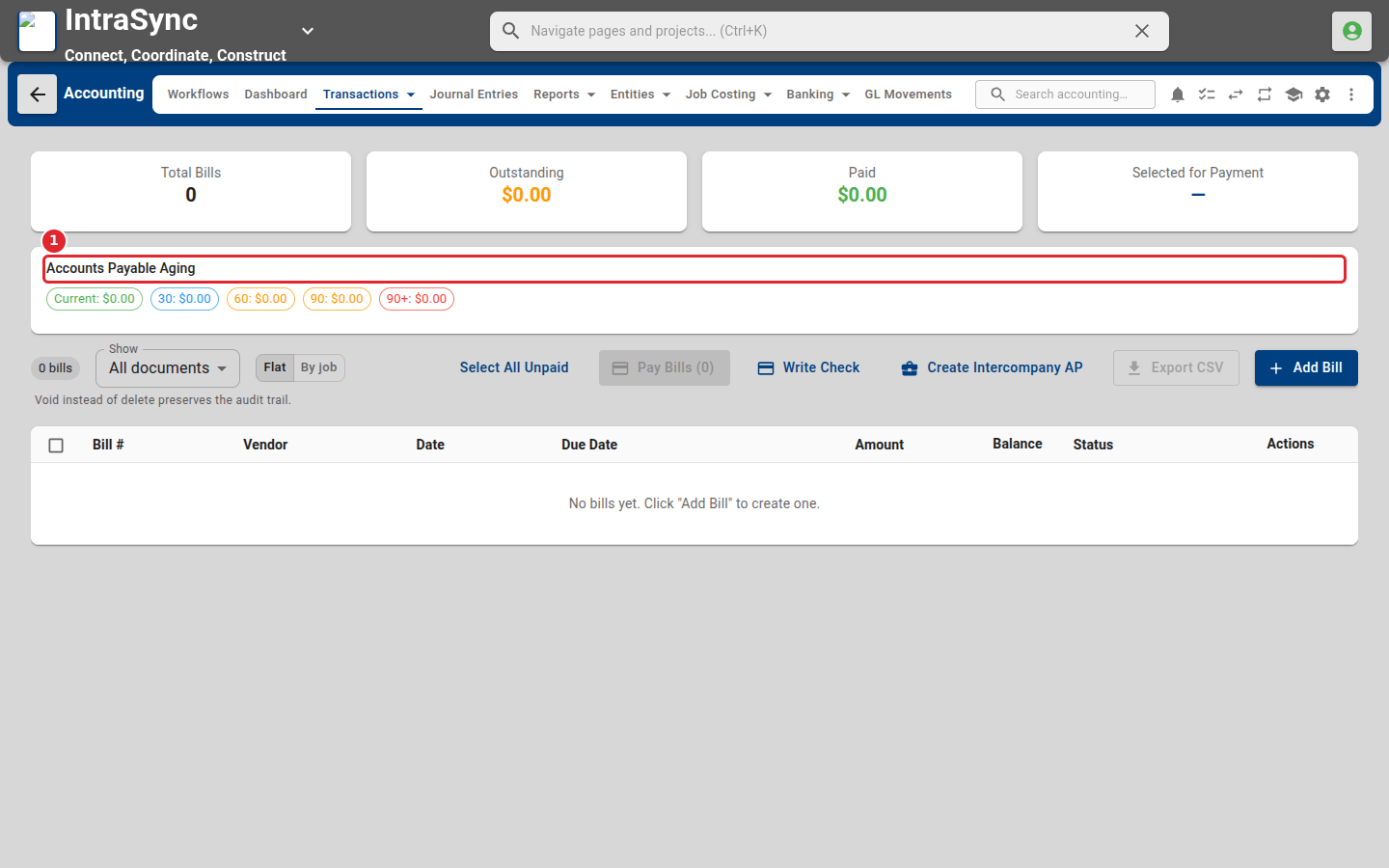
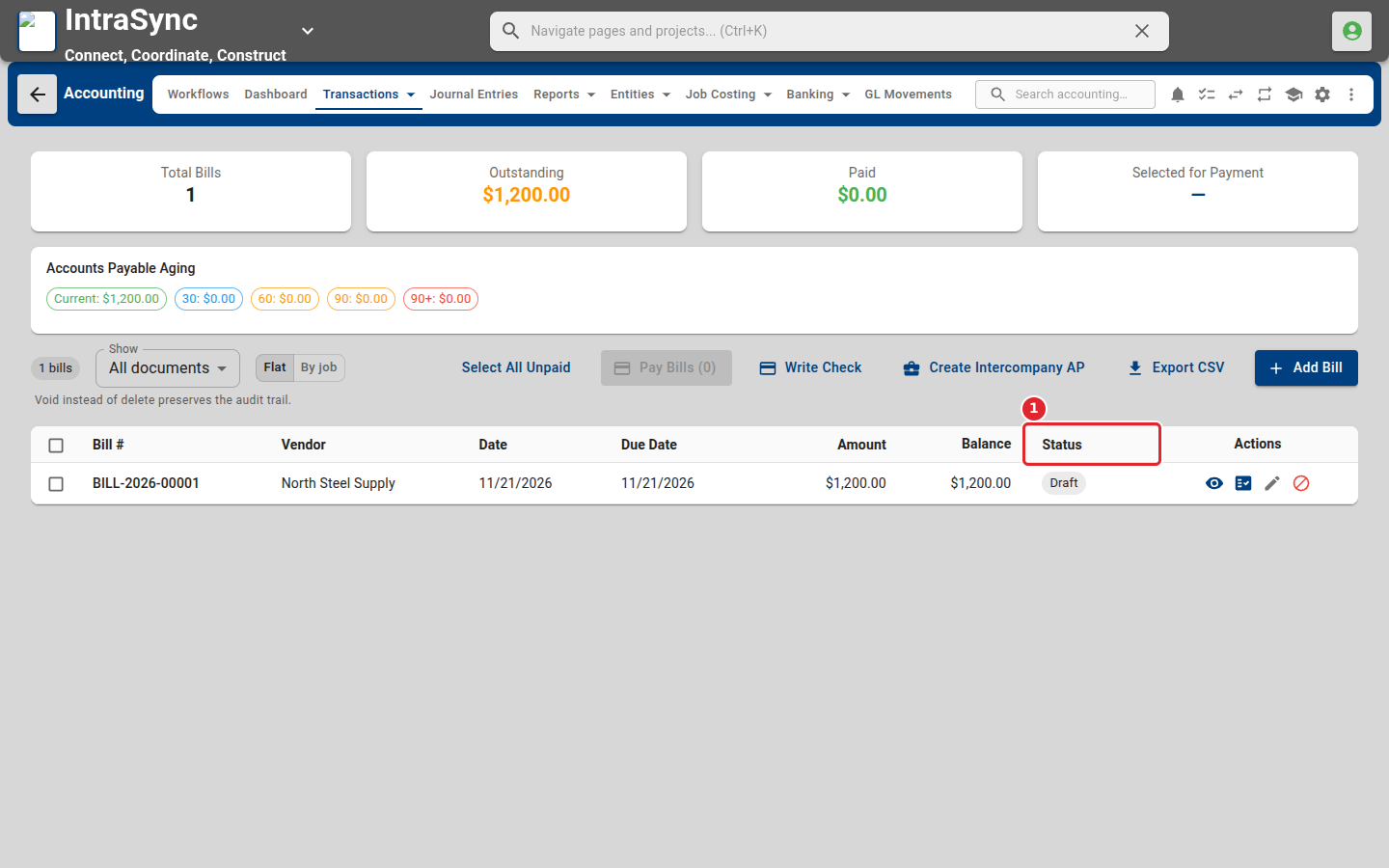
Select Transactions > Payables > Bills. The payables aging sits above the list of bills.
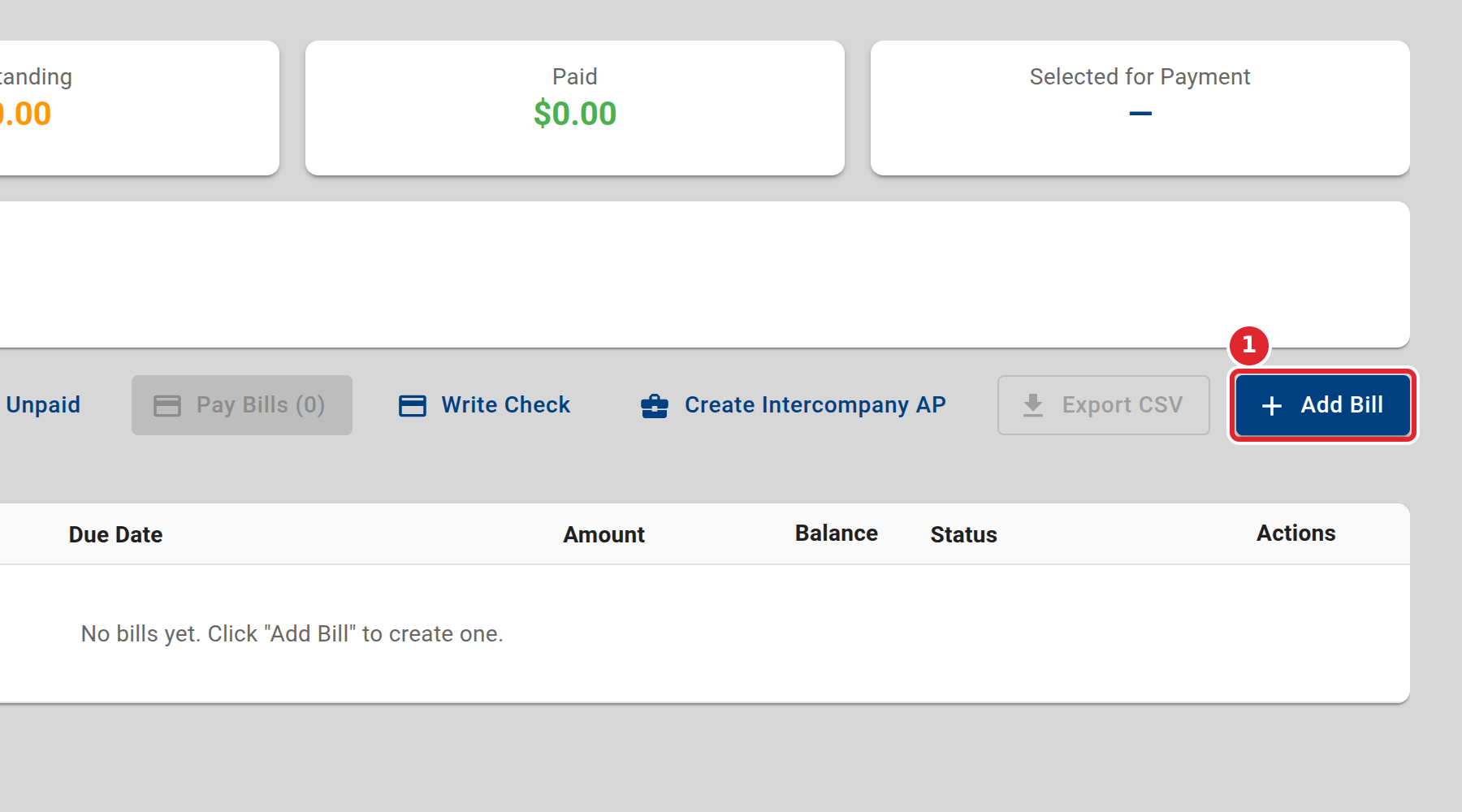
Select Add Bill to enter a bill that did not come from a purchase order, such as rent or utilities.
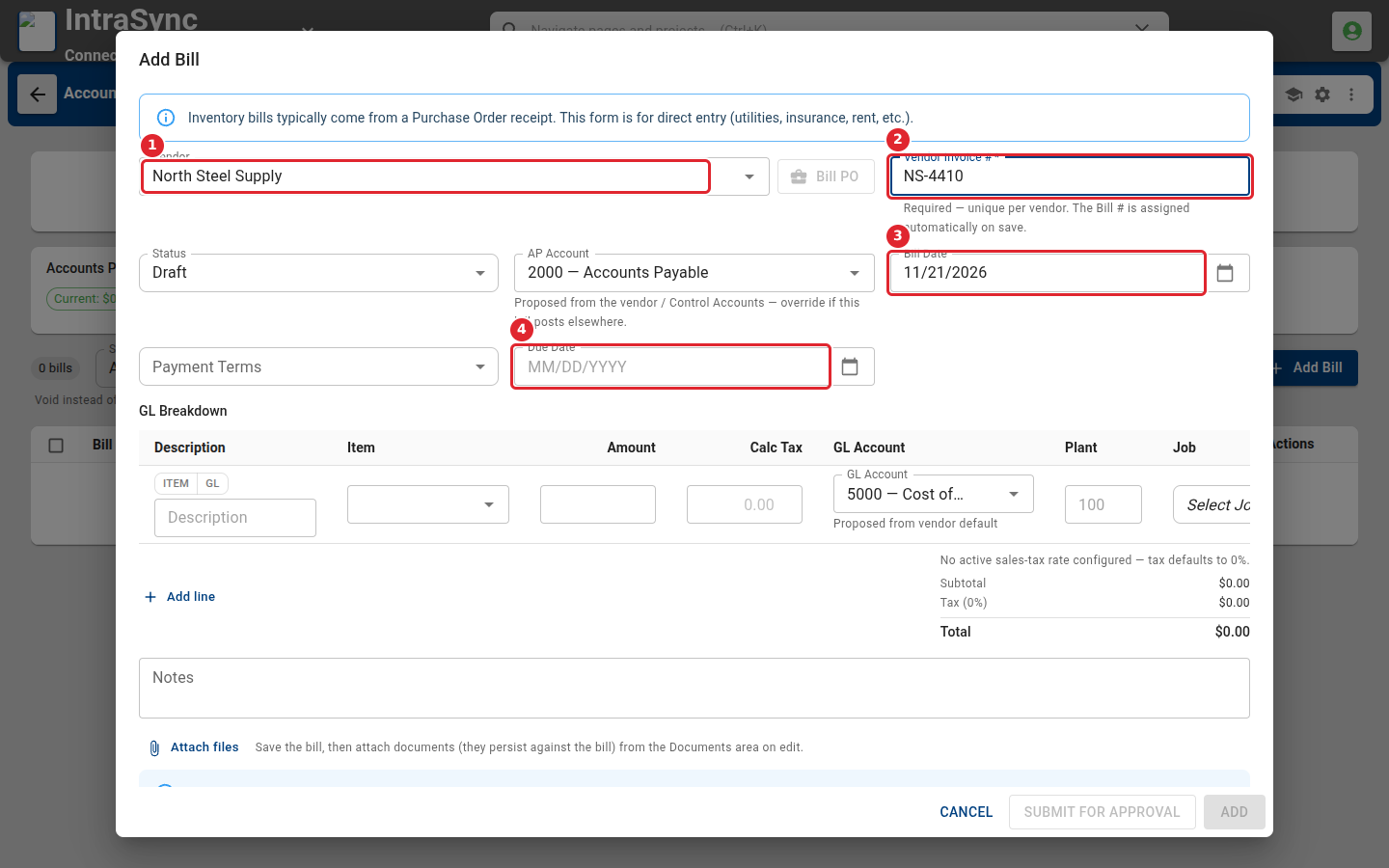
Choose the vendor and enter the vendor's invoice number. Check the bill date, payment terms and due date.
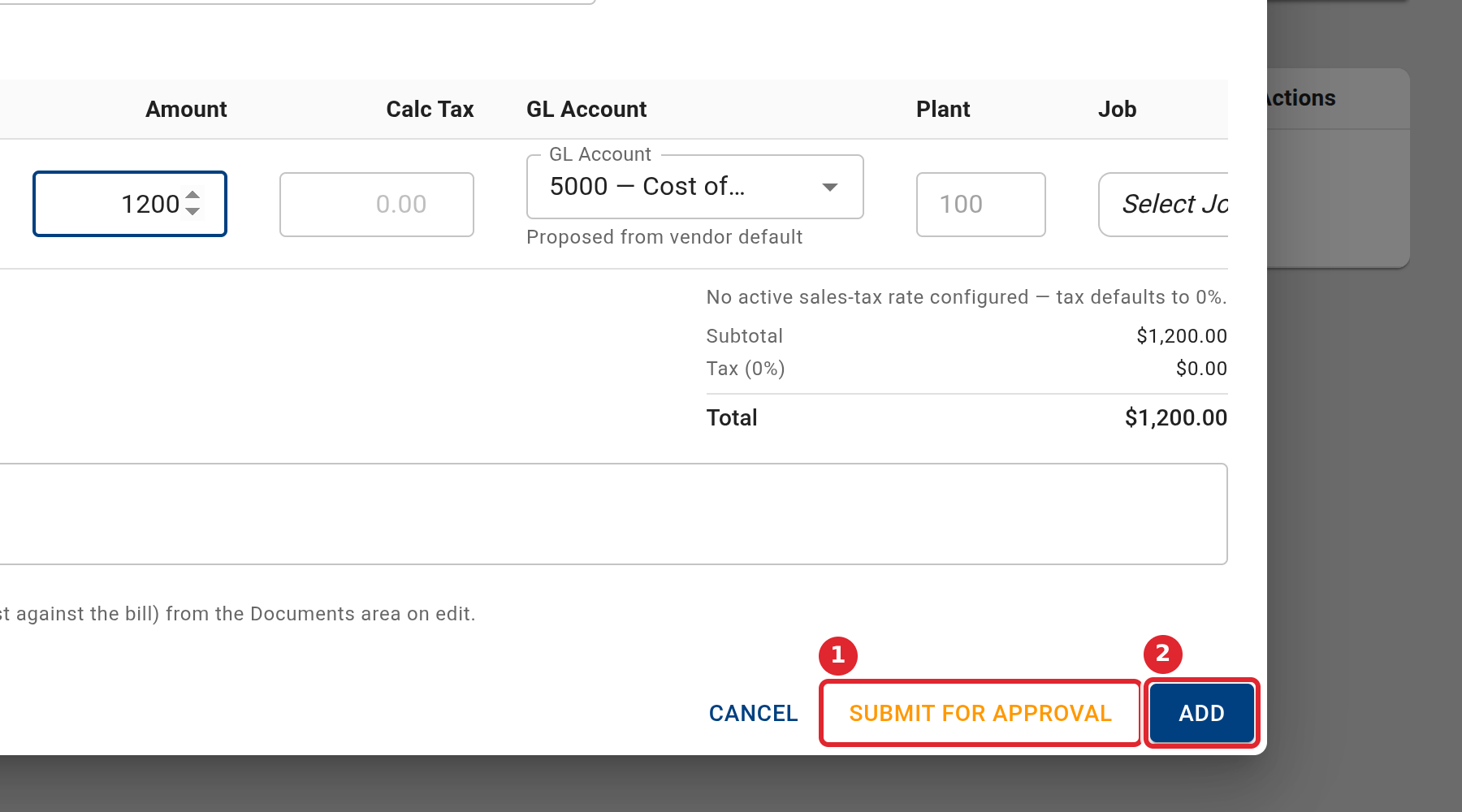
Under GL Breakdown, enter each line's description and amount, and its GL account. Add a job and cost code when the cost belongs to a job.
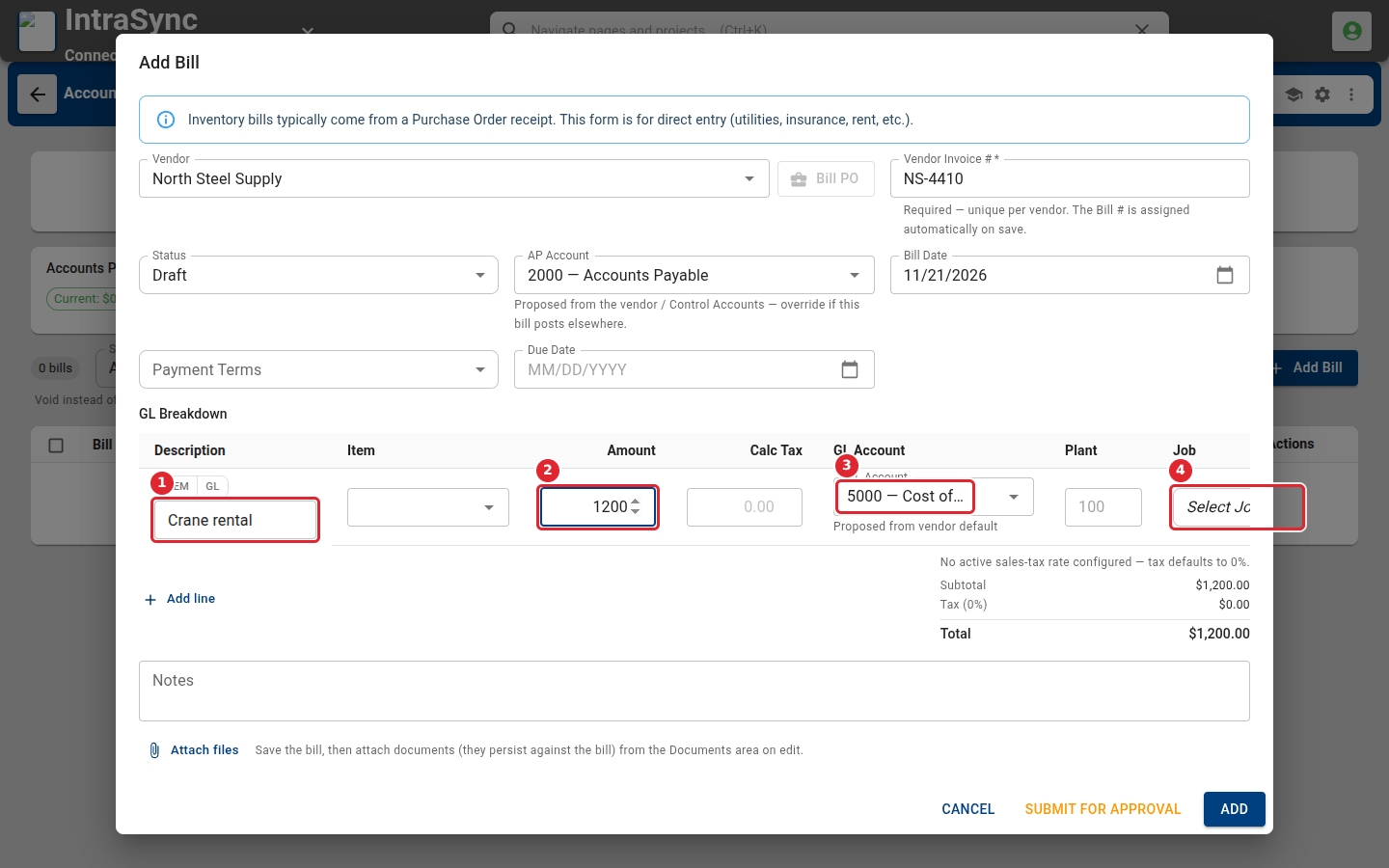
Select Submit for Approval to send the bill to its approvers, or Add to save it.
The bill appears in the list with its due date, balance and status.
Tips
- The vendor's invoice number is required and must be unique for that vendor. The bill number is assigned when you save.
- If no sales tax rate is set up, the bill's tax defaults to zero.
- Attach the vendor's invoice after you save the bill, from the bill's Documents area.
- To pay bills, tick them in the list, or select Select All Unpaid, then select Pay Bills.
- Void a bill instead of deleting it, so the audit trail is kept.