Learn a task with a guided tutorial
Practise a task step by step on a sample company before you do it in your own books.
Watch this in the video (5:24)
Before you start
- An administrator turns on Tutorials in Settings > Module Features, under General & GL.
Steps
In the pictures, a numbered red box marks where to click or type. Where a picture has more than one box, the numbers give the order.
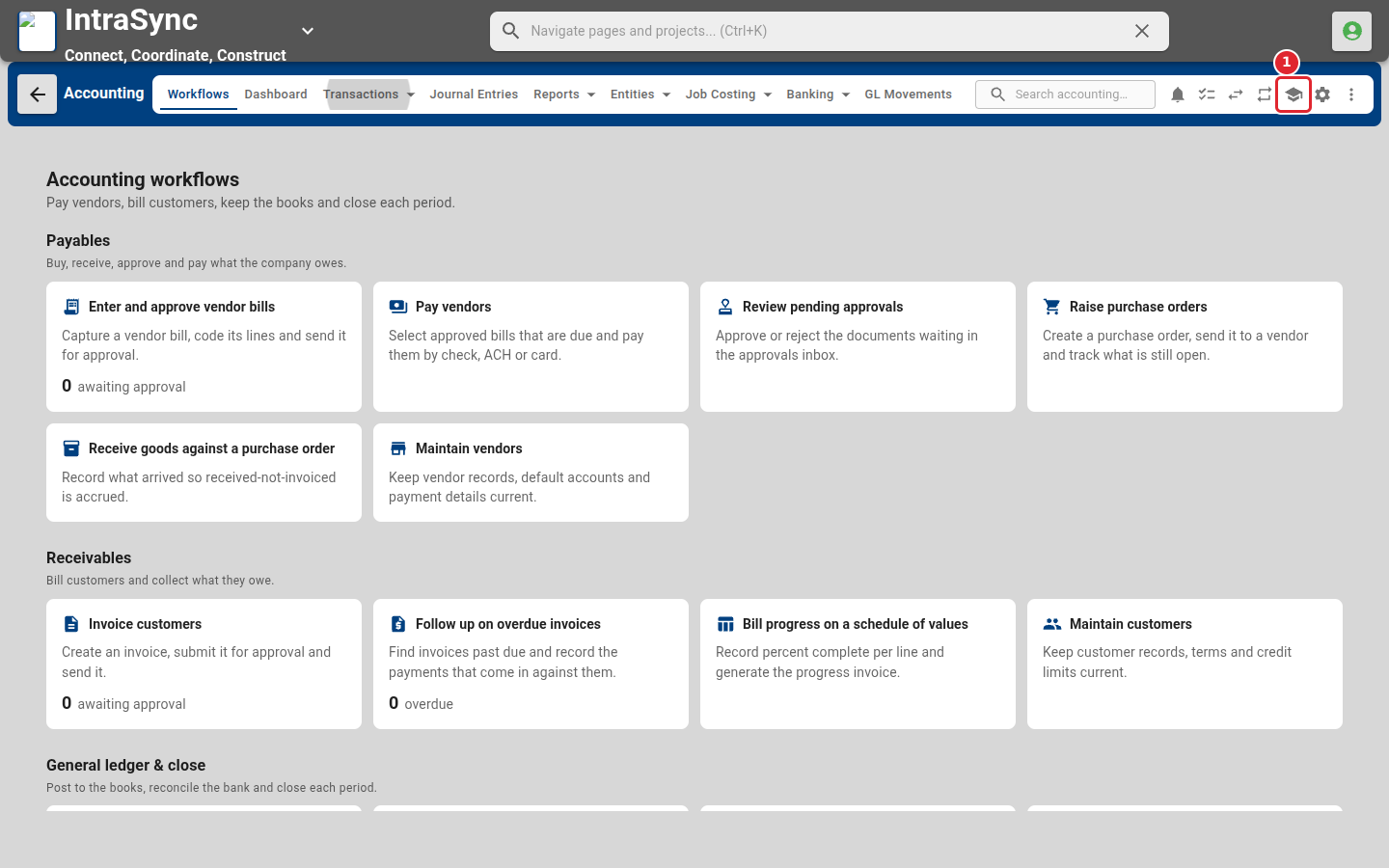
Select Tutorials in the header. It is the icon shaped like a graduation cap.
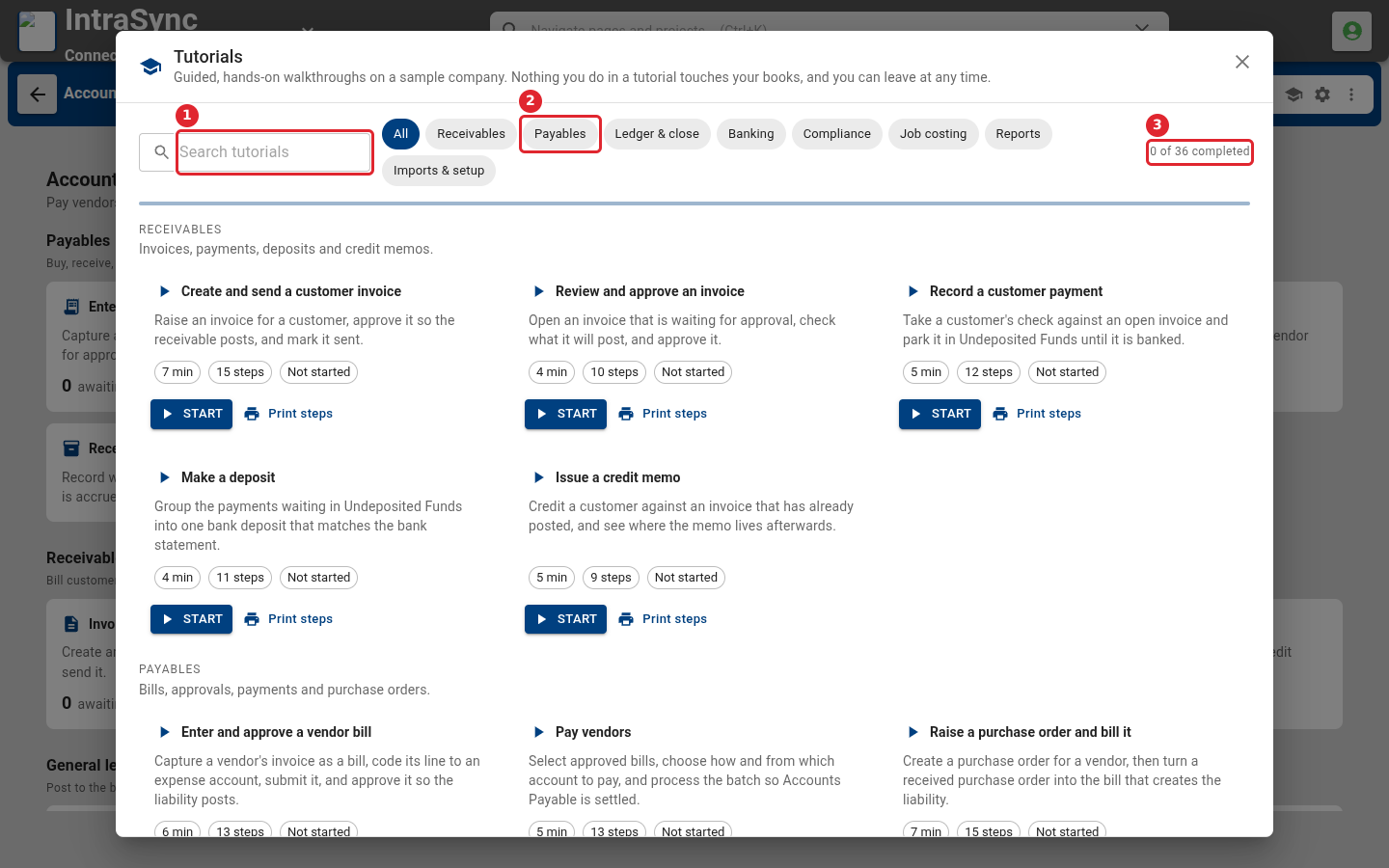
The catalogue lists guided walkthroughs by area. Type in Search tutorials, or select an area such as Payables to narrow the list.
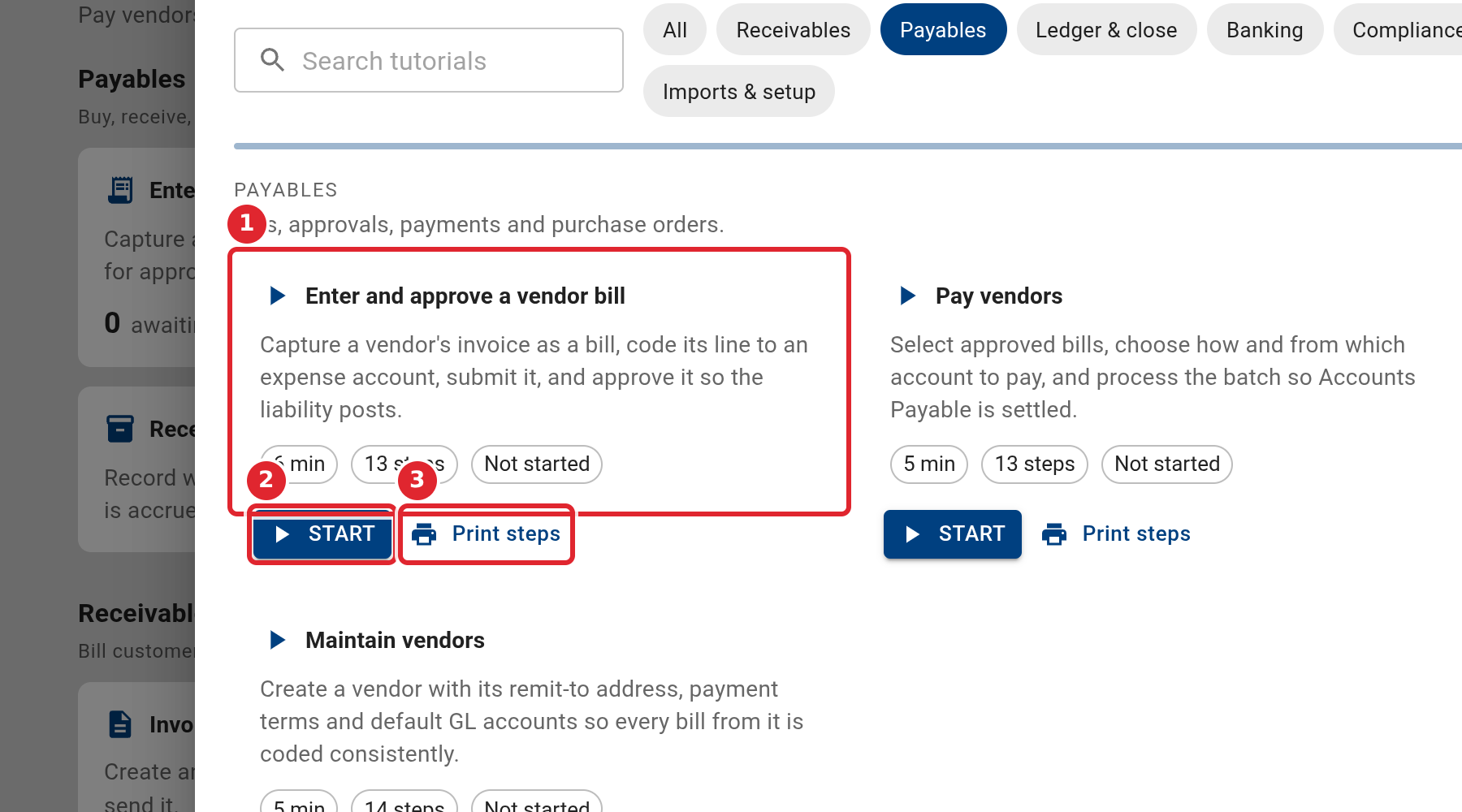
Each card says how long the tutorial takes, how many steps it has, and how far you got. Select Print steps to print the steps, or save them as a PDF, from your browser's print window.
Select Start. The tutorial opens on a sample company, with a Demo banner across the top. Nothing you do there is saved to your books.
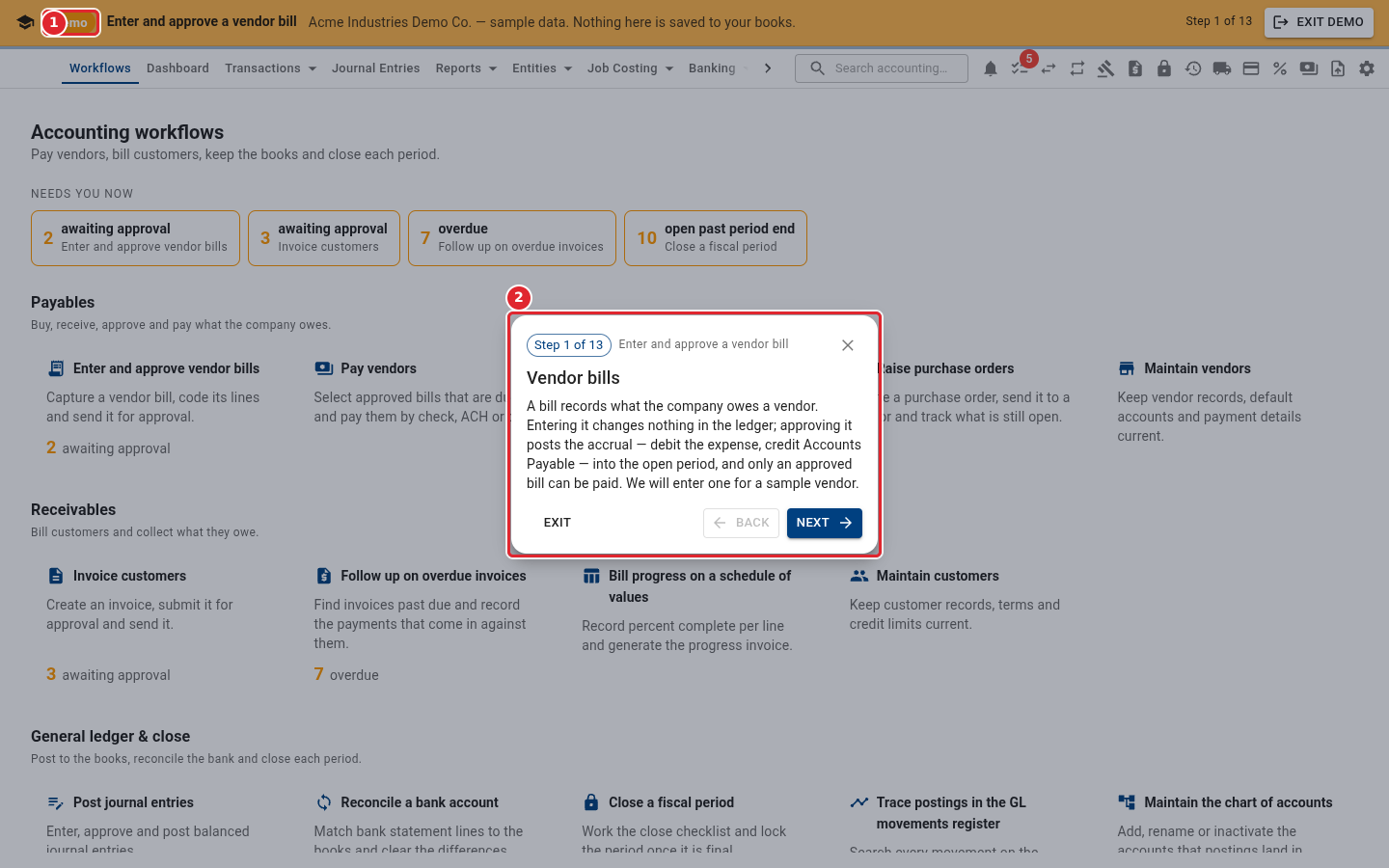
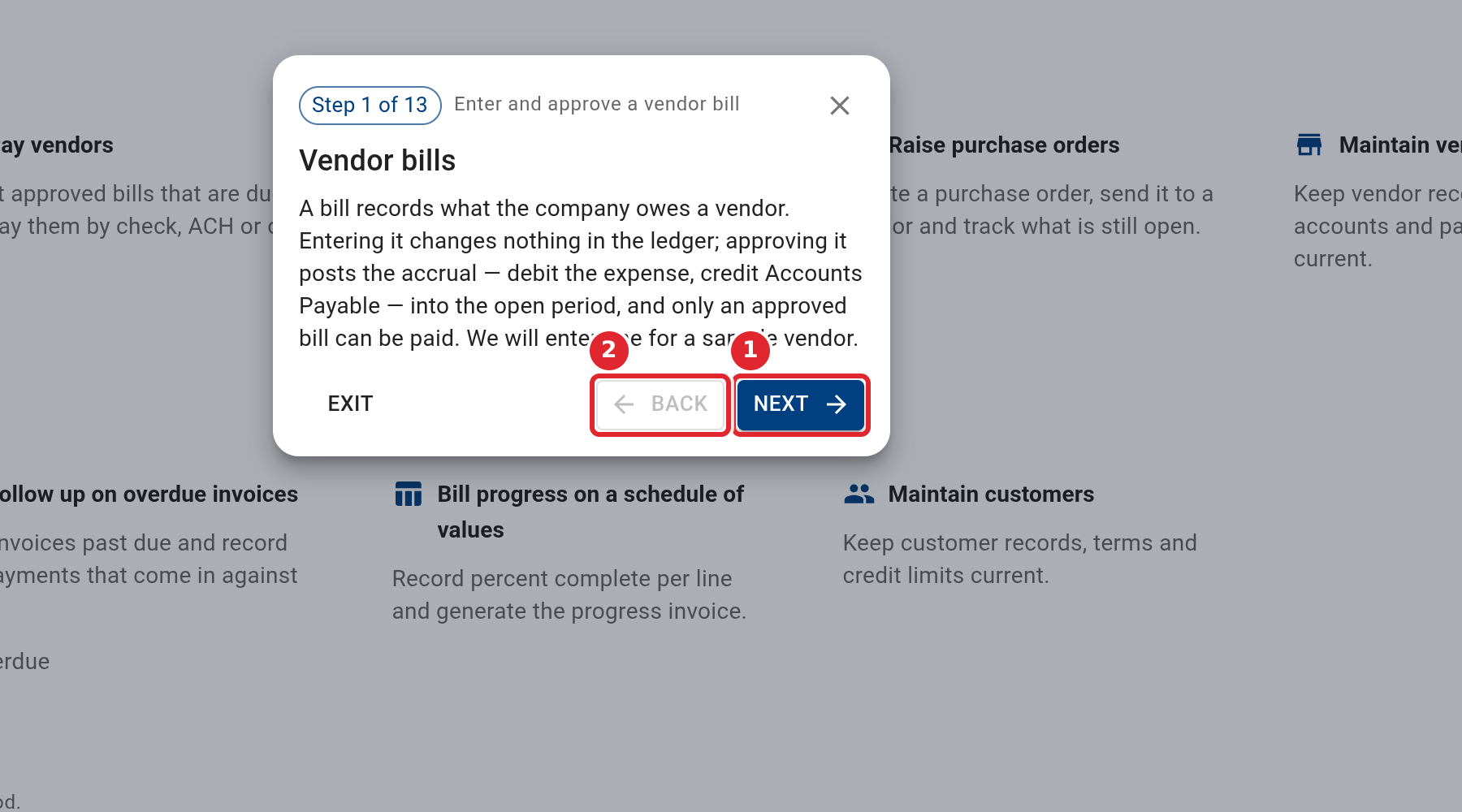
Read each step and select Next. When a step points to a control on the screen, select that control and the tutorial moves on. Select Back to see a step again.
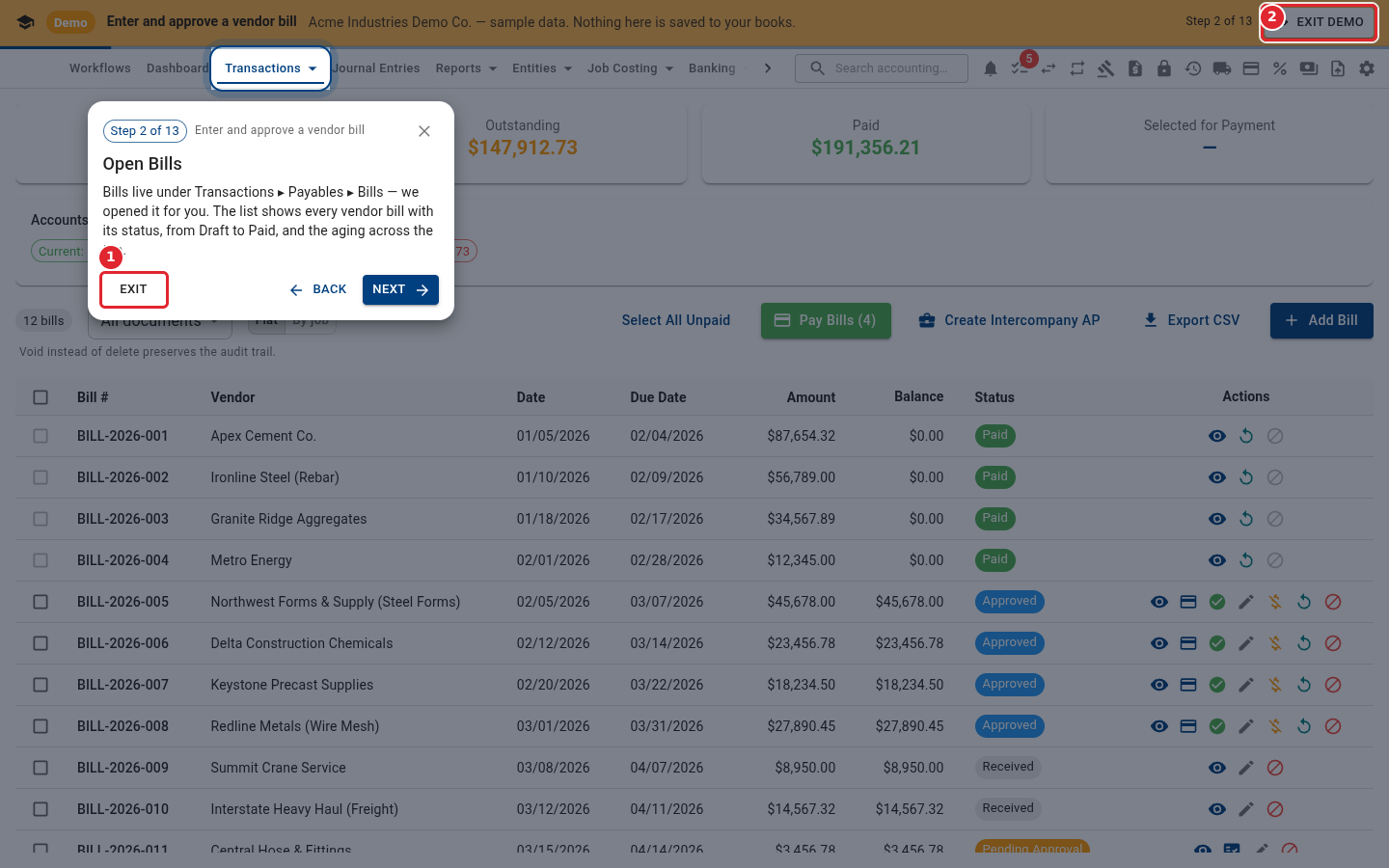
To stop, select Exit on the step card, or Exit demo in the banner. You go back to your own company.
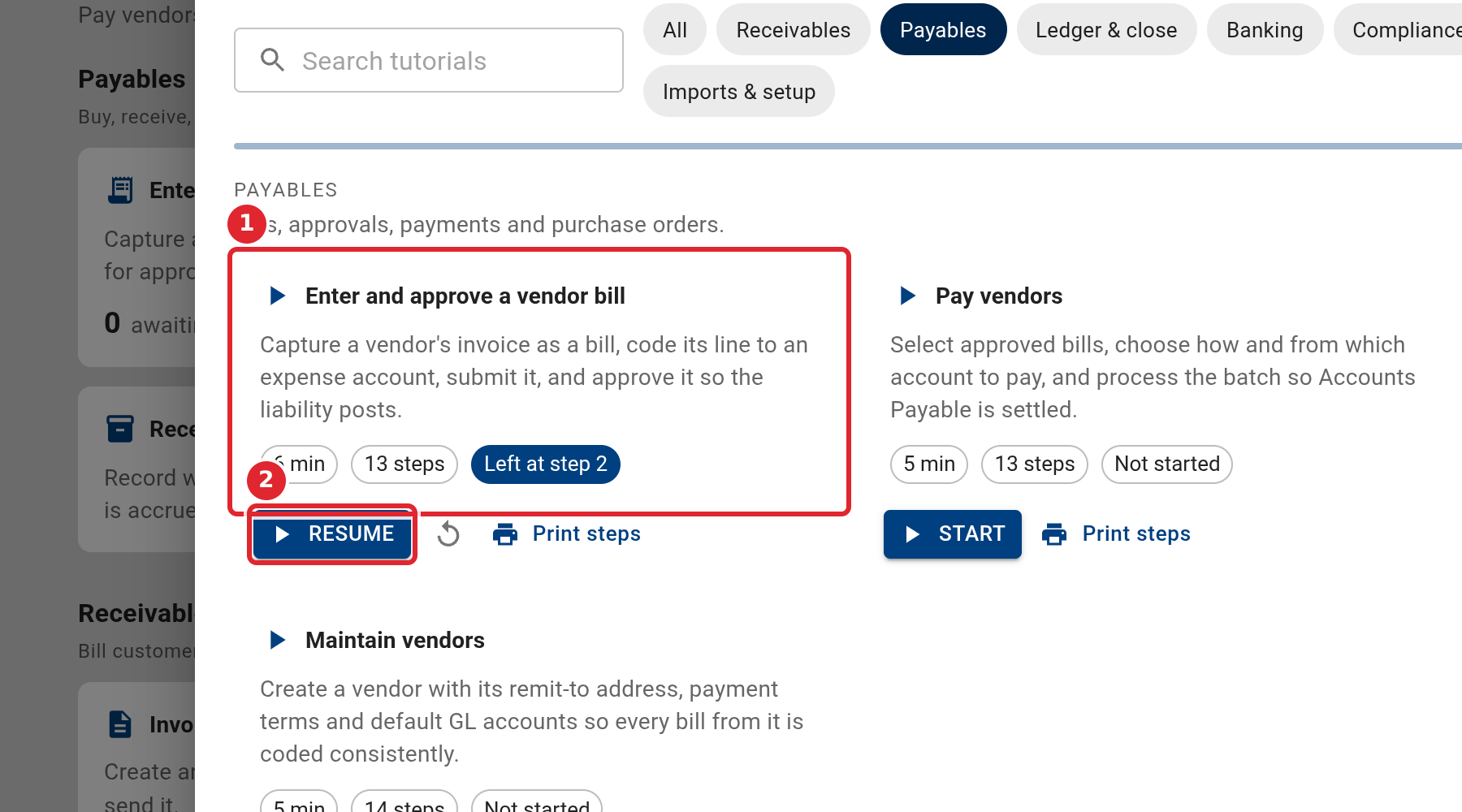
The catalogue remembers where you left off in this browser. Select Resume to carry on from that step.
Tips
- The catalogue lists only the tutorials for features your company has turned on.
- Your progress is kept in this browser. On another computer or browser, the catalogue starts from the beginning.
- Some tutorials offer a sample file, such as a sample schedule of values. Download it from the tutorial step that asks for it.