Accounting guide · section 12 of 28
Post a journal entry
Record an adjustment or a transaction that no other document covers.
Watch this in the video (0:48)
Steps
In the pictures, a numbered red box marks where to click or type. Where a picture has more than one box, the numbers give the order.
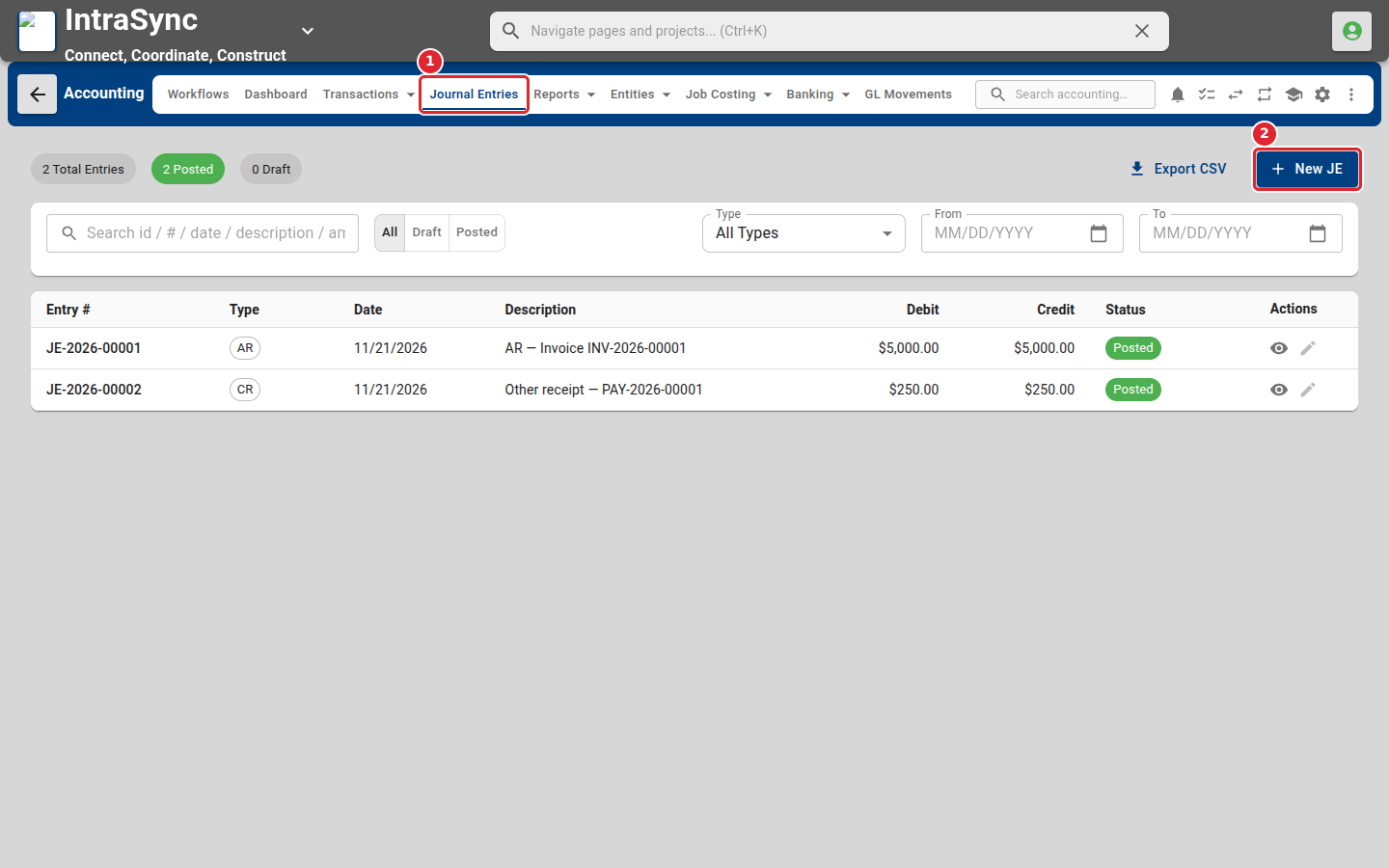
Select Journal Entries, then select New JE.
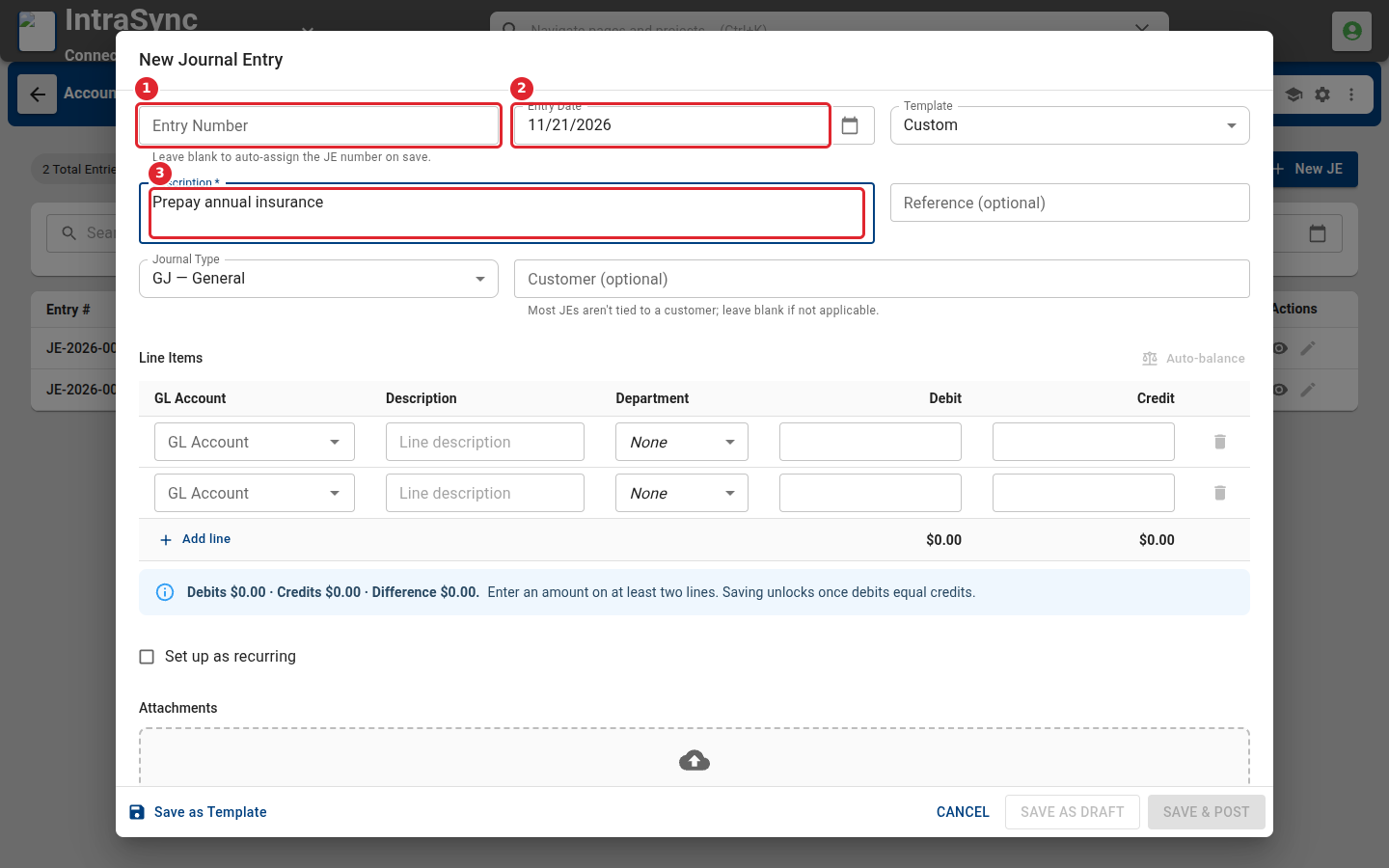
Leave Entry Number blank to have it assigned on save. Check the entry date, and enter a description.
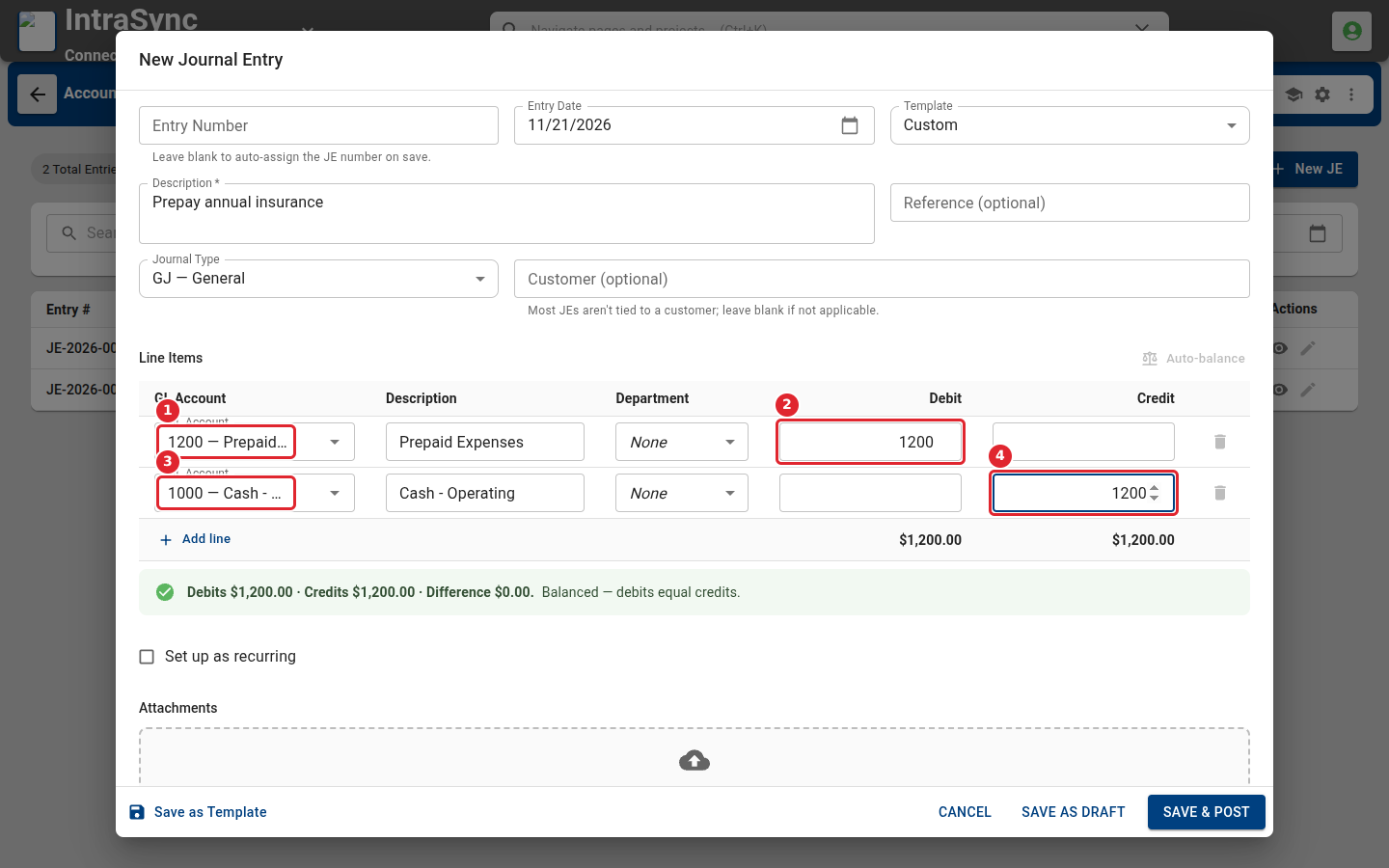
On each line, choose the GL account and enter a debit or a credit. The bar below the lines shows the difference until debits equal credits.
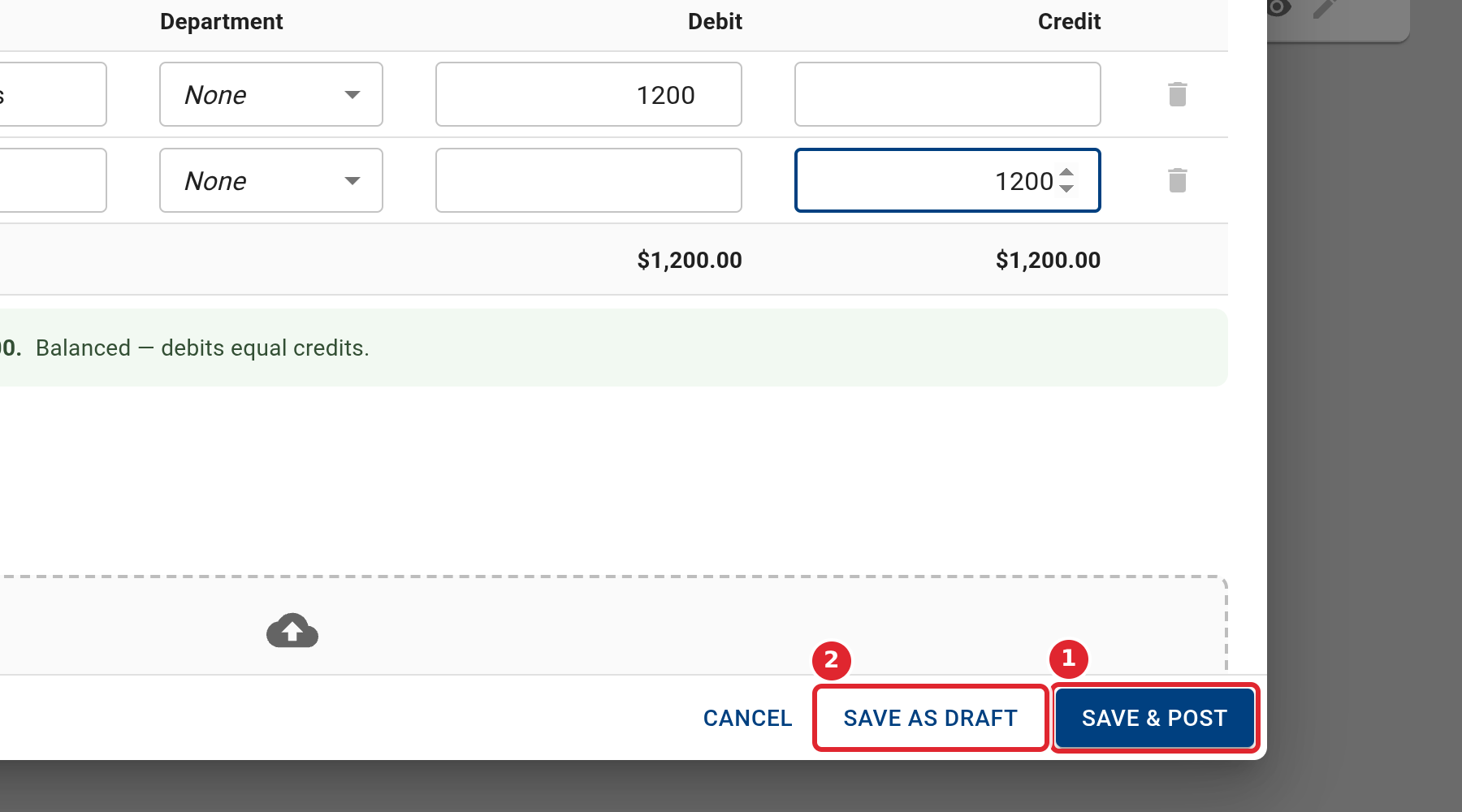
Select Save & Post to post the entry, or Save as Draft to finish it later.
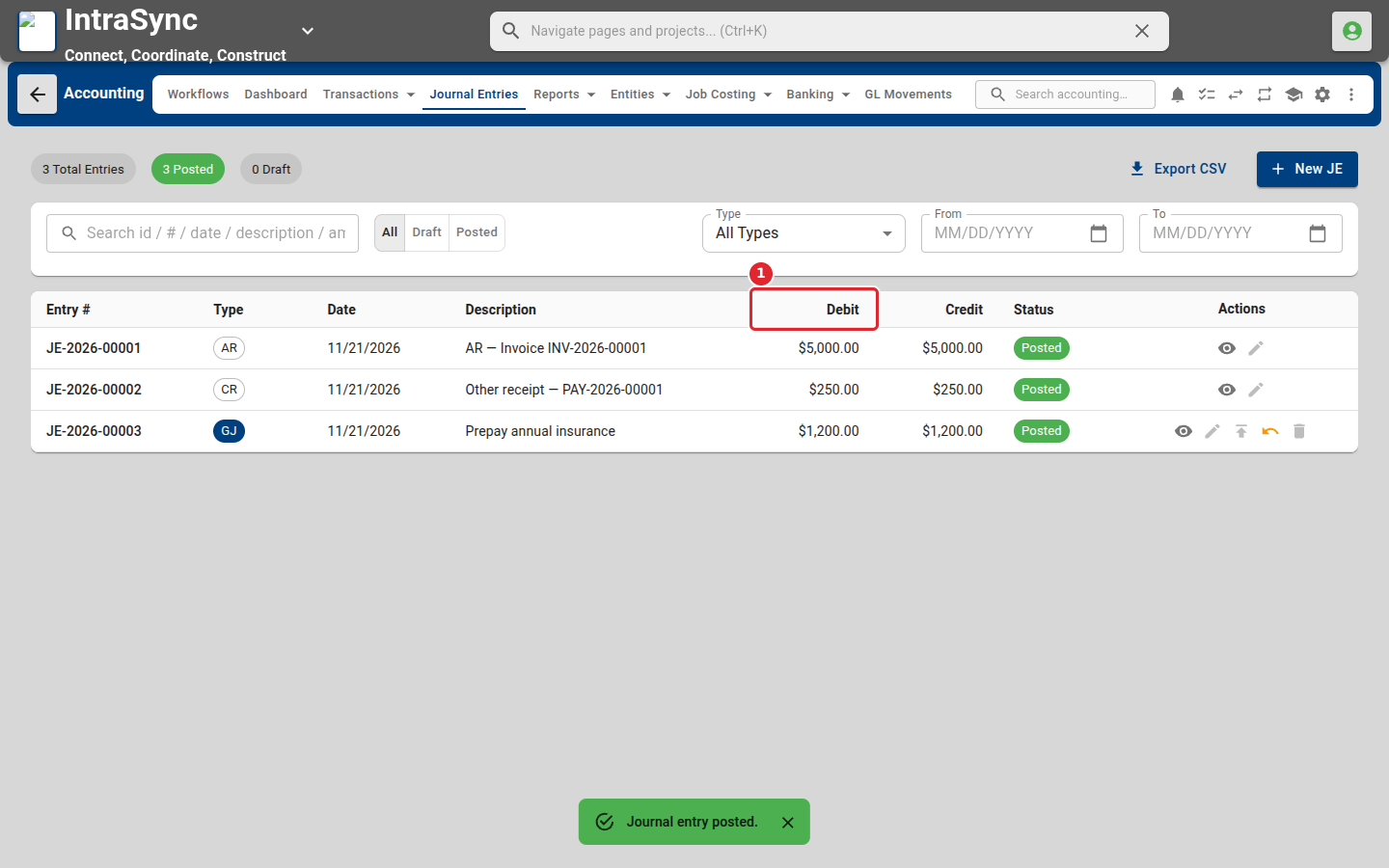
The entry appears in the list with its debits and credits. Use the filters to narrow by type, status or date.
Tips
- Enter an amount on at least two lines. Saving is unlocked only when debits equal credits.
- Leave Customer blank unless the entry belongs to one customer.