Core guide · section 17 of 21
Change your password, sign out of other devices, or sign out
Keep your own account secure, especially on a shared computer.
Watch this in the video (1:48)
Steps
In the pictures, a numbered red box marks where to click or type. Where a picture has more than one box, the numbers give the order.
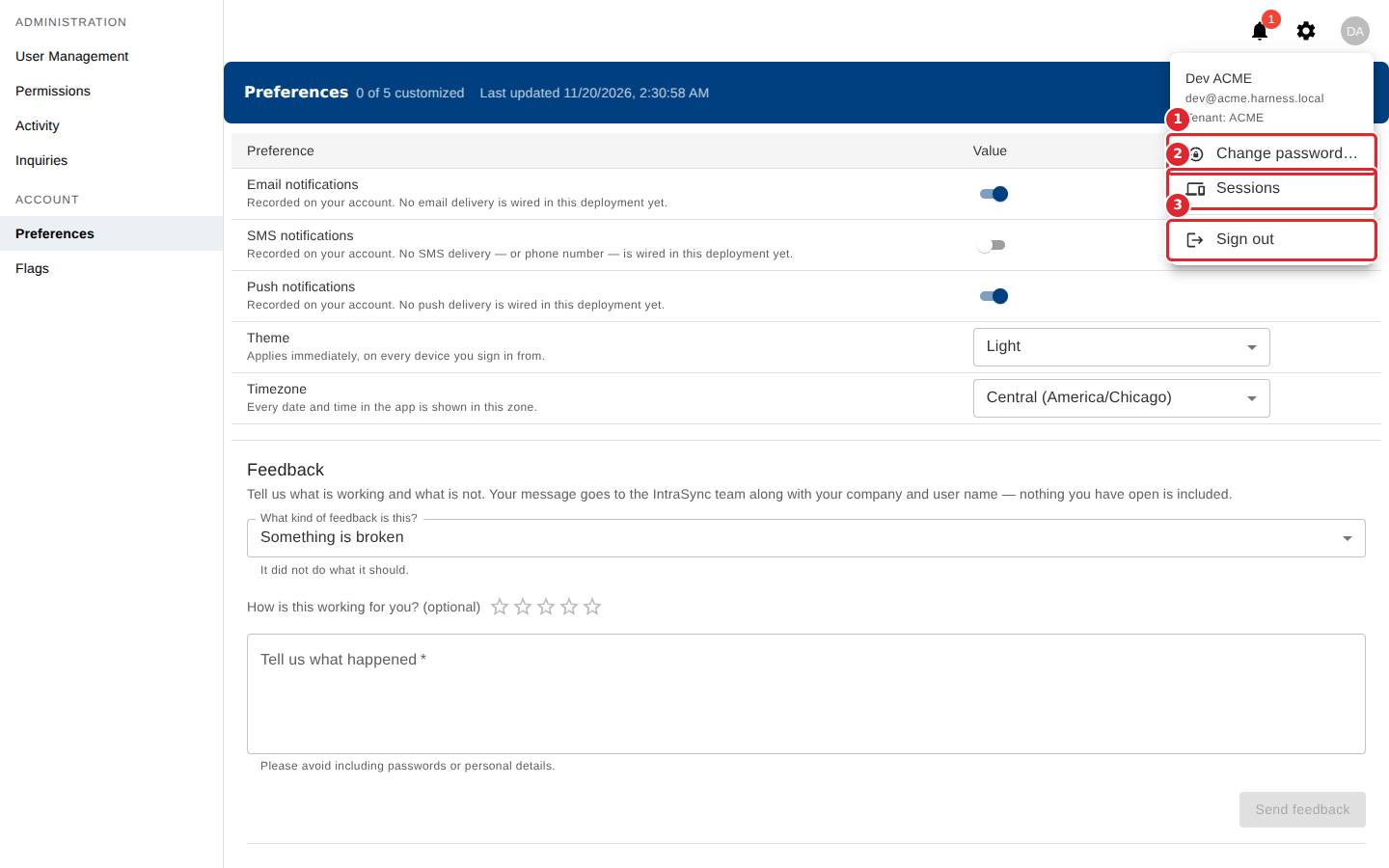
Select your initials at the top right. The menu shows who is signed in, with Change password, Sessions and Sign out.
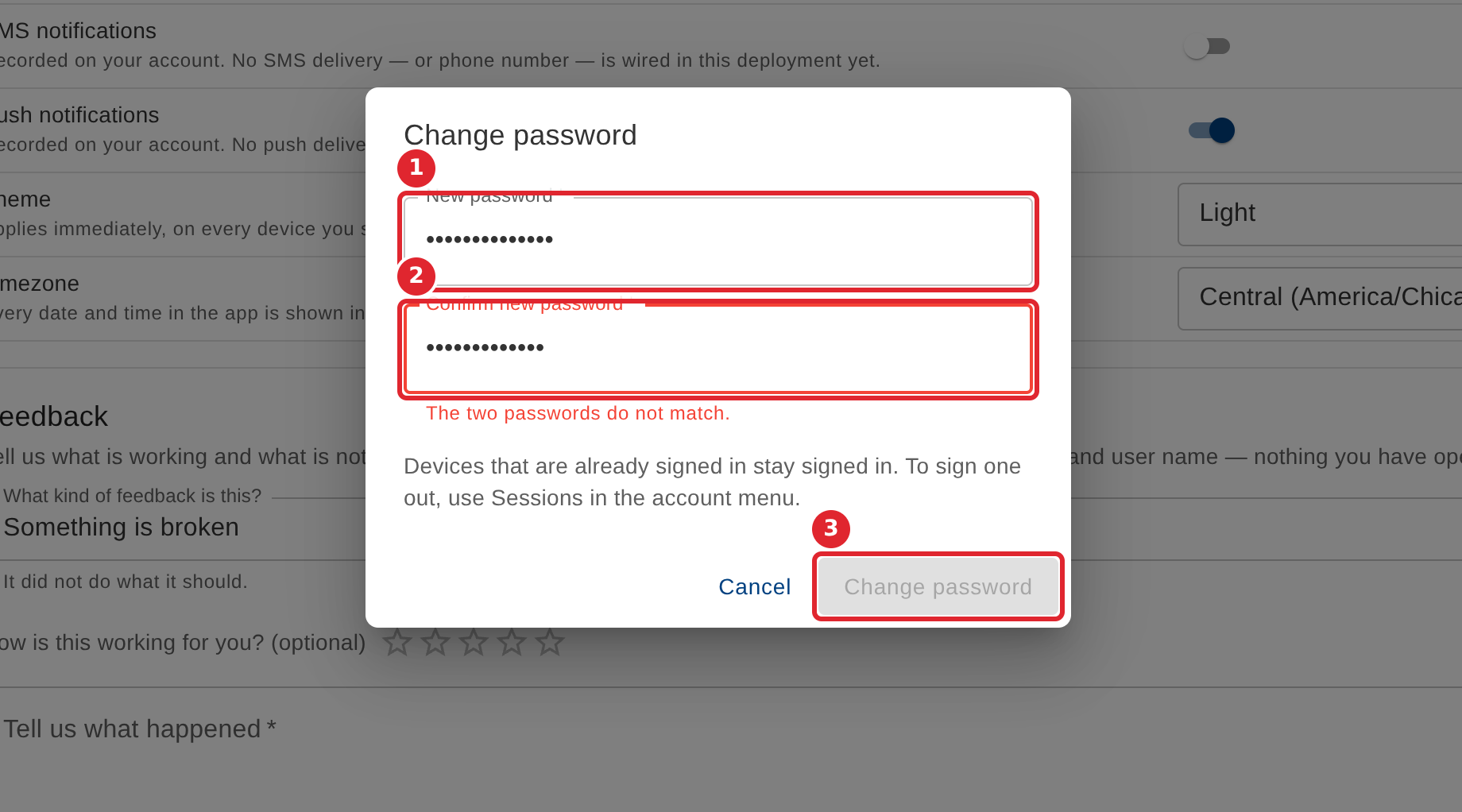
In Change password, type the new password twice and select Change password. If the two do not match, the form says so.
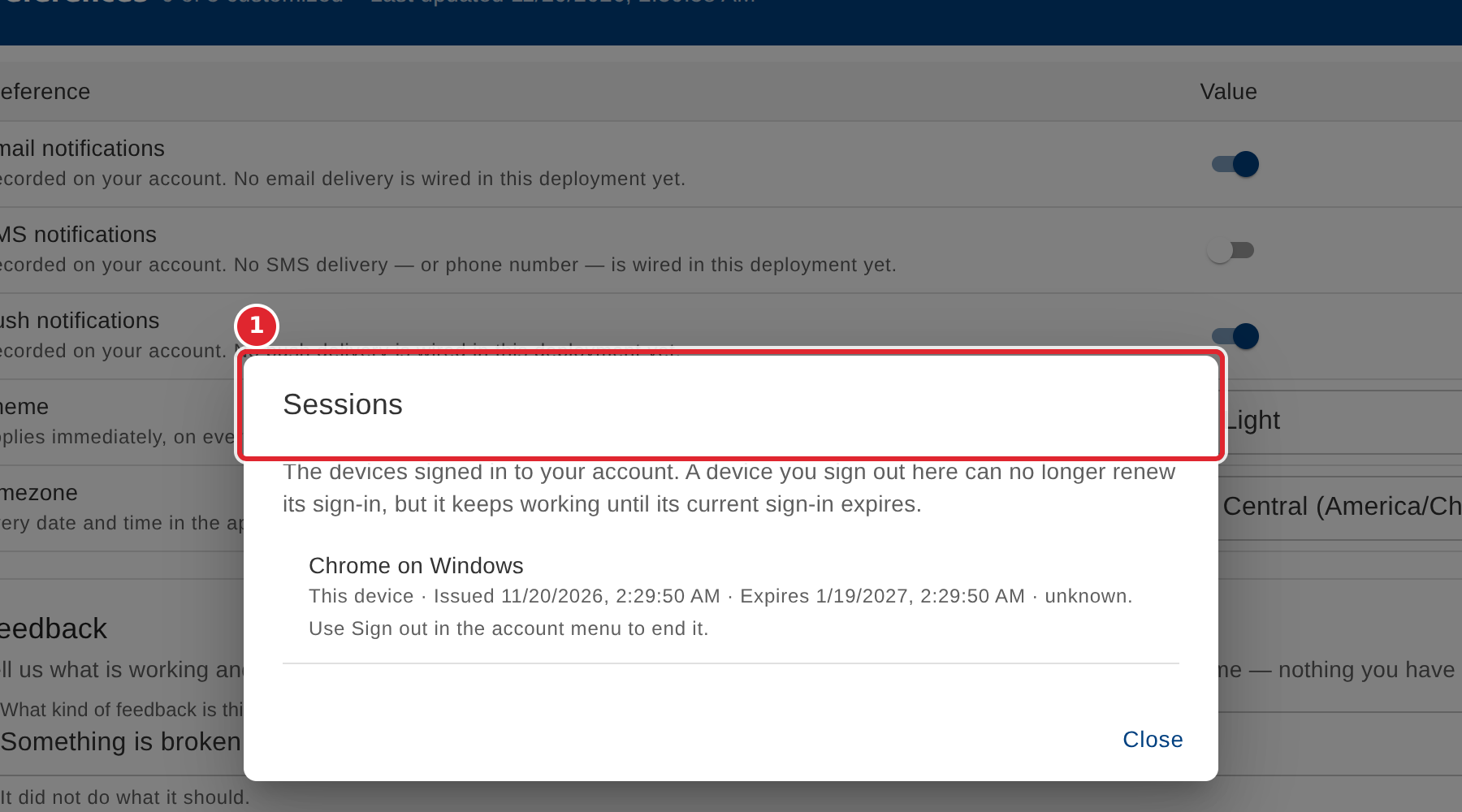
Sessions lists every device signed in to your account. Select Sign out beside a device to end it there.
Select Sign out in the account menu to end your session on this device.
Tips
- If the form says the two passwords do not match, type the second one again.
- Changing your password does not sign out devices that are already signed in. Use Sessions to do that.
- Your own device is listed in Sessions; use Sign out in the account menu to end it.