Core guide · section 11 of 21
Allow or block one person's access to a page
Make an exception for one person without changing the role everyone else shares.
Watch this in the video (0:56)
Before you start
- You are an administrator.
- The person is selected on the User Access tab.
Steps
In the pictures, a numbered red box marks where to click or type. Where a picture has more than one box, the numbers give the order.
Permission overrides change what one person can do, on top of their roles.
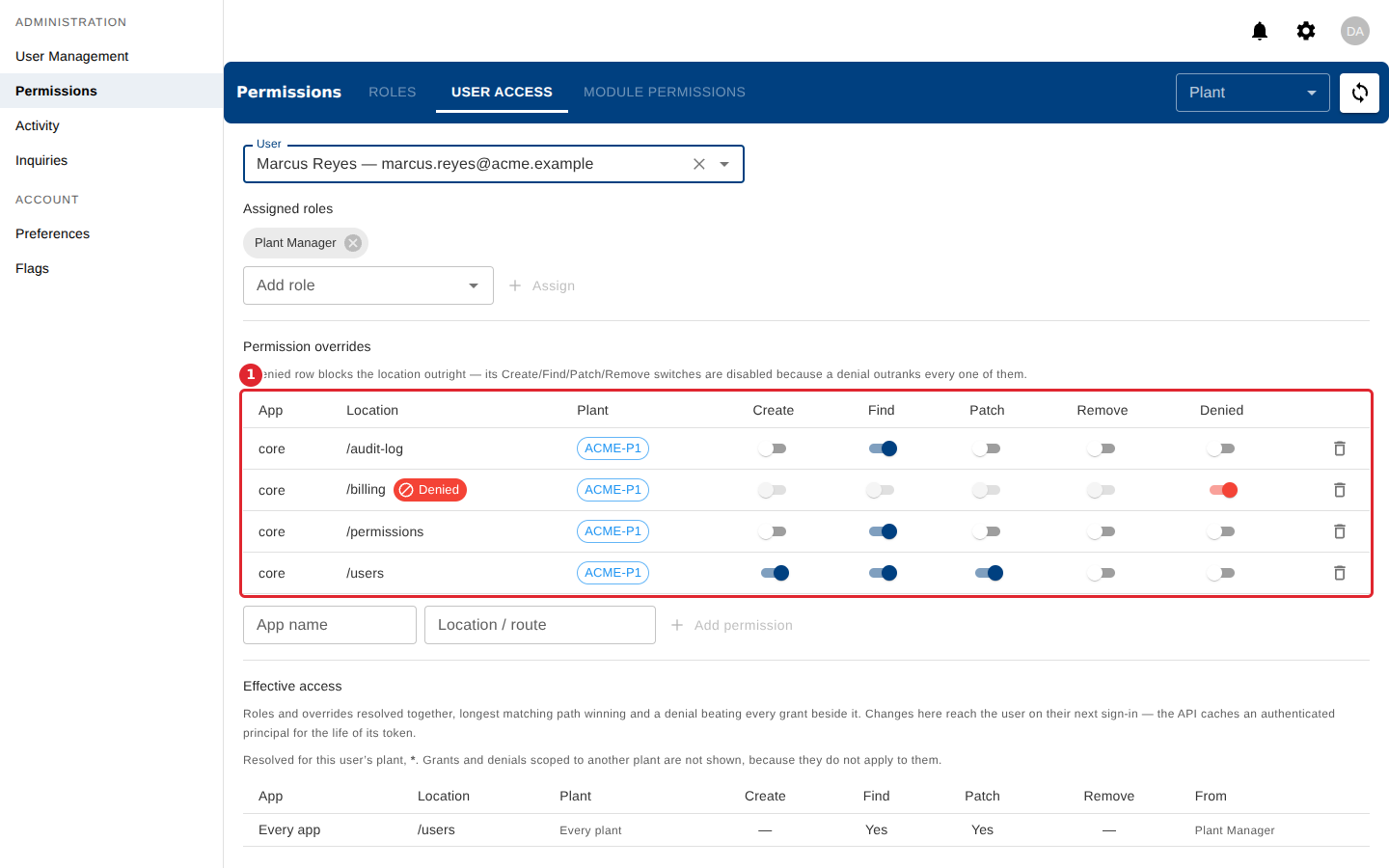
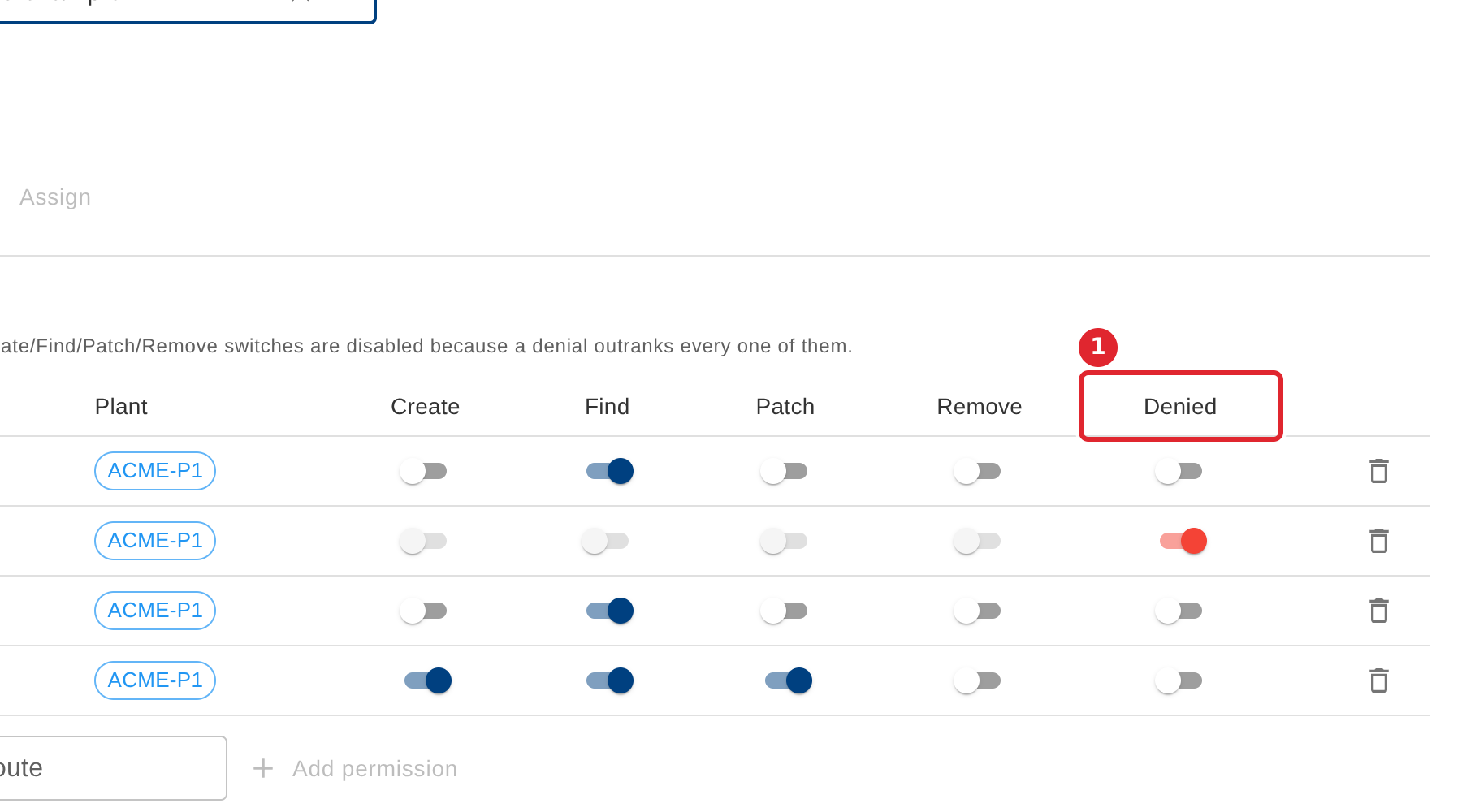
Use the switches to allow Create, Find, Patch or Remove. Turn on Denied to block the location outright.
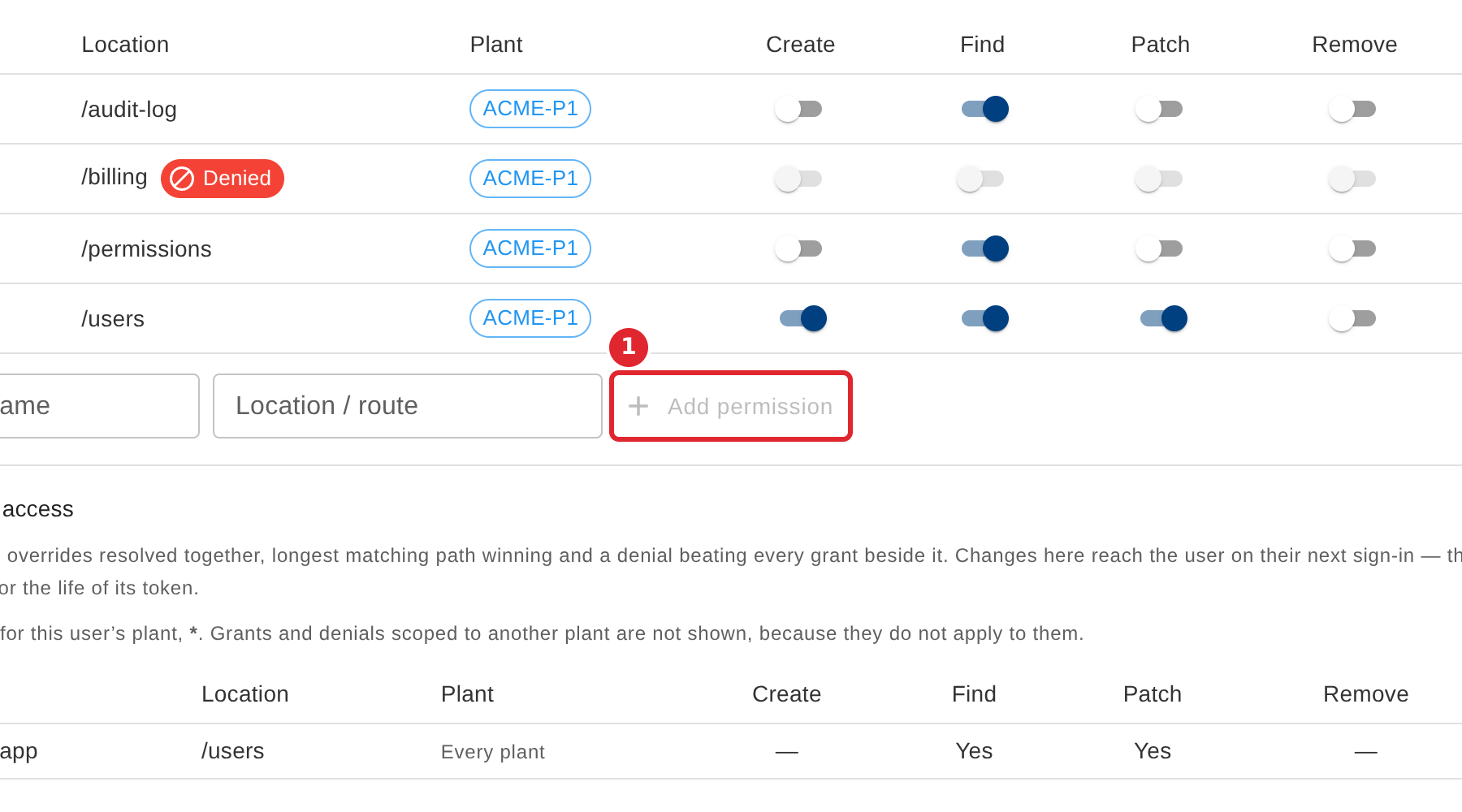
To add an override, enter the App name and Location, then select Add permission.
To remove an override, select the bin icon at the end of its row and confirm. The person falls back to what their roles allow.
Tips
- A row with Denied turned on blocks the location outright, so its other switches are unavailable. Turn Denied off to use them.
- If an override for that location already exists, the form says so: change that row instead.
- Changes reach the person the next time they sign in.