Core guide · section 14 of 21
Set your own preferences
Choose how the app looks and which timezone it shows times in, for you alone.
Watch this in the video (1:13)
Steps
In the pictures, a numbered red box marks where to click or type. Where a picture has more than one box, the numbers give the order.
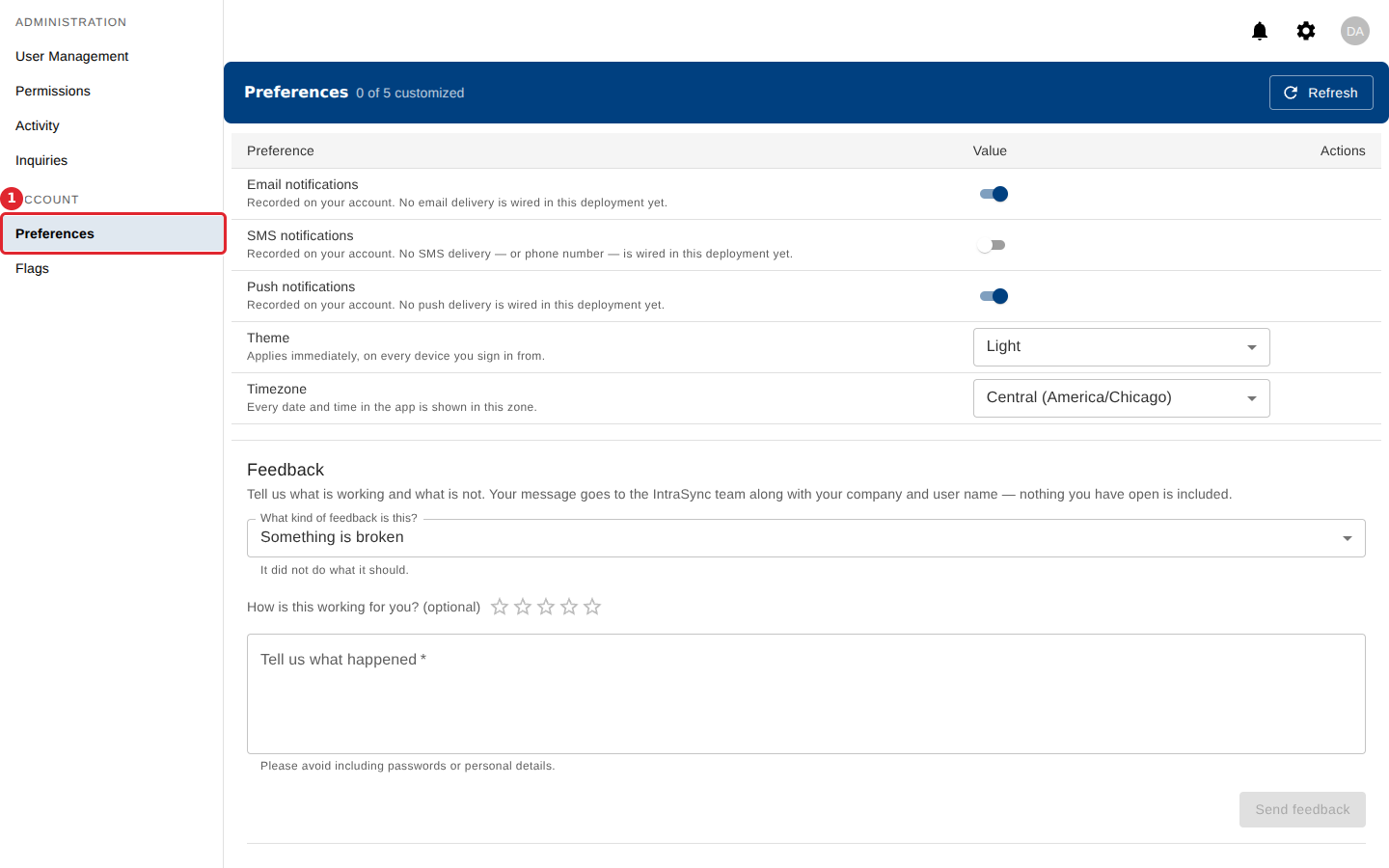
Open Preferences. Every setting here is your own.
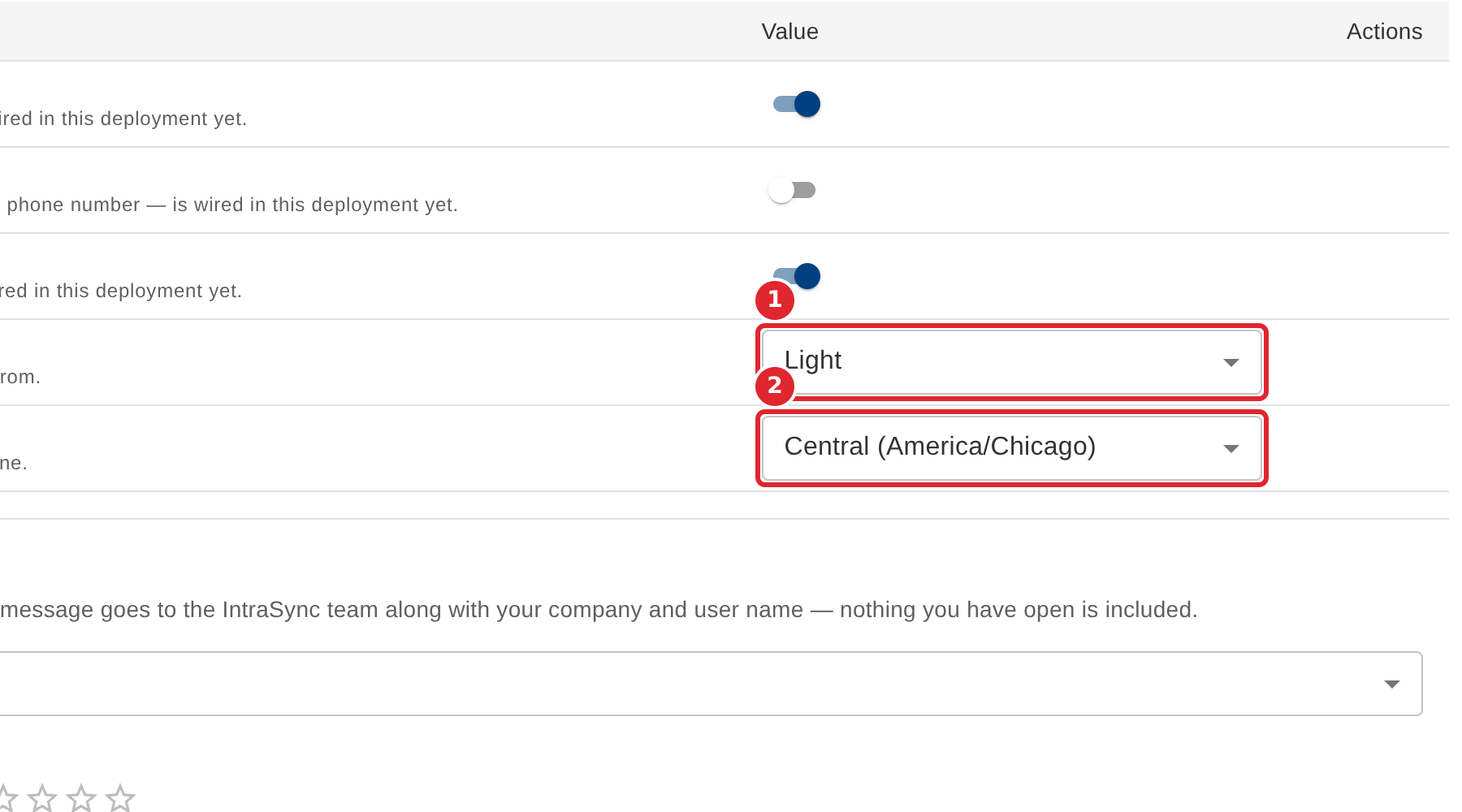
Choose a Theme and a Timezone. Every date and time in the app is shown in your timezone.
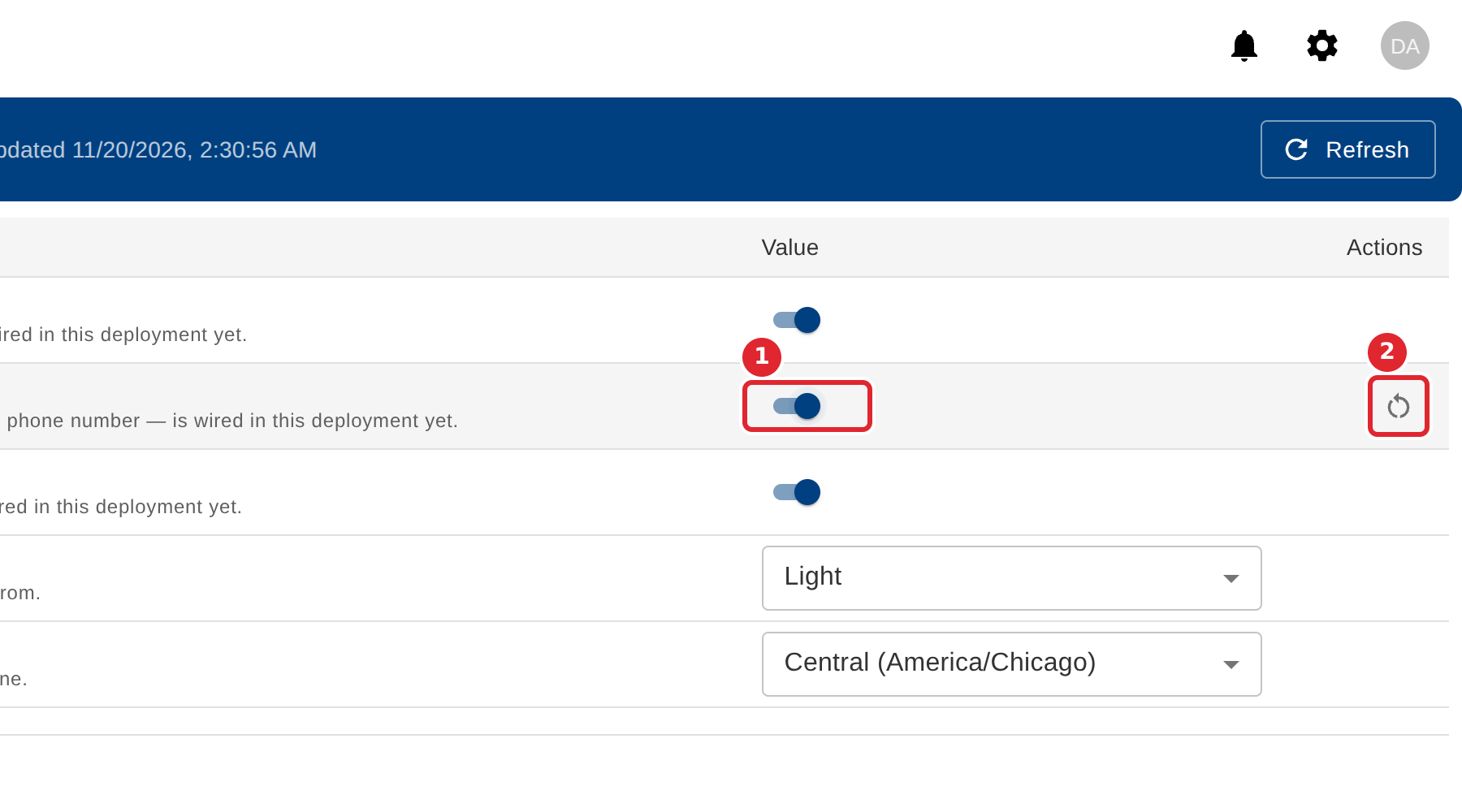
Changes save at once. Select the reset icon on a row to put it back to its default.
Tips
- Theme applies straight away, on every device you sign in from.
- The header shows how many of your settings differ from the defaults.
- The notification switches record your choice on your account.