Dashboard guide · section 13 of 14
Change a board's settings
Rename a board, decide who can see it, set how often it refreshes, or copy or archive it.
Watch this in the video (1:11)
Before you start
- You can change the settings of boards you own.
Steps
In the pictures, a numbered red box marks where to click or type. Where a picture has more than one box, the numbers give the order.
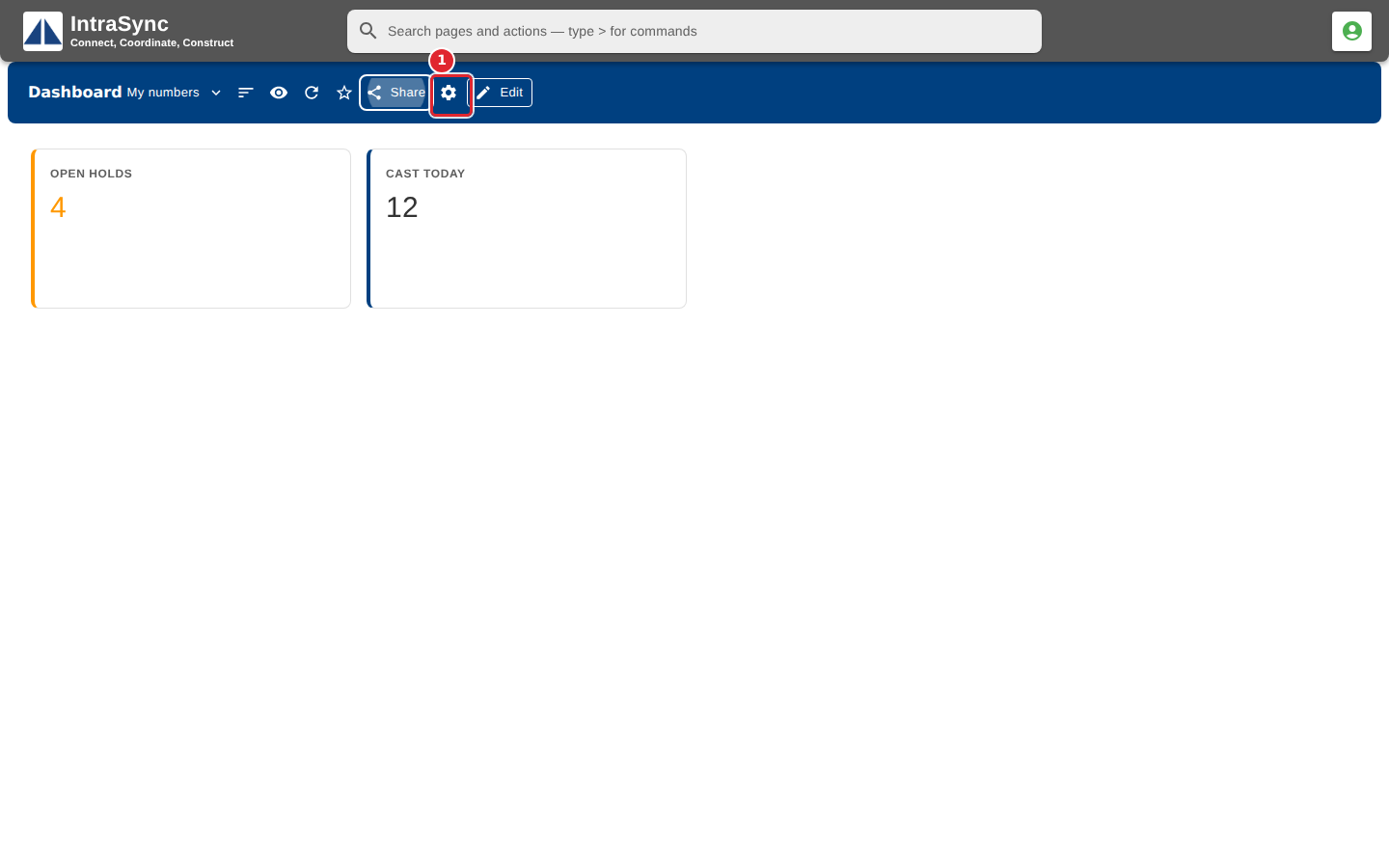
Select Board settings in the header.
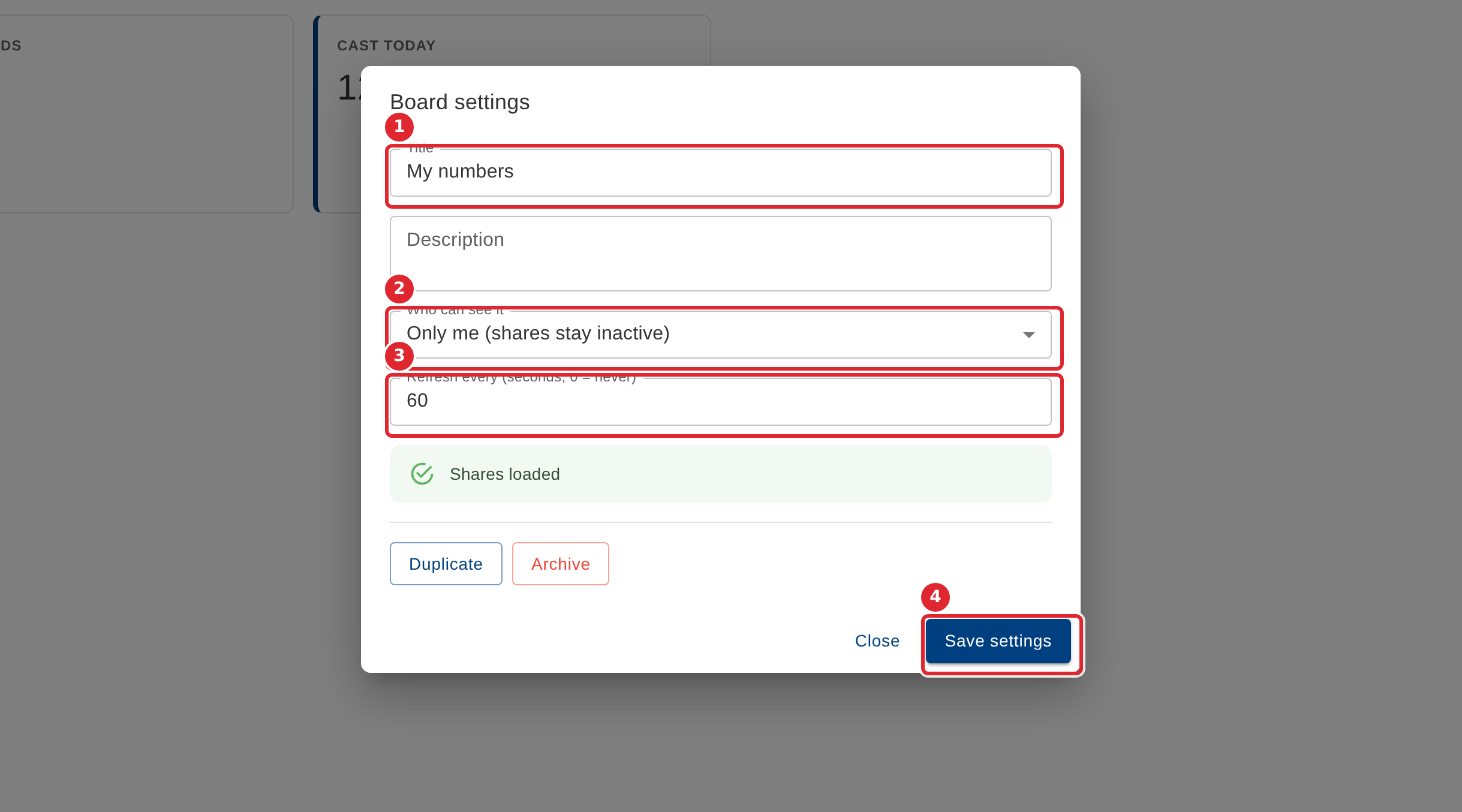
Change the Title, Description, Who can see it, and how often the board refreshes. Select Save settings.
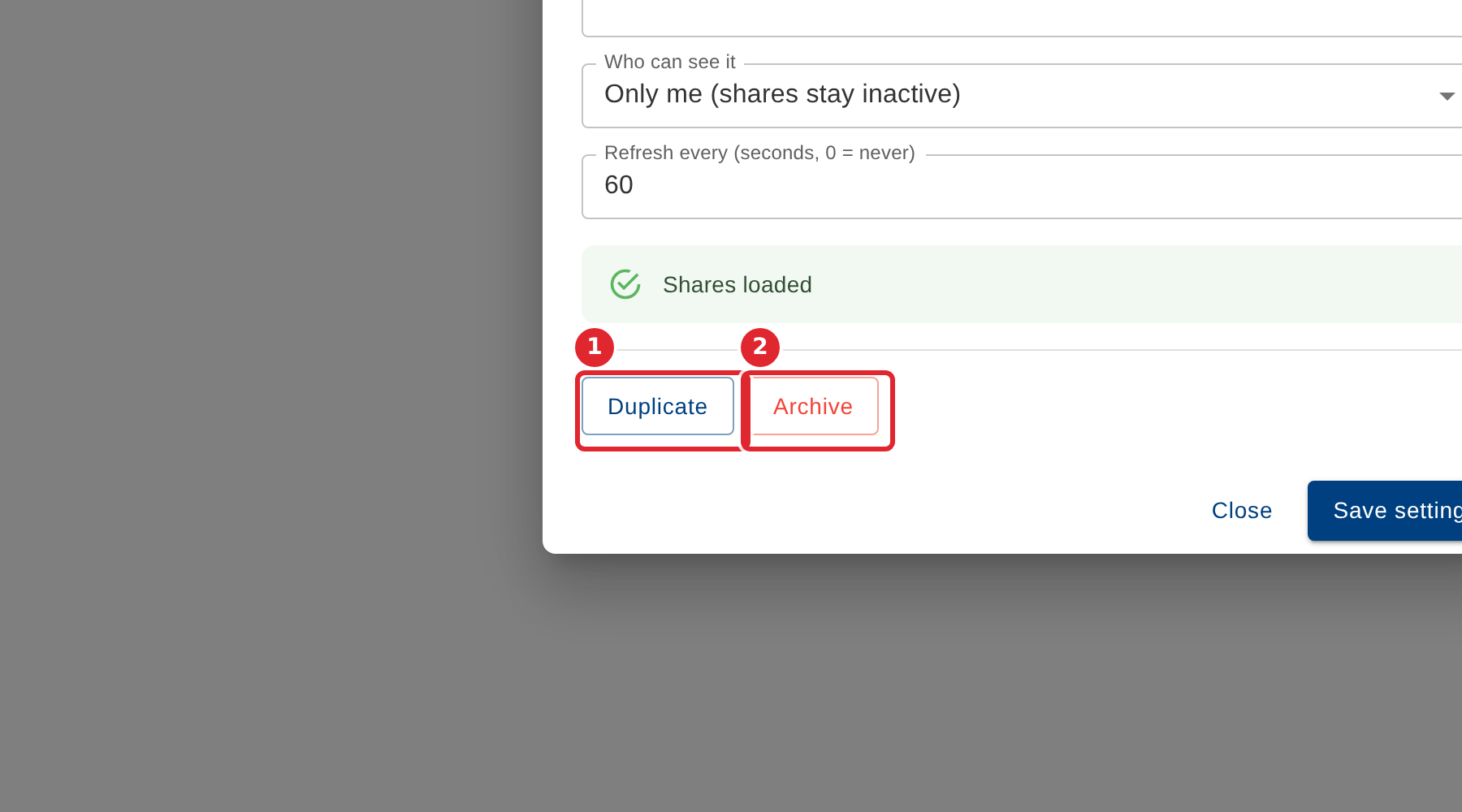
Select Duplicate to copy the board, or Archive to take it out of use.
Tips
- Set Refresh every to 0 to stop the board refreshing on its own.