Dashboard guide · section 12 of 14
Share a board
Let a role, a department or a person open your board, or edit it with you.
Watch this in the video (1:06)
Before you start
- You can share boards you own.
Steps
In the pictures, a numbered red box marks where to click or type. Where a picture has more than one box, the numbers give the order.
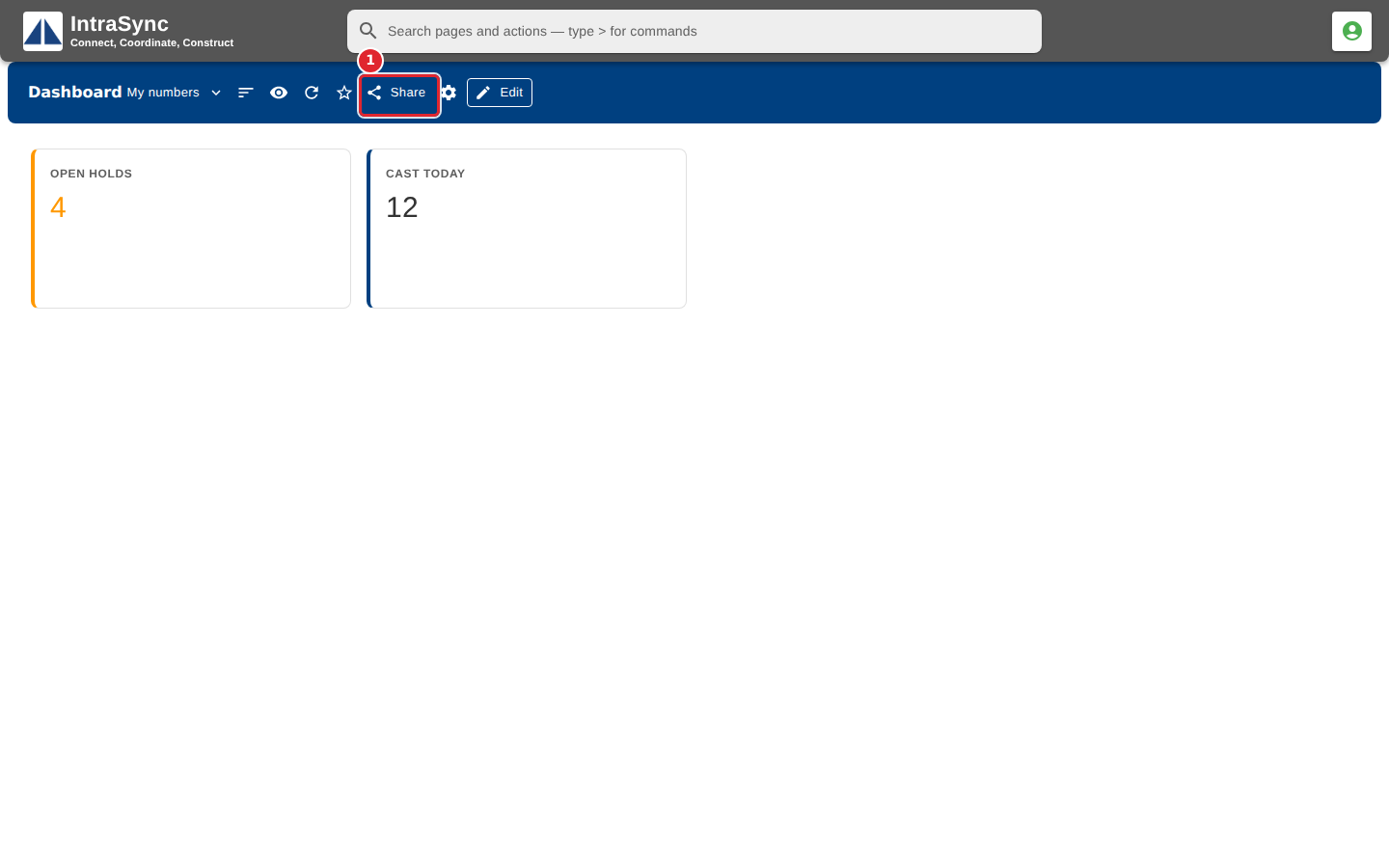
Open your board and select Share.
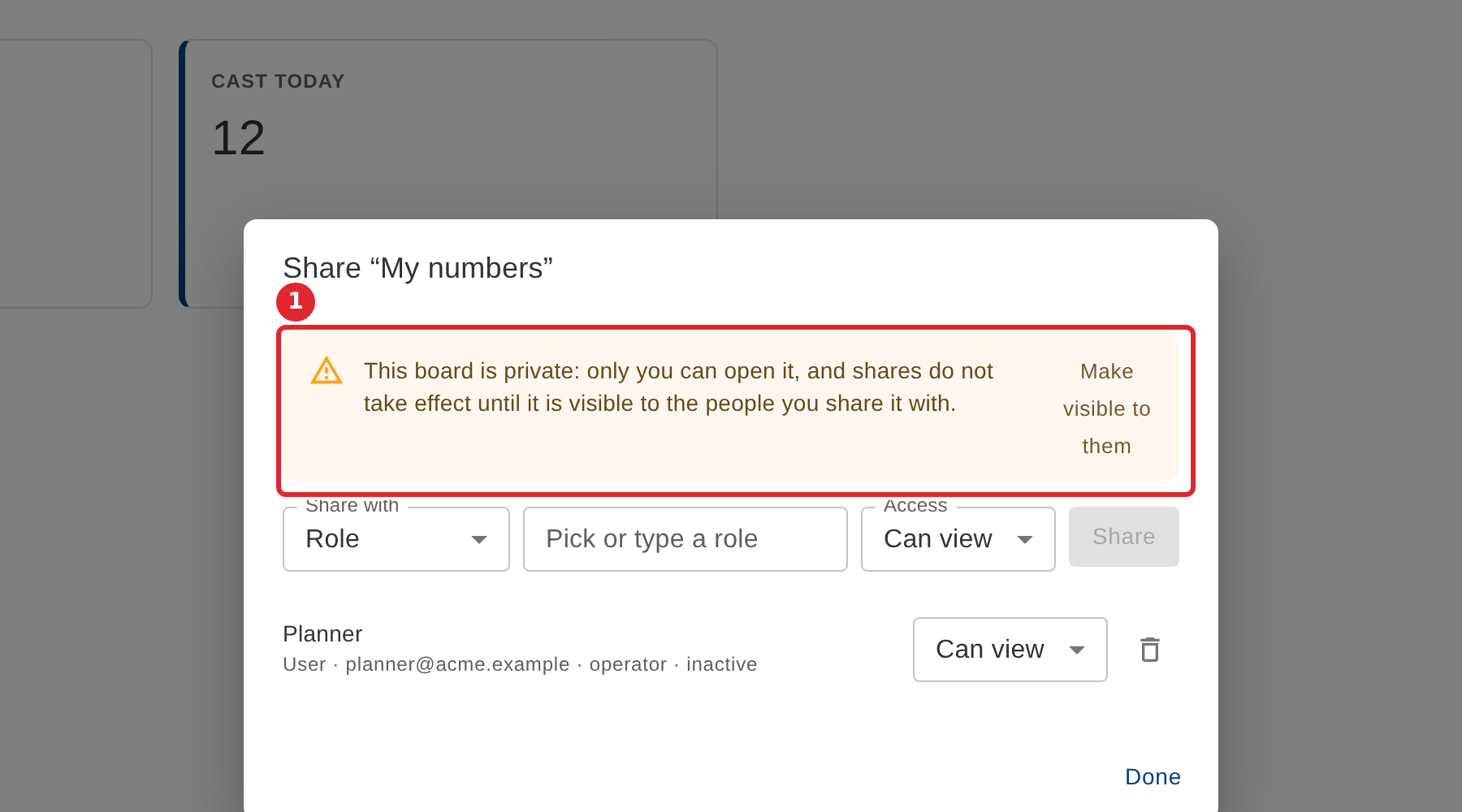
On a private board, select Make visible to them first. Shares stay inactive until the board is visible.
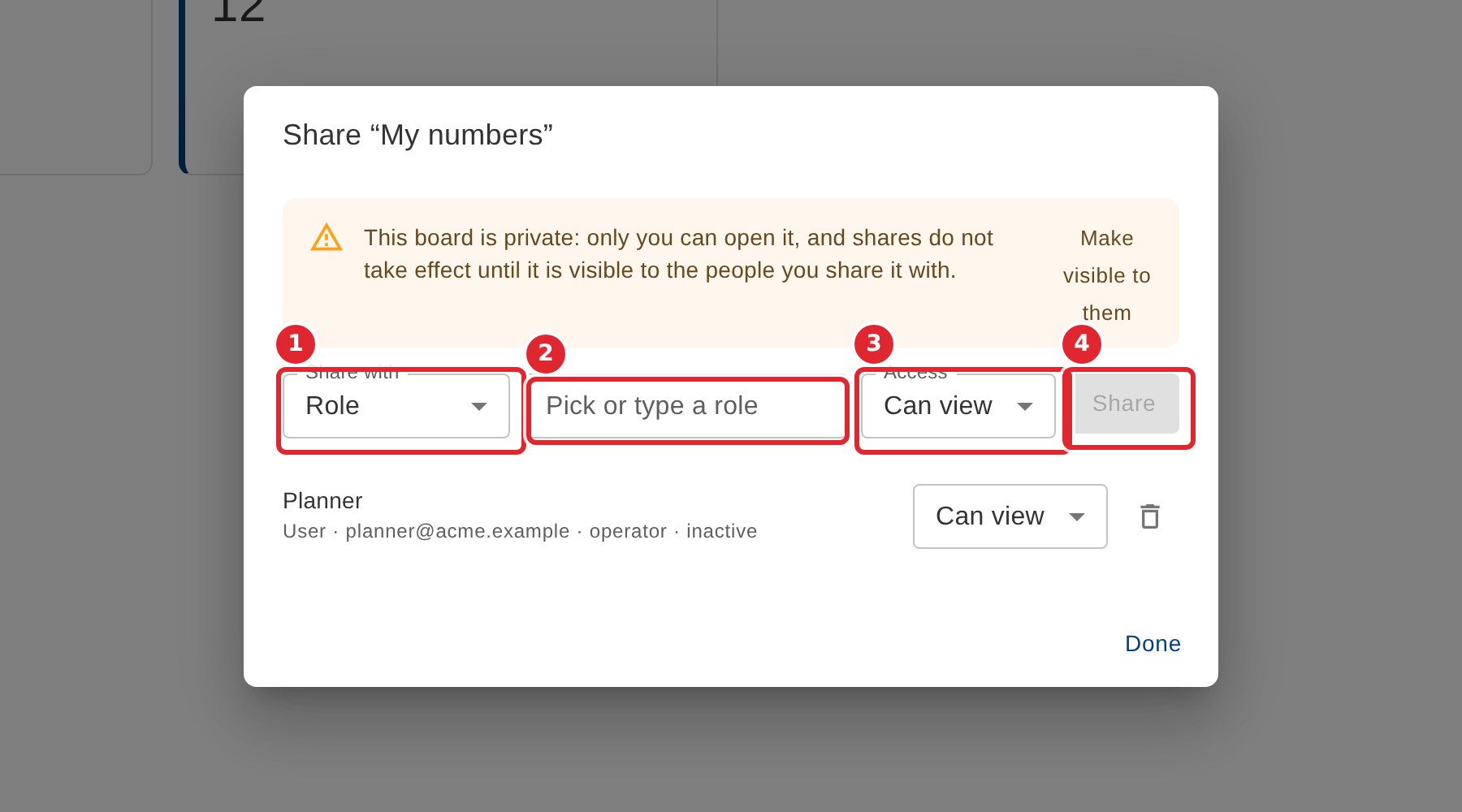
Choose Share with (a role, a department or a person), pick who, choose the Access, and select Share.
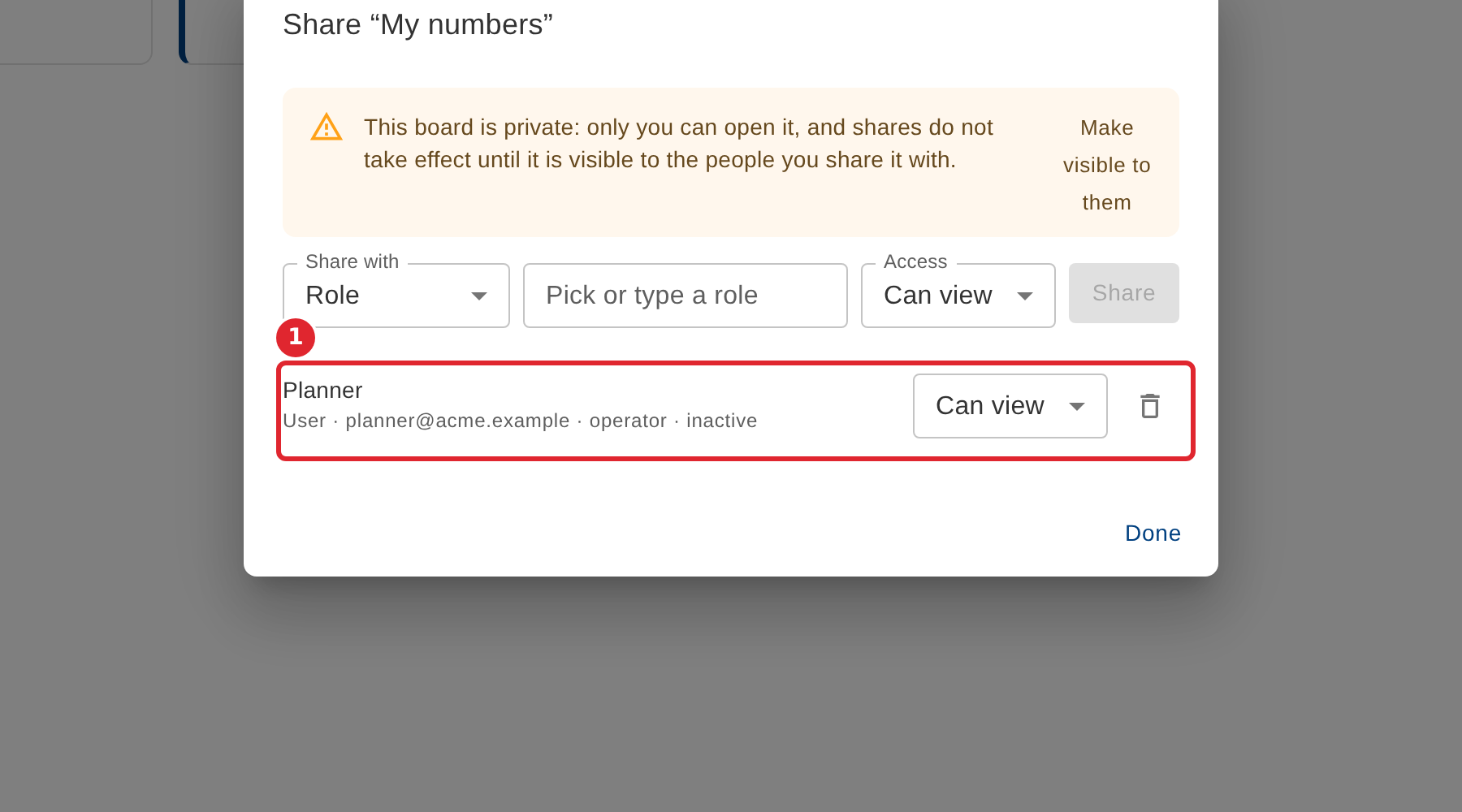
Change someone's access in place, or remove them with the bin.
Tips
- Shares on a private board do nothing until the board is visible to the people you share it with.
- Can view lets people open the board; edit access also lets them change its widgets. Only the owner can share it further or change its settings.