Find a load on the Dispatch Board
The Dispatch Board lists every trailer load, so you can find one quickly, see which are late or need a permit, and open it.
Watch this in the video (0:24)
Steps
In the pictures, a numbered red box marks where to click or type. Where a picture has more than one box, the numbers give the order.
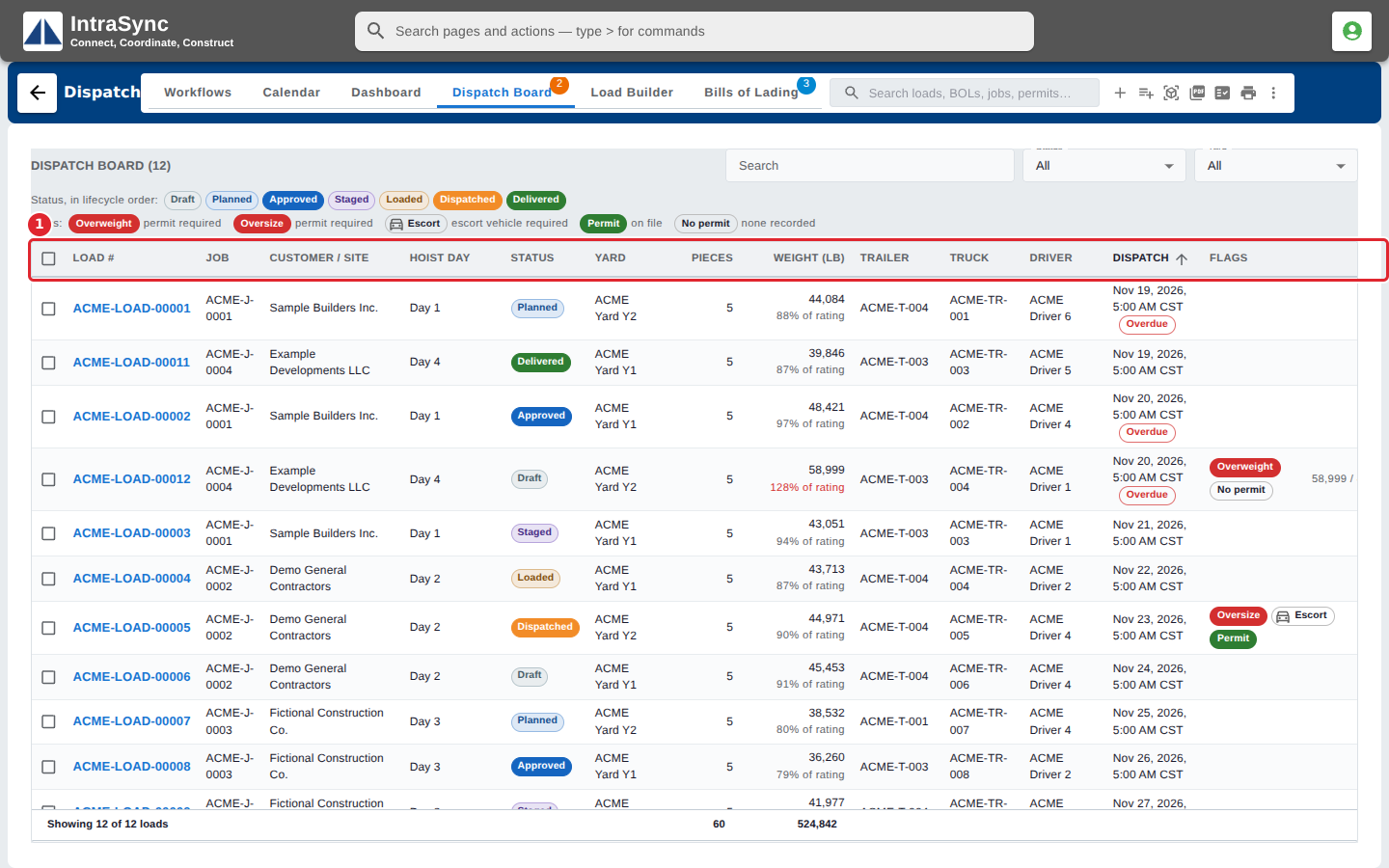
Select the Dispatch Board tab. Each row is one load: its job, customer and site, hoist day, status, yard, pieces, weight, trailer, truck, driver and dispatch time, with any flags at the end.
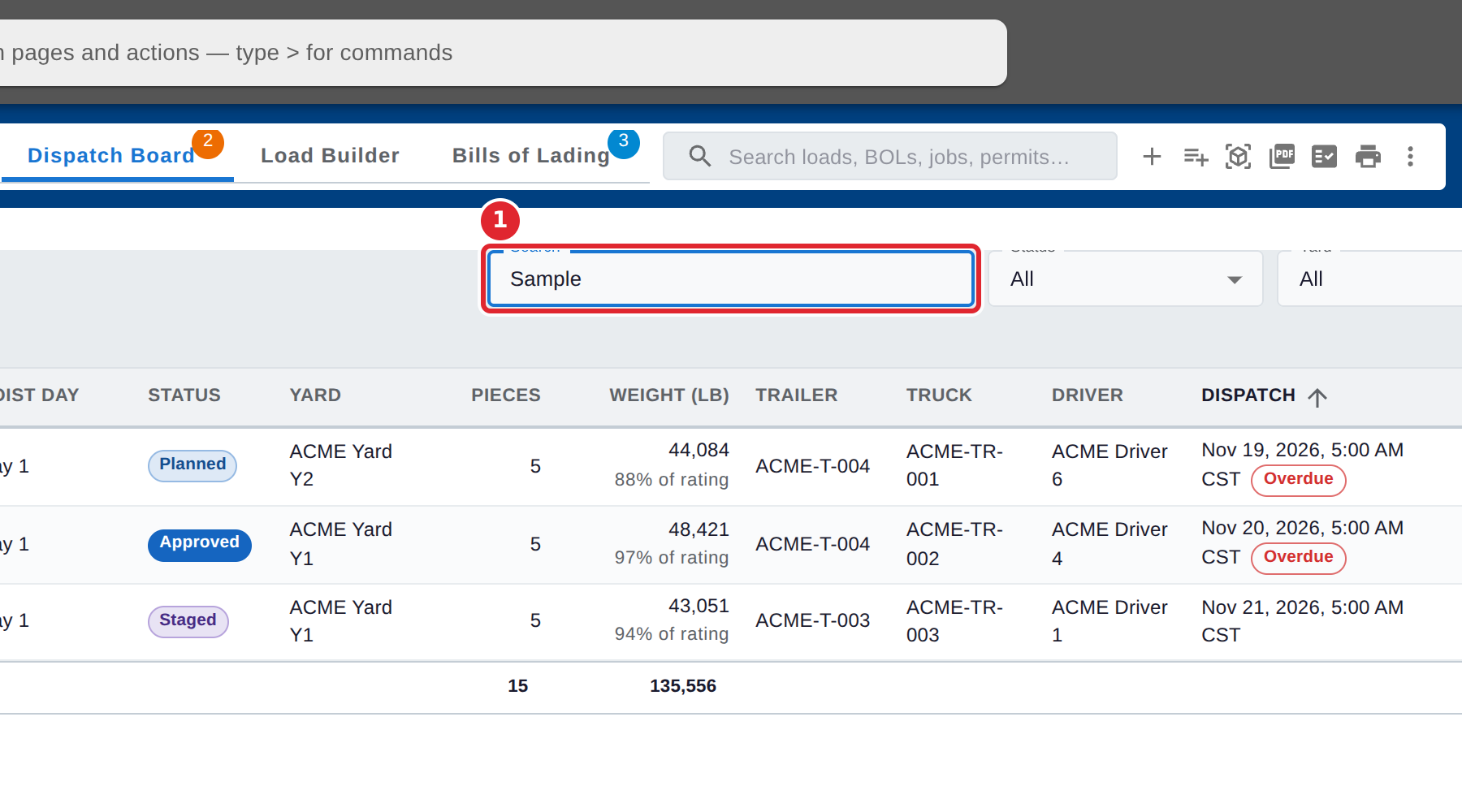
Type in Search to narrow the list. It looks in the load number, job, customer, site, trailer, truck, yard and driver.
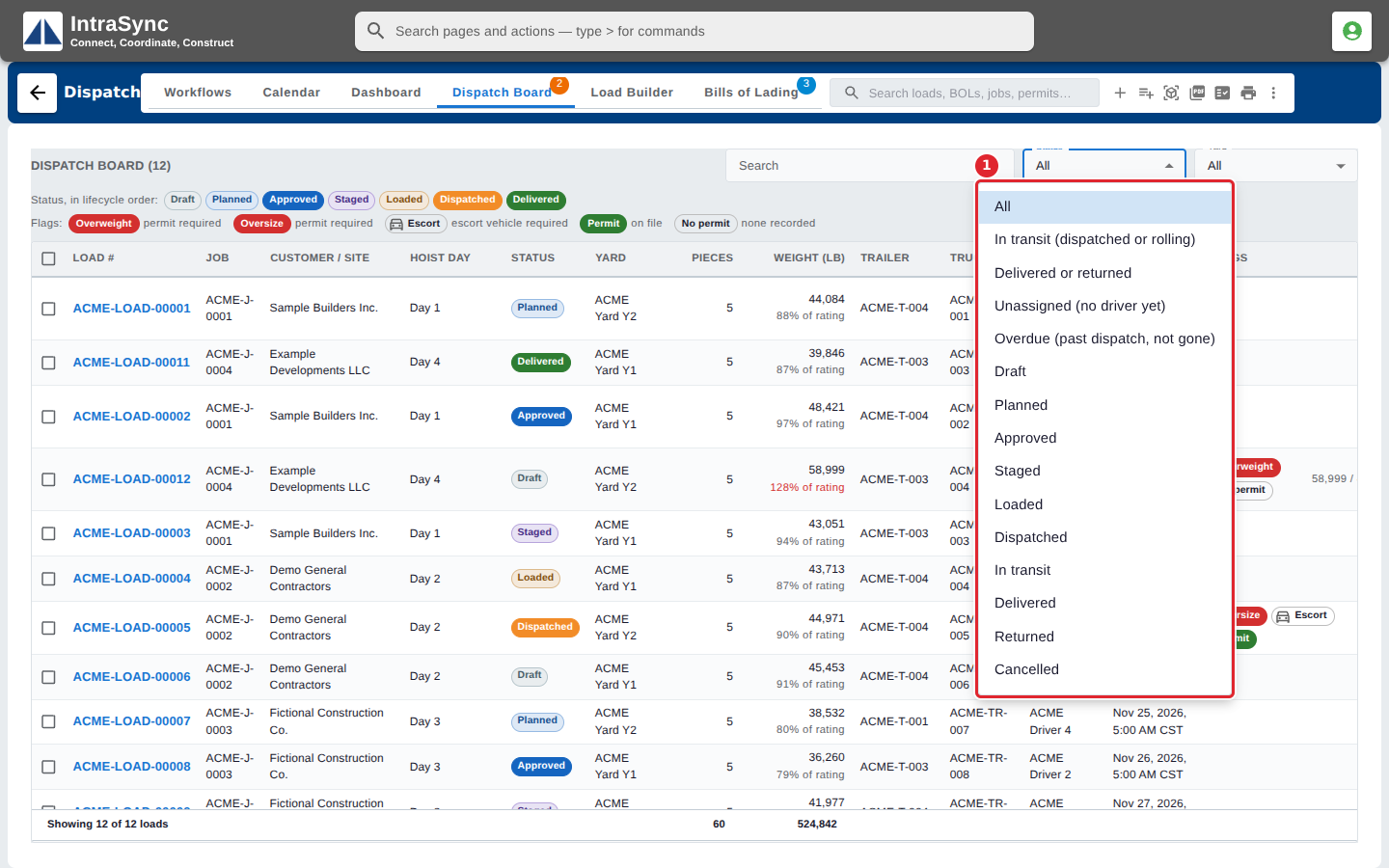
Open Status to show only the loads at one stage. The first choices group stages together: in transit, delivered or returned, unassigned, and overdue.
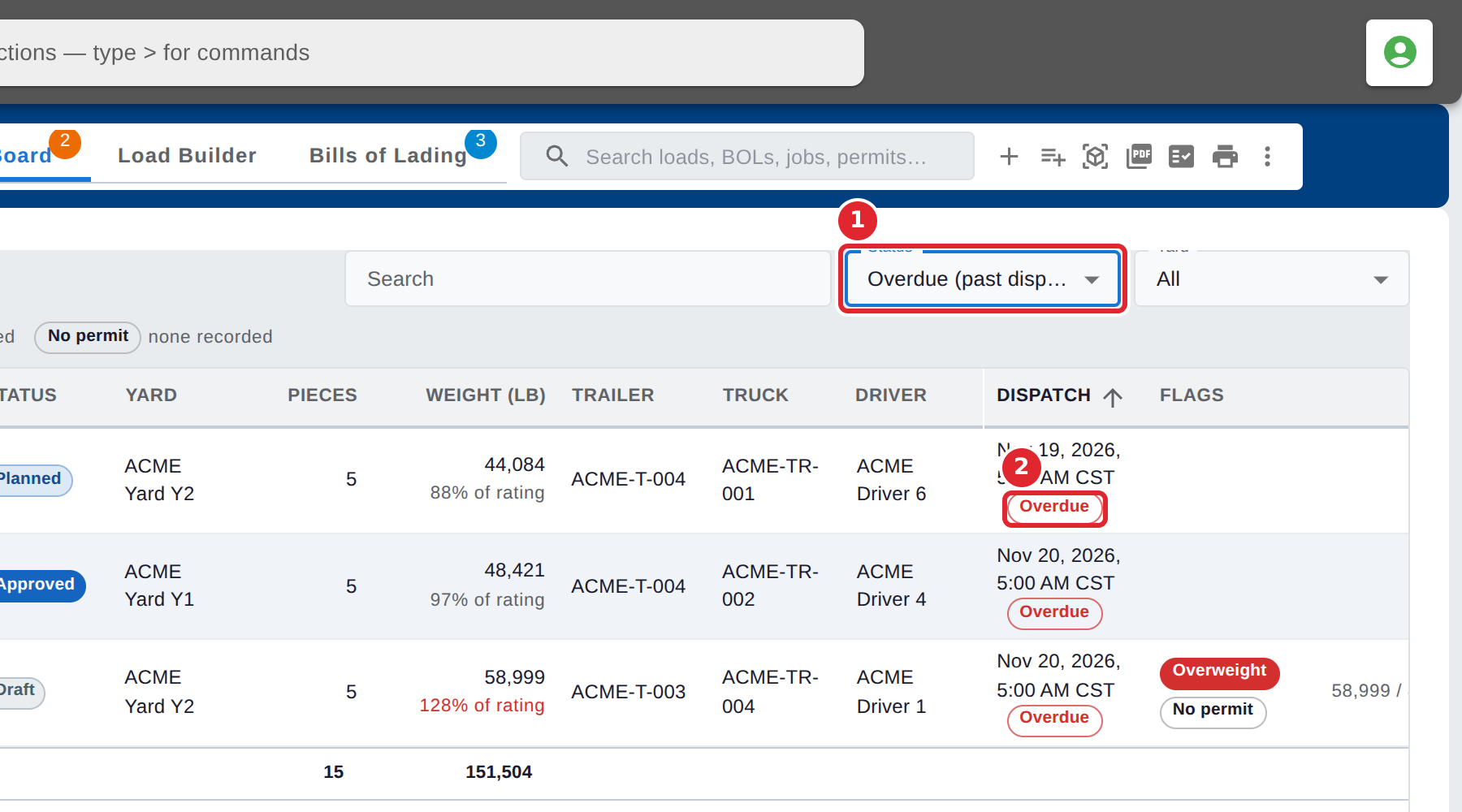
Choose Overdue to see the loads whose dispatch time has passed but which have not left. Each one carries a red Overdue tag.
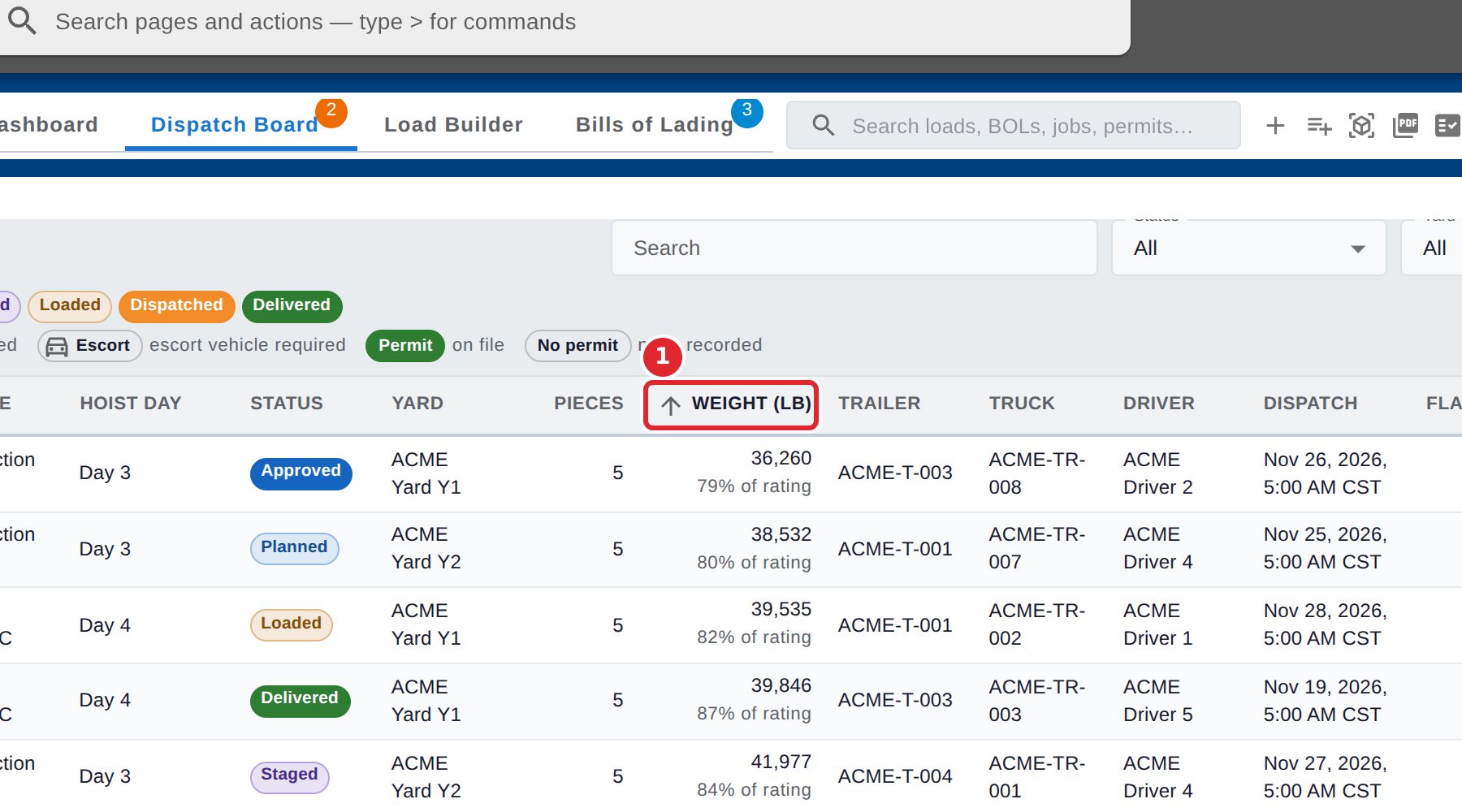
Select a column heading to sort the list by it. Select it again to reverse the order.
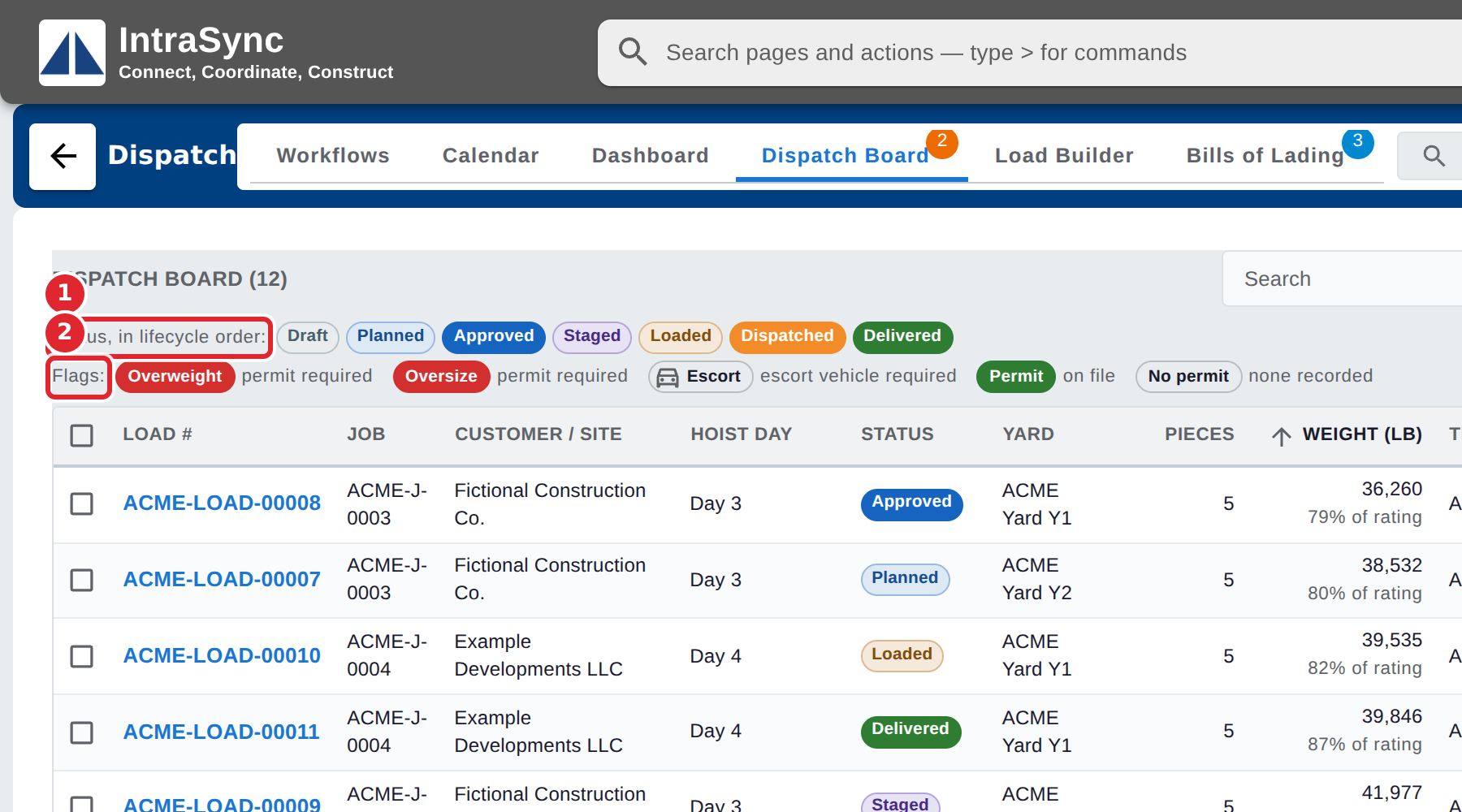
The key under the filters explains the status colours and the flags, such as Overweight, Oversize, Escort and No permit.
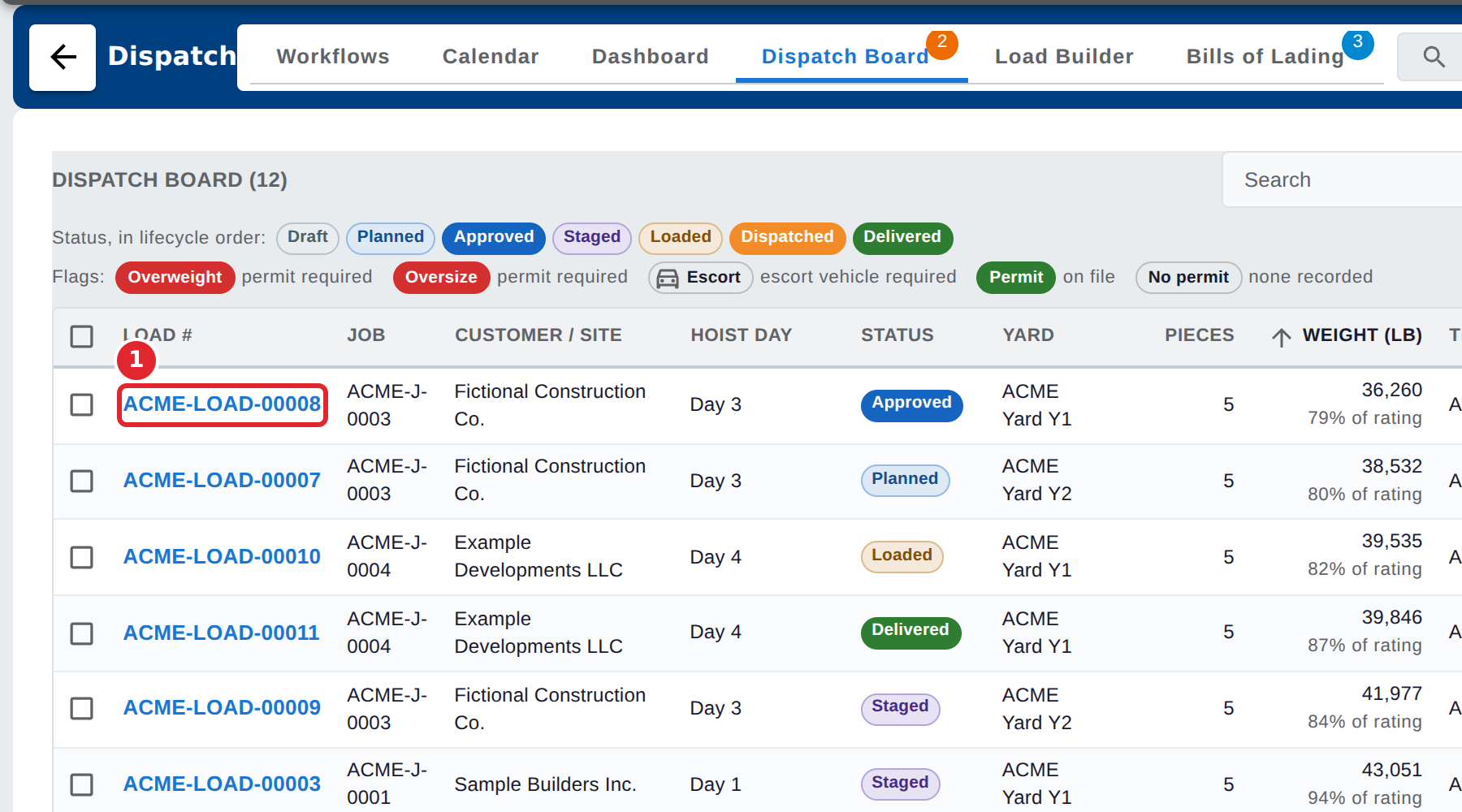
Select a load number to open that load in the Load Builder.
Tips
- Under each weight, the board shows how full the trailer is against its rating. A load over its rating is shown in red.
- Where your yard locations are set up, a Yard filter beside Status shows the loads staged at one location, or the ones not staged yet.
- If no loads match your search and filters, select Clear filters to see them all again.