Dispatch guide · section 2 of 20
Start the day from the Workflows tab
Workflows sets out the day's dispatch work in the order it happens, with a count of what is waiting, so you can see where to start.
Watch this in the video (0:03)
Steps
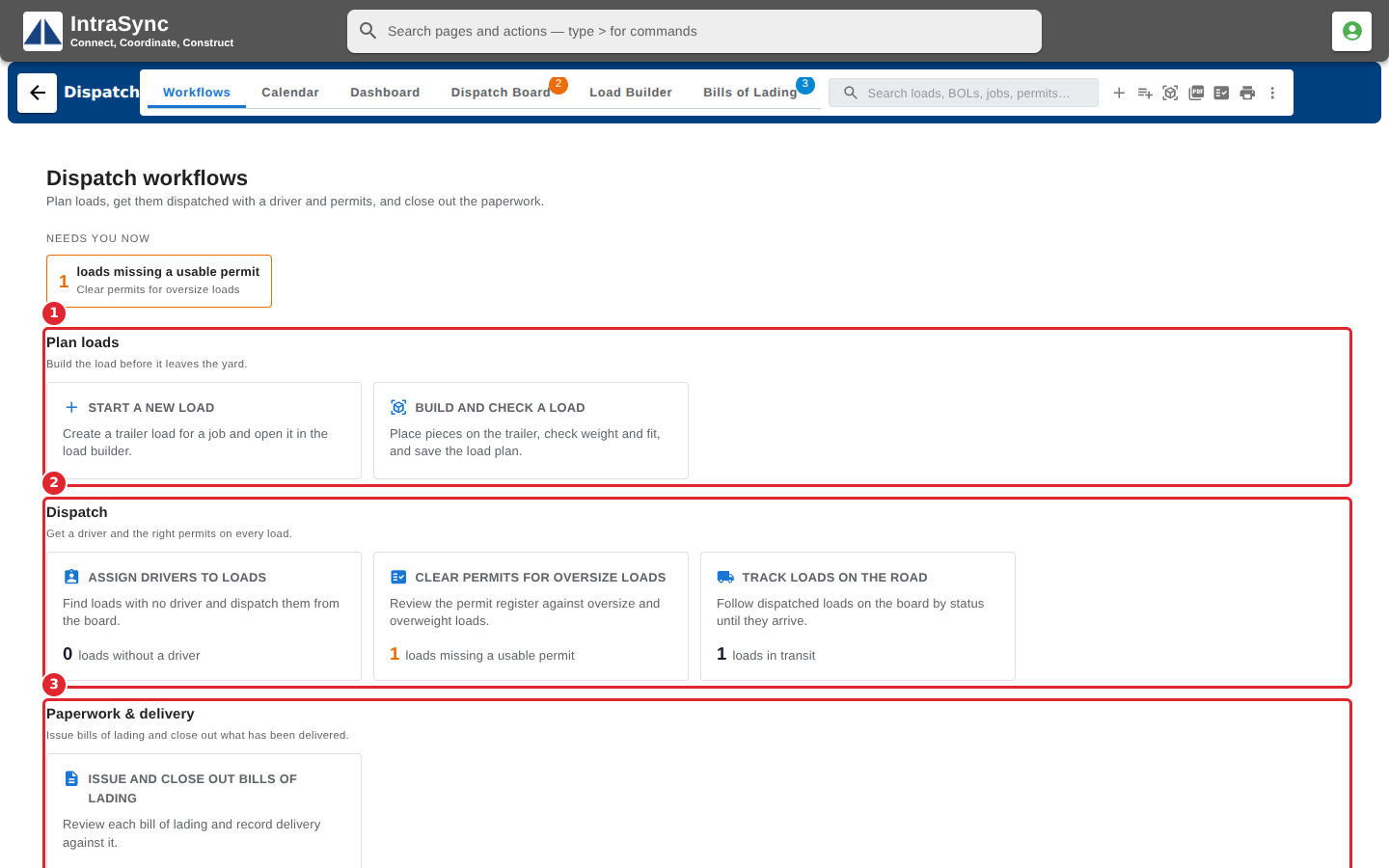
In the pictures, a numbered red box marks where to click or type. Where a picture has more than one box, the numbers give the order.
Select the Workflows tab. Needs you now shows the work that is waiting on someone, with a count.
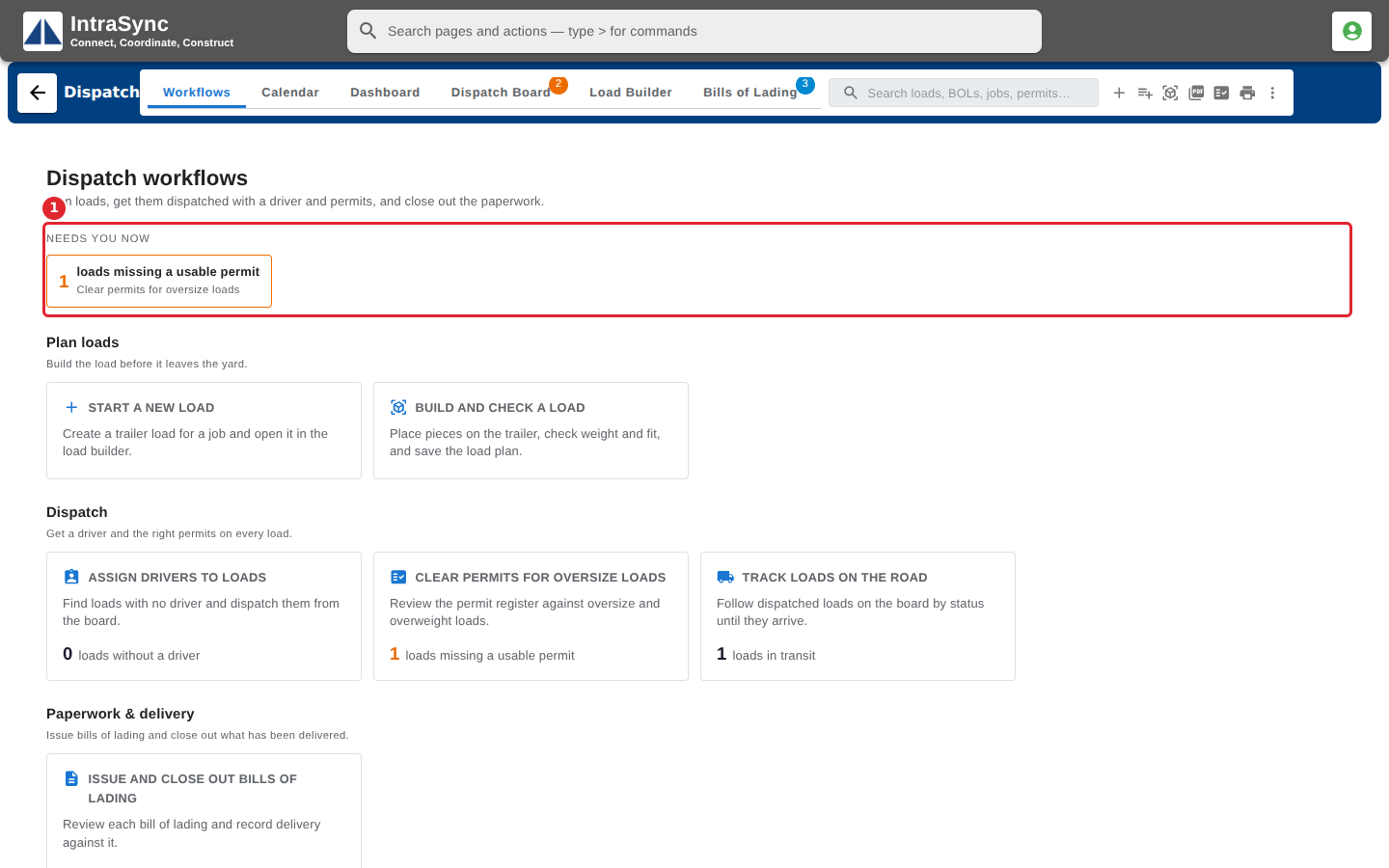
The cards follow the order dispatch work flows: Plan loads, Dispatch, and Paperwork & delivery. Each card counts what is waiting.
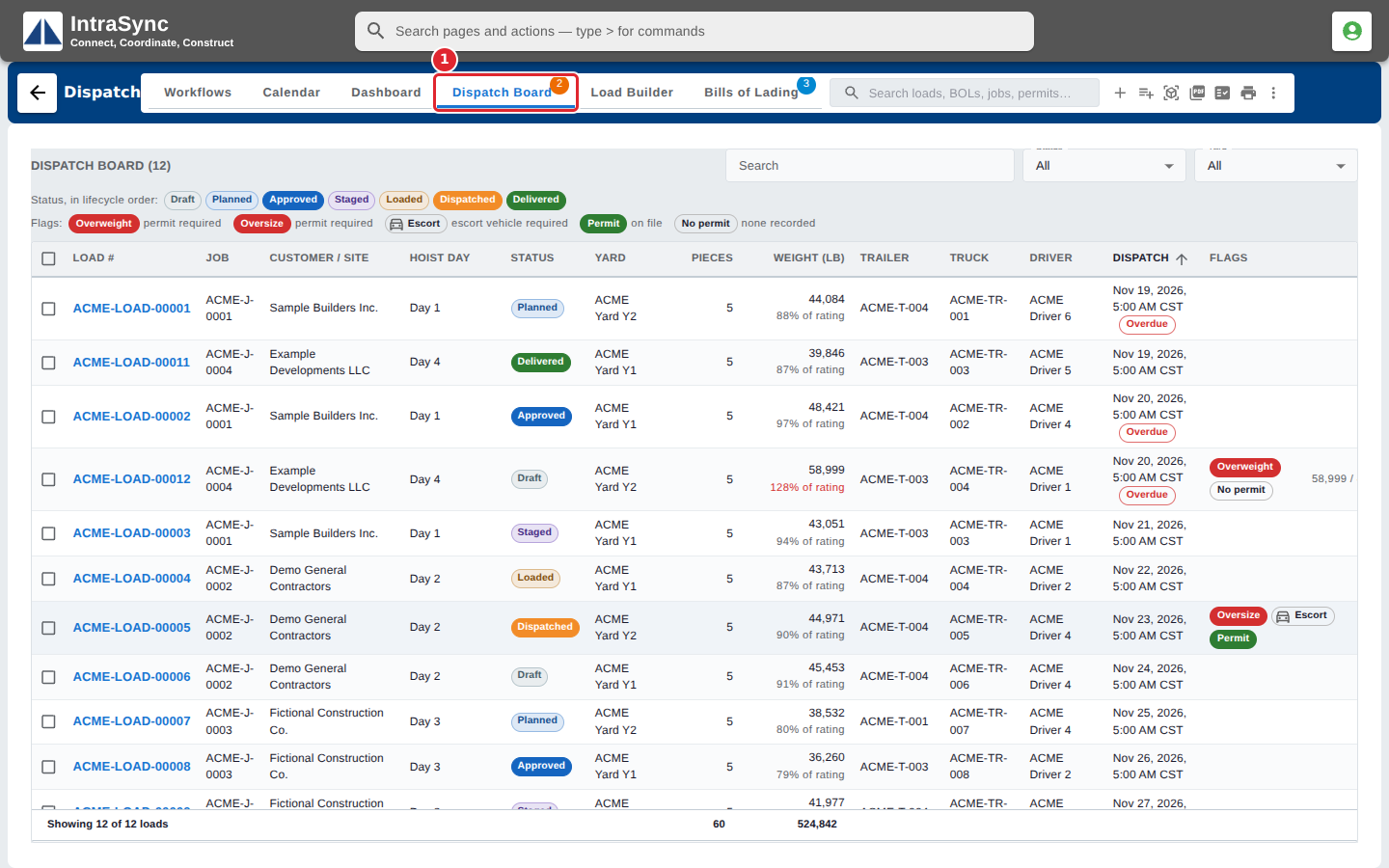
Select a card to go straight to where that work is done. Assign drivers to loads, for example, opens the Dispatch Board.
Tips
- A count shown as a dash means Dispatch could not measure it just now, not that nothing is waiting. Select More actions > Refresh dispatch data and look again.