Look after trailers, trucks, drivers and carriers
Dispatch plans and checks loads against the trailers, trucks, drivers, carriers and yard locations recorded here, so keep them up to date.
Before you start
- You must be a Dispatch administrator. Otherwise the Dispatch administration button is not shown.
Steps
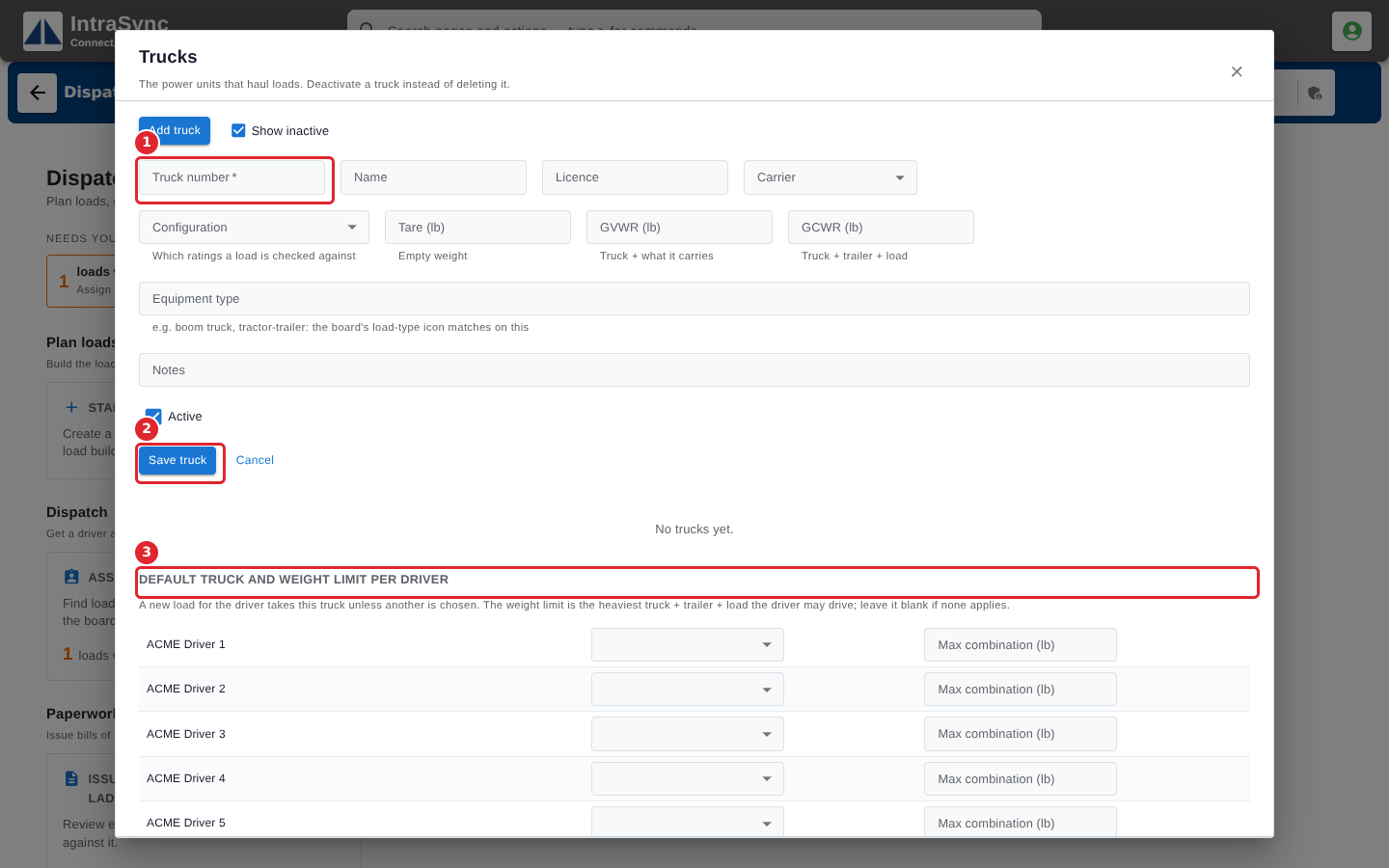
In the pictures, a numbered red box marks where to click or type. Where a picture has more than one box, the numbers give the order.
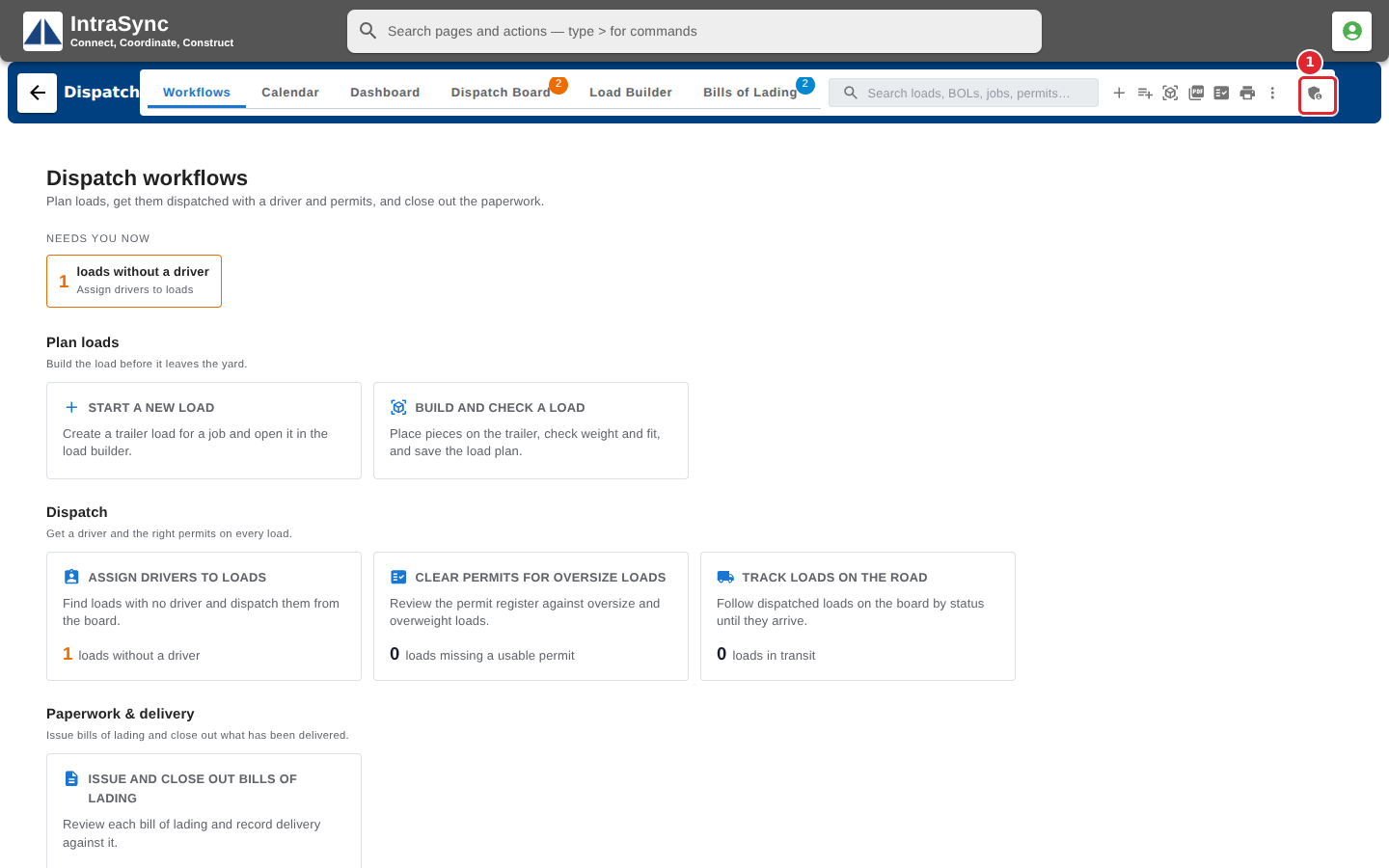
If you are a Dispatch administrator, the Dispatch administration button is at the end of the hub's buttons.
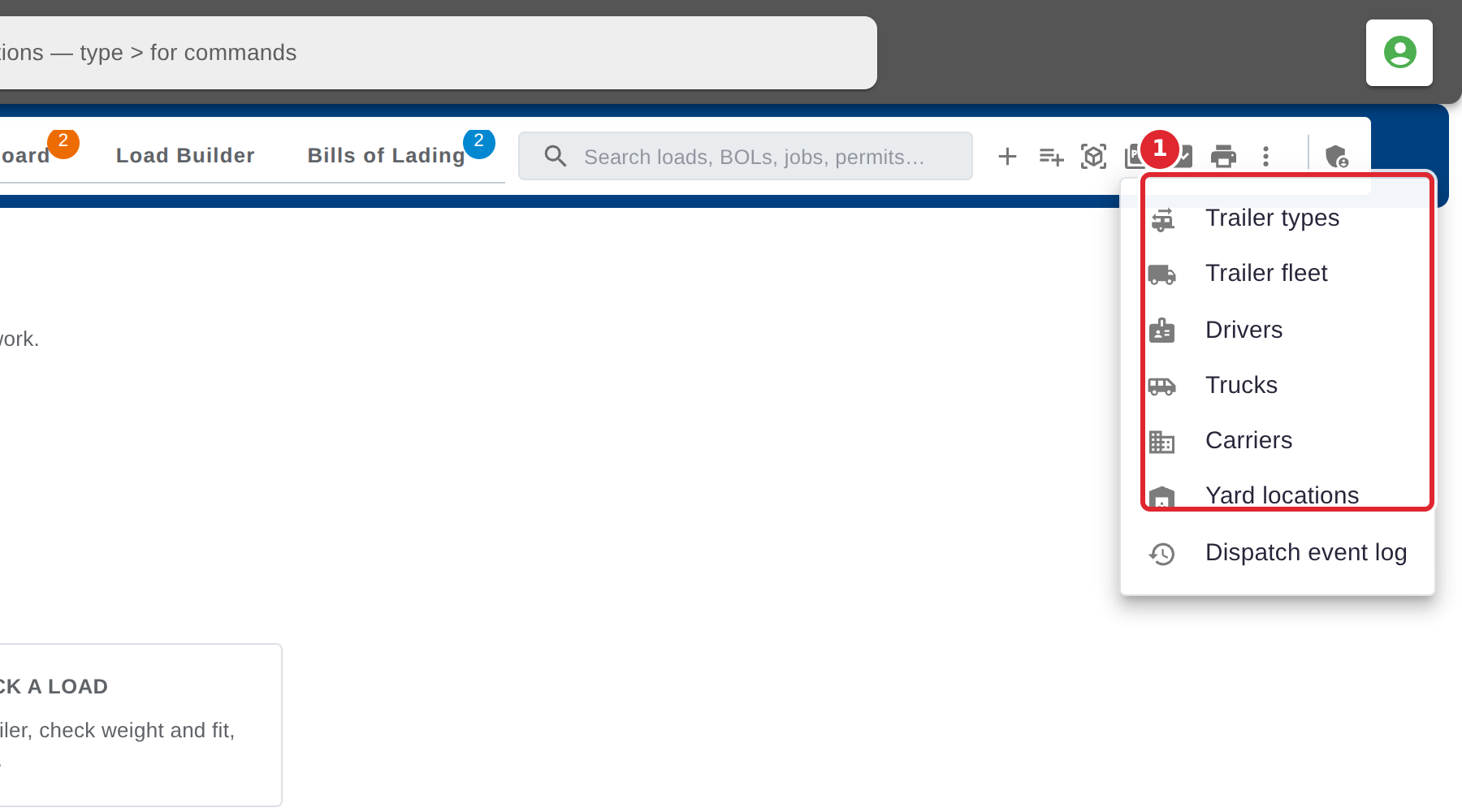
Select it to open the lists dispatch runs on: Trailer types, Trailer fleet, Drivers, Trucks, Carriers, Yard locations and the Dispatch event log.
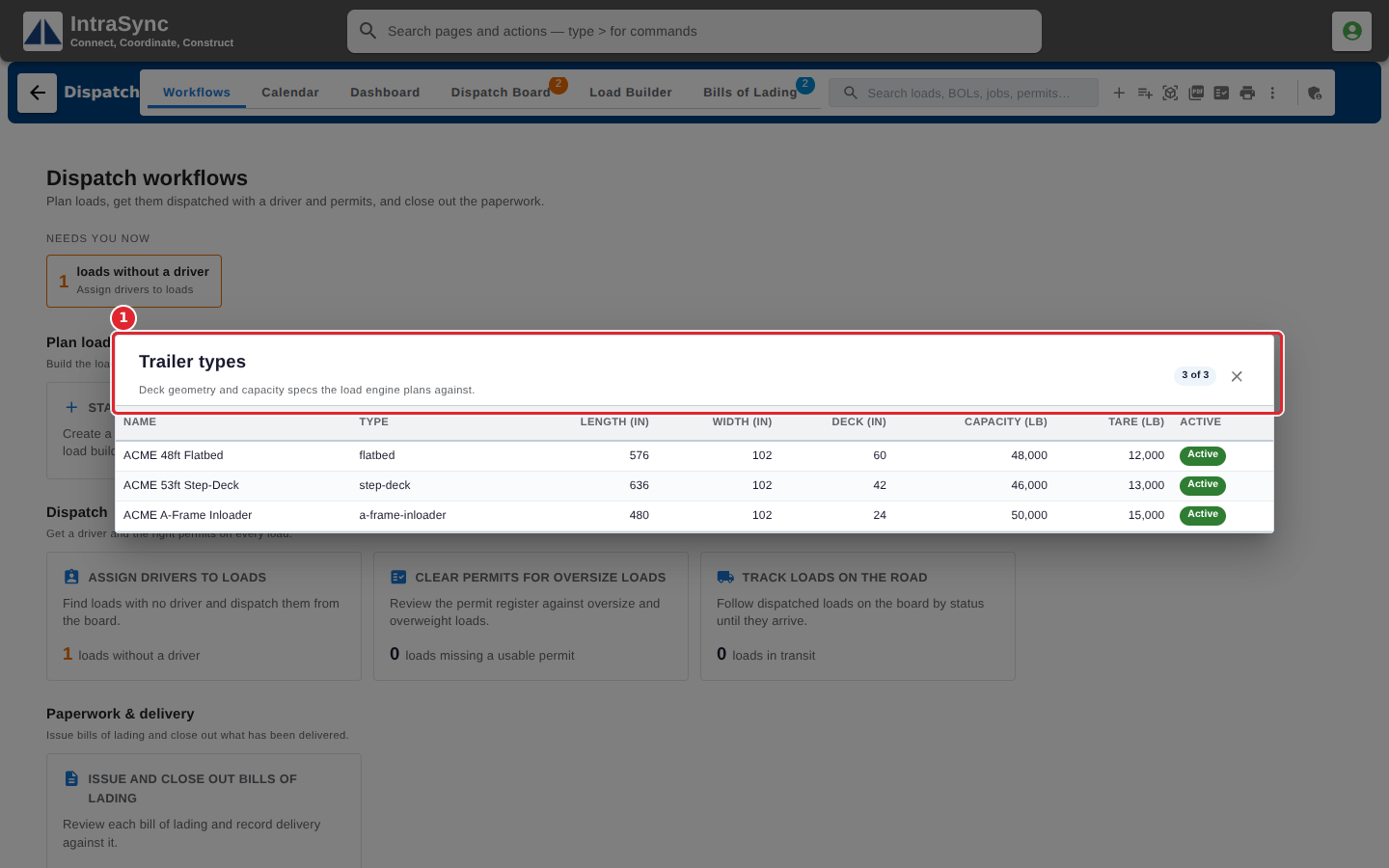
Trailer types lists each kind of trailer with its deck length, width and height, its capacity and its tare. The load checks plan against these.
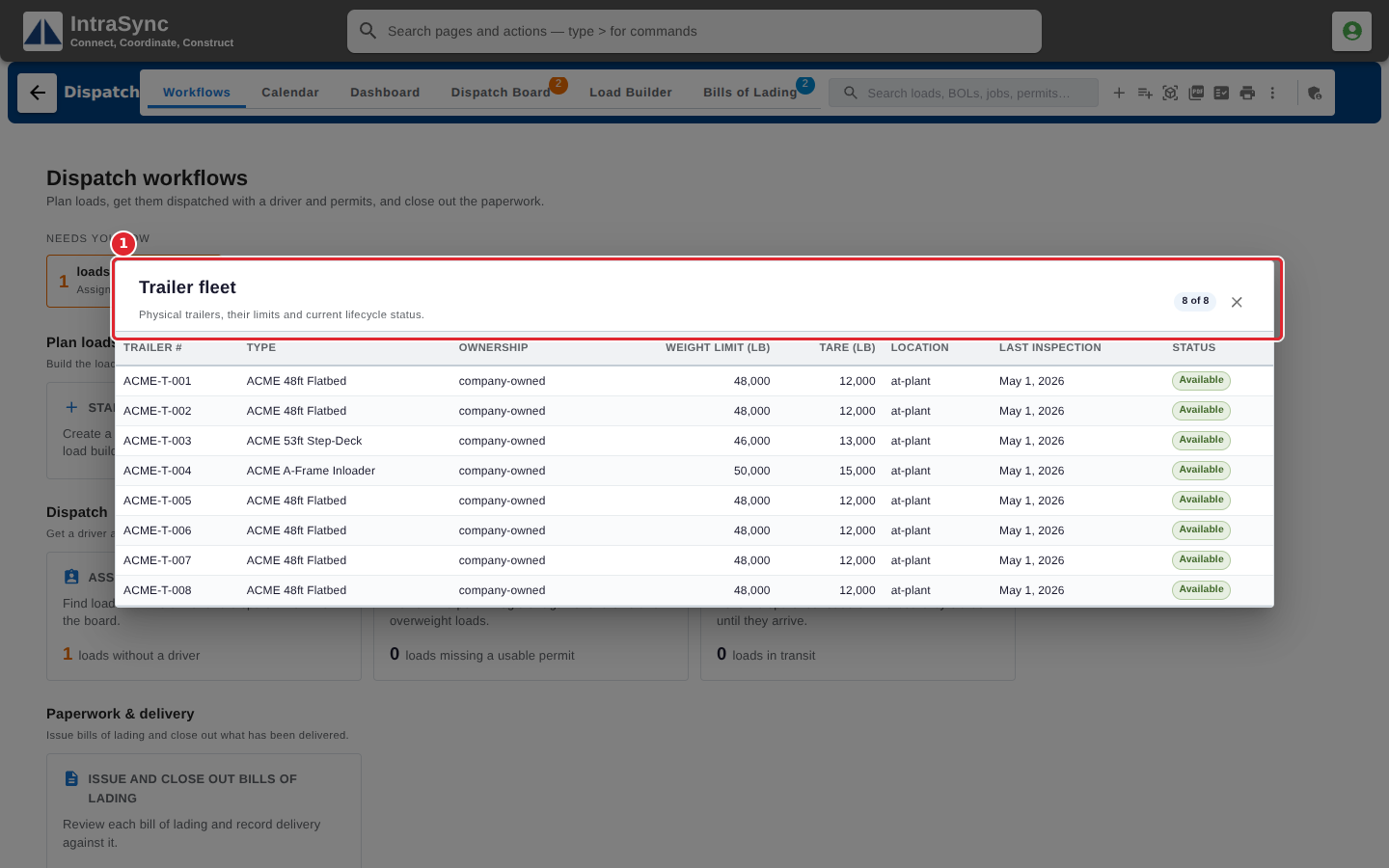
Trailer fleet lists your trailers with their type, ownership, weight limit, tare, location, last inspection and status.
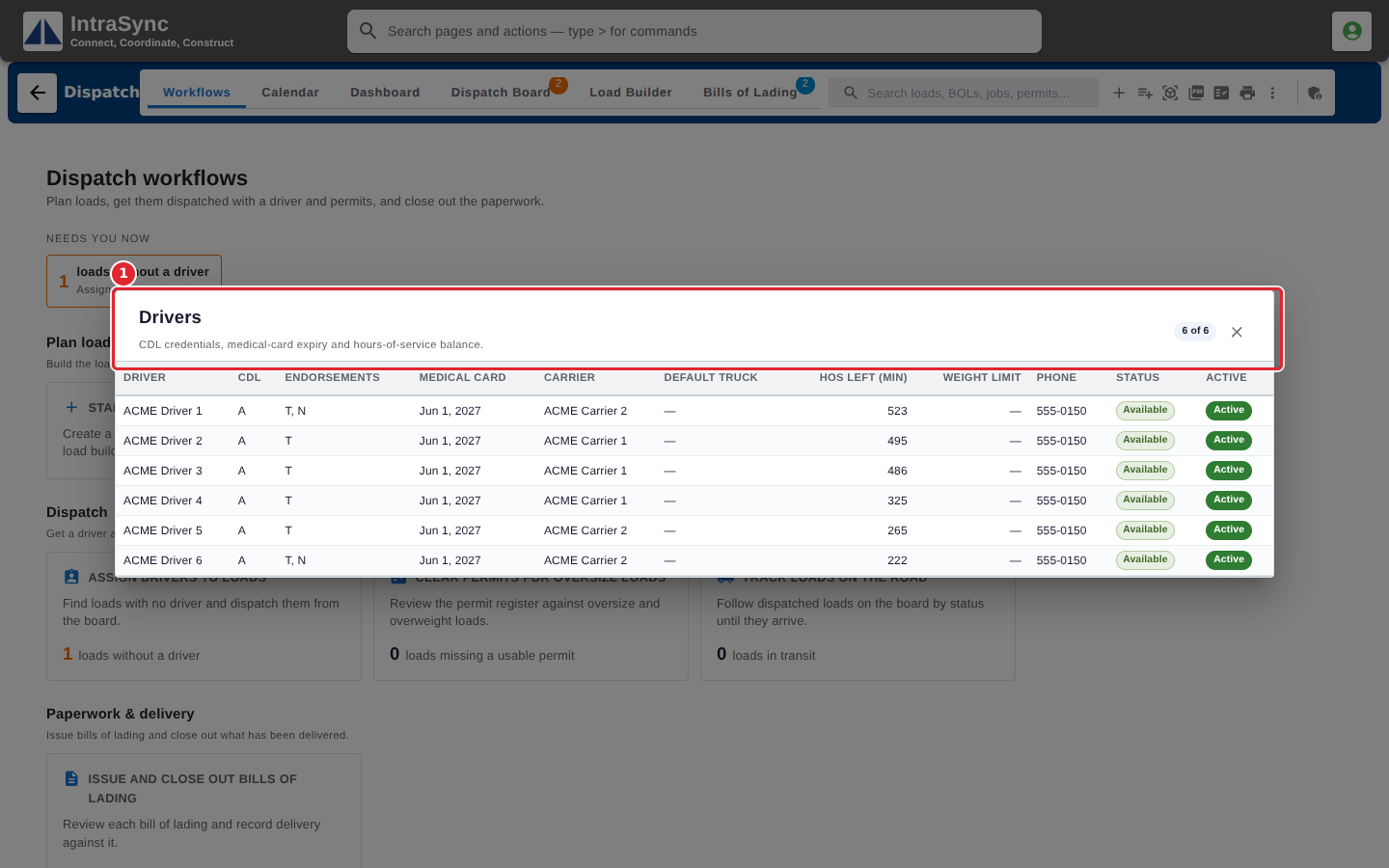
Drivers lists each driver's licence class and endorsements, medical card date, carrier, default truck, hours of service left, weight limit, phone and status.
In Trucks, select Add truck, fill in at least the Truck number, and select Save truck. Below the list, set each driver's default truck and weight limit.
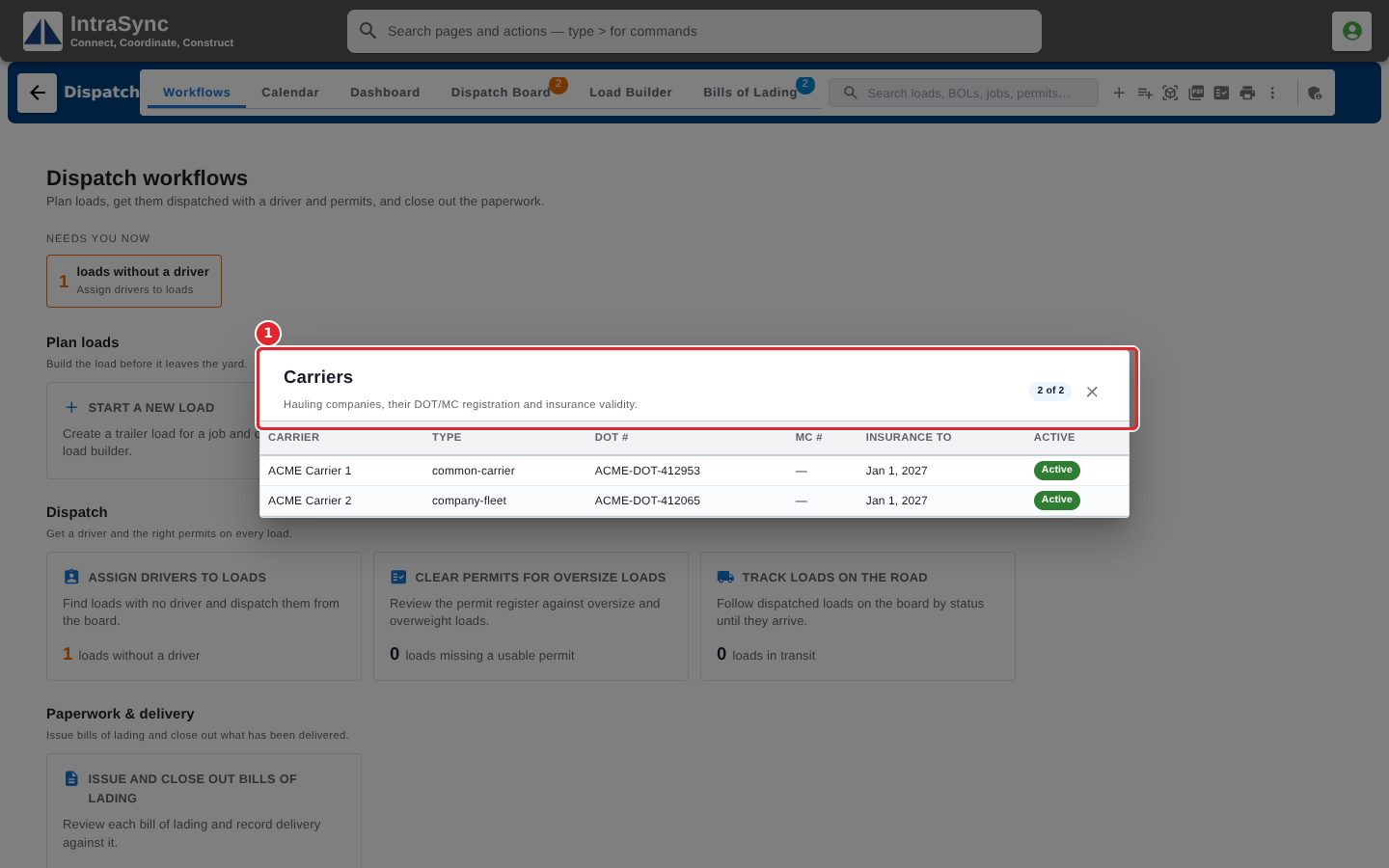
Carriers lists the carriers you use, with their type, DOT and MC numbers and insurance date.
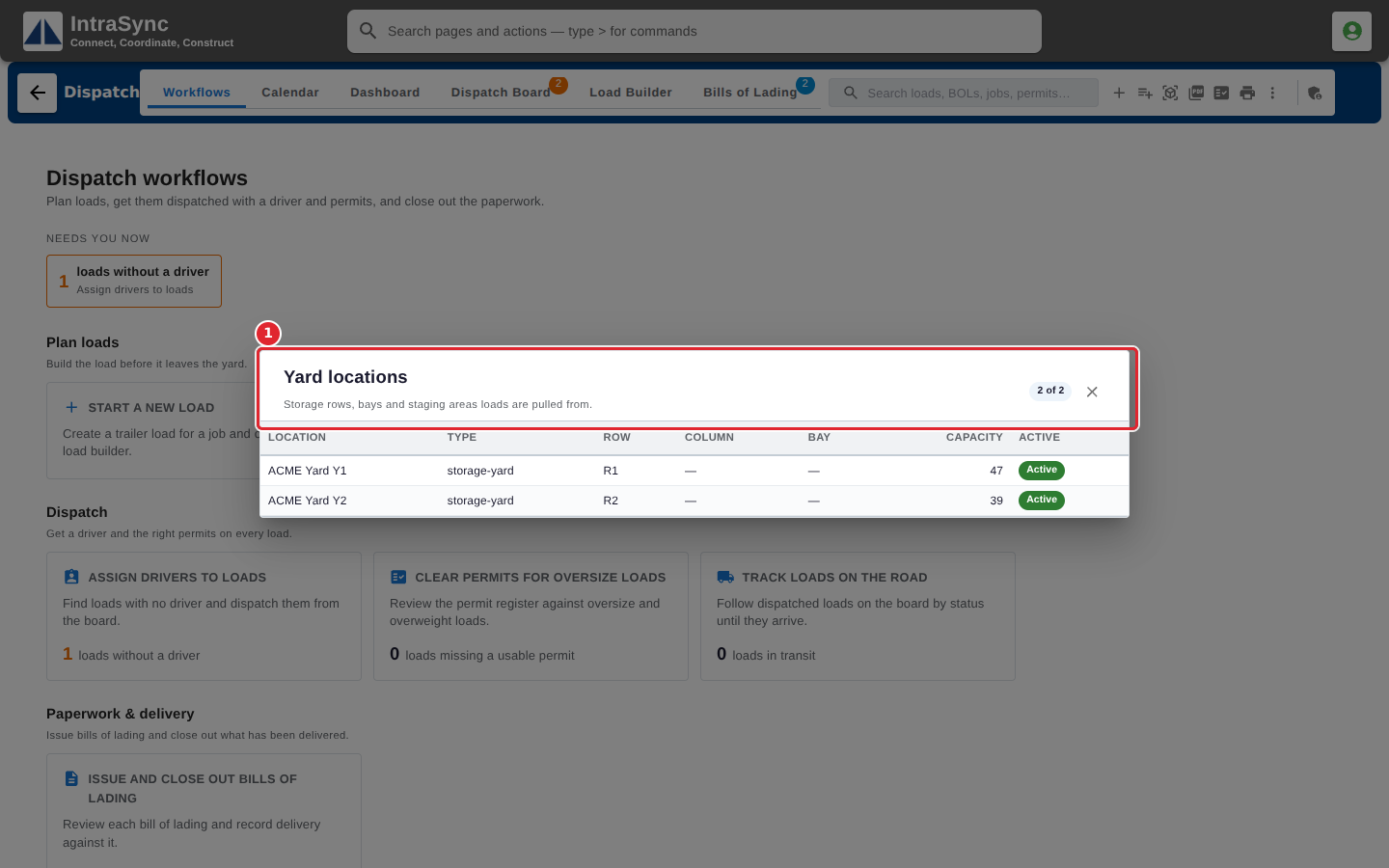
Yard locations lists the places in the yard where loads are staged, by row, column and bay, with their capacity.
Tips
- Deactivate a truck you no longer use instead of deleting it.
- A truck's GVWR must be more than its tare, and its GCWR cannot be less than its GVWR. Dispatch tells you when they are not.
- Whether trailers can be added and edited here depends on how your system is set up. Otherwise the trailer lists are for reference.