Turn an accepted estimate into a sales order
Create the sales order for work the customer accepted.
Watch this in the video (0:55)
Before you start
- The estimate must be Accepted (record the win first), with no sales order yet.
Steps
In the pictures, a numbered red box marks where to click or type. Where a picture has more than one box, the numbers give the order.
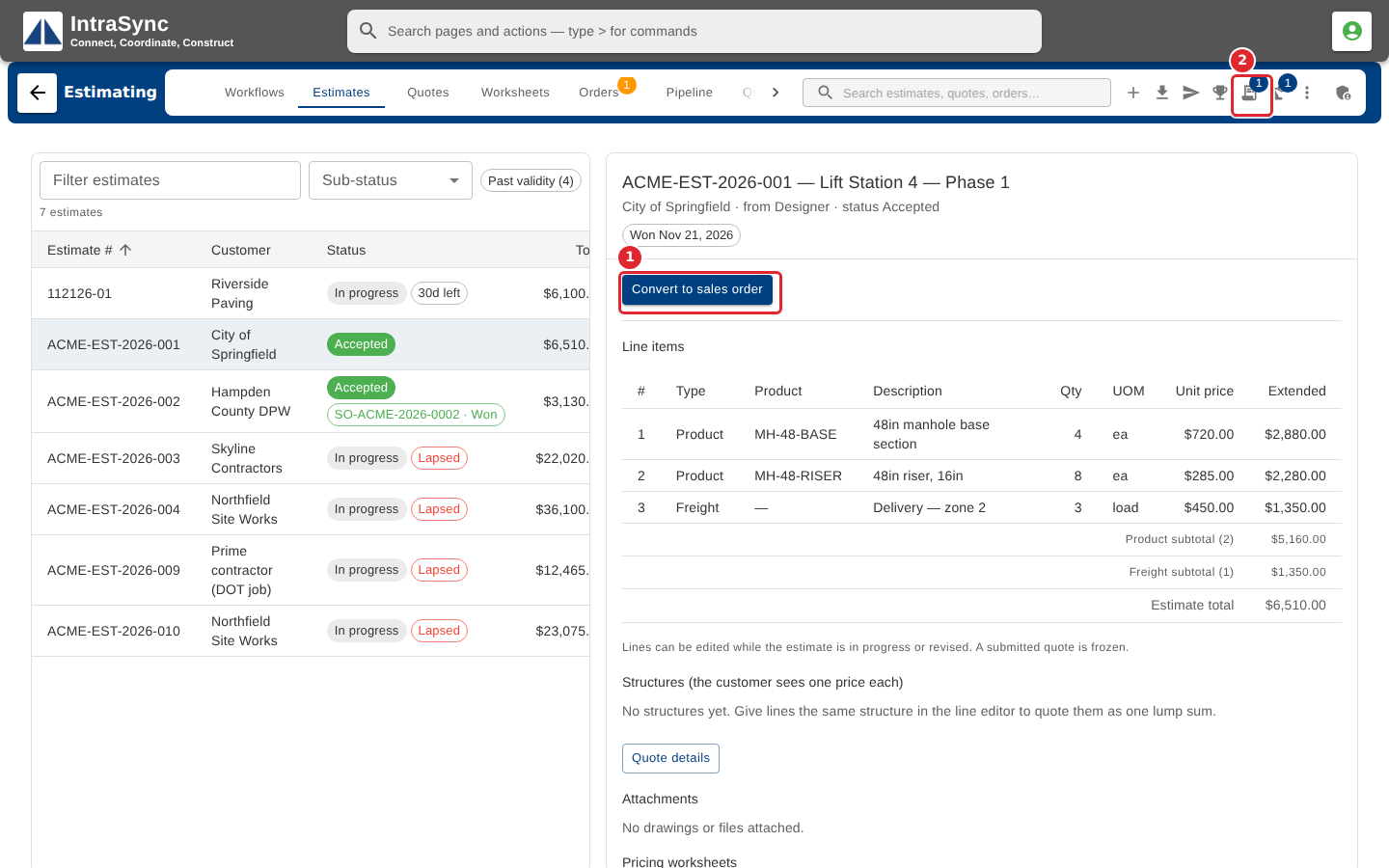
Open the accepted estimate and select Convert to sales order, on the estimate or in the hub header.
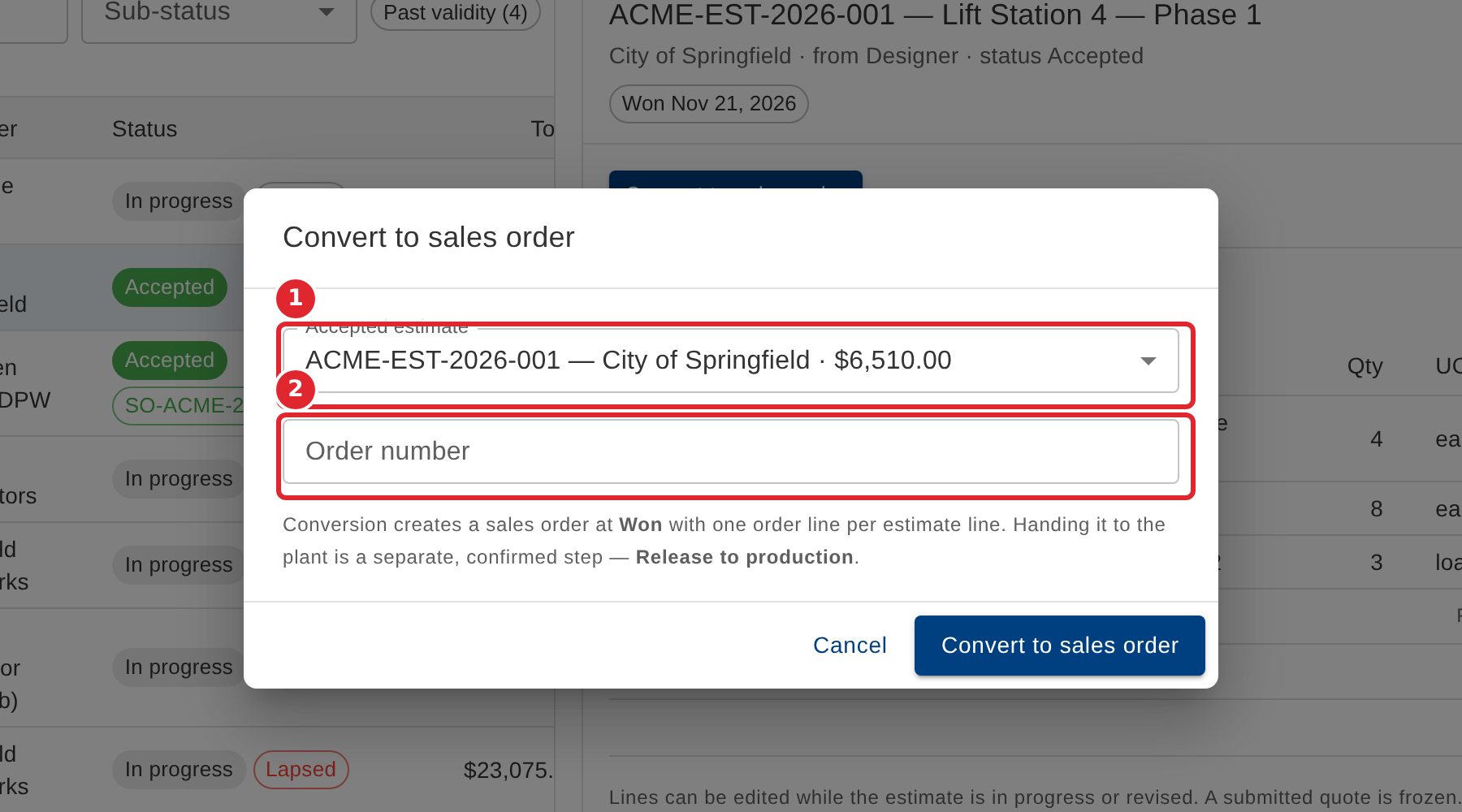
Check the accepted estimate. Leave Order number blank to take the next order number, or type the number the order should carry.
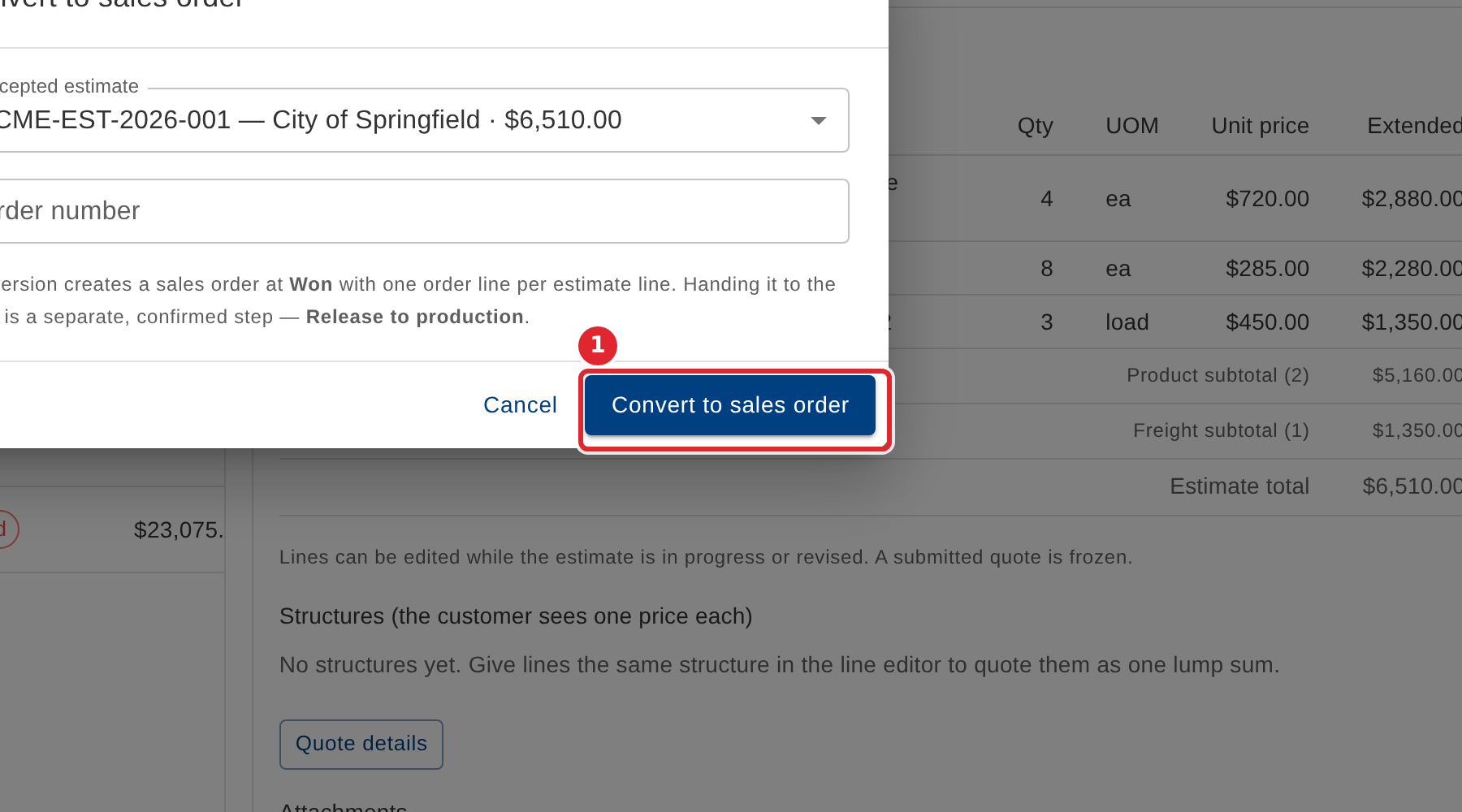
Select Convert to sales order. The order is created at Won, with one order line for each estimate line. Sending it to the plant is a separate step.
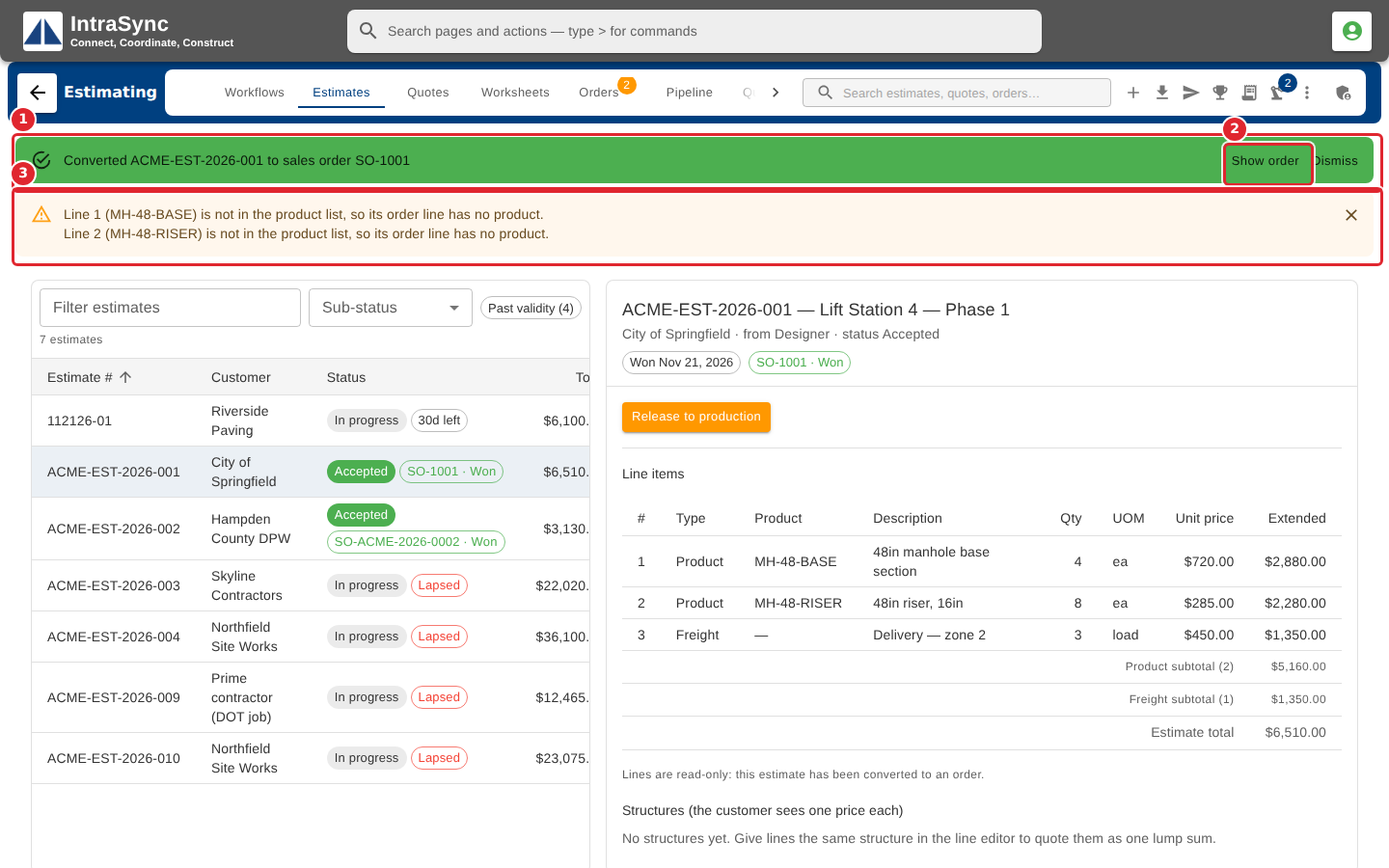
A message names the new order, with Show order to go to it. Any note about the order lines, such as a product that is not in the product list, is listed in amber underneath.
Tips
- When order numbers are not given out automatically in your installation, Order number is required.
- When your company's orders are written by another system, there is no order number to enter: the number appears on the estimate once the order exists.
- A line whose product is not in the product list still becomes an order line, without a product. The message after conversion lists those lines.