Find an estimate in the list
Narrow the estimate list to the work you are looking for.
Watch this in the video (0:08)
Steps
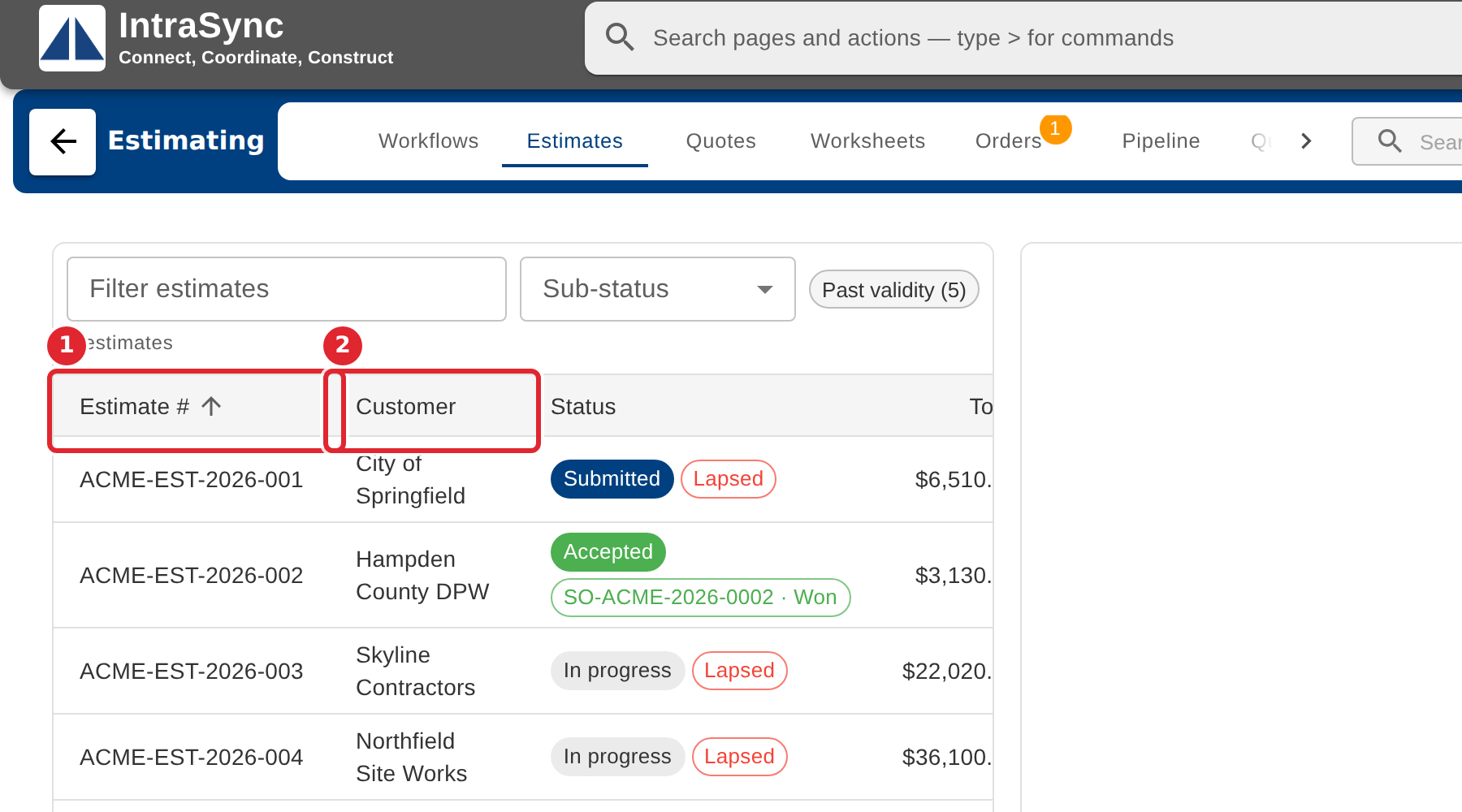
In the pictures, a numbered red box marks where to click or type. Where a picture has more than one box, the numbers give the order.
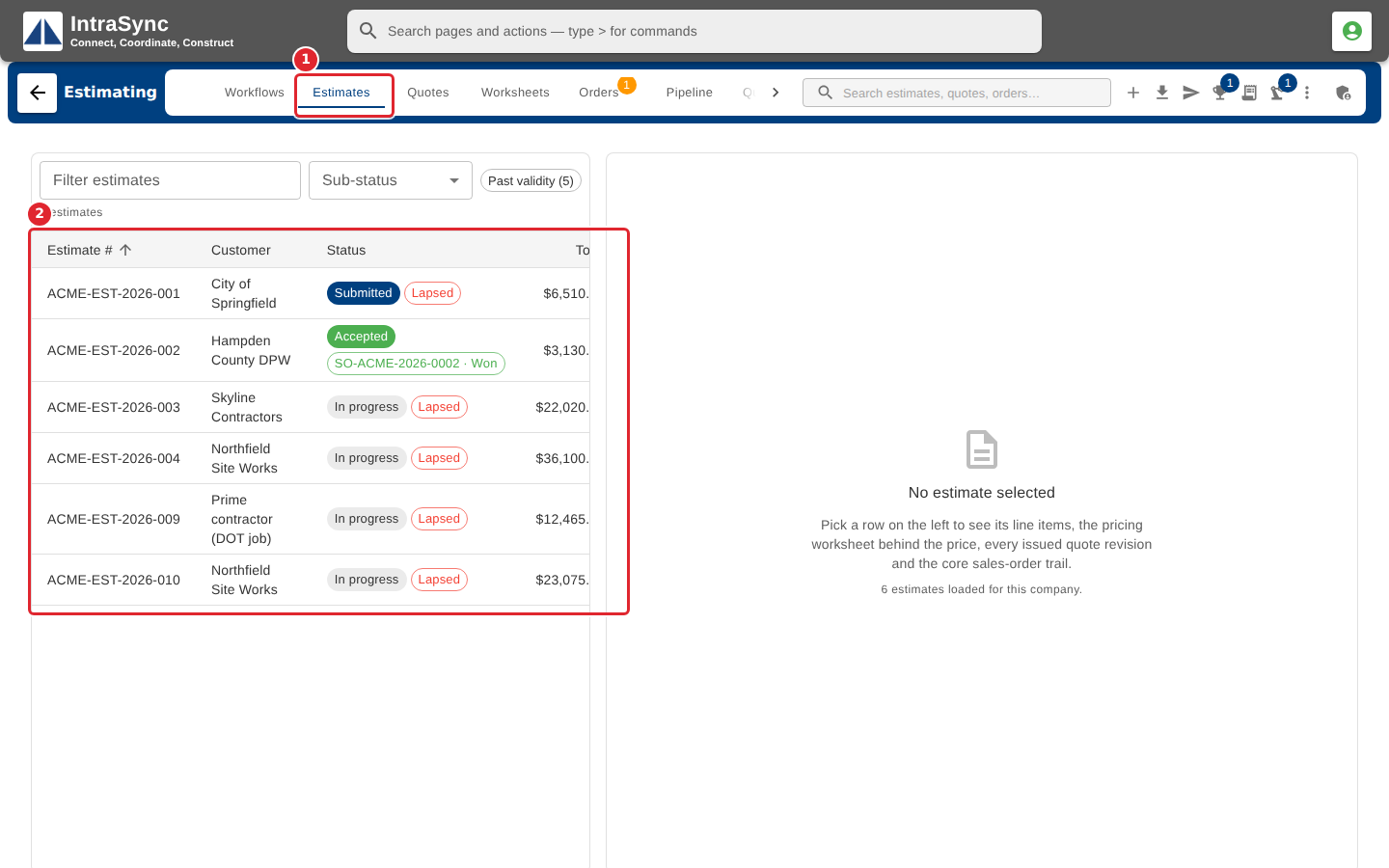
Select the Estimates tab. The list shows every estimate with its customer, status and total, and the pane on the right shows the estimate you select.
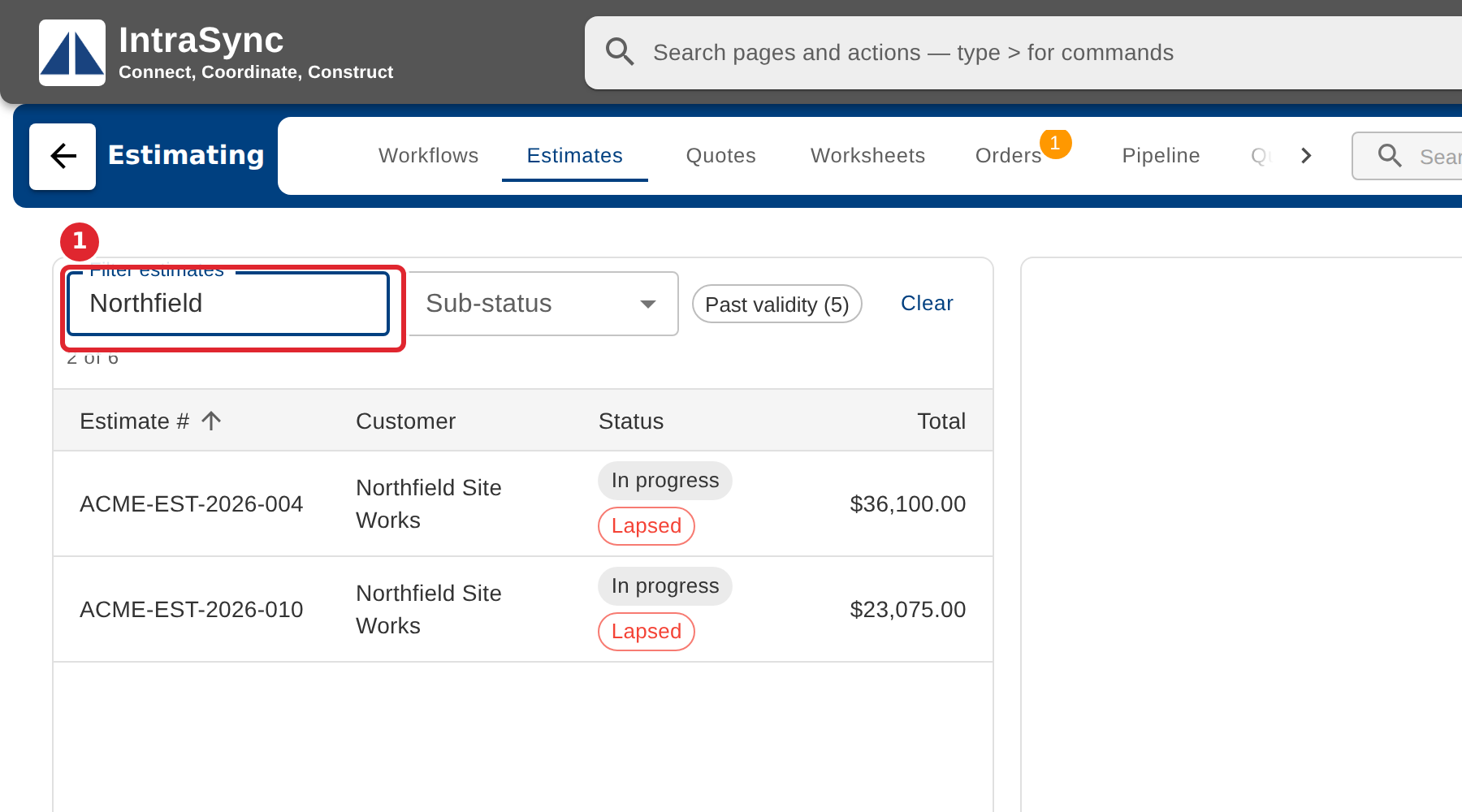
Type in Filter estimates to narrow the list by estimate number, customer, job or source reference. The count under the box says how many estimates match.
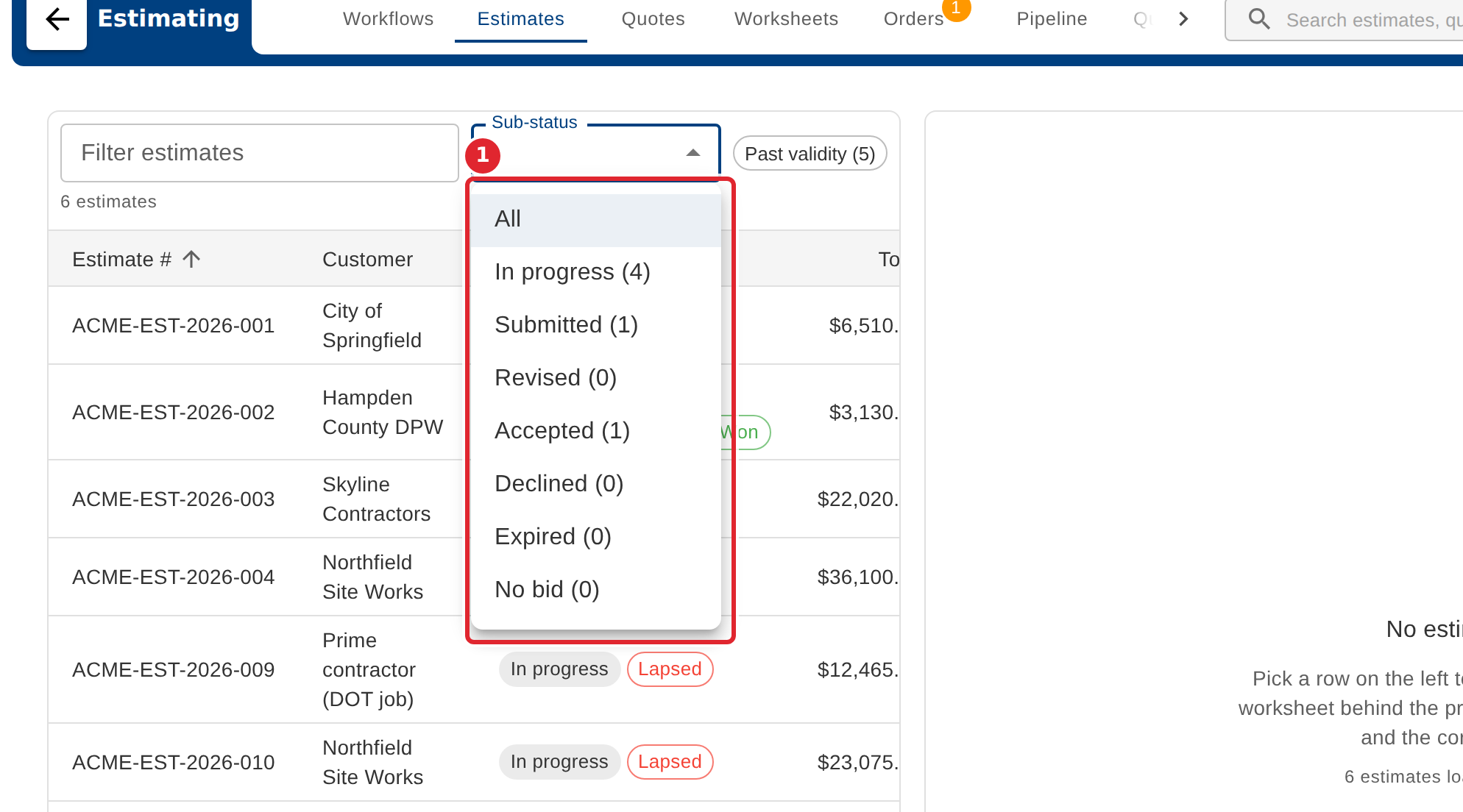
Open Sub-status to show only the estimates at one status. Each choice shows how many estimates are at it.
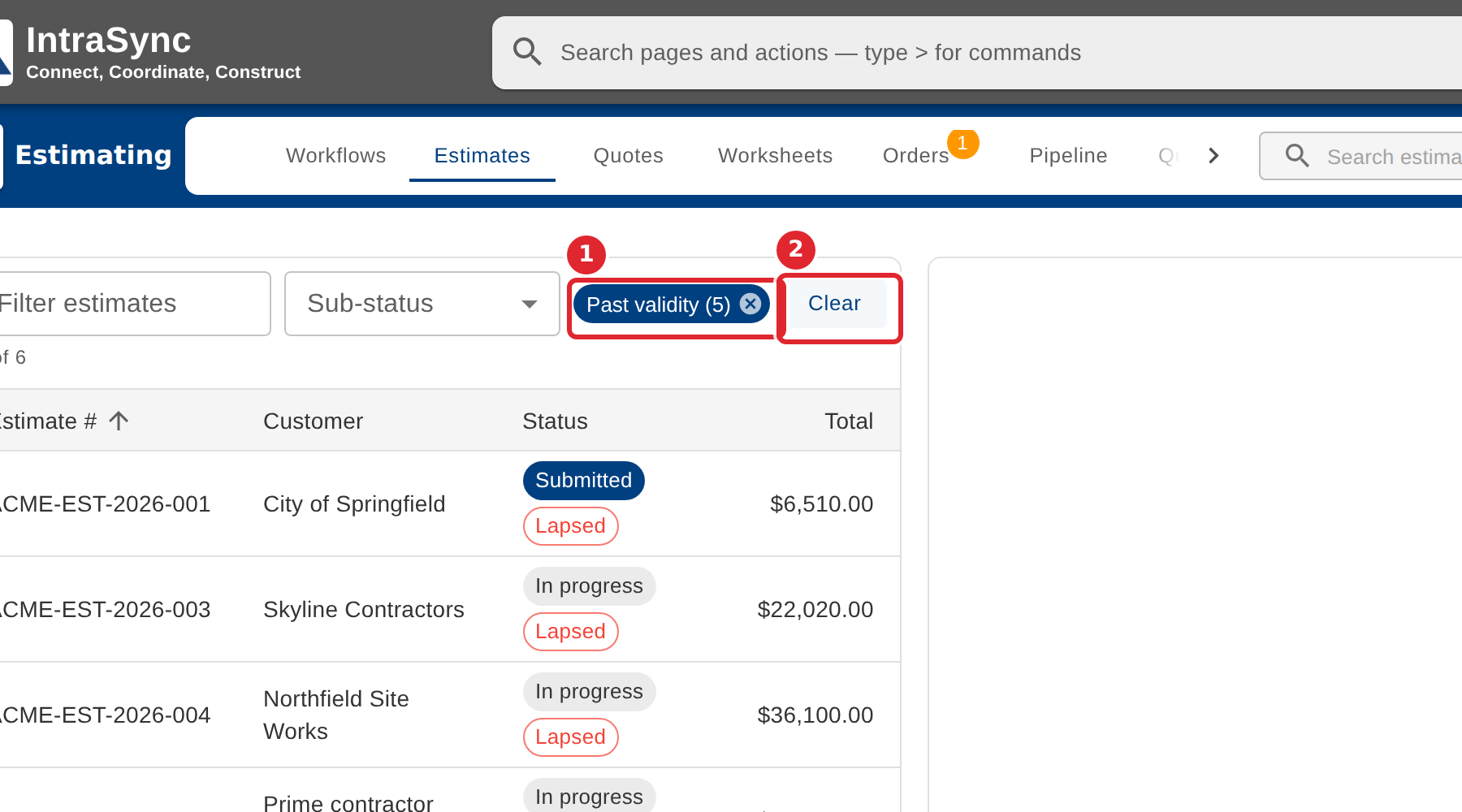
Select Past validity to show only the open estimates whose quote validity date has passed. Select Clear to see every estimate again.
Select a column heading to sort the list by it. Select it again to reverse the order.
Tips
- Each row shows the estimate's status, and, where they apply, its sales order, a Partly ordered note and how long its quote is still valid.
- When the list says no estimate matches the filter, select Clear.