Estimating guide · section 14 of 29
Preview a quote as the customer received it
See the quote document exactly as it was issued, for a customer question or before you re-issue.
Watch this in the video (0:36)
Steps
In the pictures, a numbered red box marks where to click or type. Where a picture has more than one box, the numbers give the order.
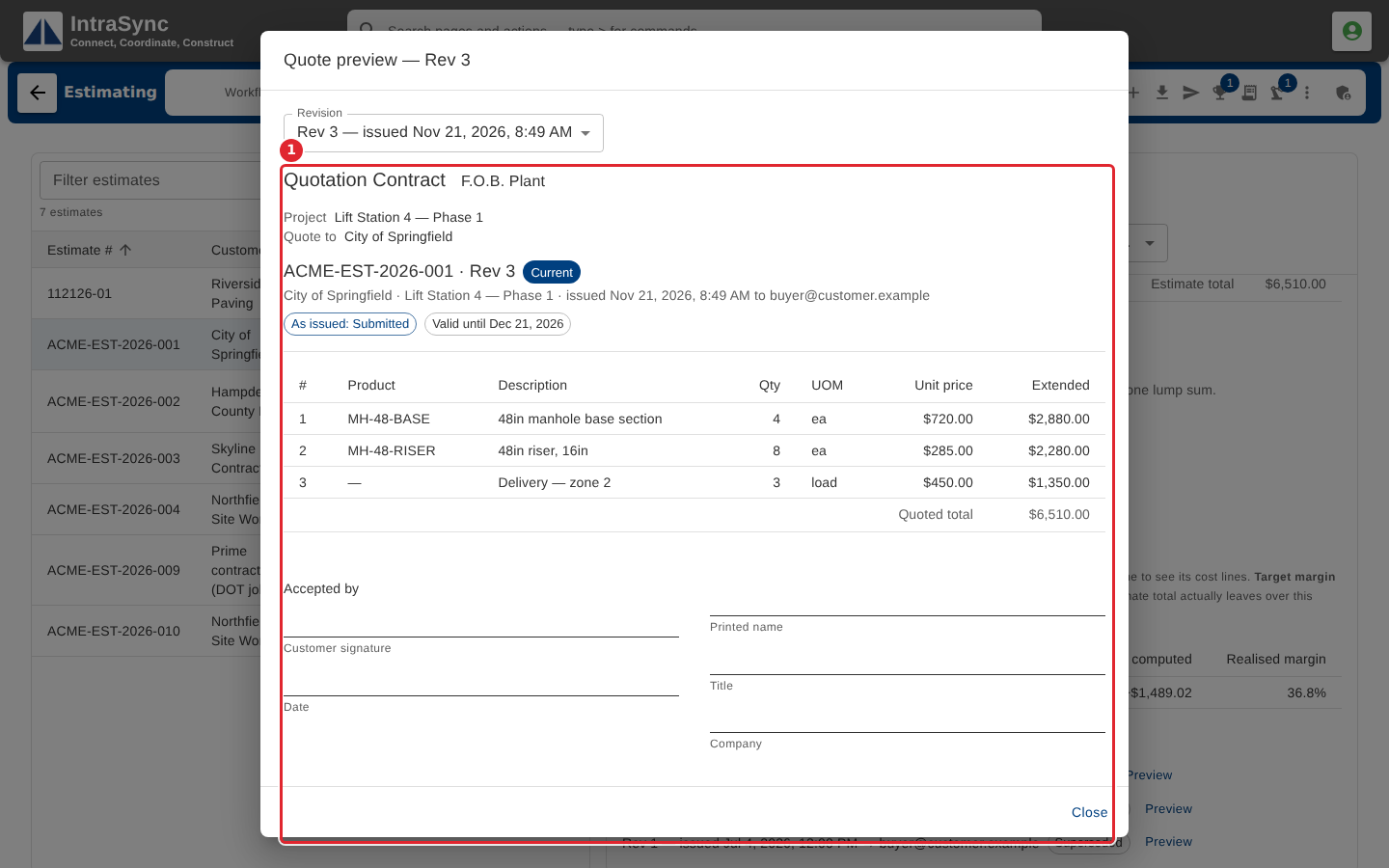
Select Preview beside a revision. The quote document opens as it stood when it was issued, not as the estimate stands today.
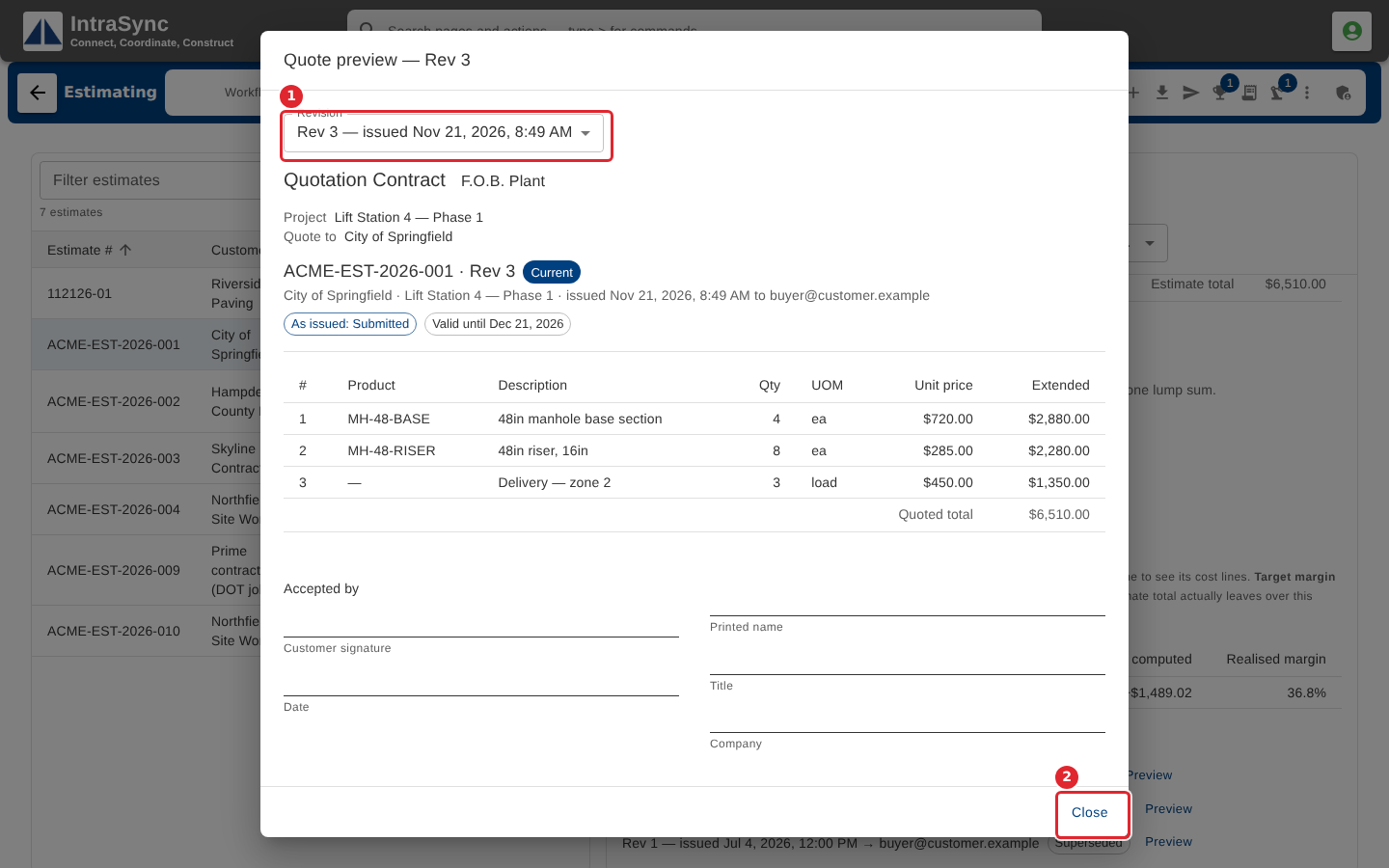
When the estimate has more than one revision, choose another one in Revision. Select Close when you are done.
Tips
- The preview is the record kept with that revision, not the estimate as it stands today. Re-issuing writes a new revision; it never edits an old one.
- When the company prints a quotation contract, the preview shows its heading, terms and the acceptance block for the customer's signature.
- A structure quoted as a lump sum shows as one priced line, with its pieces listed without prices.