Price a structure takeoff with Quick Quote
Turn a structure takeoff (a mark, a rim and an invert) into a priced line, its component stack and a bill of materials, from the plant's own price documents.
Watch this in the video (1:55)
Before you start
- The structure price book must hold a price for each structure type you quote (Estimating admin > Structure price book).
Steps
In the pictures, a numbered red box marks where to click or type. Where a picture has more than one box, the numbers give the order.
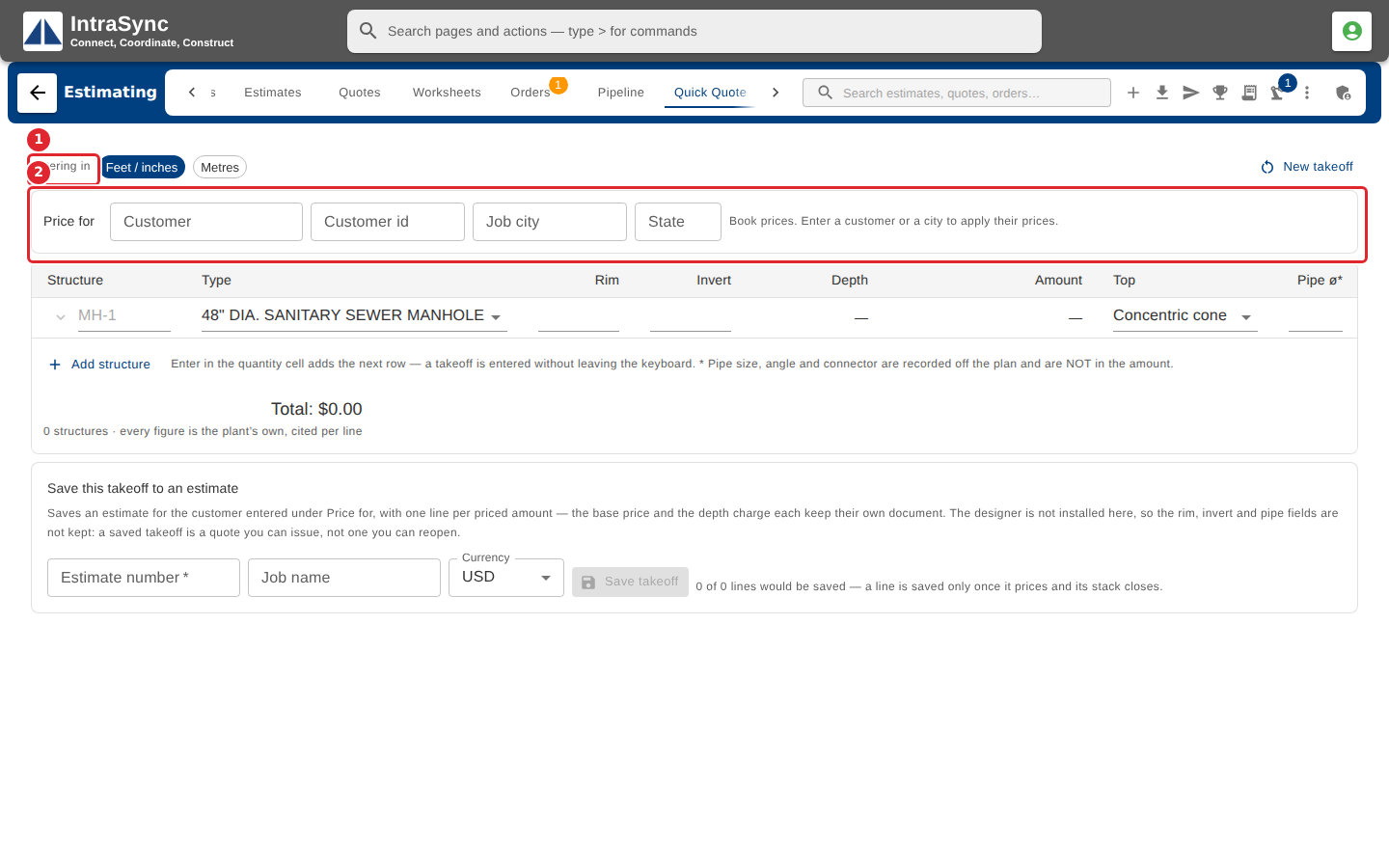
Select the Quick Quote tab. Choose whether you enter Feet / inches or Metres, and enter the customer or the job city under Price for to apply their own prices.
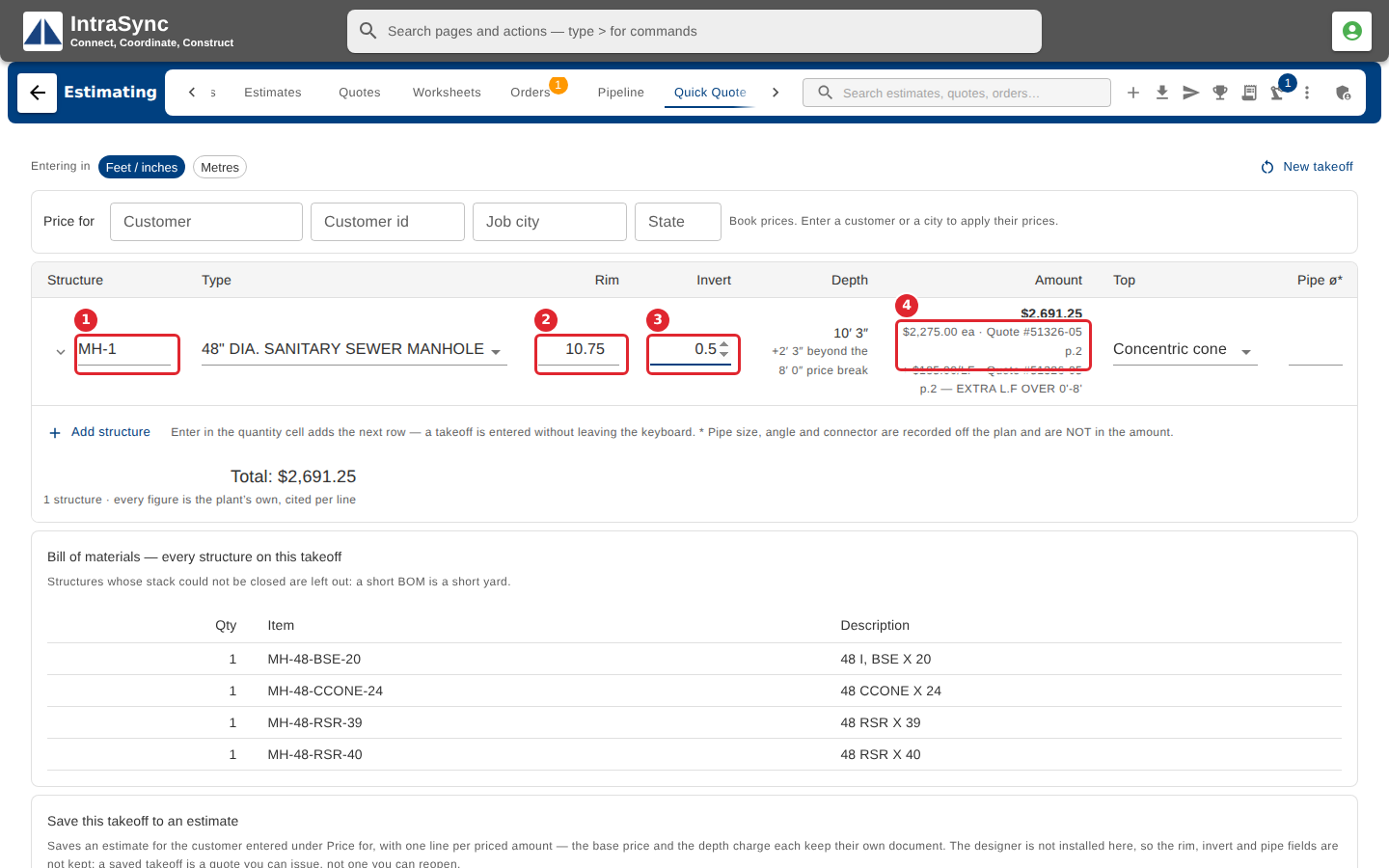
Type the structure's mark, its type, and its rim and invert elevations. The depth and the amount are worked out for you, and the amount names the price document it comes from.
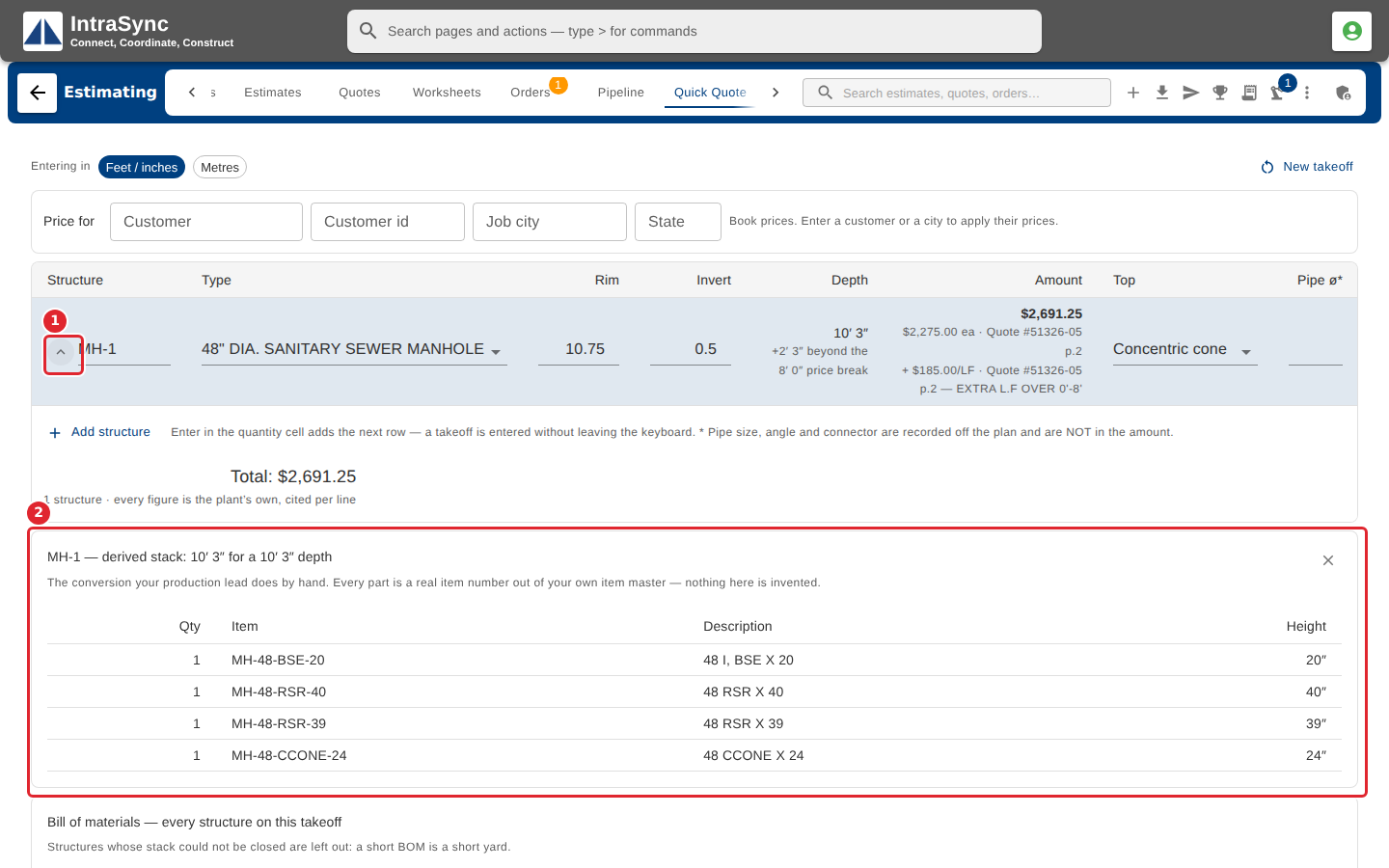
Select the arrow at the start of a row to see its derived stack: the base, risers and top chosen from your item master to make up that depth.
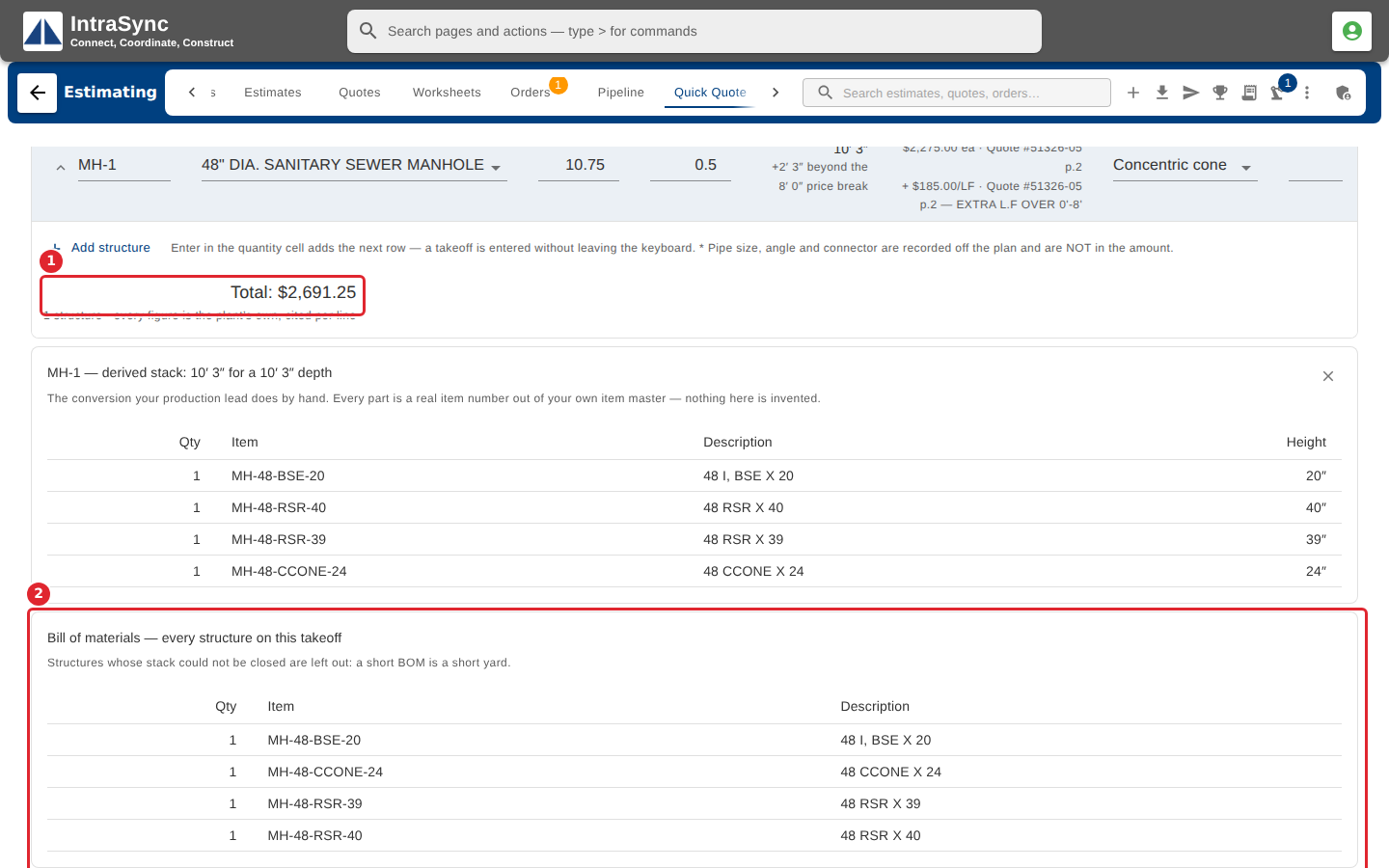
Bill of materials adds up the pieces for every structure on the takeoff, and Total gives the takeoff's price. Select Add structure for the next row, or press Enter in the quantity cell.
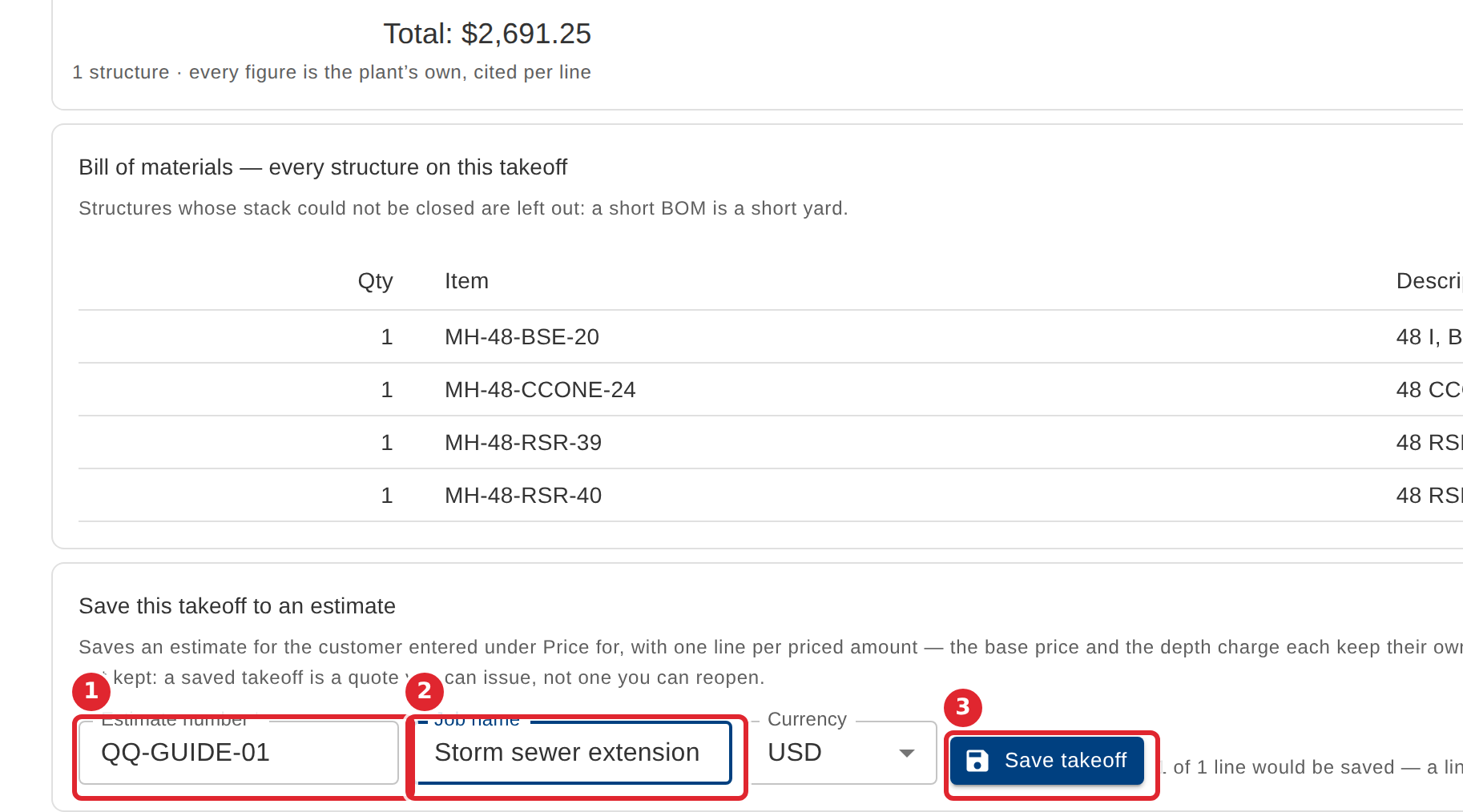
To keep the takeoff, fill in Save this takeoff to an estimate: the estimate number, the job name and the currency, then select Save takeoff. Only lines that price and whose stack closes are saved.
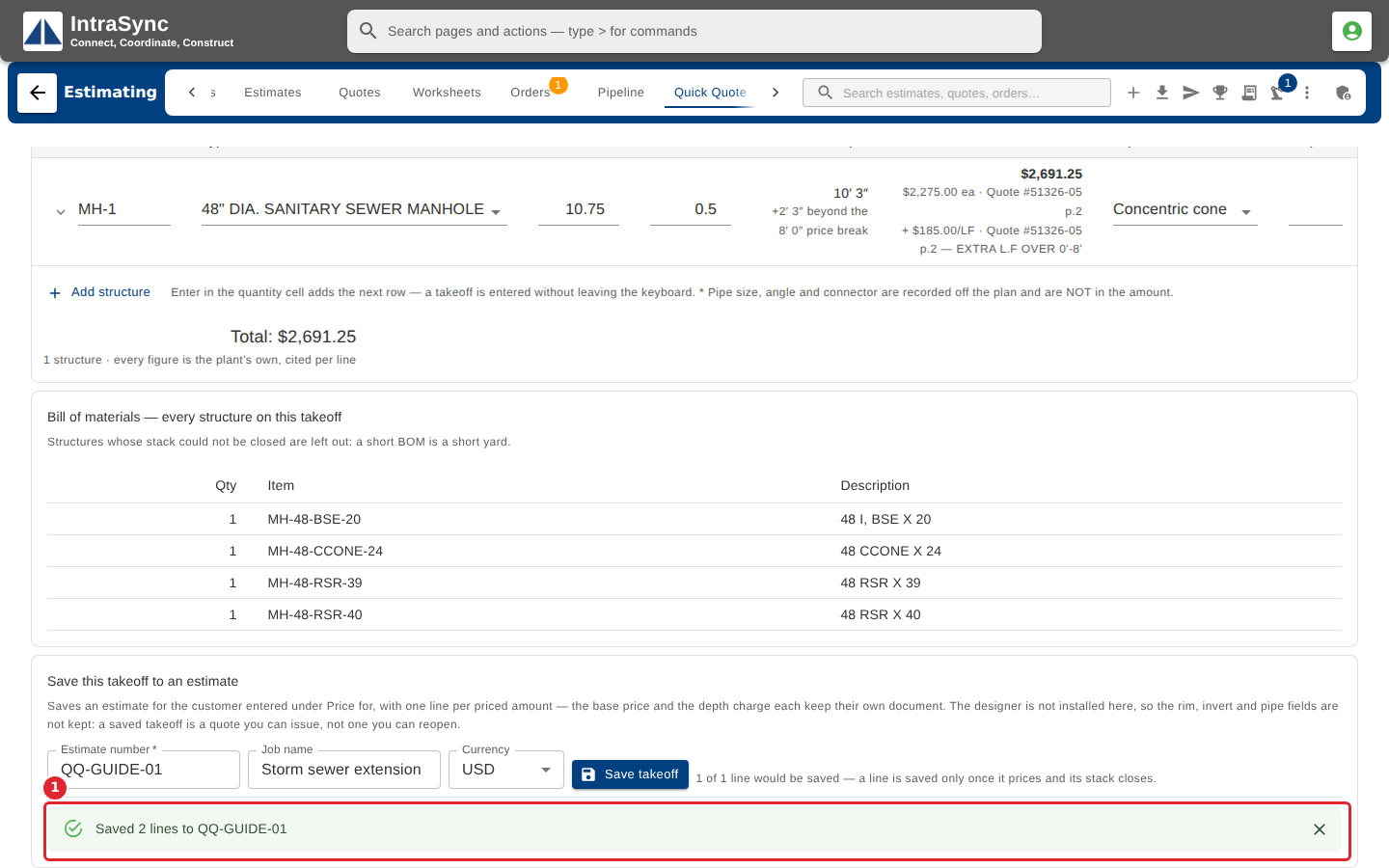
A message says how many lines were saved and to which estimate. Find it on the Estimates tab.
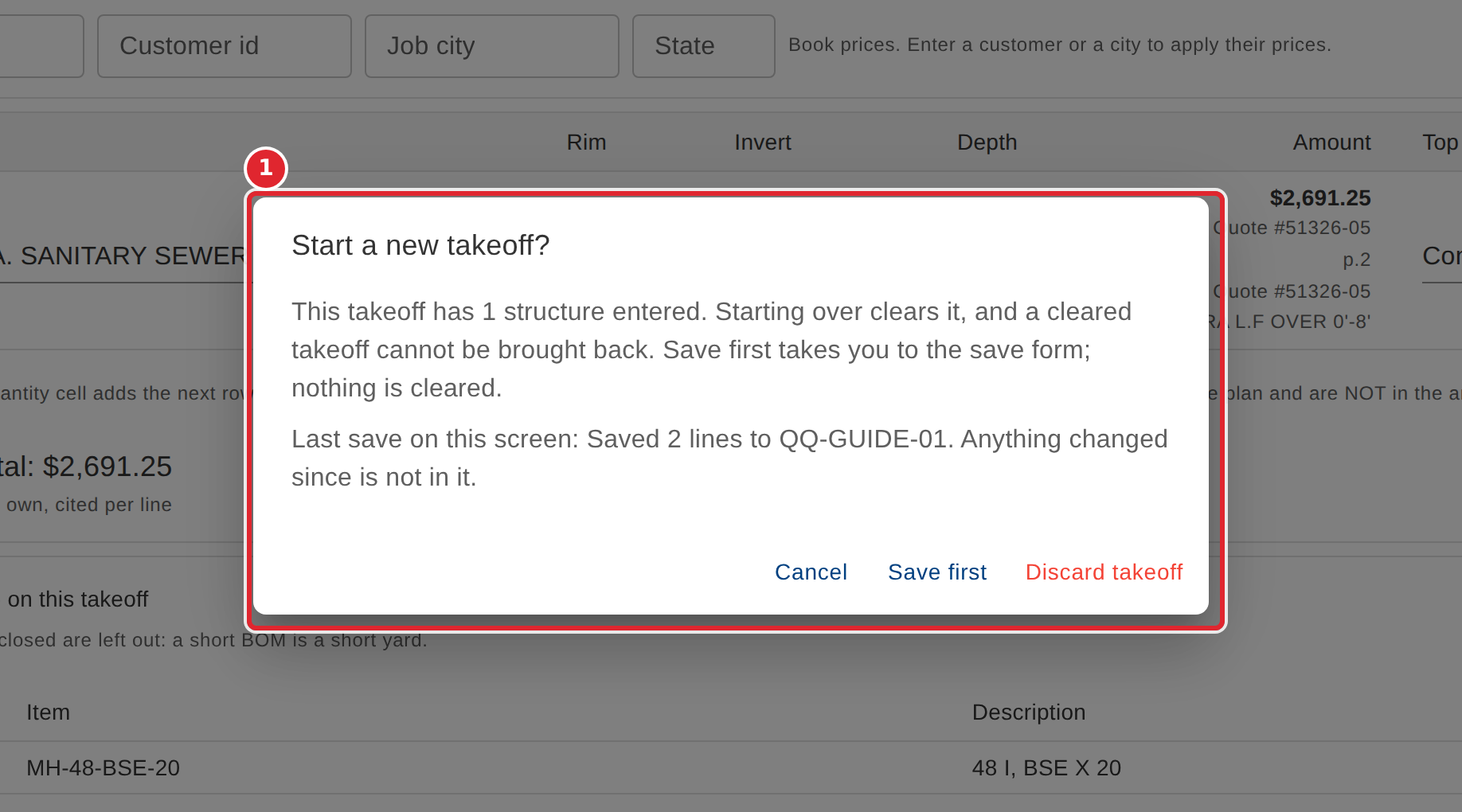
Select New takeoff to start over. If structures are entered, choose Save first to keep them, or Discard takeoff to clear them; a cleared takeoff cannot be brought back.
Tips
- Each row explains a problem in words under the grid: a structure type not chosen, a rim at or below the invert, a depth too shallow, or a stack that cannot close the depth exactly.
- Pipe size, angle and connector are recorded off the plan and are not included in the amount.
- Only lines that price and whose stack closes are saved to the estimate.
- New takeoff asks first when structures are entered. Choose Save first to keep them.