Record a win, a loss or a no bid
Record the customer's decision on a submitted estimate. A win is what lets the estimate become a sales order.
Watch this in the video (0:46)
Before you start
- The estimate must be Submitted or Revised.
Steps
In the pictures, a numbered red box marks where to click or type. Where a picture has more than one box, the numbers give the order.
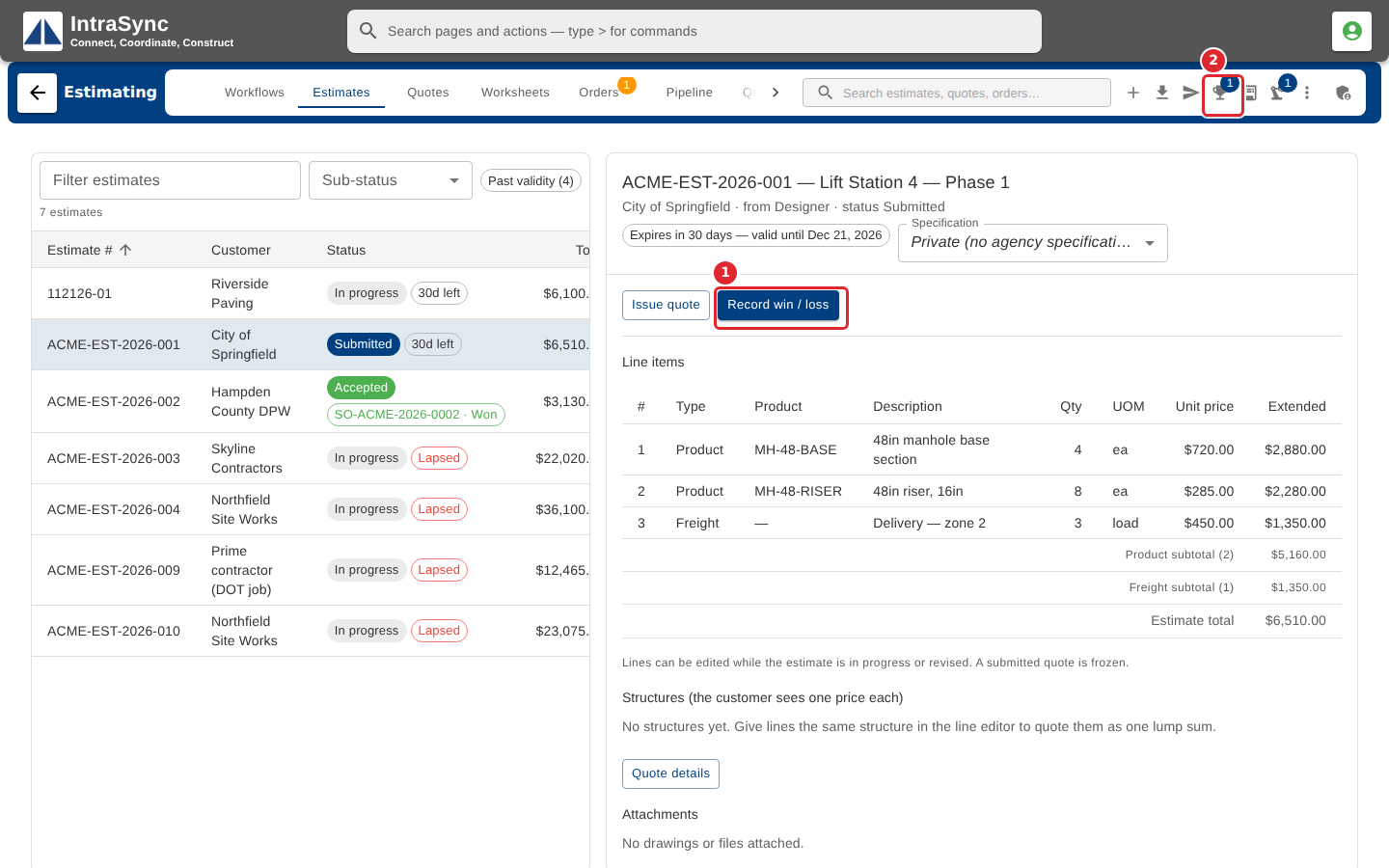
When the customer decides, open the estimate and select Record win / loss, on the estimate or in the hub header.
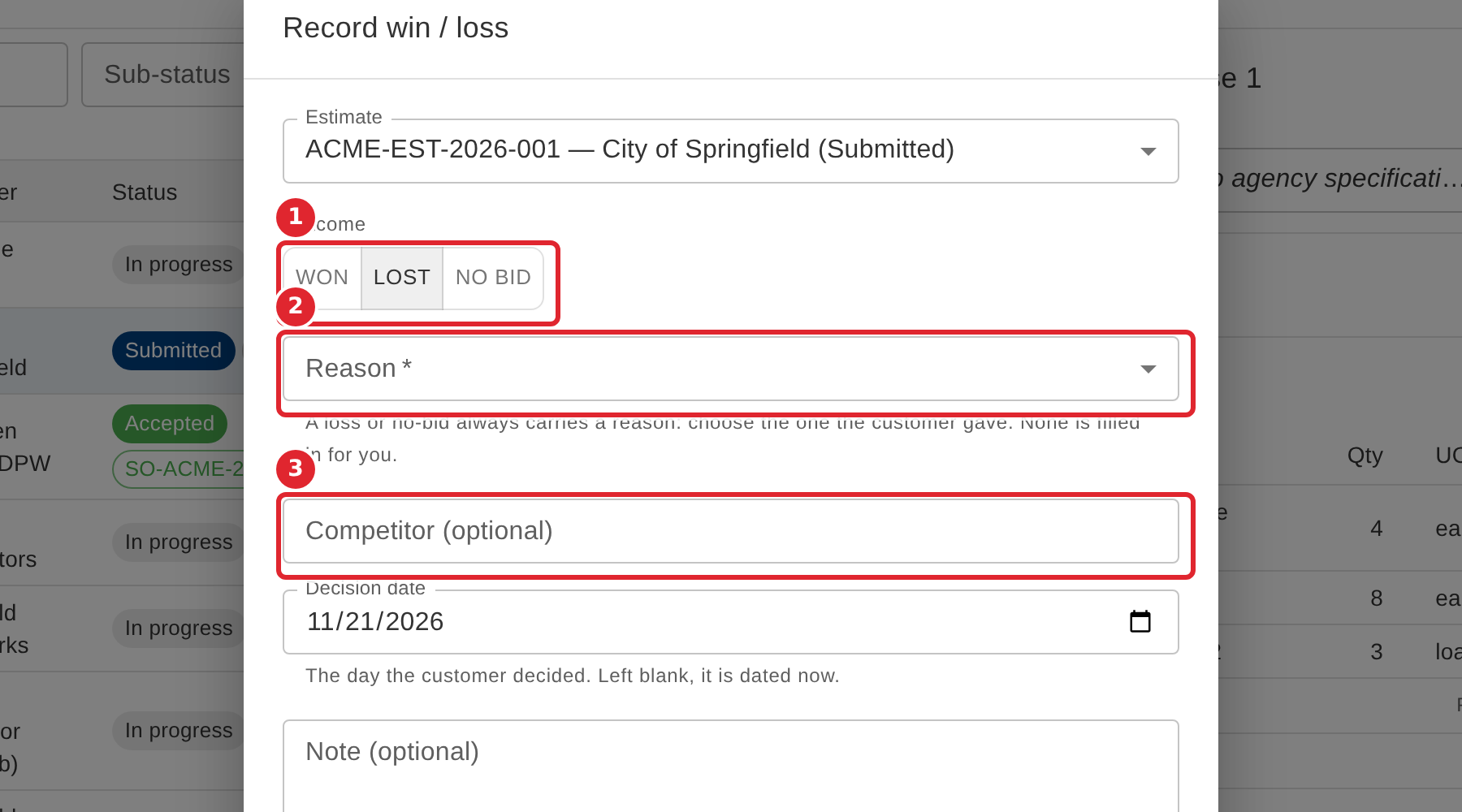
Choose the outcome: Won, Lost or No bid. Nothing is chosen for you. For Lost or No bid, choose the reason the customer gave; for Lost you can also name the competitor.
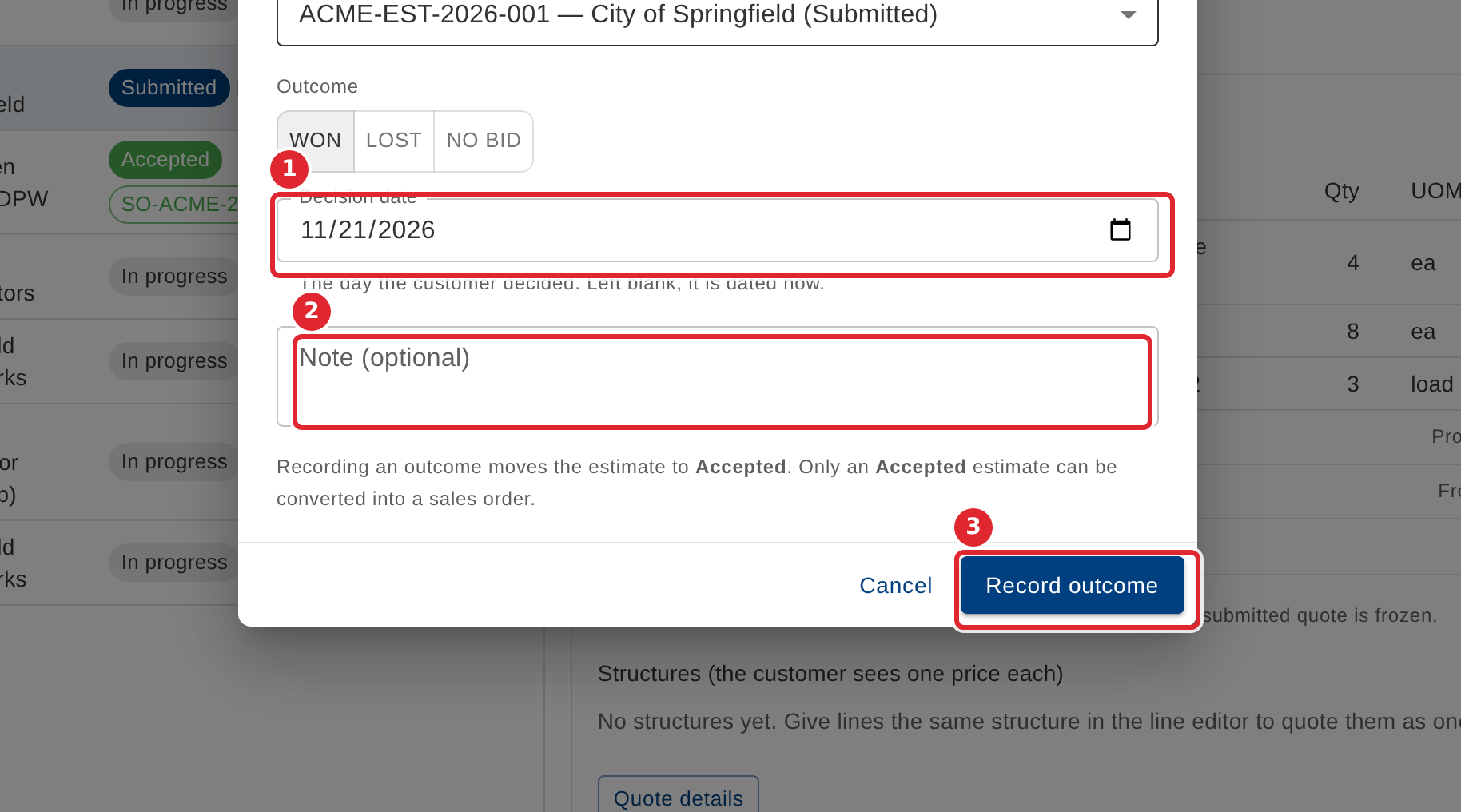
Check the Decision date (it starts at today and cannot be in the future), add a note if you like, then select Record outcome.
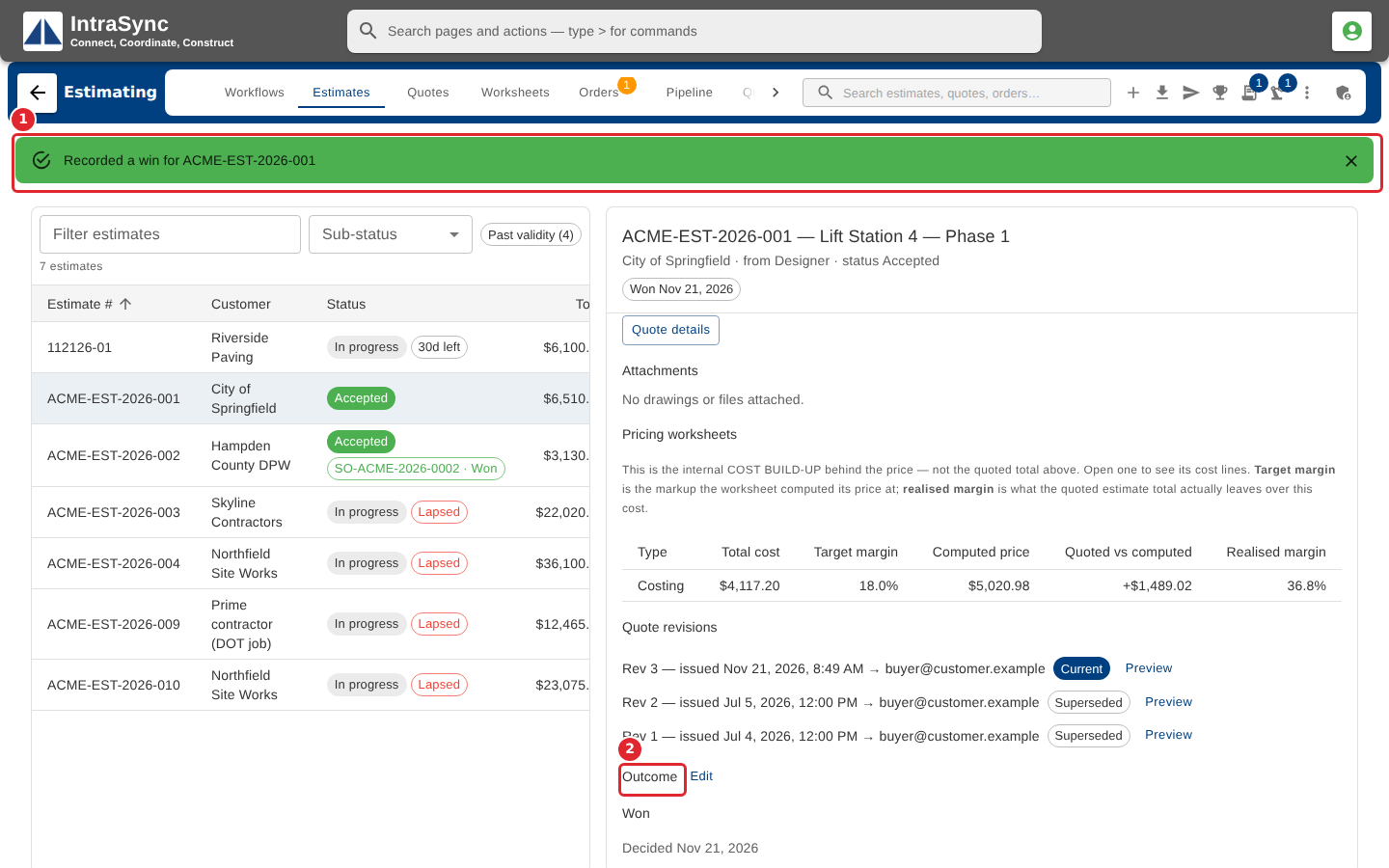
A win moves the estimate to Accepted, which is what lets it become a sales order. The Outcome section on the estimate records the decision.
Tips
- A loss or a no bid always needs a reason; none is filled in for you.
- The decision date cannot be in the future.
- If the estimate's quote has lapsed, the outcome is still recorded. Re-issue the quote first if the customer is accepting new terms.
- Won moves the estimate to Accepted, Lost to Declined, and No bid to No bid.