Estimating guide · section 8 of 29
Check the quantities read from a drawing
Decide which quantities read from a scraped drawing may go on a quote.
Steps
In the pictures, a numbered red box marks where to click or type. Where a picture has more than one box, the numbers give the order.
Select the Drawings tab. Choose a scraped drawing on the left (1). The summary says how many lines can go on a quote (2), and the page shows where each line was read (3).
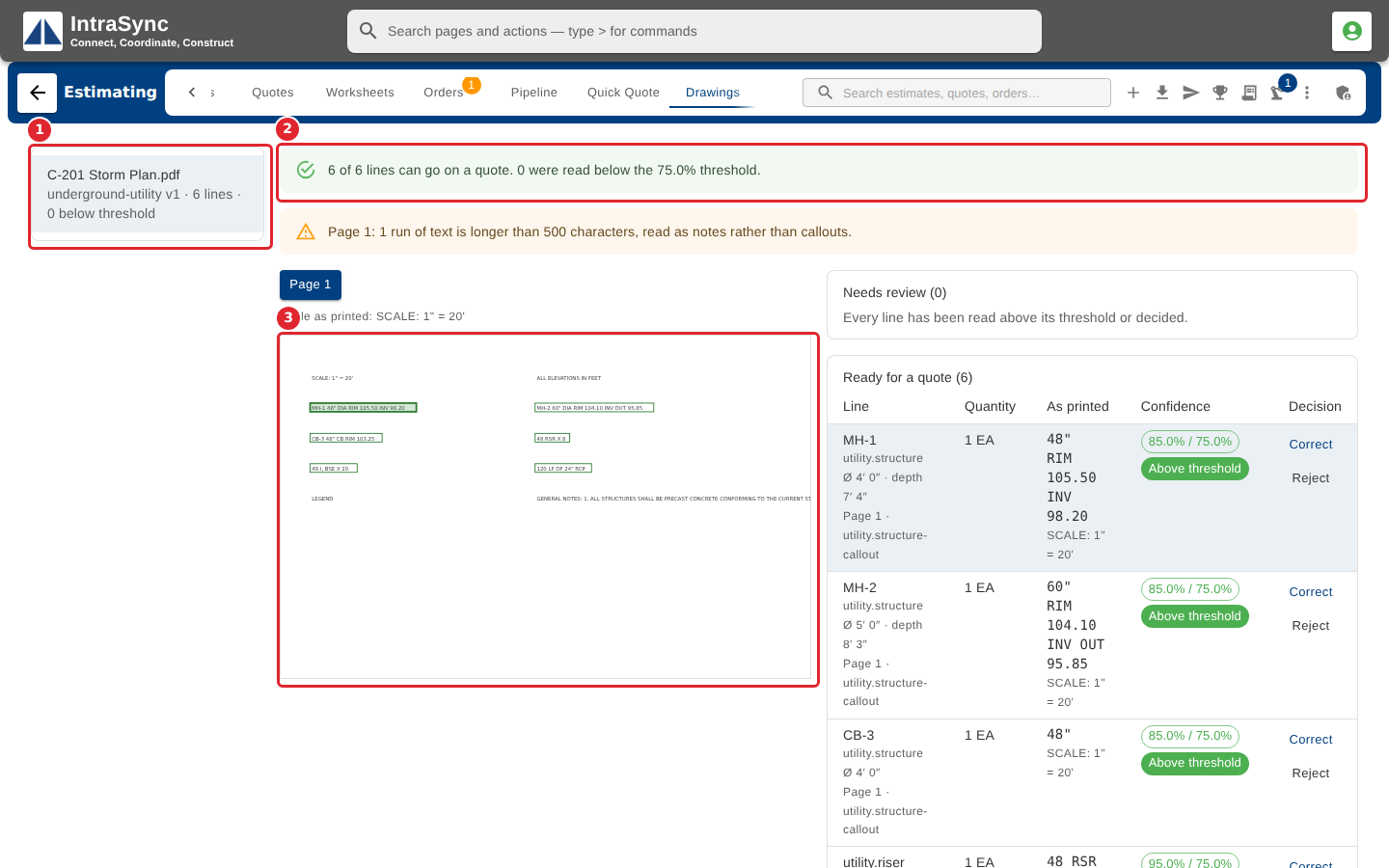
Lines are sorted into Needs review, Ready for a quote and Rejected. For each line, check the quantity against what was printed, then select Accept, Correct or Reject.
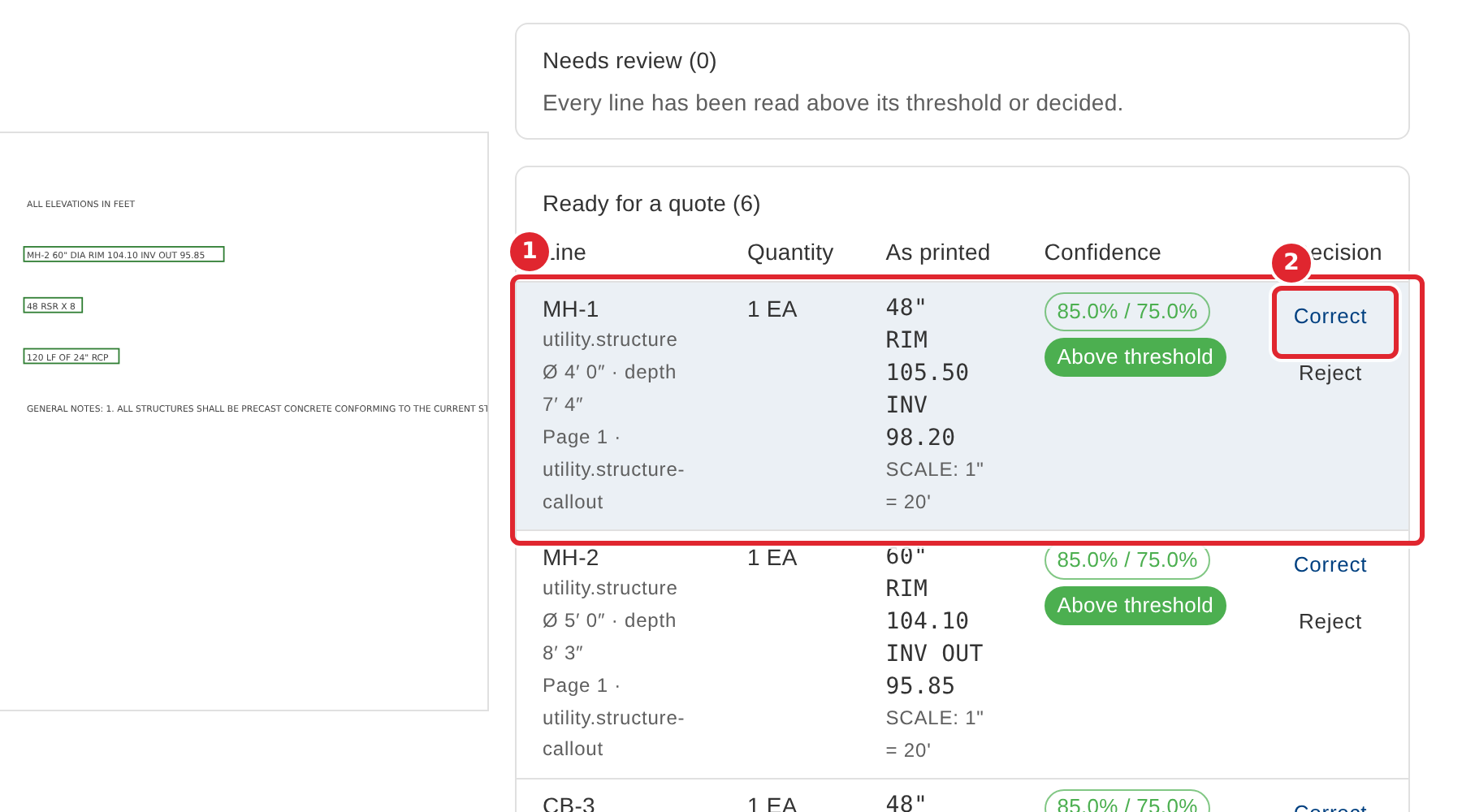
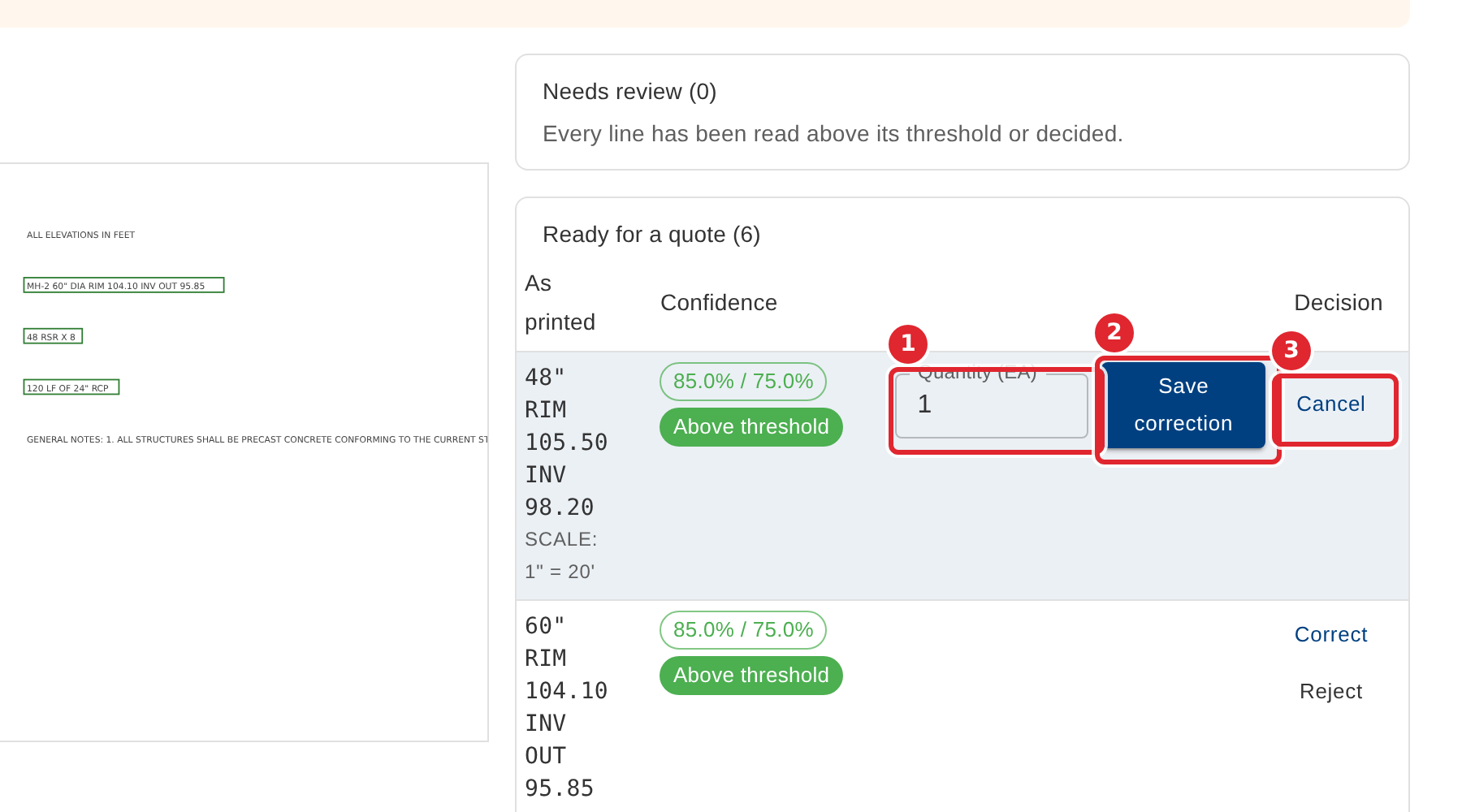
Correct opens a quantity field on the line. Type the right quantity and select Save correction, or Cancel.
Tips
- Each line shows its confidence against the threshold. Lines read below the threshold wait under Needs review until someone decides them.
- If someone else decided a line after you did, their decision stands, and the screen says so.