Field Tracking guide · section 18 of 22
Set up crews and their members
Keep each crew's foreman, default jobsite and members current, so the time clock and reports know who is on site.
Watch this in the video (0:57)
Before you start
- Manager or administrator access.
Steps
In the pictures, a numbered red box marks where to click or type. Where a picture has more than one box, the numbers give the order.
Open Manage > Crews to see each crew with its foreman, default jobsite and members.
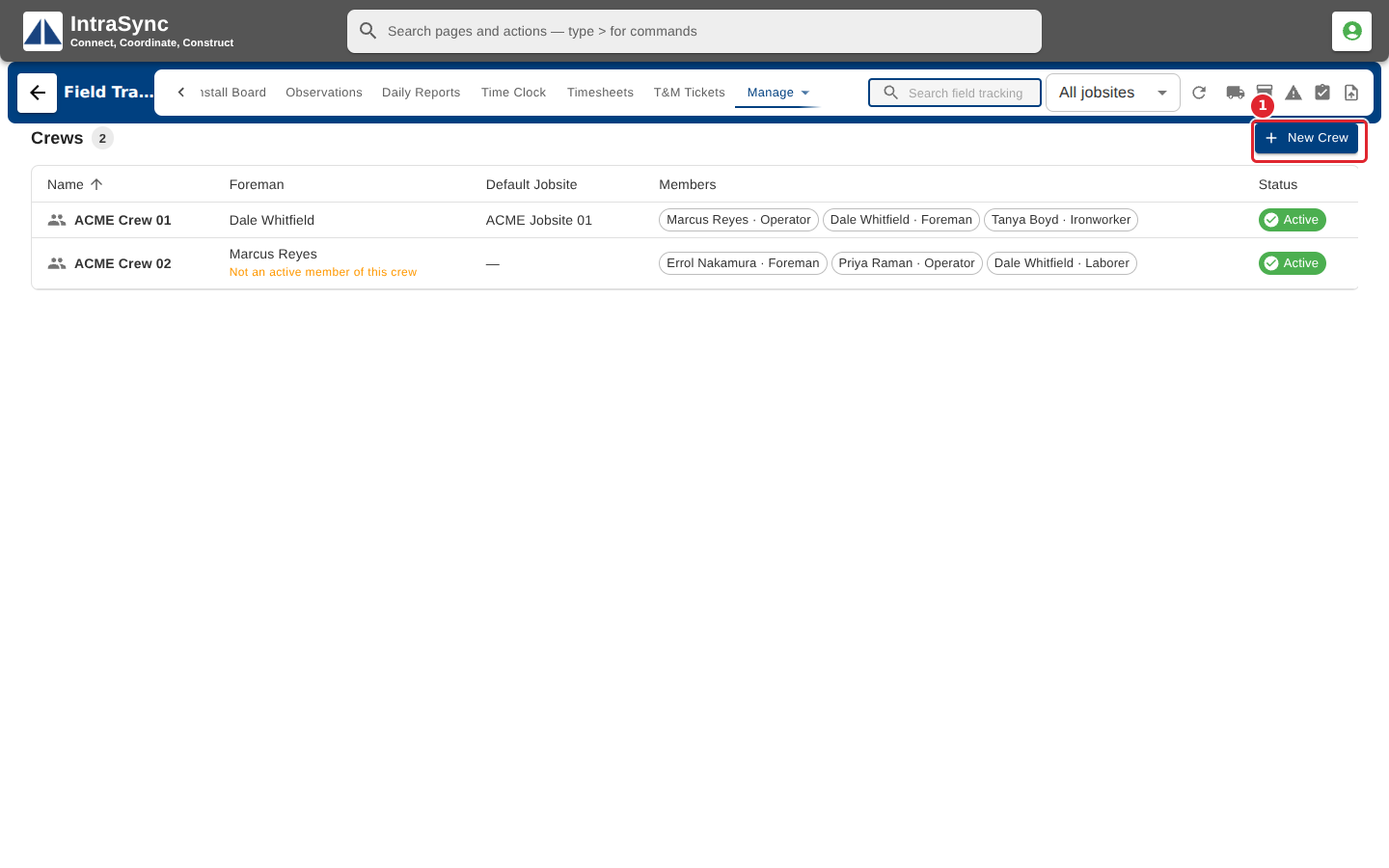
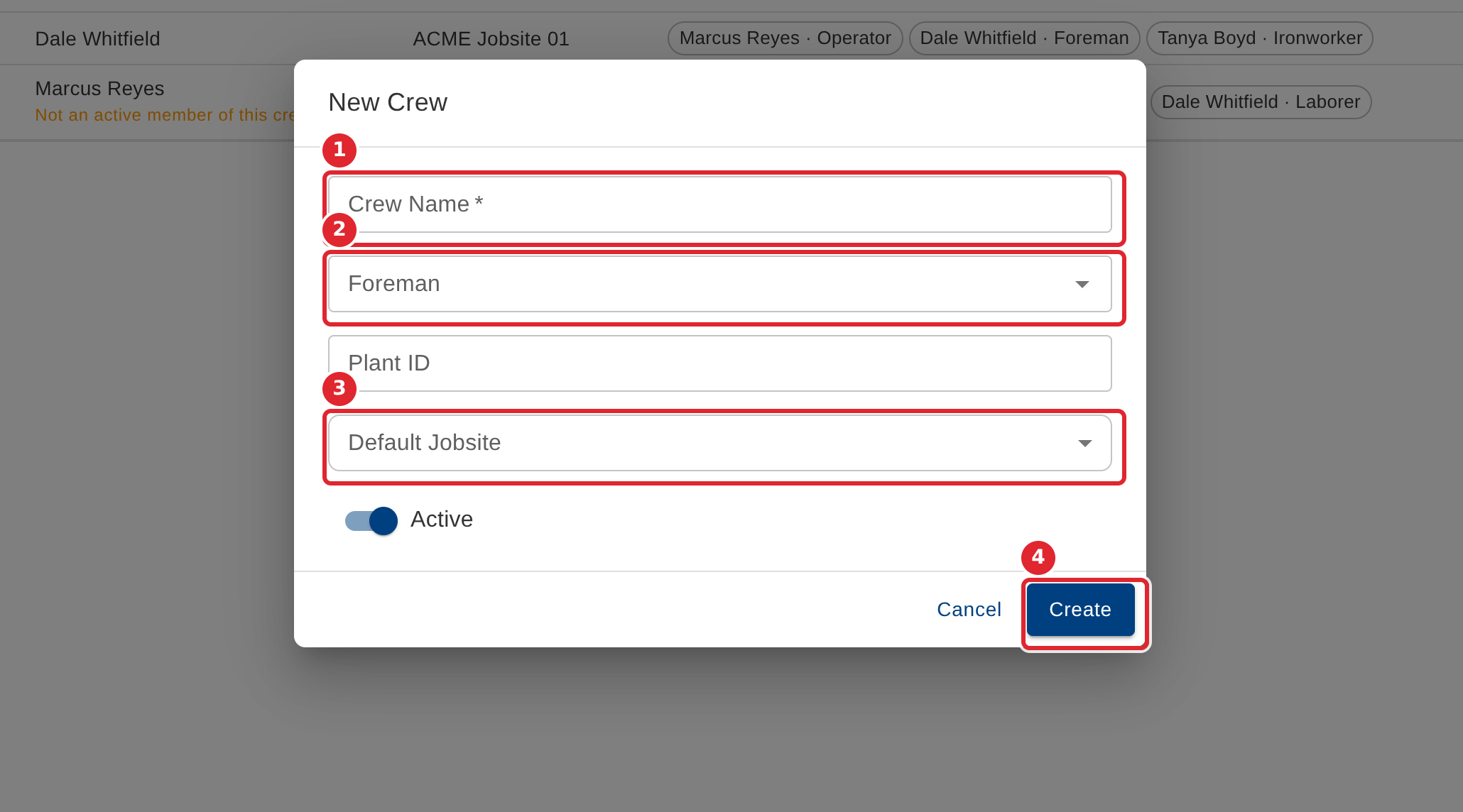
Select New Crew. Enter the crew name, choose the foreman and the default jobsite, and select Create.
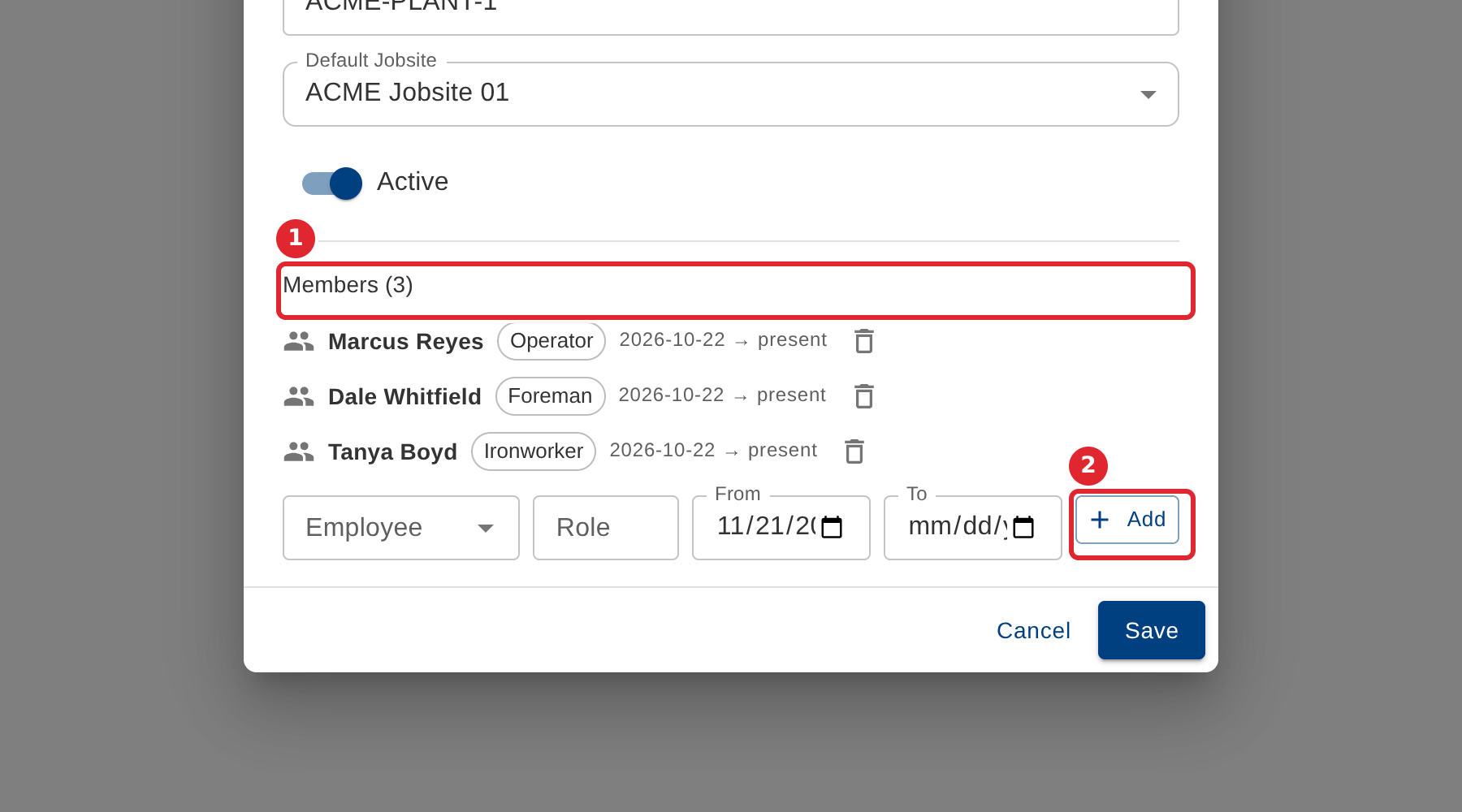
To change who is on a crew, open the crew and select Edit. Add a member with their role and the date they join, or remove one.
Tips
- The crew name is required.
- The foreman should also be an active member of the crew. The list warns when they are not.
- A new member needs the date they join the crew.