Field Tracking guide · section 17 of 22
Add and manage jobsites
Set up the sites your crews work on, with the details every other screen uses.
Watch this in the video (0:50)
Before you start
- Manager or administrator access.
Steps
In the pictures, a numbered red box marks where to click or type. Where a picture has more than one box, the numbers give the order.
Open Manage > Jobsites. Each jobsite shows its project, status, target completion and location. Move a jobsite to active or closed from its row.
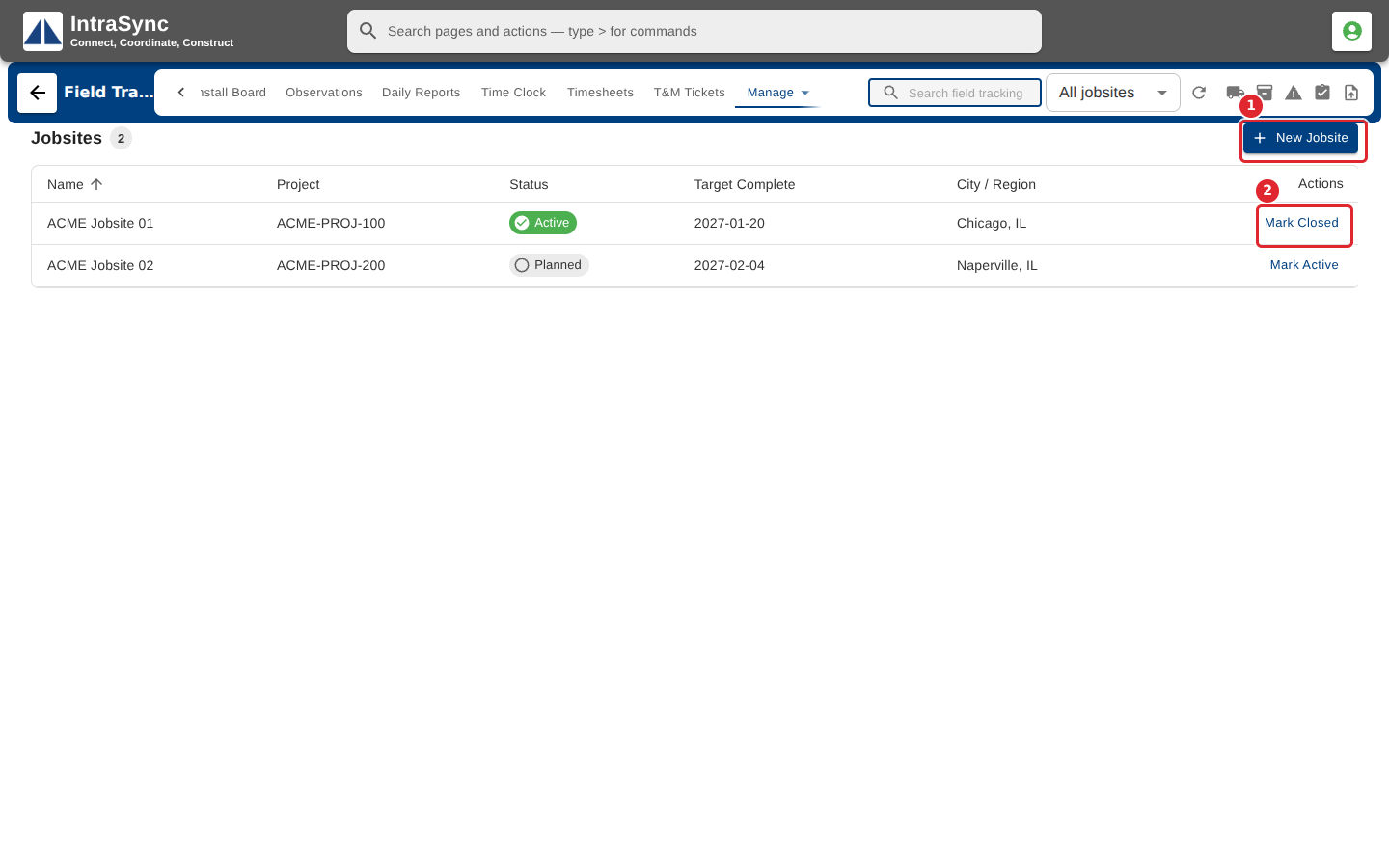
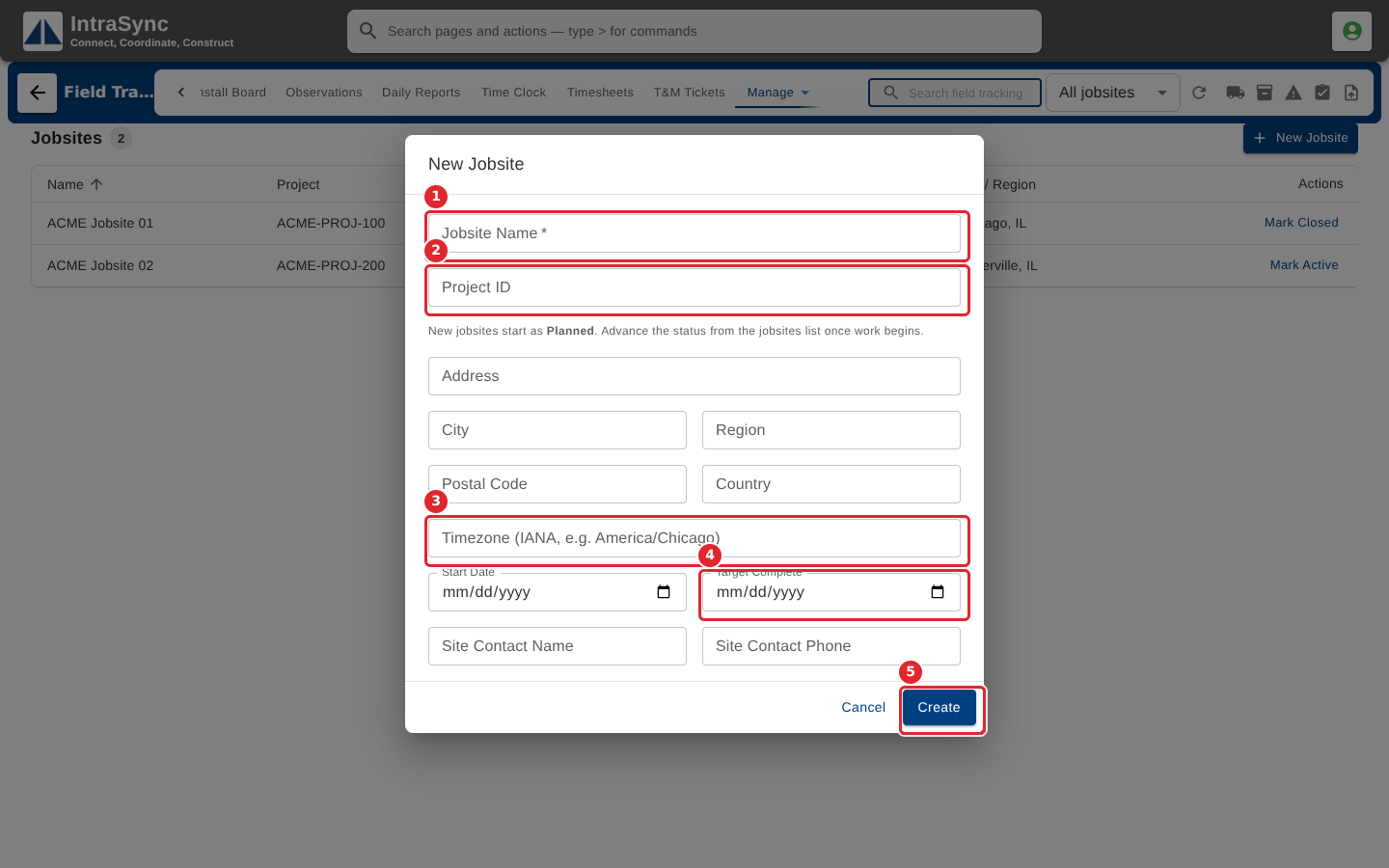
Select New Jobsite. Enter the jobsite name (required), the project, the address and the jobsite's timezone, and its start and target dates. Select Create.
Tips
- Only the jobsite name is required.
- Enter the jobsite's timezone in the form's example format, so days and times read on the jobsite's clock. An unrecognised zone is flagged but does not stop you saving.
- New jobsites start as planned. Move them to active once work begins.