Field Tracking guide · section 19 of 22
Define the install sequence with phase sets
Set the steps each kind of piece goes through on site, in the order the crew does them.
Watch this in the video (1:03)
Before you start
- Manager or administrator access.
Steps
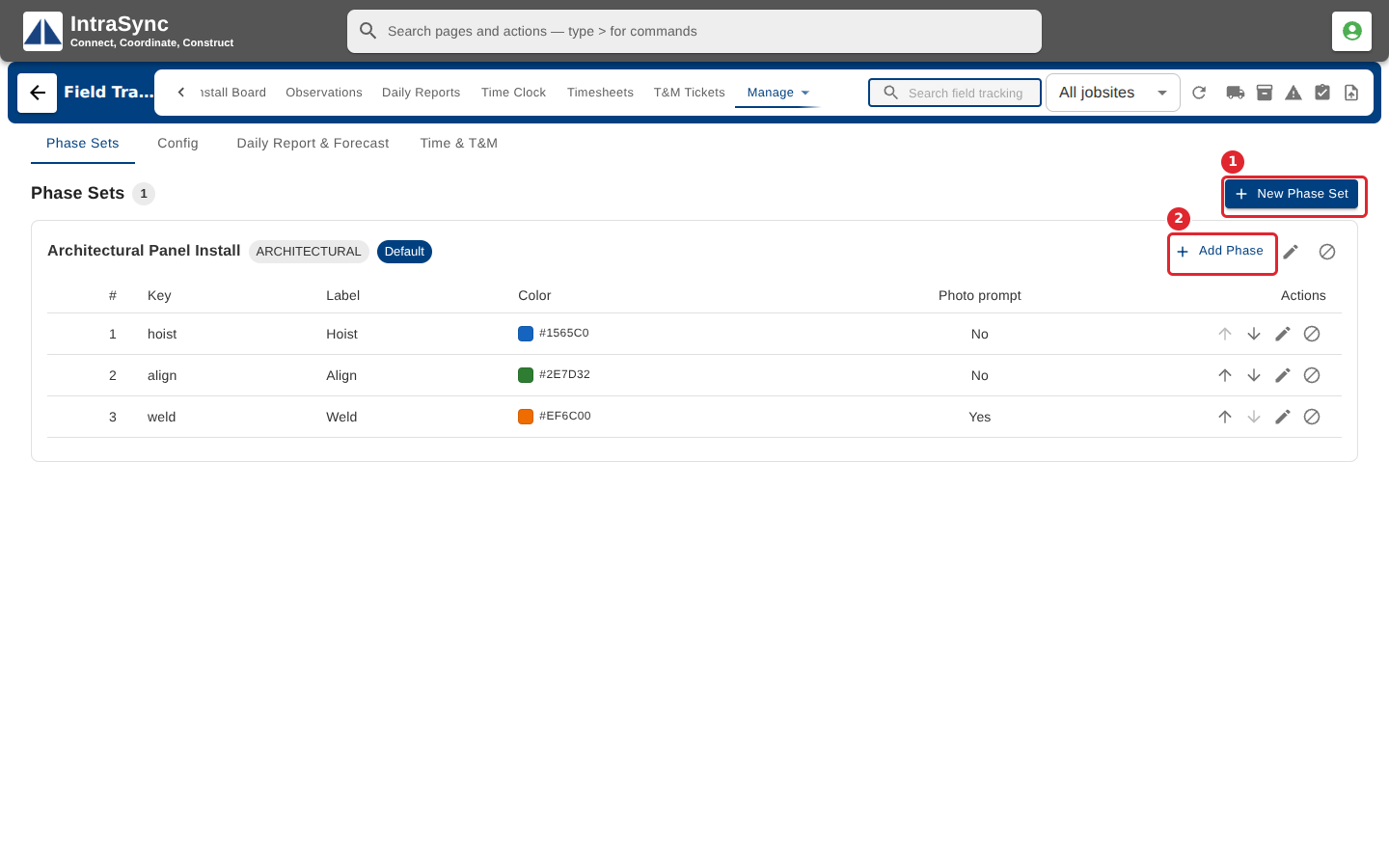
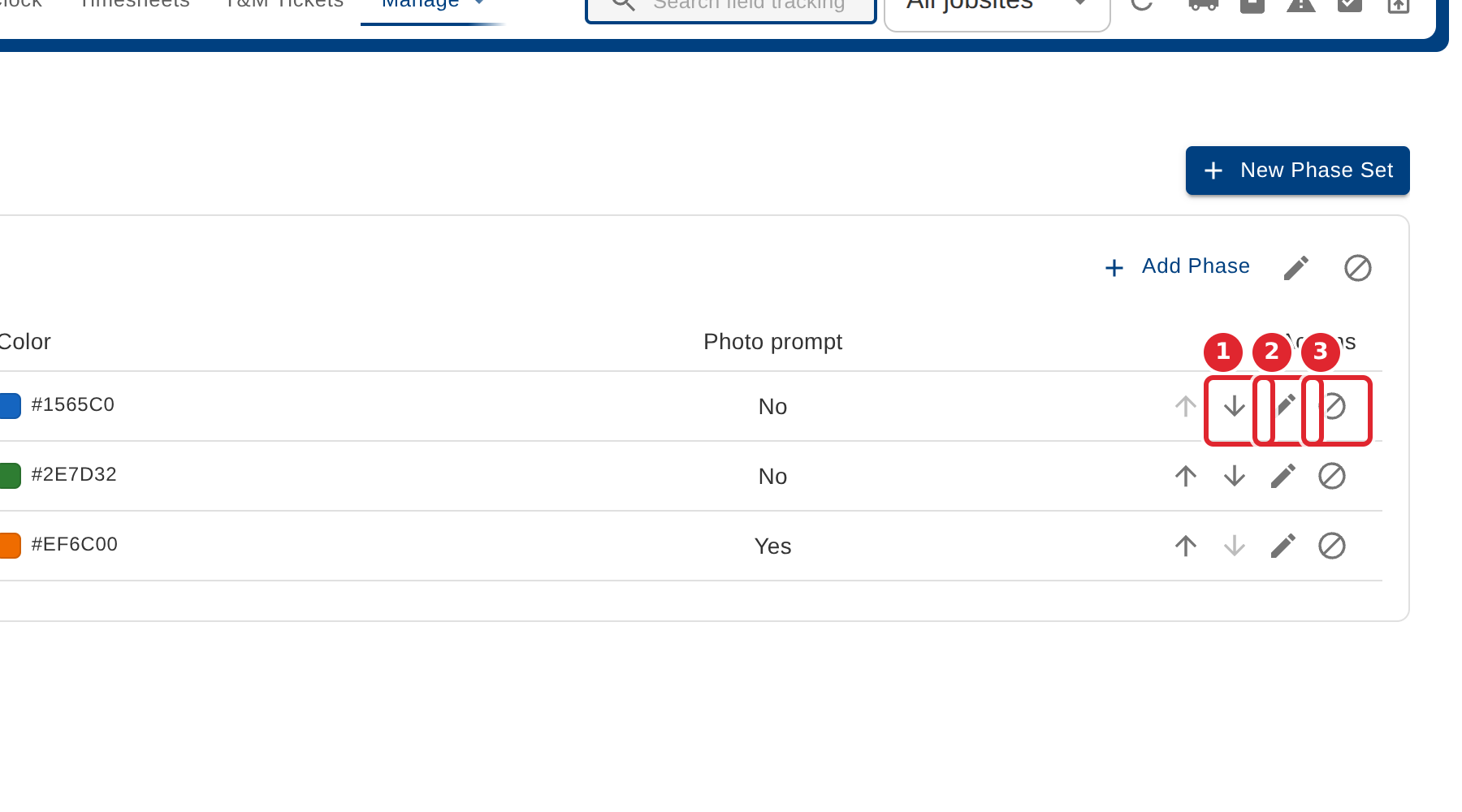
In the pictures, a numbered red box marks where to click or type. Where a picture has more than one box, the numbers give the order.
Open Manage > Setup. Phase Sets lists each install sequence and its phases in order: the order is the order the crew installs in.
Use the arrows to move a phase up or down, the pencil to edit it, or deactivate a phase you no longer use. Check-offs already recorded are kept.
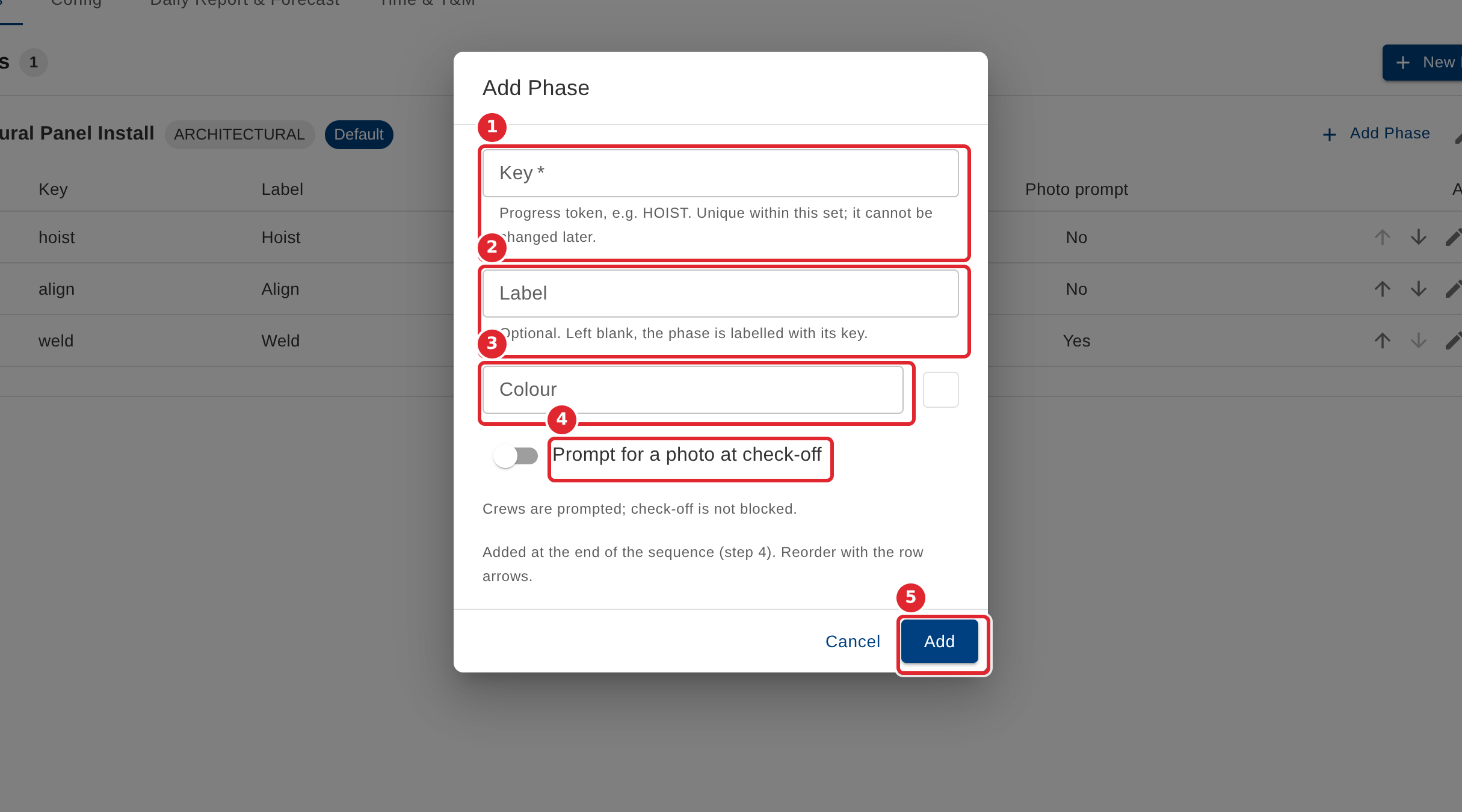
Select Add Phase. Enter a key (it cannot change later), a label and a colour, and choose whether the crew is prompted for a photo. Select Add.
Tips
- A phase key may use letters, numbers, hyphens and underscores, must be unique within its set, and cannot be changed later.
- A colour is a hex value, as in the form's example.
- A phase set can be deleted only while it holds no phases. Deactivate it instead.