File and finalize a daily report
Record what each crew planned and completed each day, with weather and manpower, and lock it once it is reviewed.
Watch this in the video (0:33)
Before you start
- There is one report per jobsite, crew and date.
Steps
In the pictures, a numbered red box marks where to click or type. Where a picture has more than one box, the numbers give the order.
Select Daily Reports. Pick Yesterday, Today or Tomorrow, or any date, to see that day's planned and completed pieces, the forecast check and the reports filed.
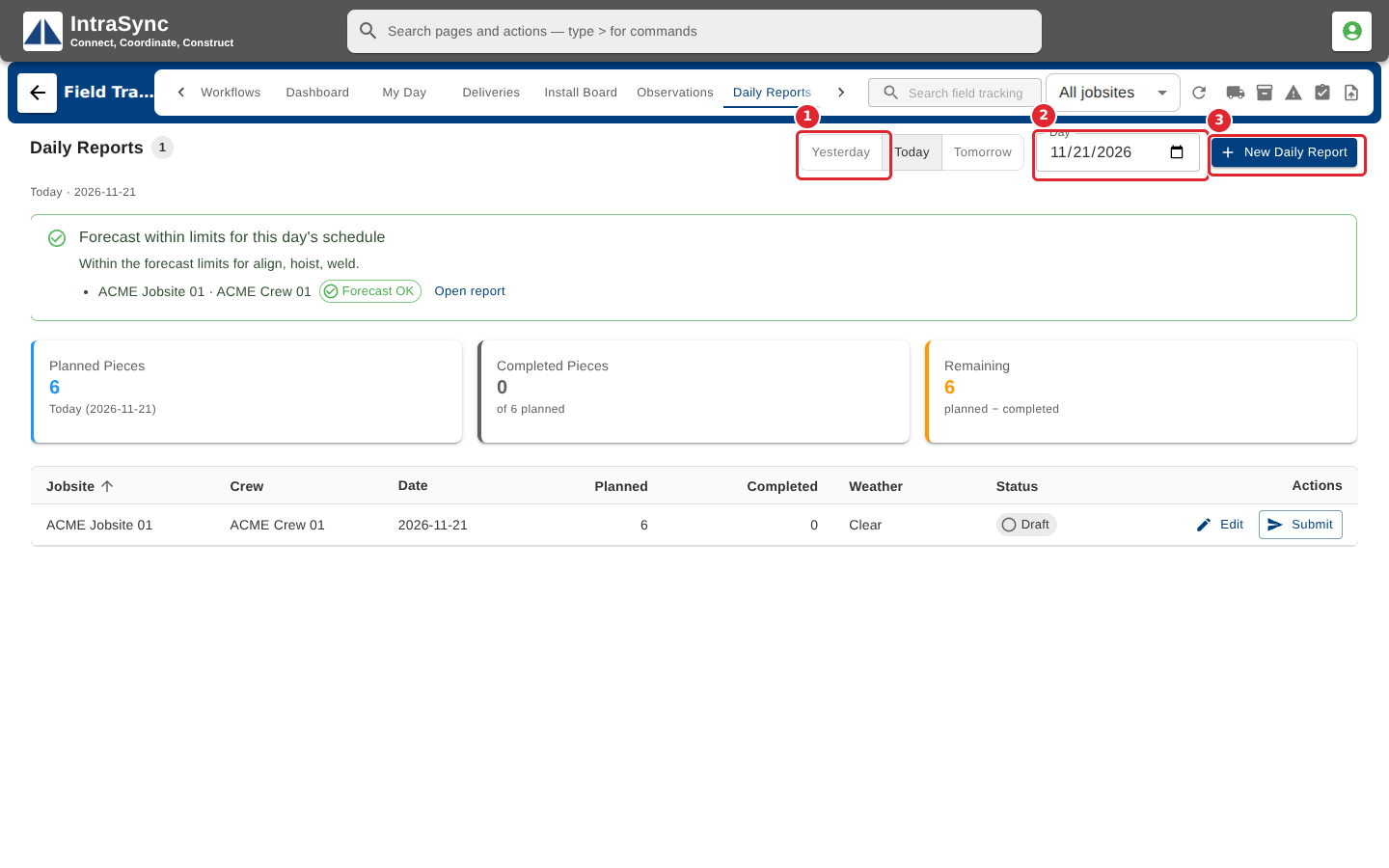
Select New Daily Report. Choose the jobsite, crew and report date, then record weather, temperature, manpower, the planned pieces, the pieces fully installed and a narrative. Select File Report.
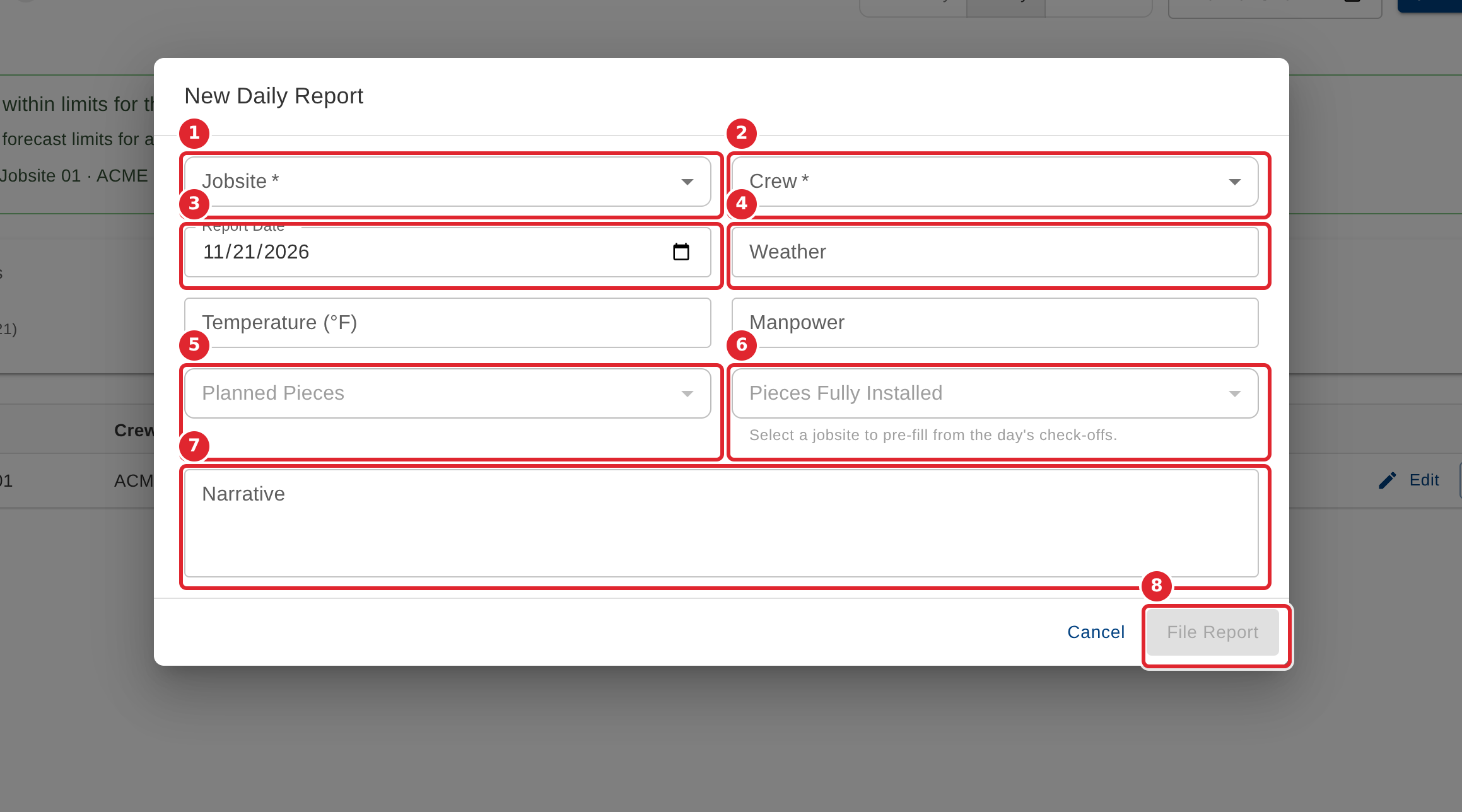
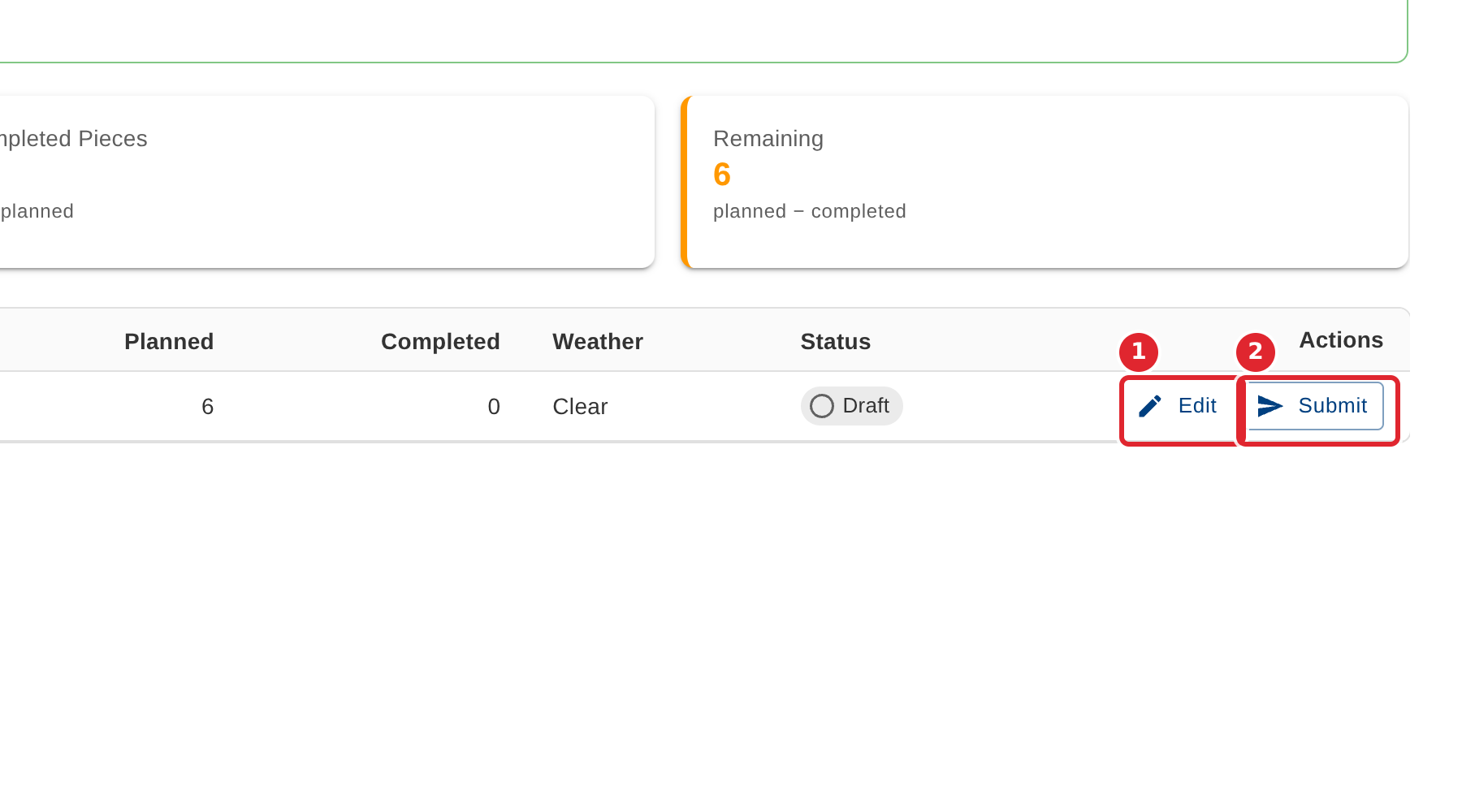
A filed report starts as a draft. Select Edit to change it, or Submit when it is ready for review.
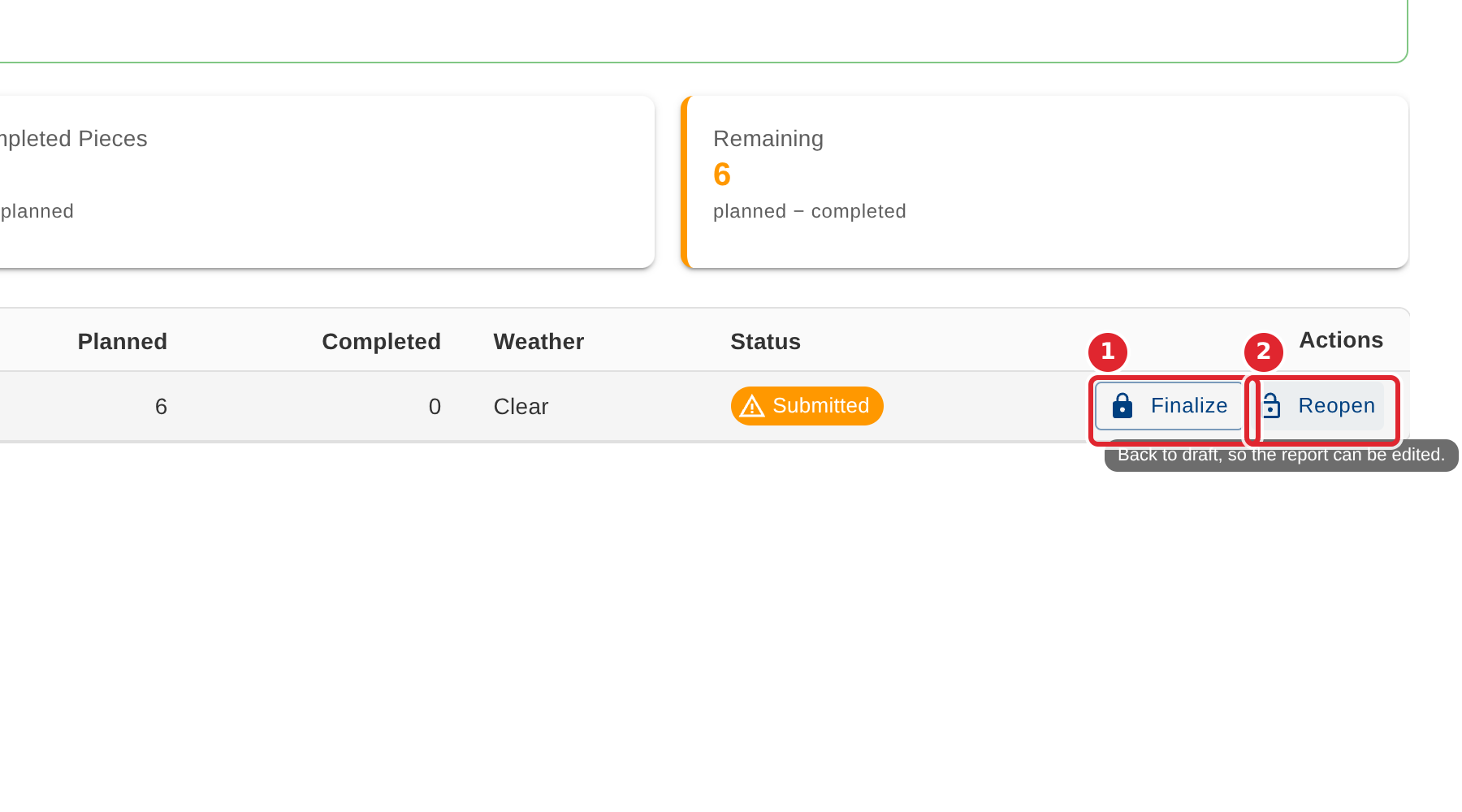
A submitted report can be finalized, or reopened to go back to draft.
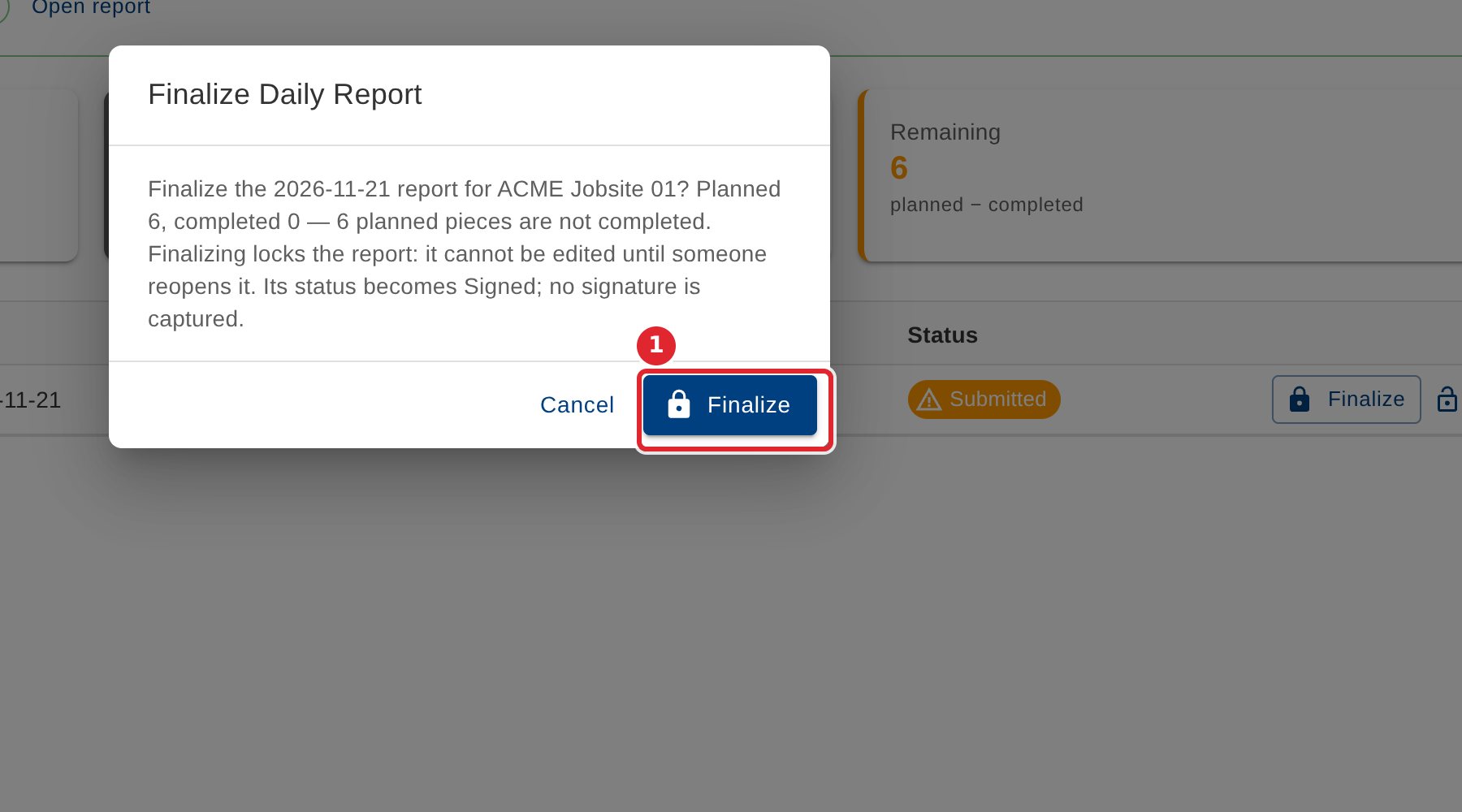
Finalize asks you to confirm the counts. Finalizing locks the report and marks it signed.
Select a report's row to read it in full. Select Print for a paper copy.
Tips
- Jobsite, crew and report date are required.
- Temperature must be within the range the form states, and manpower is a whole number of people.
- Reopening a finalized report takes it back to submitted. Reopen it again to edit it.
- A weather warning on the day means the forecast breaks a limit set in Manage > Setup > Daily Report & Forecast. Select Proceed anyway to go ahead.