Field Tracking guide · section 9 of 22
Work an observation through to resolved
Show who is working on each issue, and close it out with a record of what was done.
Watch this in the video (0:28)
Steps
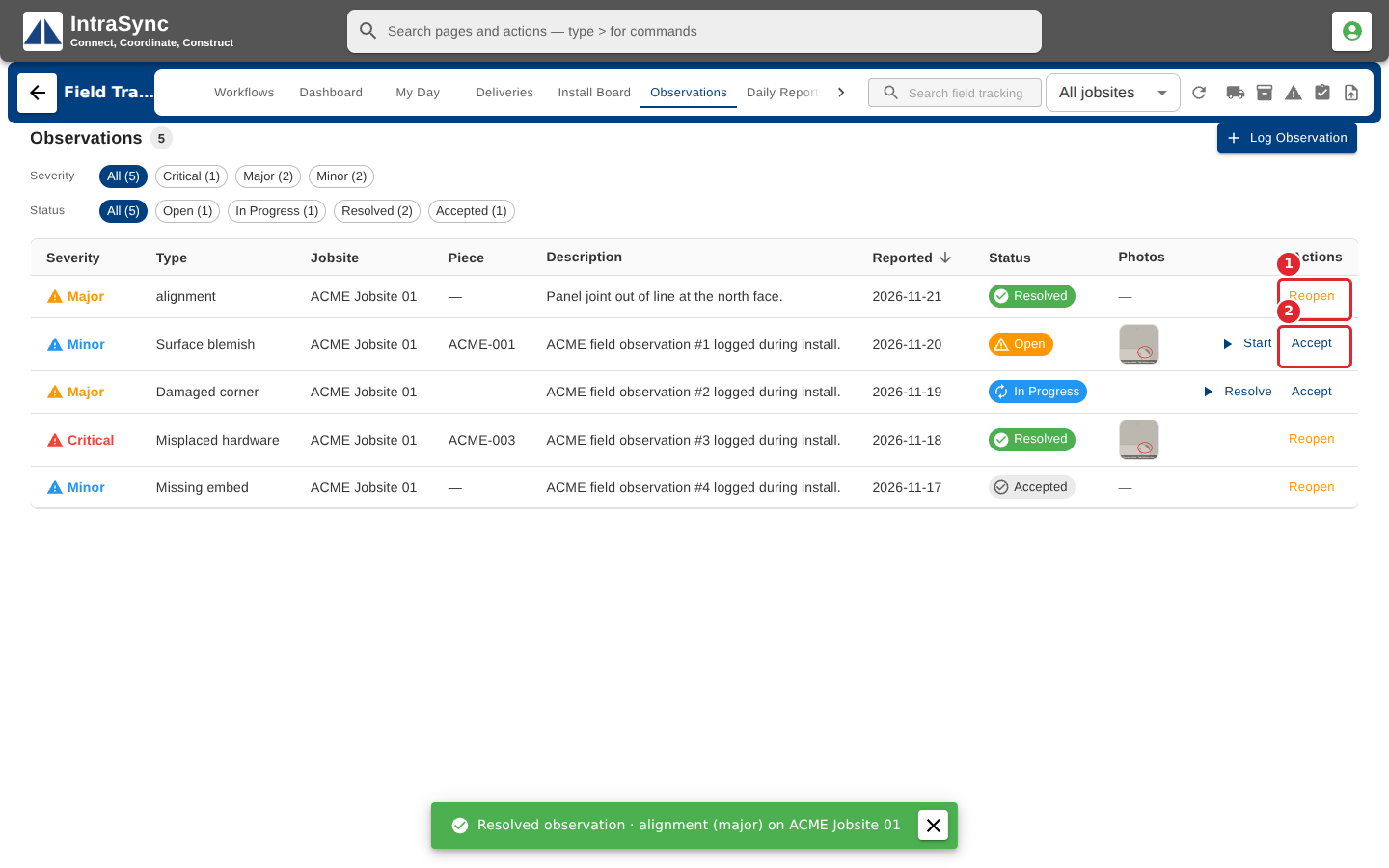
In the pictures, a numbered red box marks where to click or type. Where a picture has more than one box, the numbers give the order.
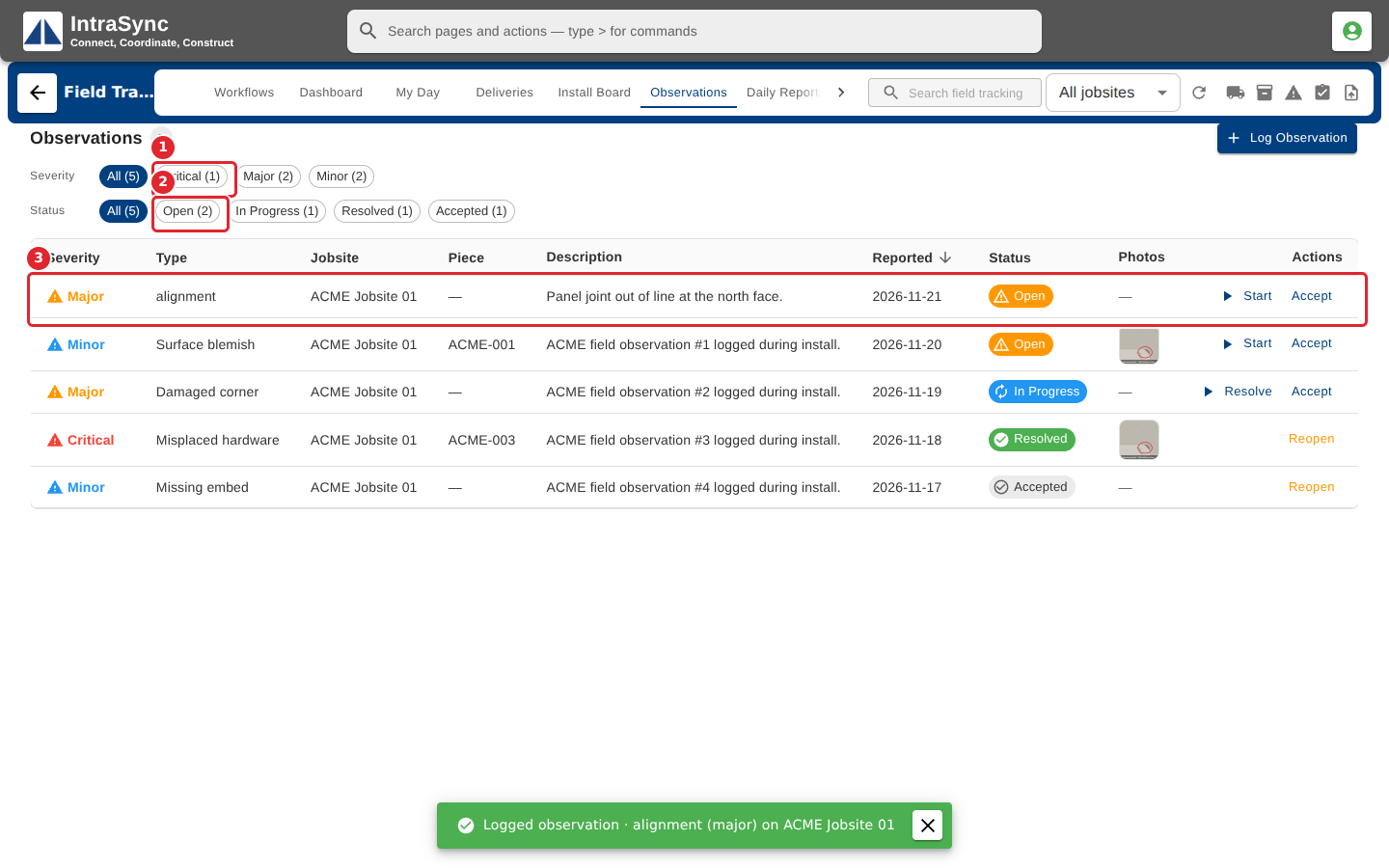
Use the Severity and Status chips to narrow the list. A new observation starts as open.
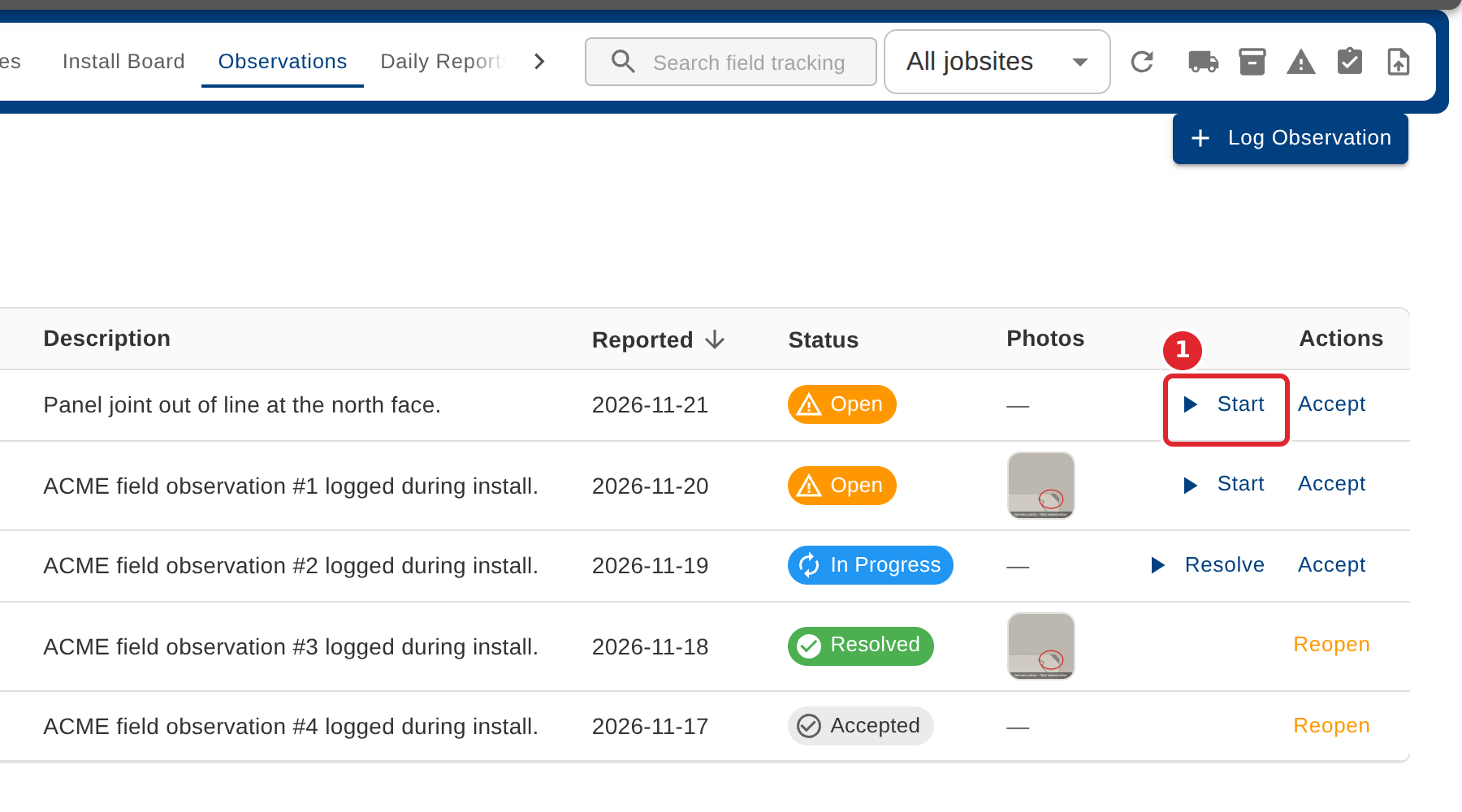
Select Start when someone begins working on it.
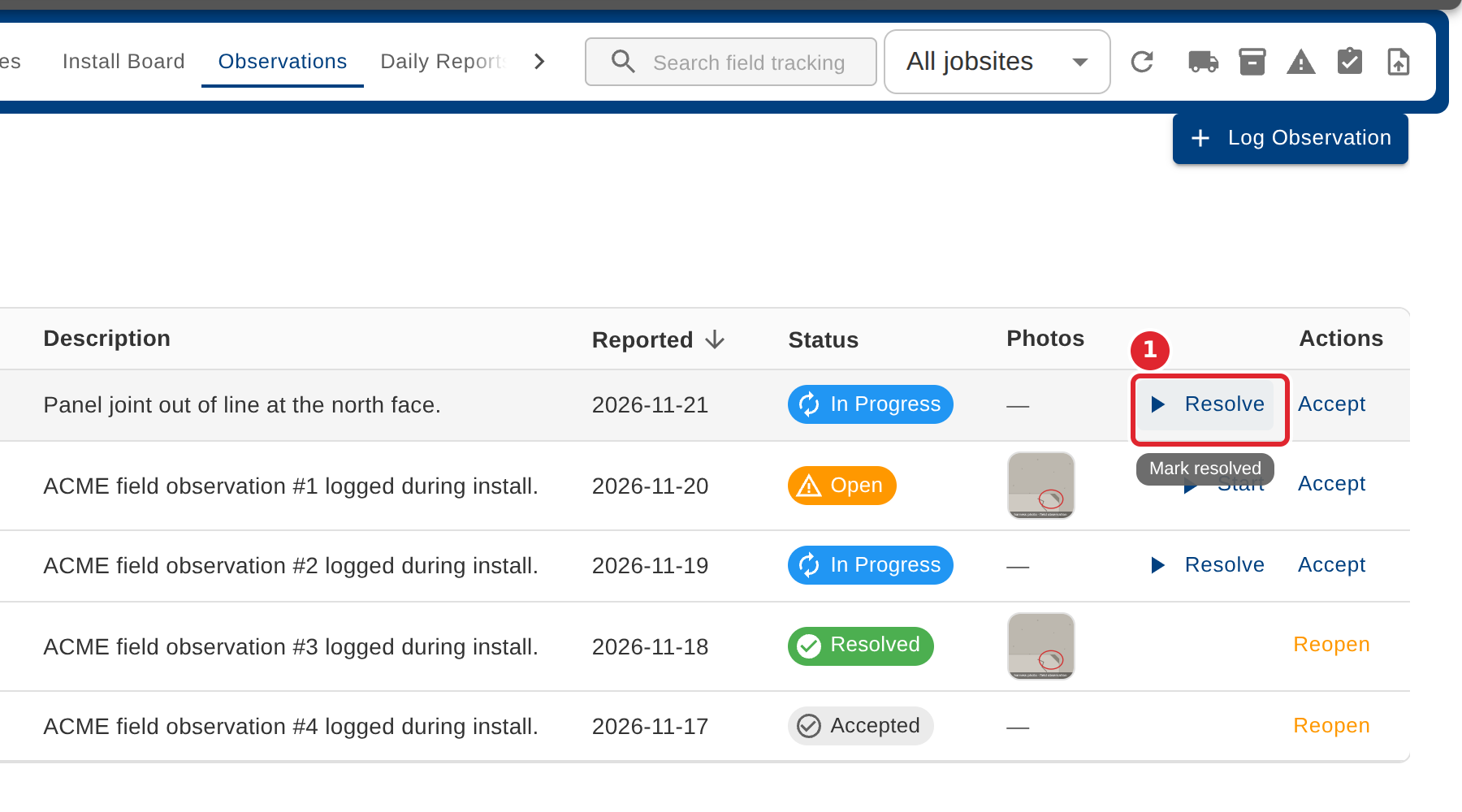
When the issue is fixed, select Resolve.
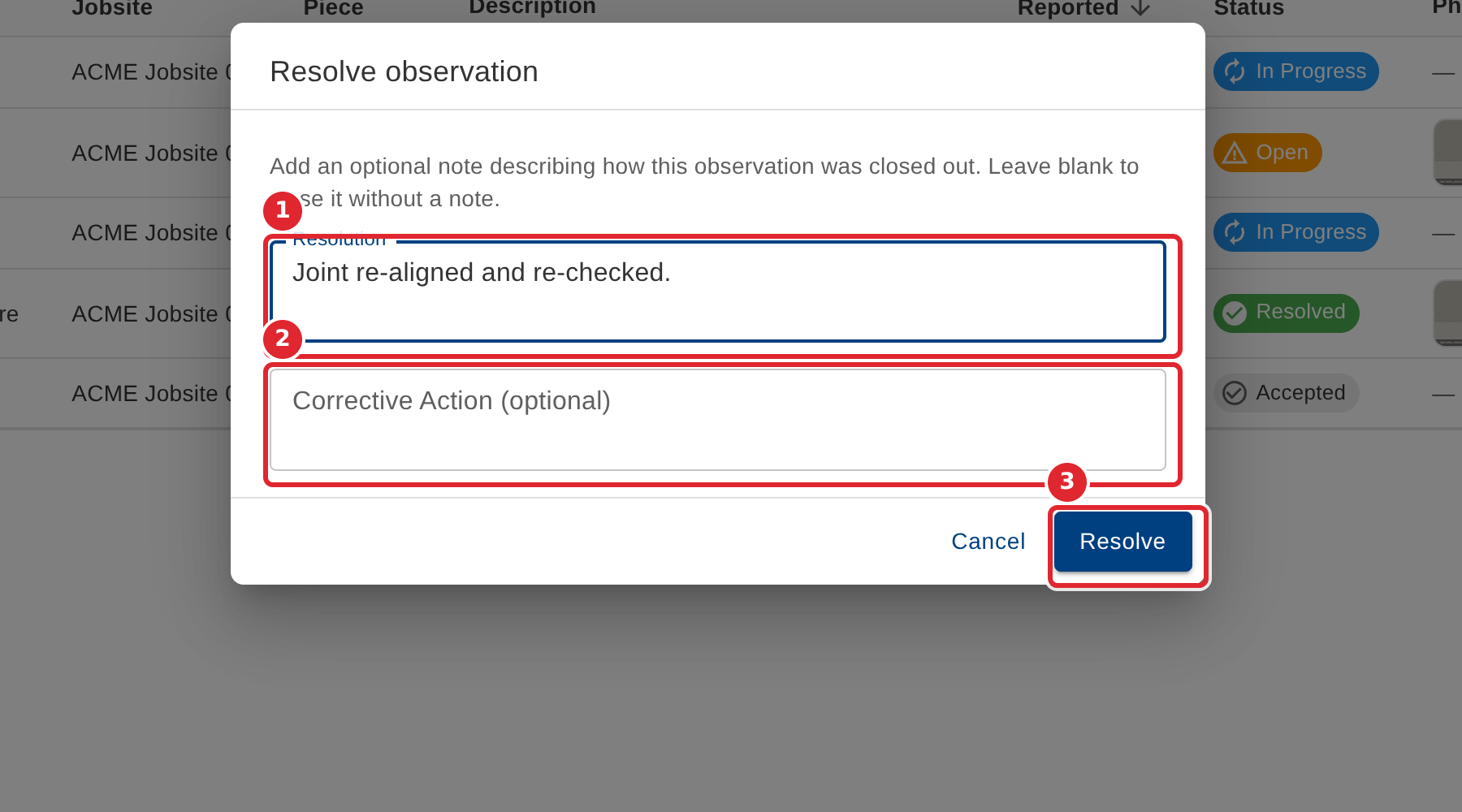
Record the resolution and any corrective action, then select Resolve.
A resolved observation shows Reopen, to bring it back if the problem returns. While an observation is open or in progress, Accept closes it as accepted rather than resolved. Select any row to see the observation's full record and photos.
Tips
- Resolution and corrective action are optional, but they are what the next person reads.
- Resolve and Accept both ask for an optional note before they close the observation.
- A resolved or accepted observation can be reopened if the problem comes back.