Check off install phases on the Install Board
Track every piece through its install sequence, jobsite by jobsite.
Watch this in the video (0:24)
Before you start
- Each piece's phases come from its phase set, set up in Manage > Setup > Phase Sets.
Steps
In the pictures, a numbered red box marks where to click or type. Where a picture has more than one box, the numbers give the order.
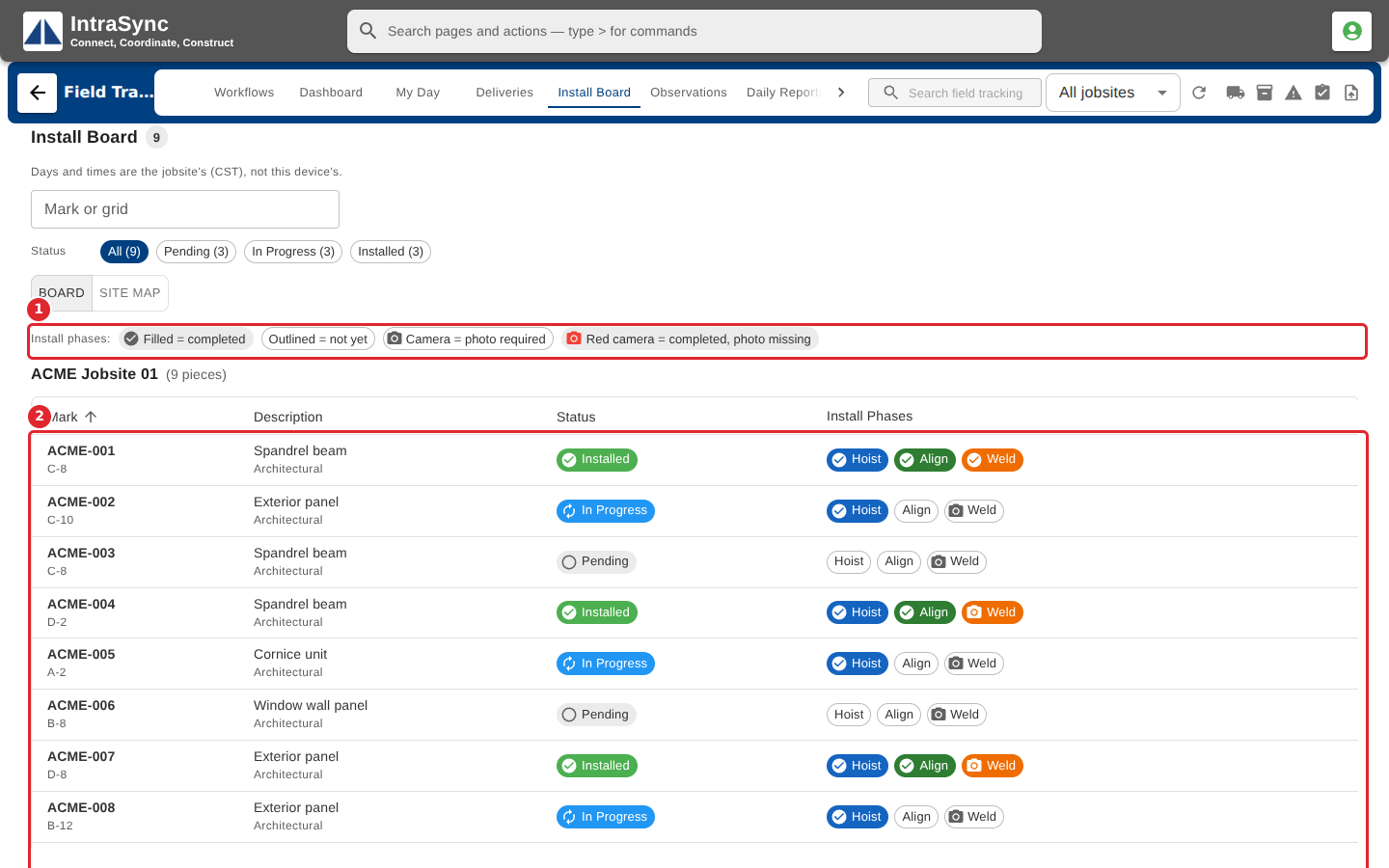
Select Install Board. Pieces are grouped by jobsite, and each row shows its install phases as chips: filled is completed, outlined is not yet.
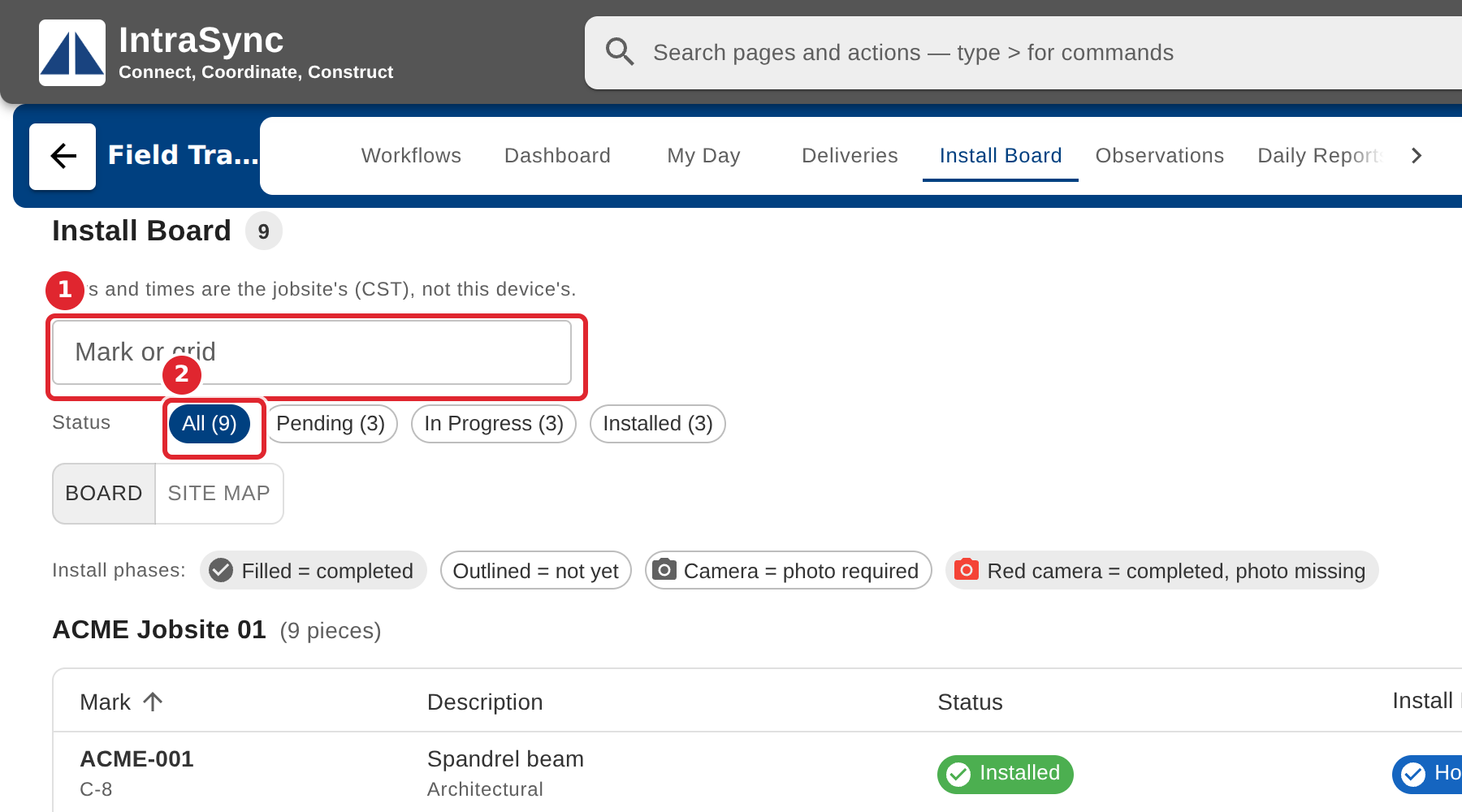
Type a piece mark or a grid location to find a piece, or use the Status chips to show only pending, in-progress or installed pieces.
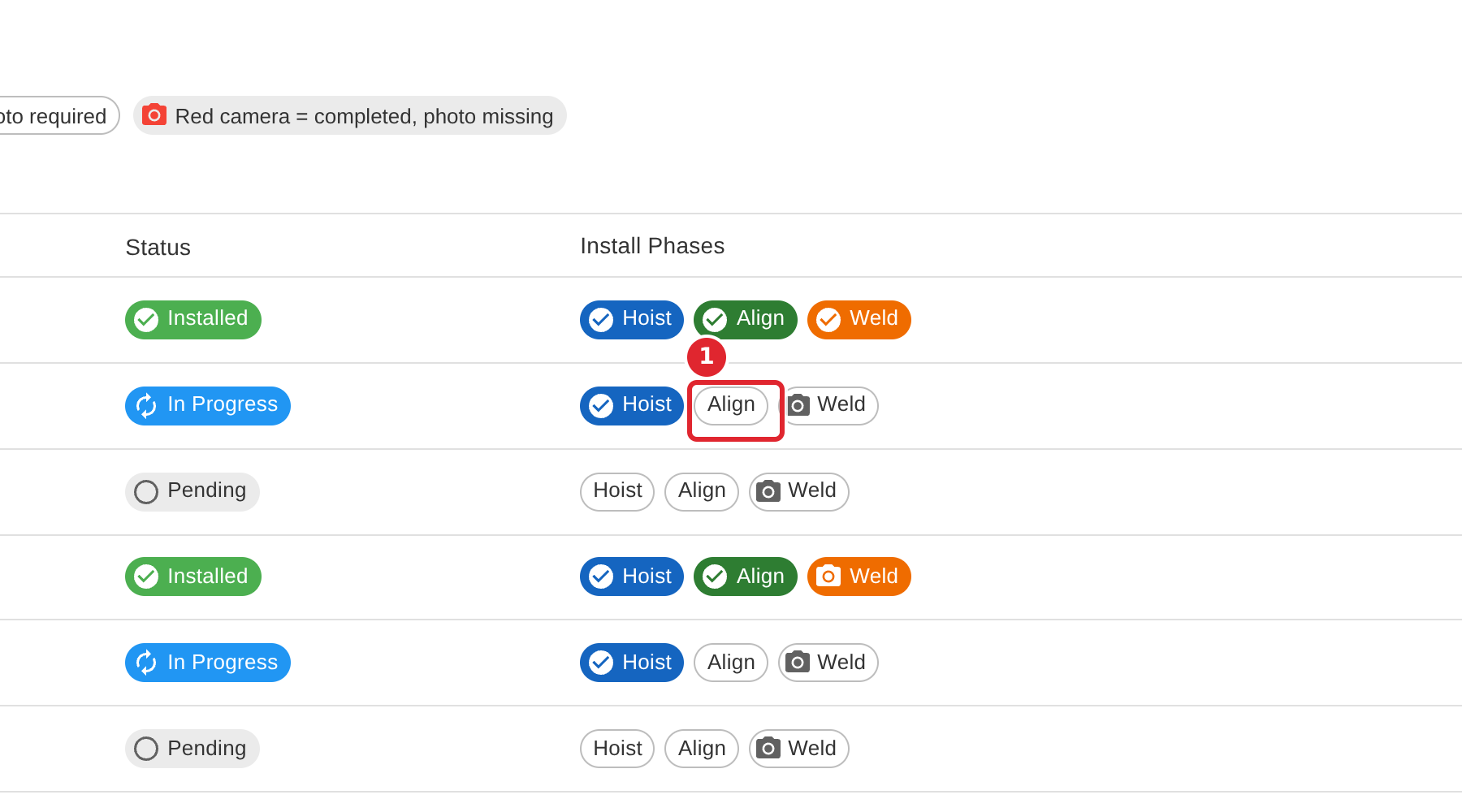
Select an outlined phase chip to check that phase off for the piece.
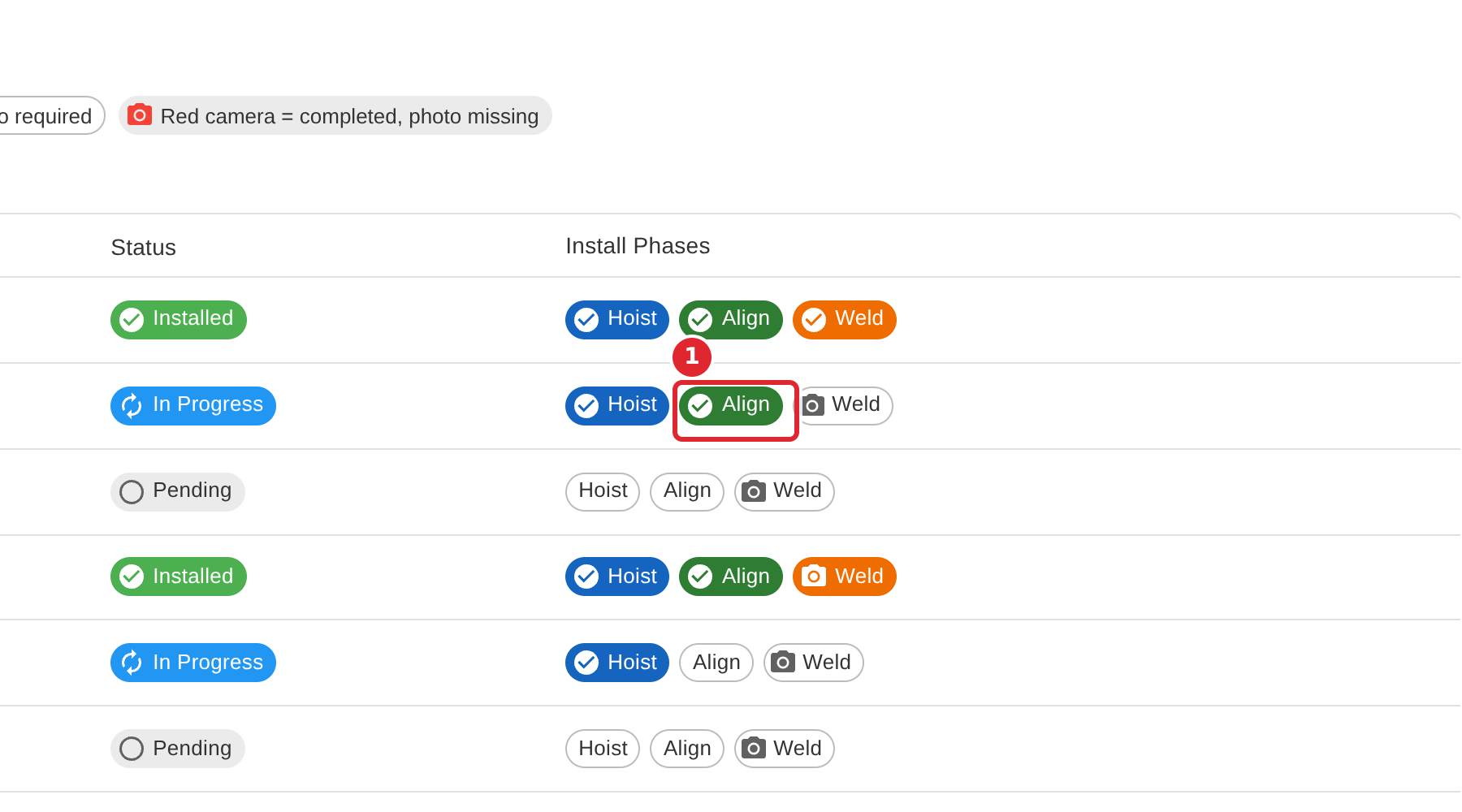
The chip fills in, and the piece's status follows its phases.
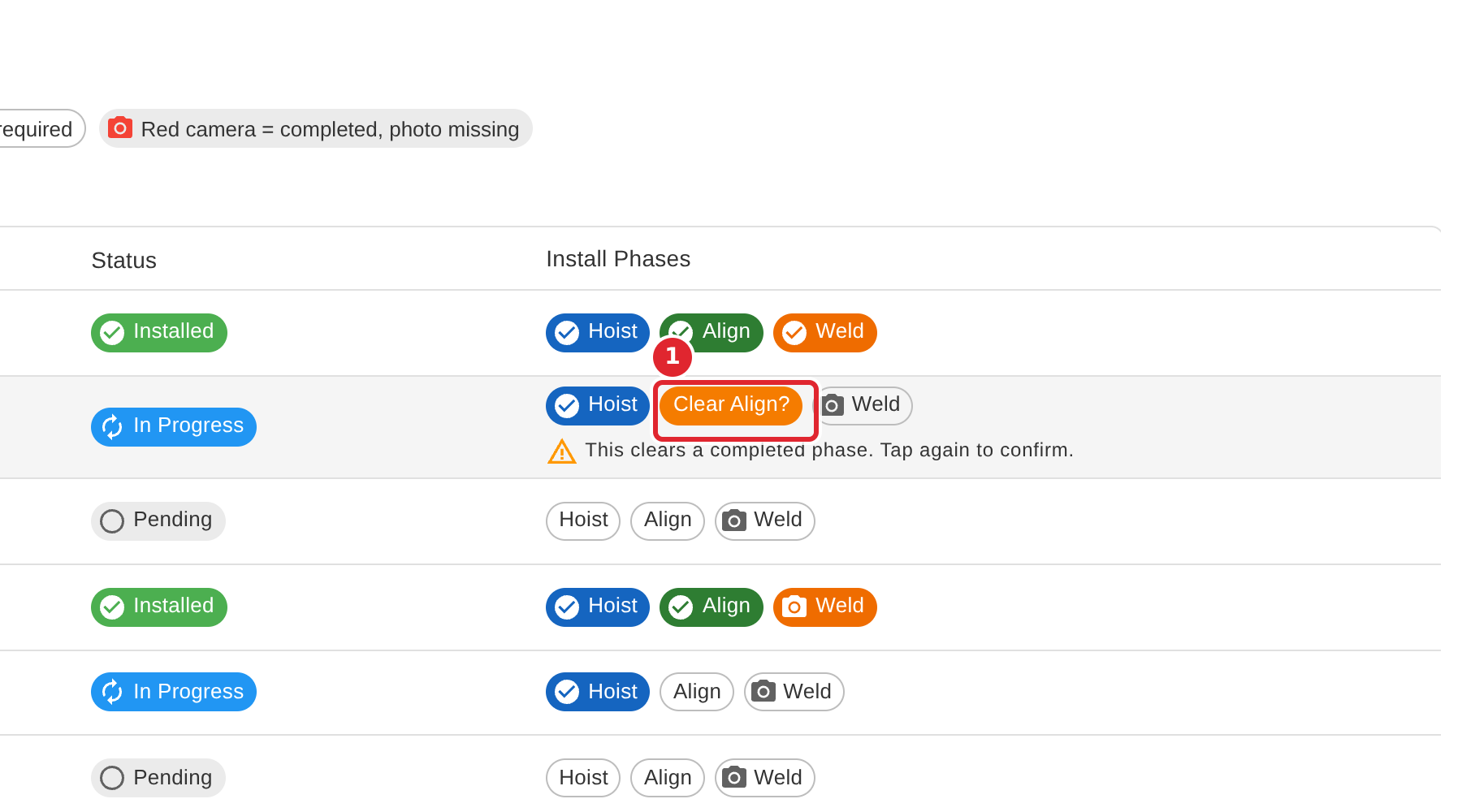
To clear a completed phase, select it once: the chip asks to confirm and says which later steps would clear with it. Select it again to clear.
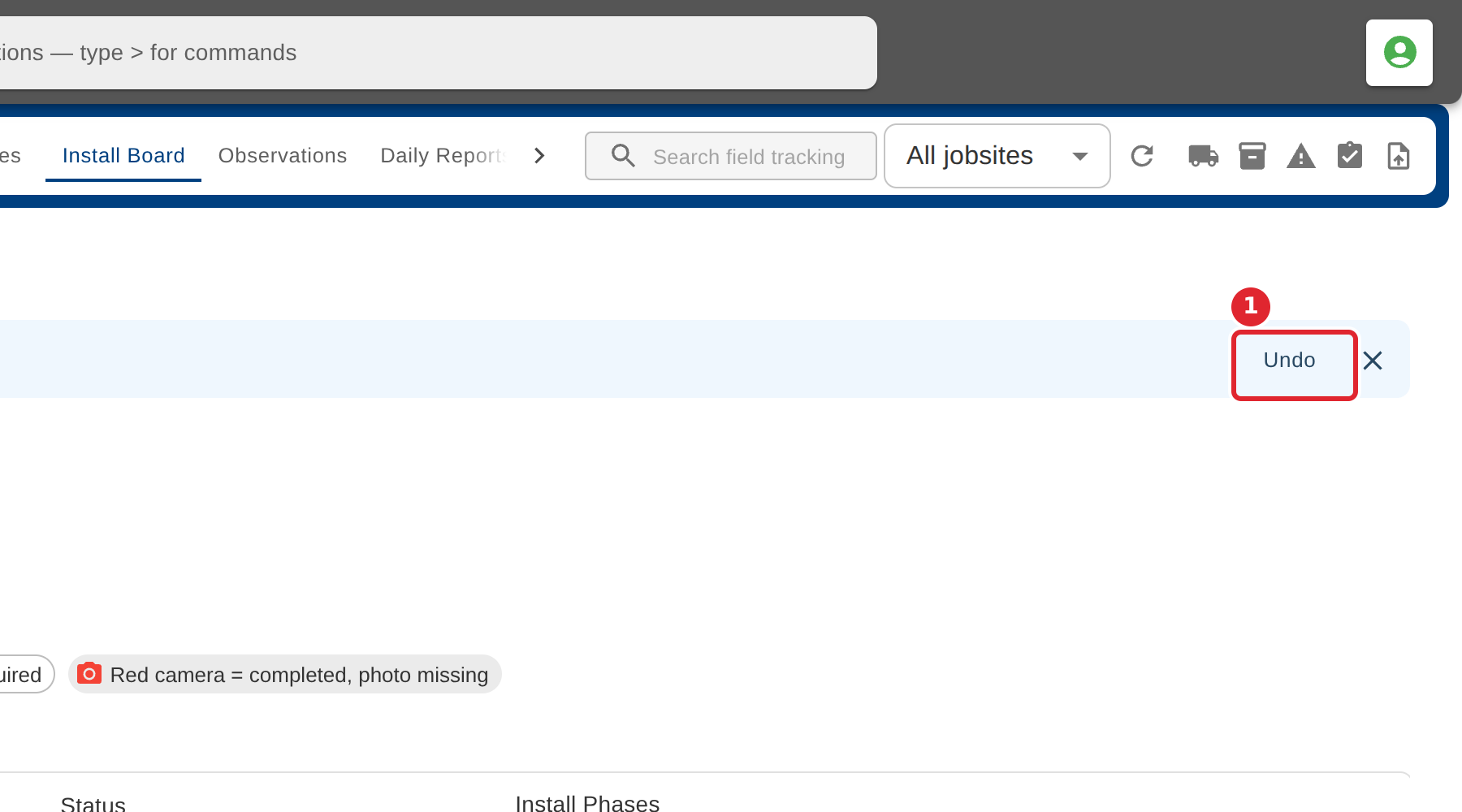
A banner names what was cleared. Select Undo to put it back.
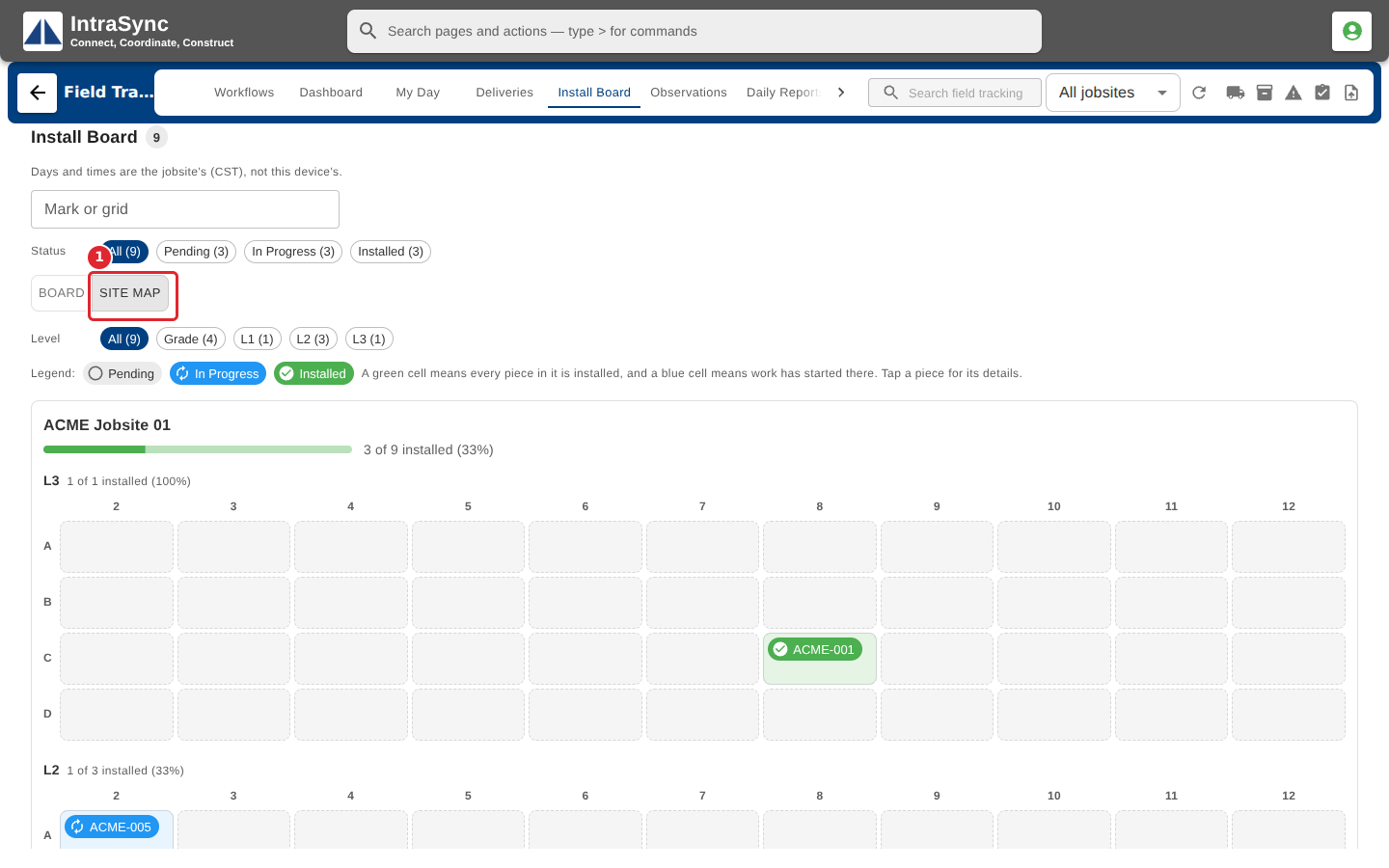
Select Site map to see the jobsite's grid: a green cell is fully installed, a blue cell has work started. Select a piece for its details.
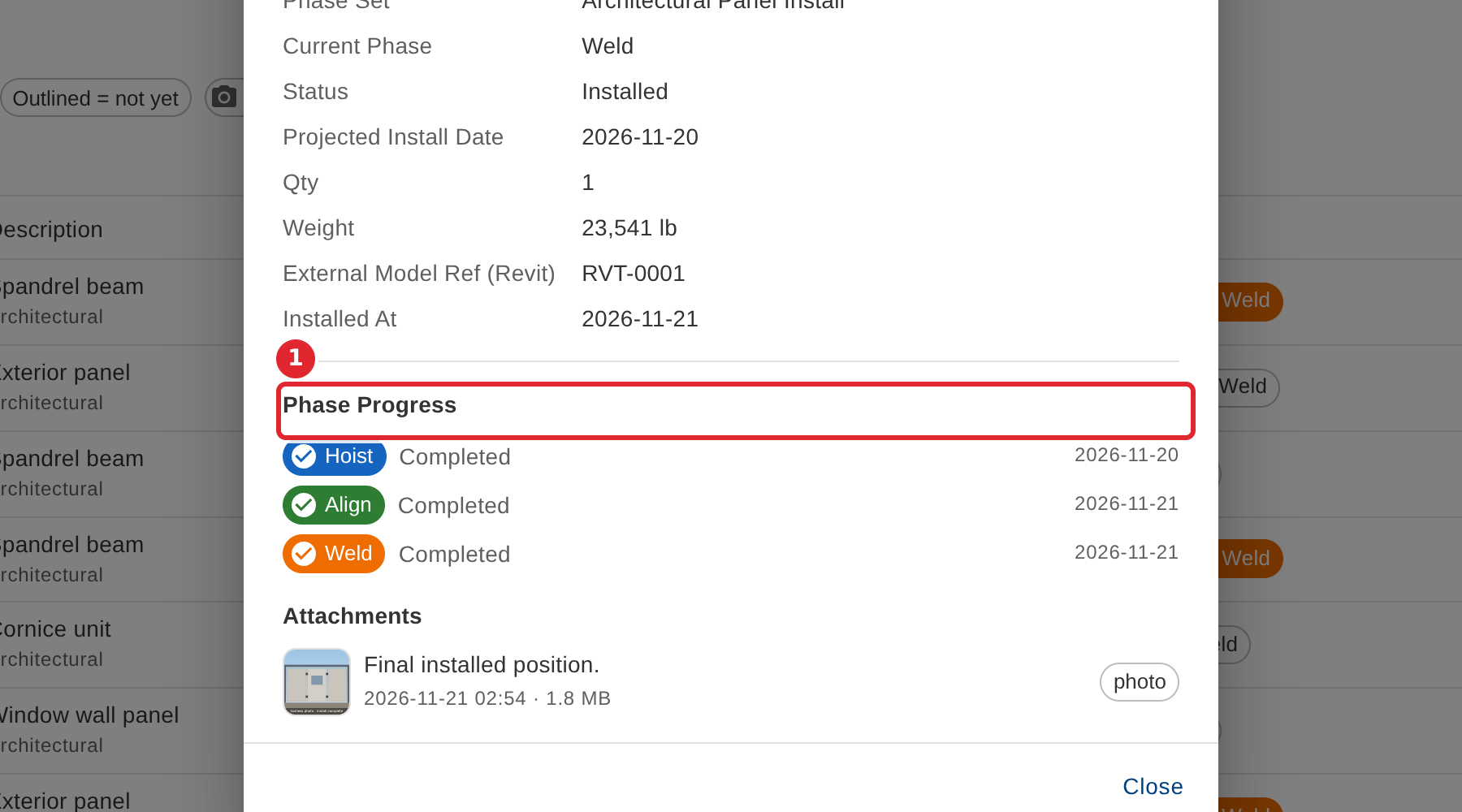
Select a piece's row to open its details: its phase set, current phase, install date and each phase's progress.
Tips
- Clearing a phase also clears the steps after it. The confirmation names them before anything changes.
- A red camera on a chip means the phase was completed without the photo it asks for.
- Select the Mark, Description or Status heading to sort the pieces within each jobsite.