Field Tracking guide · section 6 of 22
Receive a delivery and count the pieces in
Confirm what actually arrived against what was expected, and link the pieces to the load.
Watch this in the video (2:27)
Steps
In the pictures, a numbered red box marks where to click or type. Where a picture has more than one box, the numbers give the order.
When the truck reaches the site, select Mark Arrived on its row.
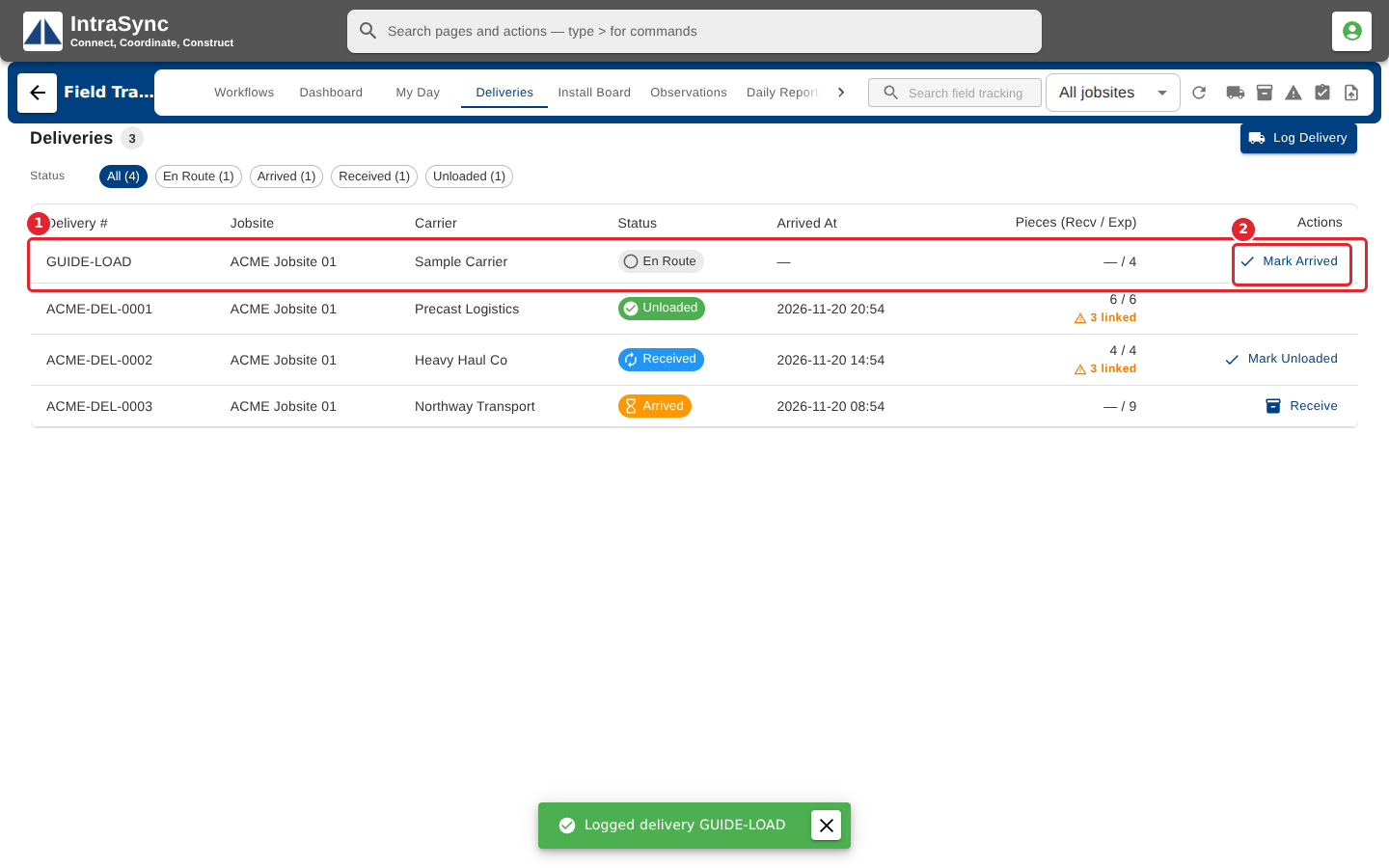
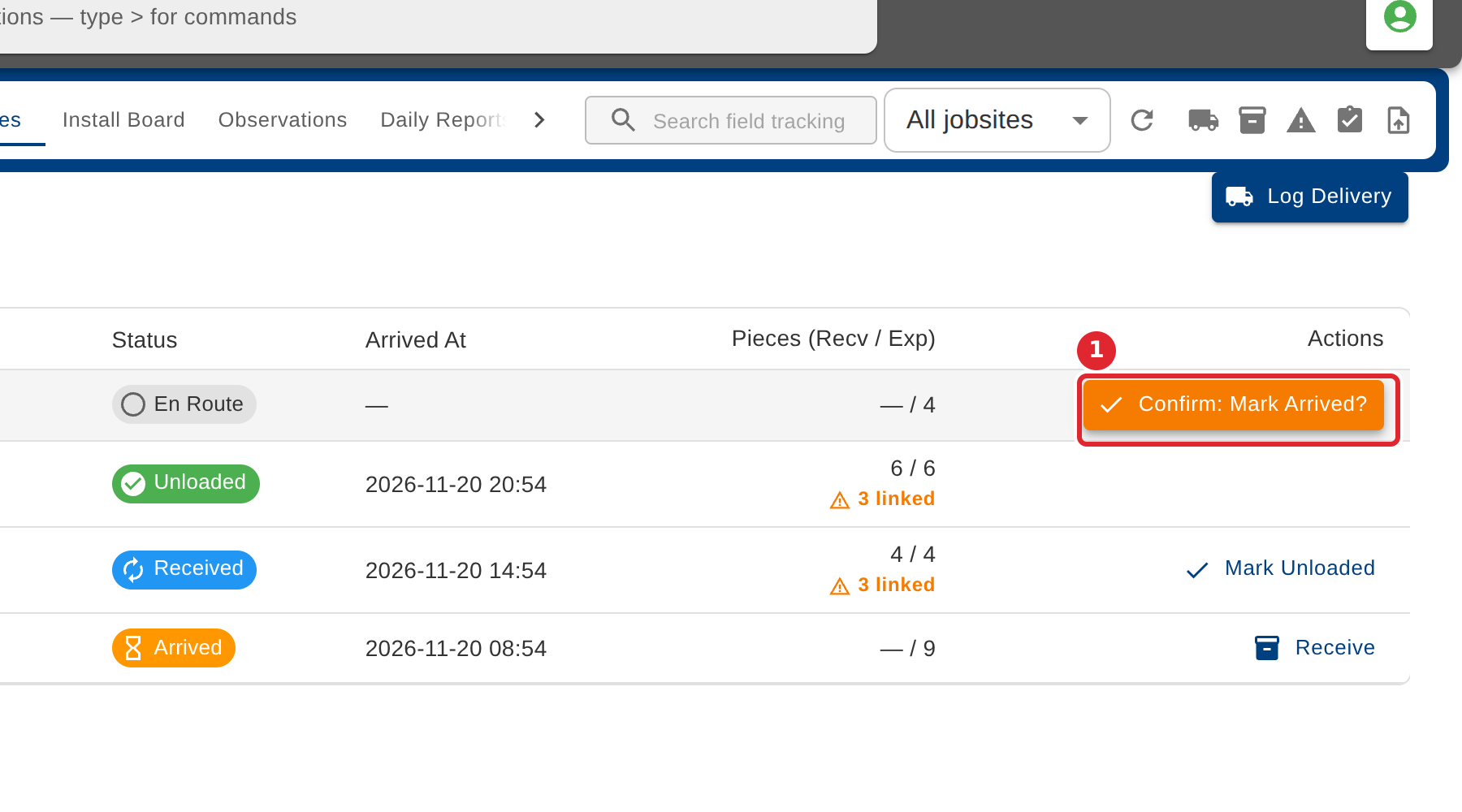
Select it again to confirm. The load is now arrived.
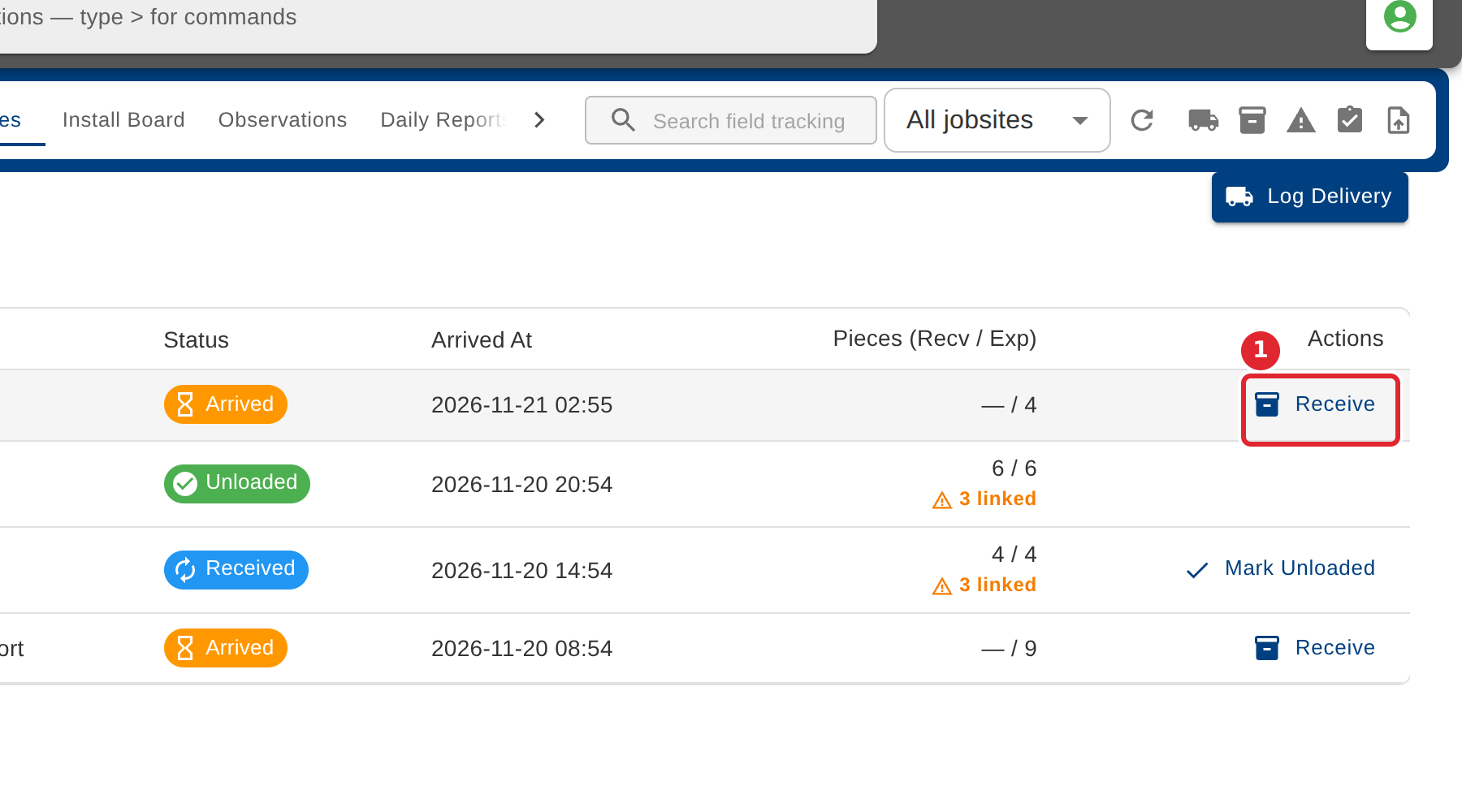
Select Receive to count the load in.
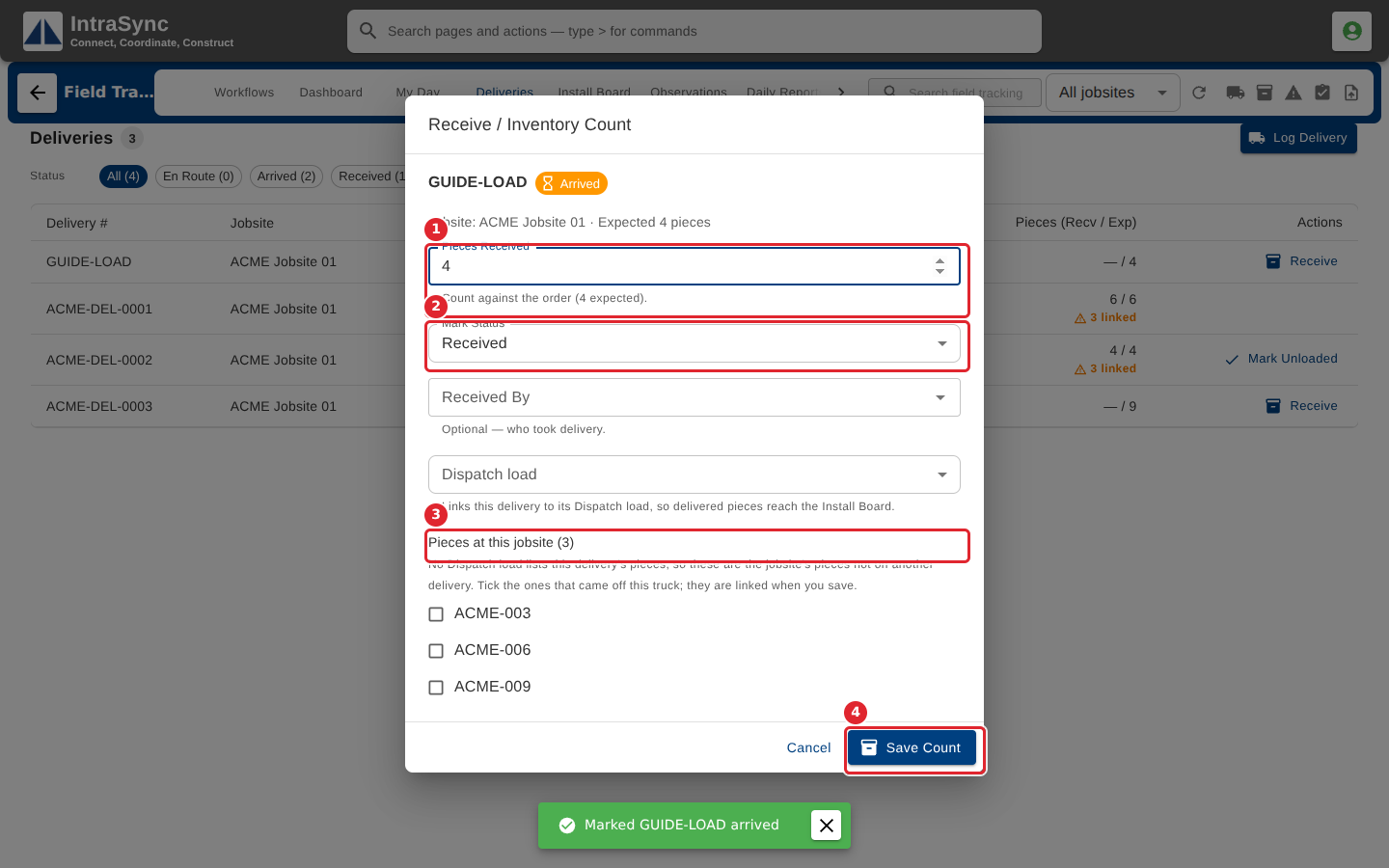
Enter the pieces received, choose the status to mark, and tick the pieces that came on this load. Then select Save Count.
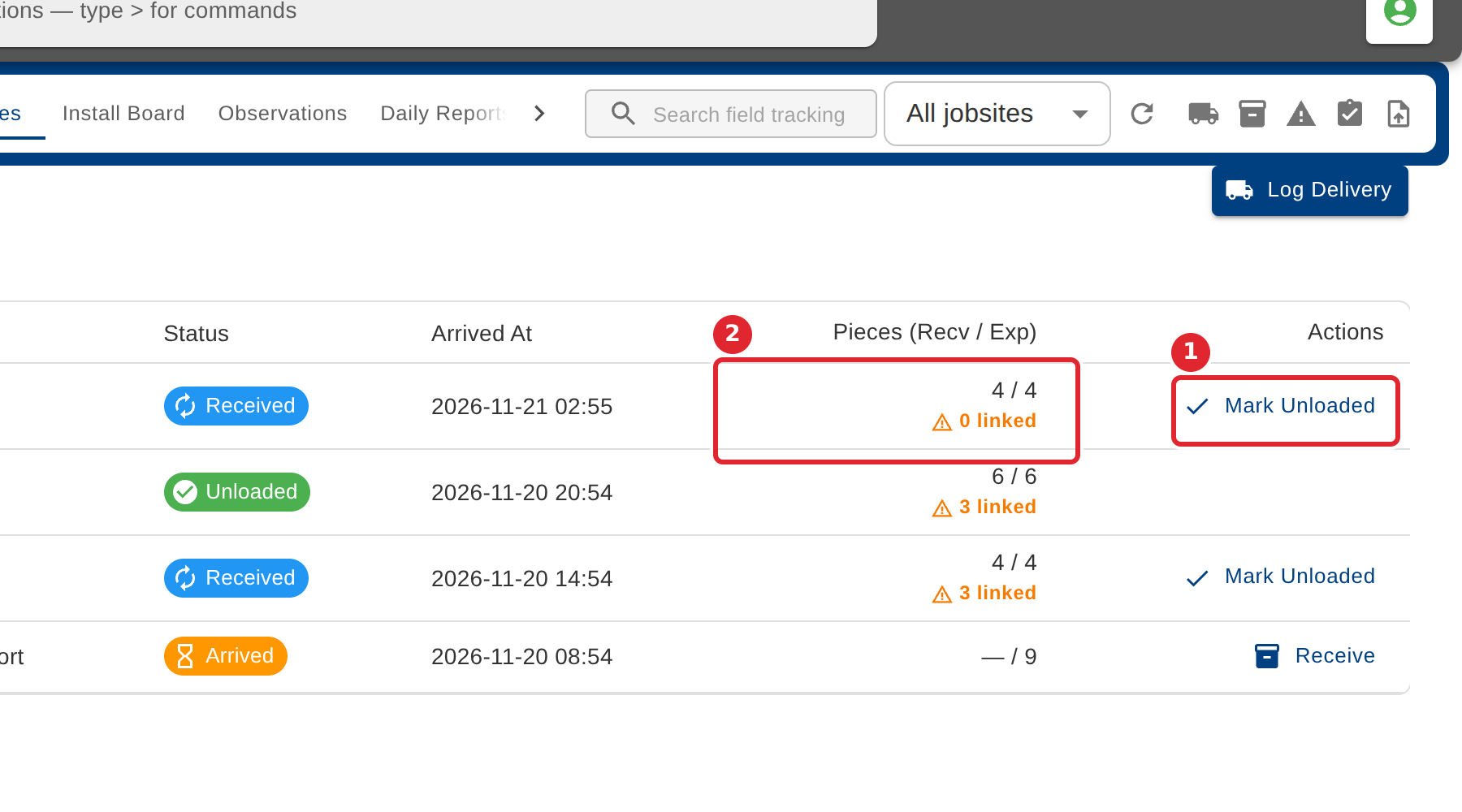
Once the load is off the truck, select Mark Unloaded and confirm. The Pieces column compares what was received with what was expected.
Tips
- Mark Arrived and Mark Unloaded each need a second tap to confirm, so a stray tap changes nothing.
- A note under the count, such as short or over, means the pieces received do not match what was expected or linked.
- The Receive / Inventory Count button in the header opens the same count, with a delivery picker.