Field Tracking guide · section 13 of 22
Clock a crew in and out
Record each person's hours on site as they happen, on the jobsite's clock.
Watch this in the video (0:38)
Before you start
- Crew time tracking is switched on in Manage > Setup > Time & T&M.
- The crew has members, set in Manage > Crews.
Steps
In the pictures, a numbered red box marks where to click or type. Where a picture has more than one box, the numbers give the order.
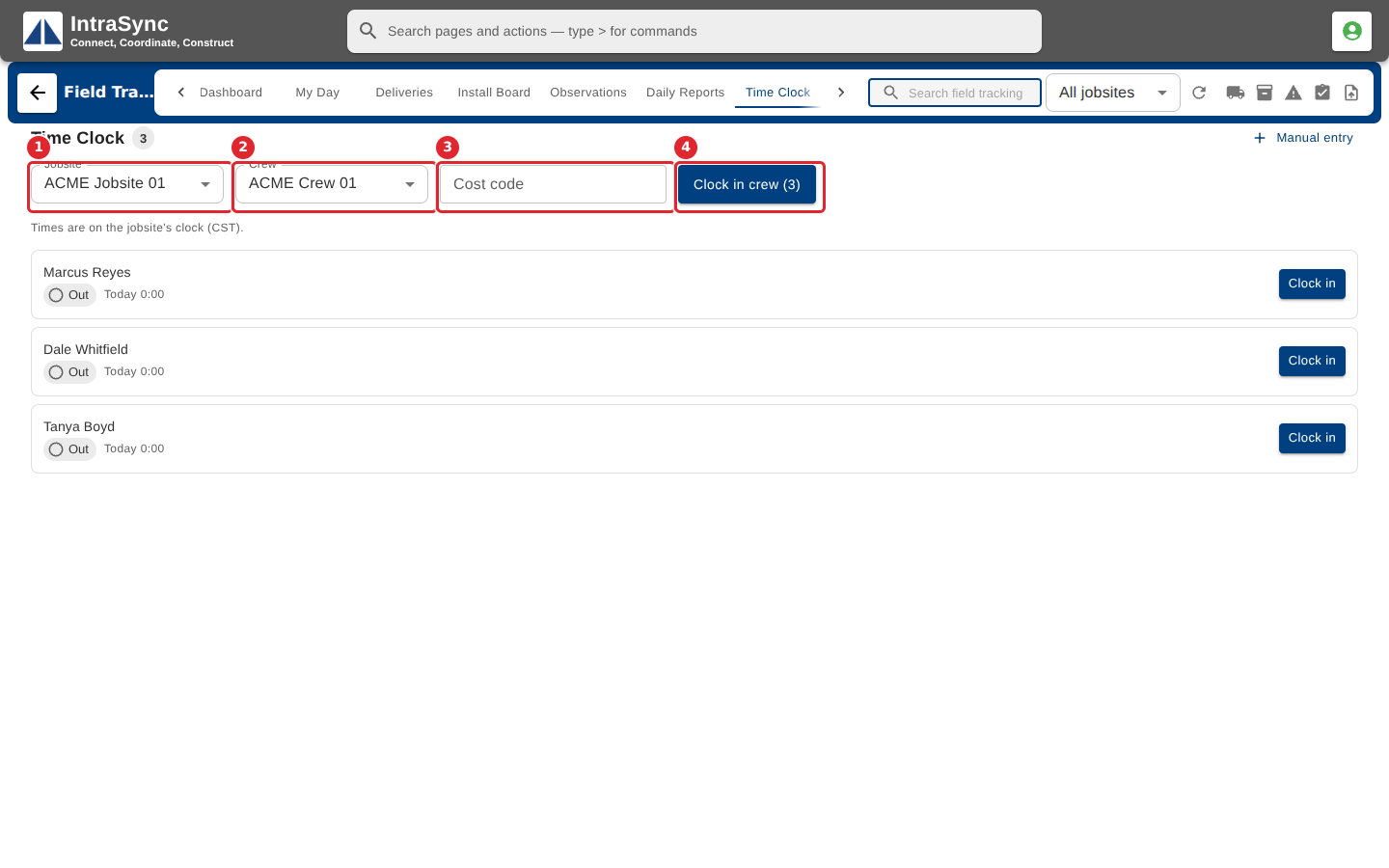
Select Time Clock. Choose the jobsite and the crew, and enter a cost code if your company uses them.
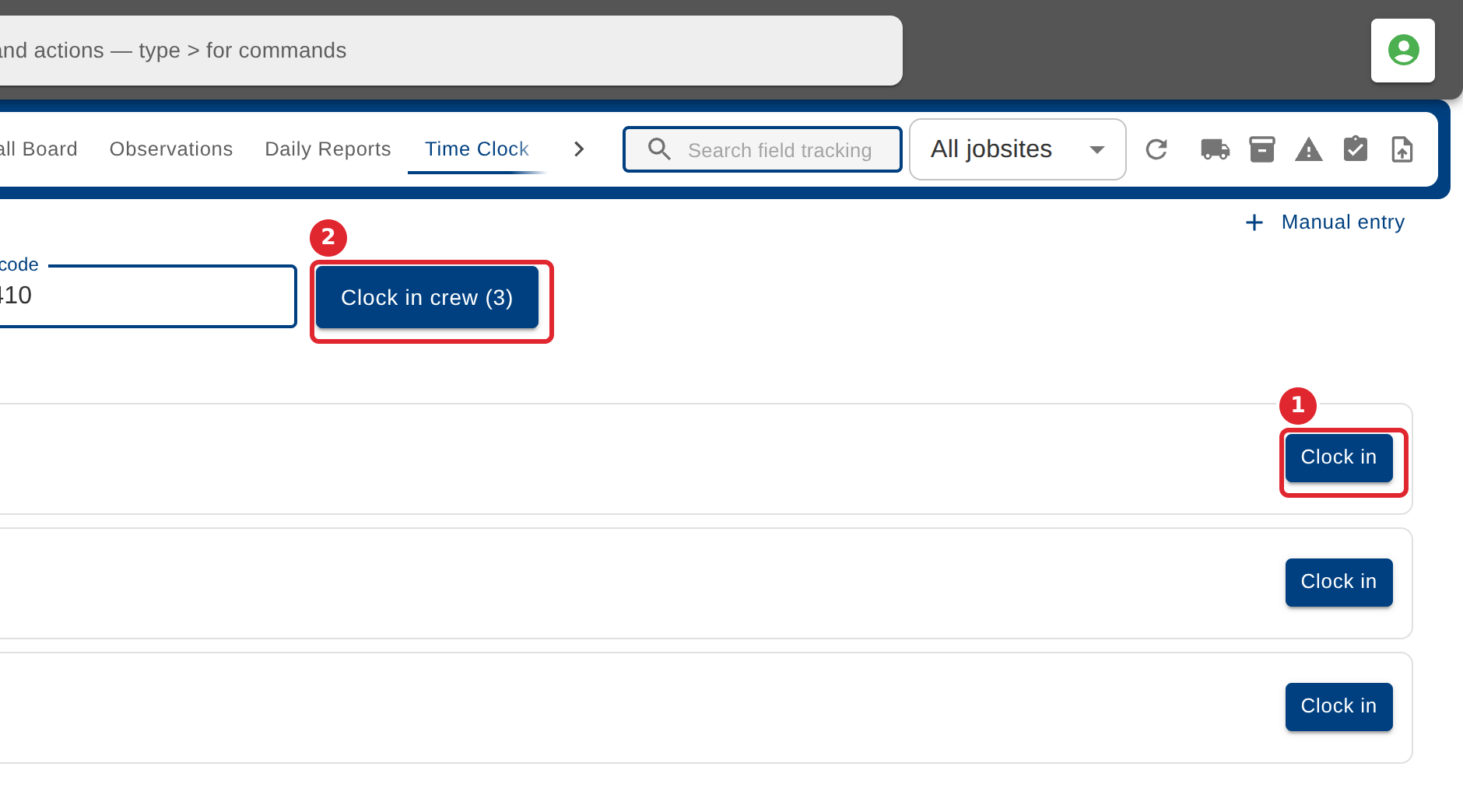
Select Clock in for one person, or Clock in crew for everyone who is out.
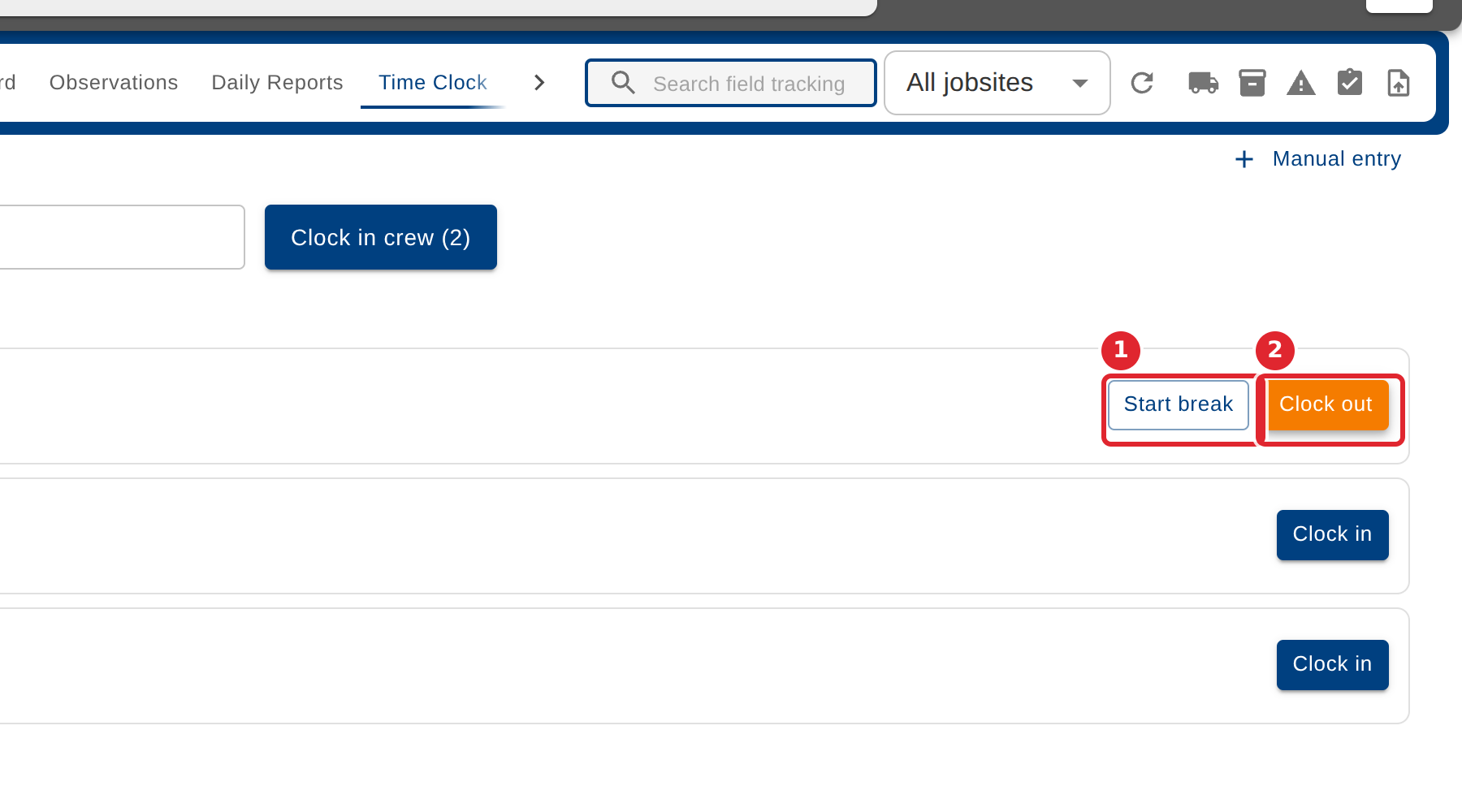
A clocked-in person shows the time they started. Select Start break and End break around a break, and Clock out at the end of the shift.
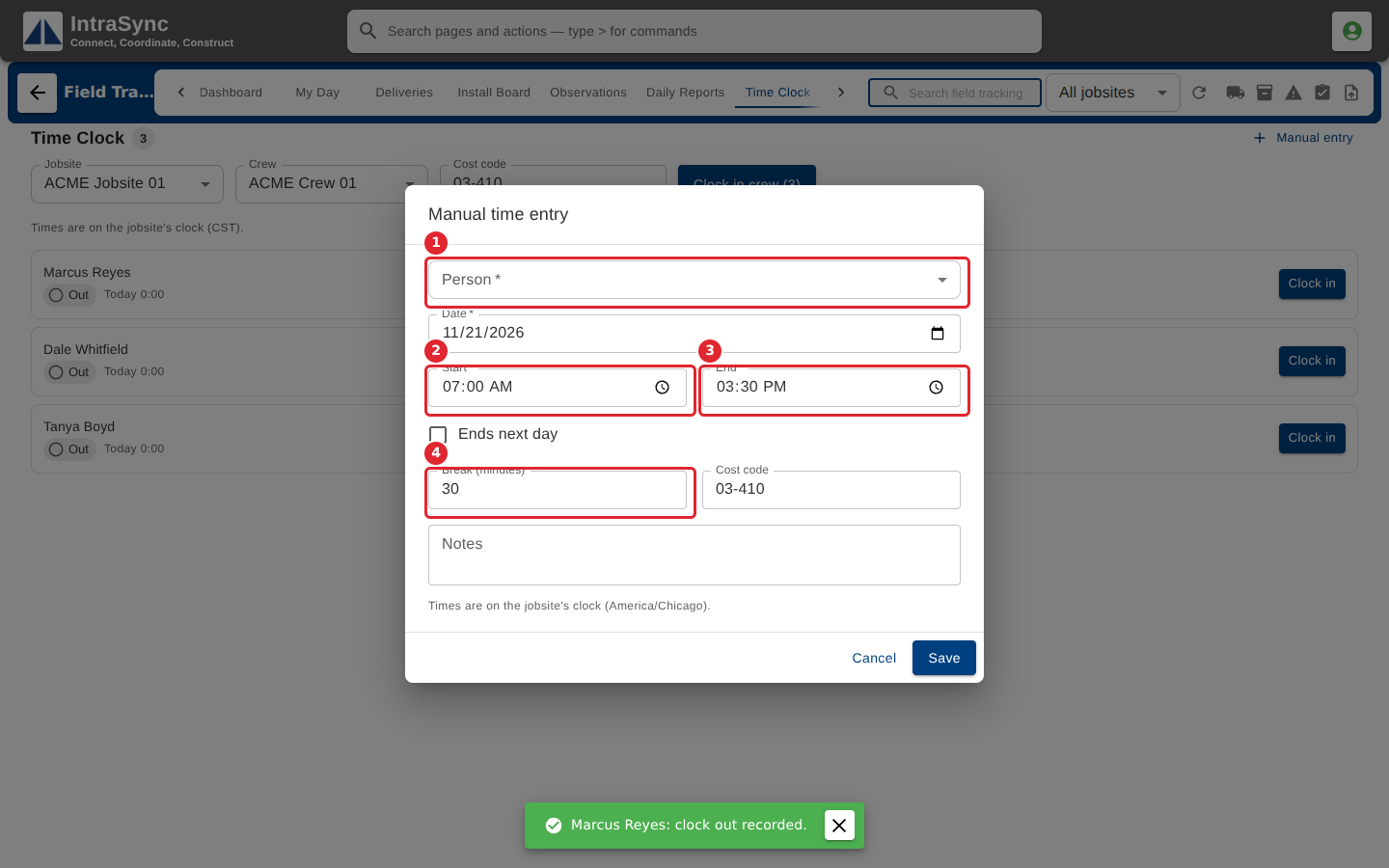
Select Manual entry to record time someone did not punch: the person, date, start and end, any break, and a cost code.
Tips
- If your company requires a cost code, enter it before clocking anyone in.
- For a shift that runs past midnight, tick Ends next day in a manual entry.