Field Tracking guide · section 14 of 22
Review and submit a timesheet
Check a person's hours for the period and send them for approval.
Watch this in the video (0:42)
Before you start
- Crew time tracking is switched on.
Steps
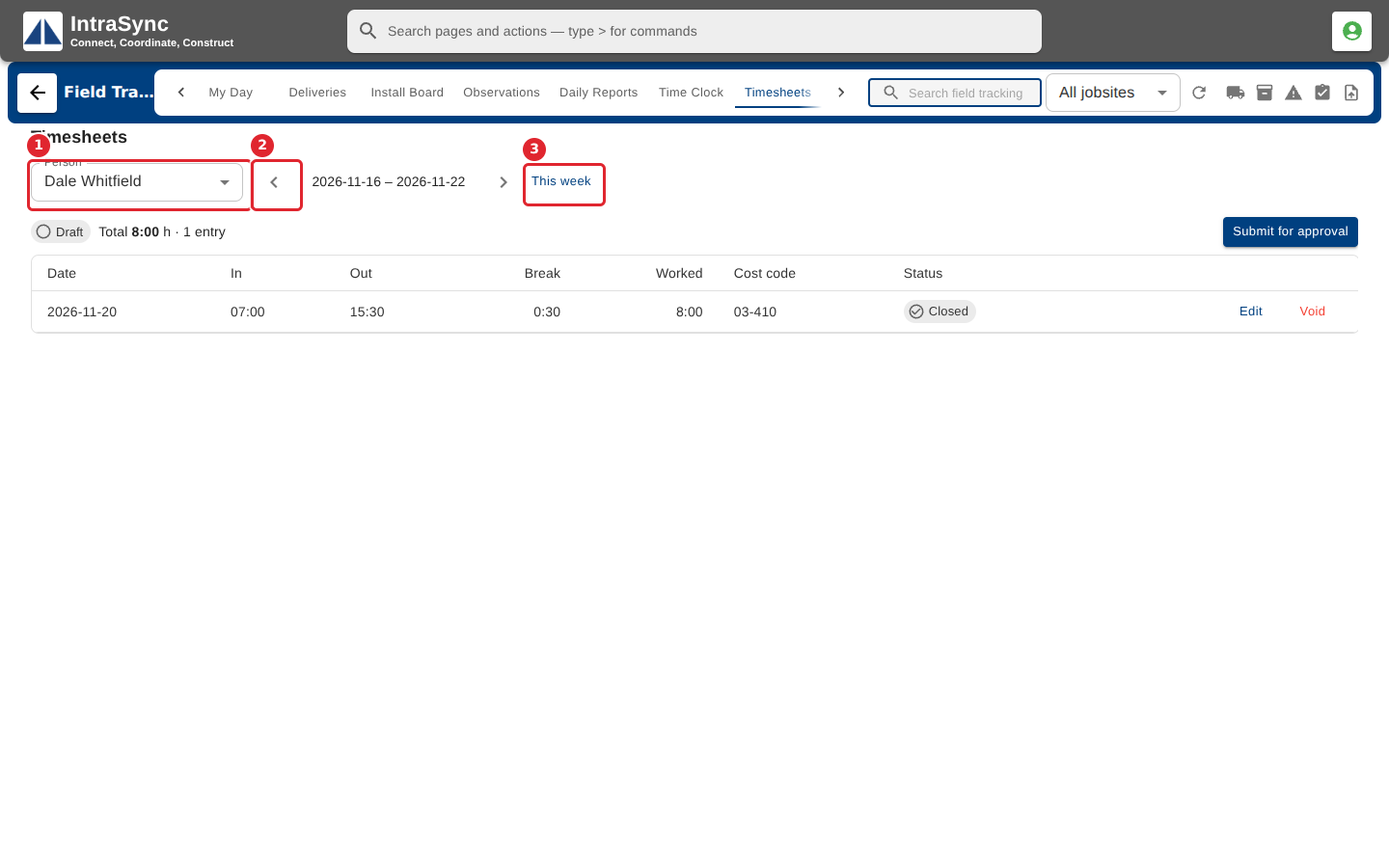
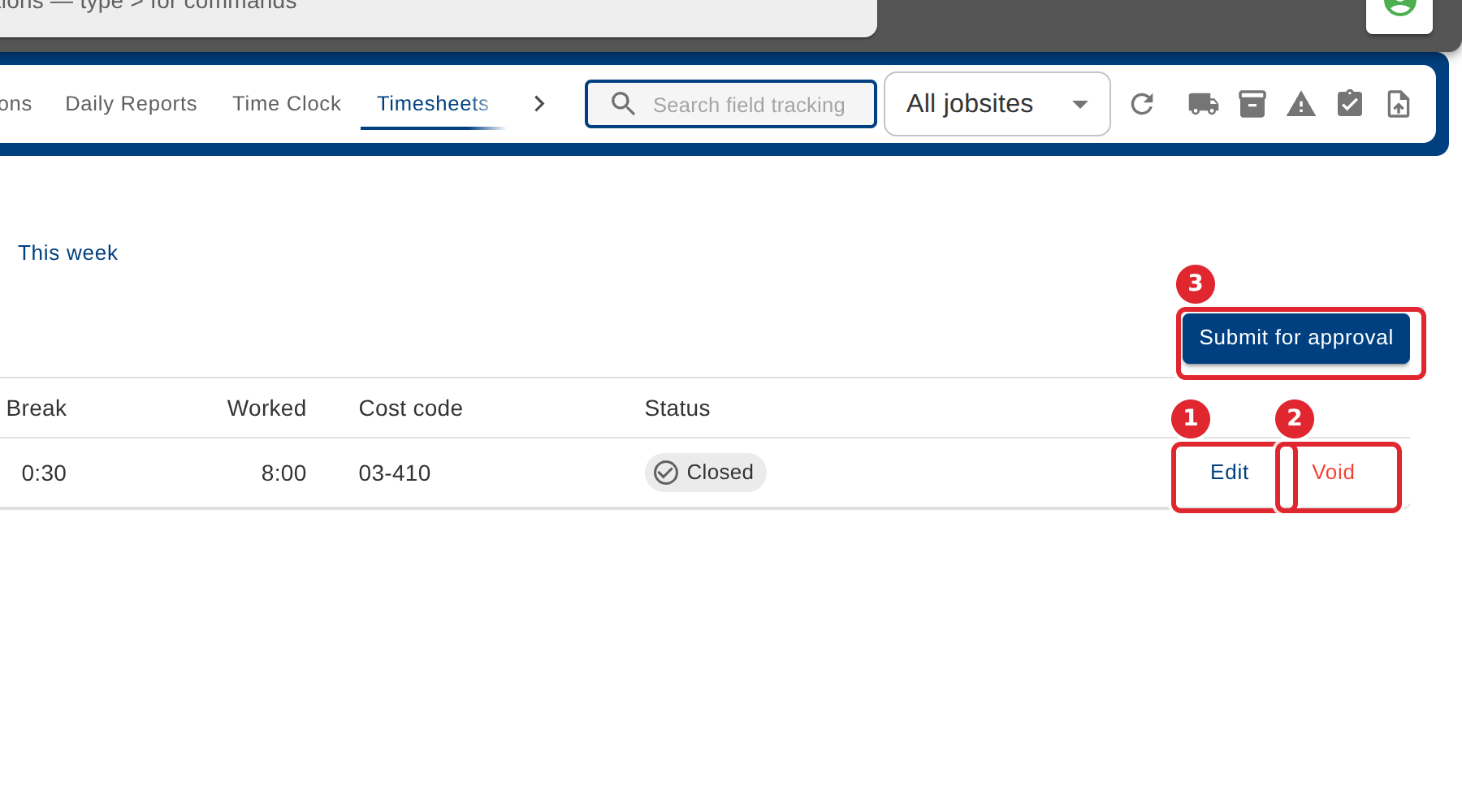
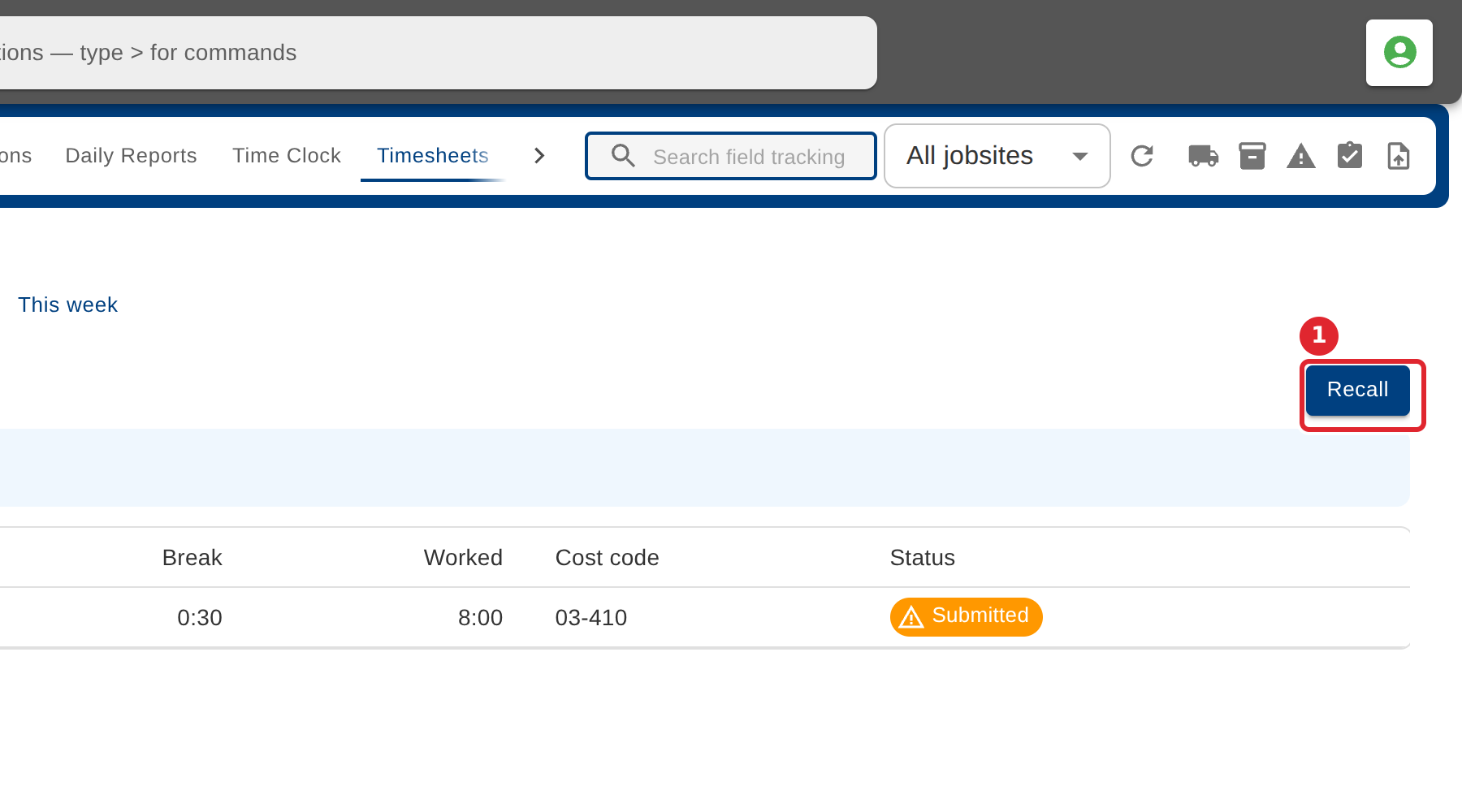
In the pictures, a numbered red box marks where to click or type. Where a picture has more than one box, the numbers give the order.
Select Timesheets and choose a person. Move between periods with the arrows, or go back to the current one.
Check each entry. Select Edit to fix it or Void to cancel it, with a reason. Then select Submit for approval.
A submitted sheet is locked while it waits for approval. Select Recall to take it back and change it.
Tips
- Clock out any open entry before submitting.
- An approved sheet is locked. Use Correct an entry, with a reason, to change it.
- A rejected sheet shows the manager's reason. Fix the entries and select Resubmit.