Write up a T&M ticket and get it signed
Capture extra work the customer pays for, priced line by line, with the customer's signature on site.
Watch this in the video (0:46)
Before you start
- T&M tickets are switched on in Manage > Setup > Time & T&M.
Steps
In the pictures, a numbered red box marks where to click or type. Where a picture has more than one box, the numbers give the order.
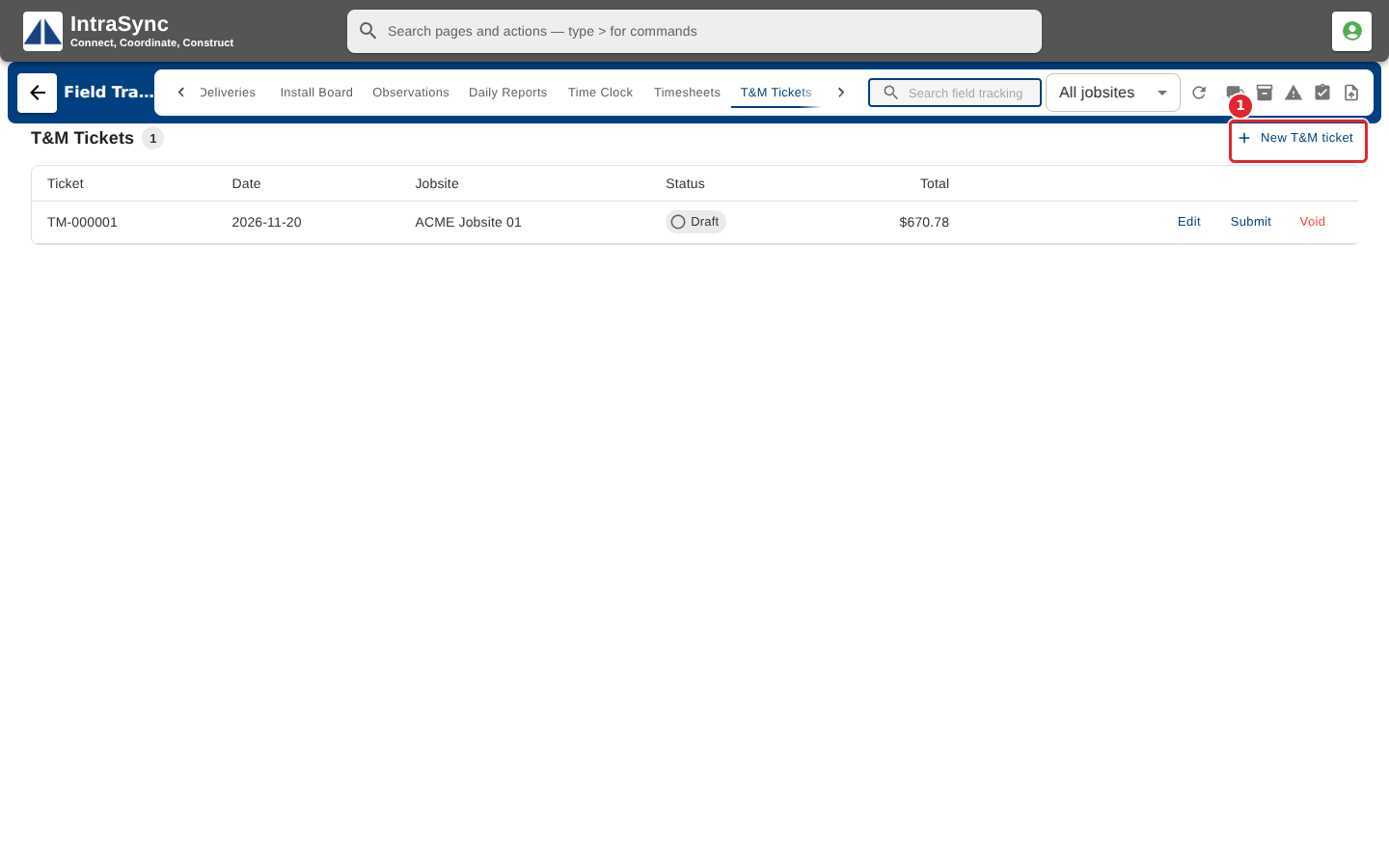
Select T&M Tickets, then New T&M ticket to write up extra work the customer pays for.
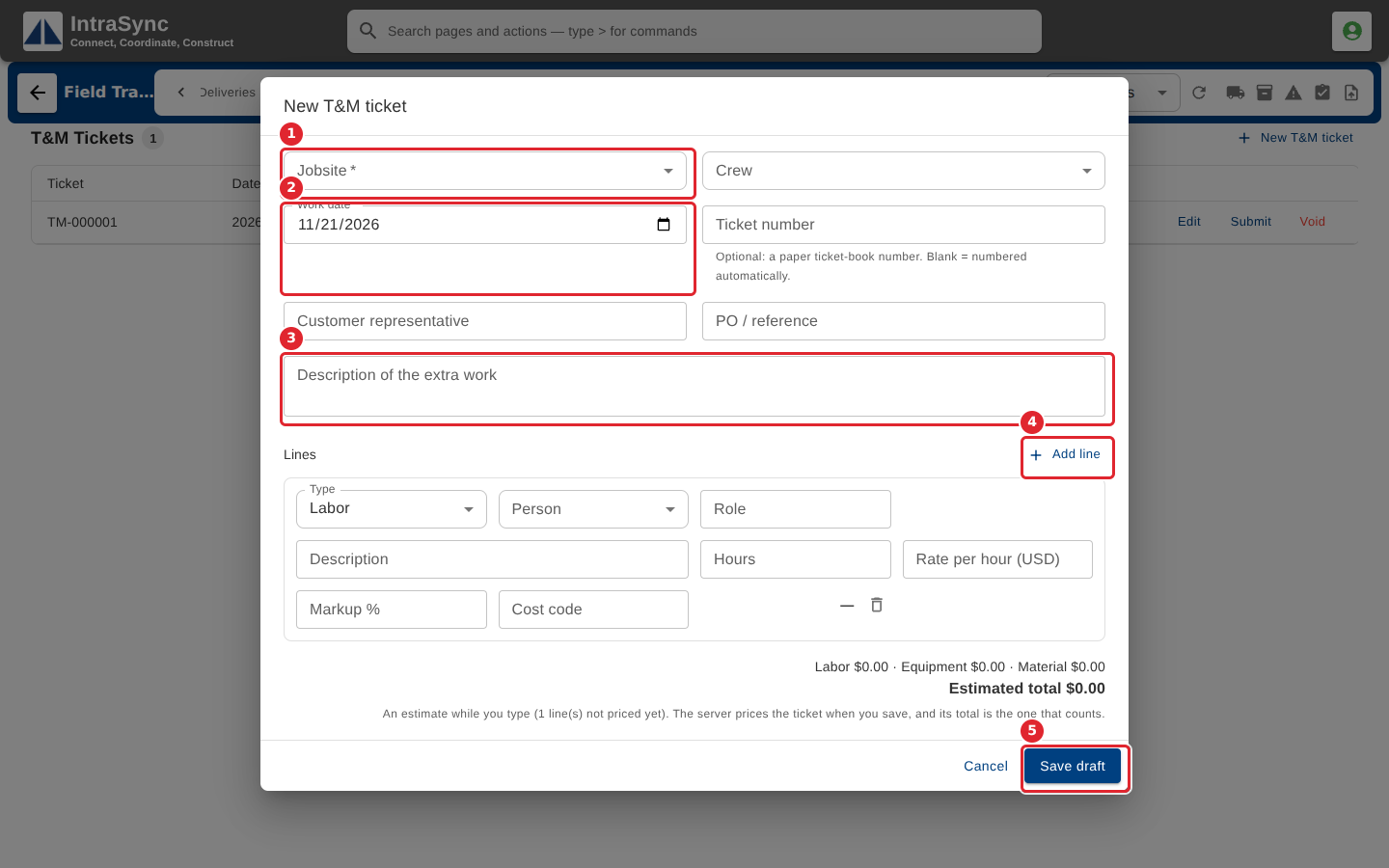
Choose the jobsite and work date, and describe the extra work. Select Add line for each labor, equipment or material line, with its hours or quantity and price. Select Save draft.
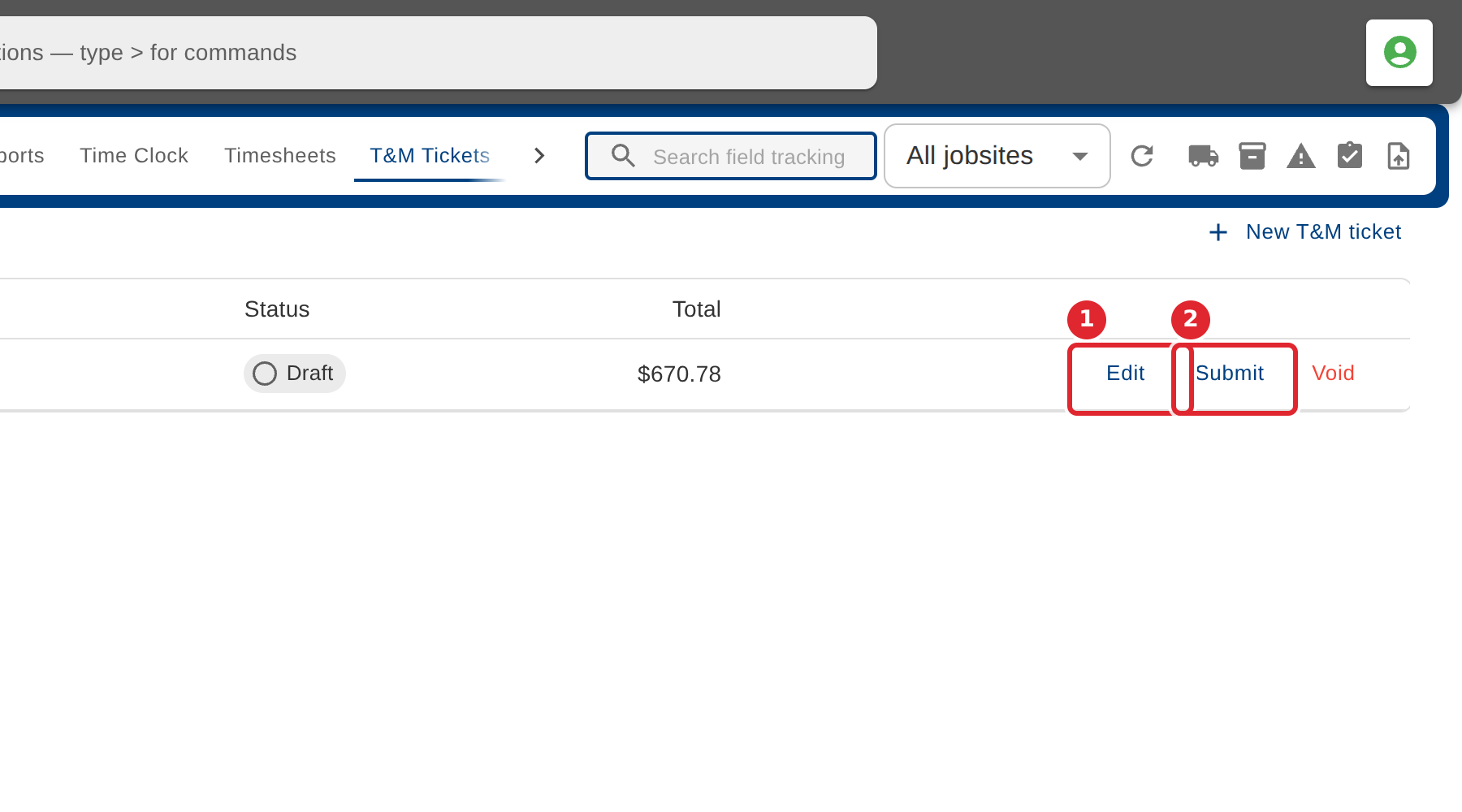
A draft ticket can be edited, submitted or voided. Select Submit when the work is written up.
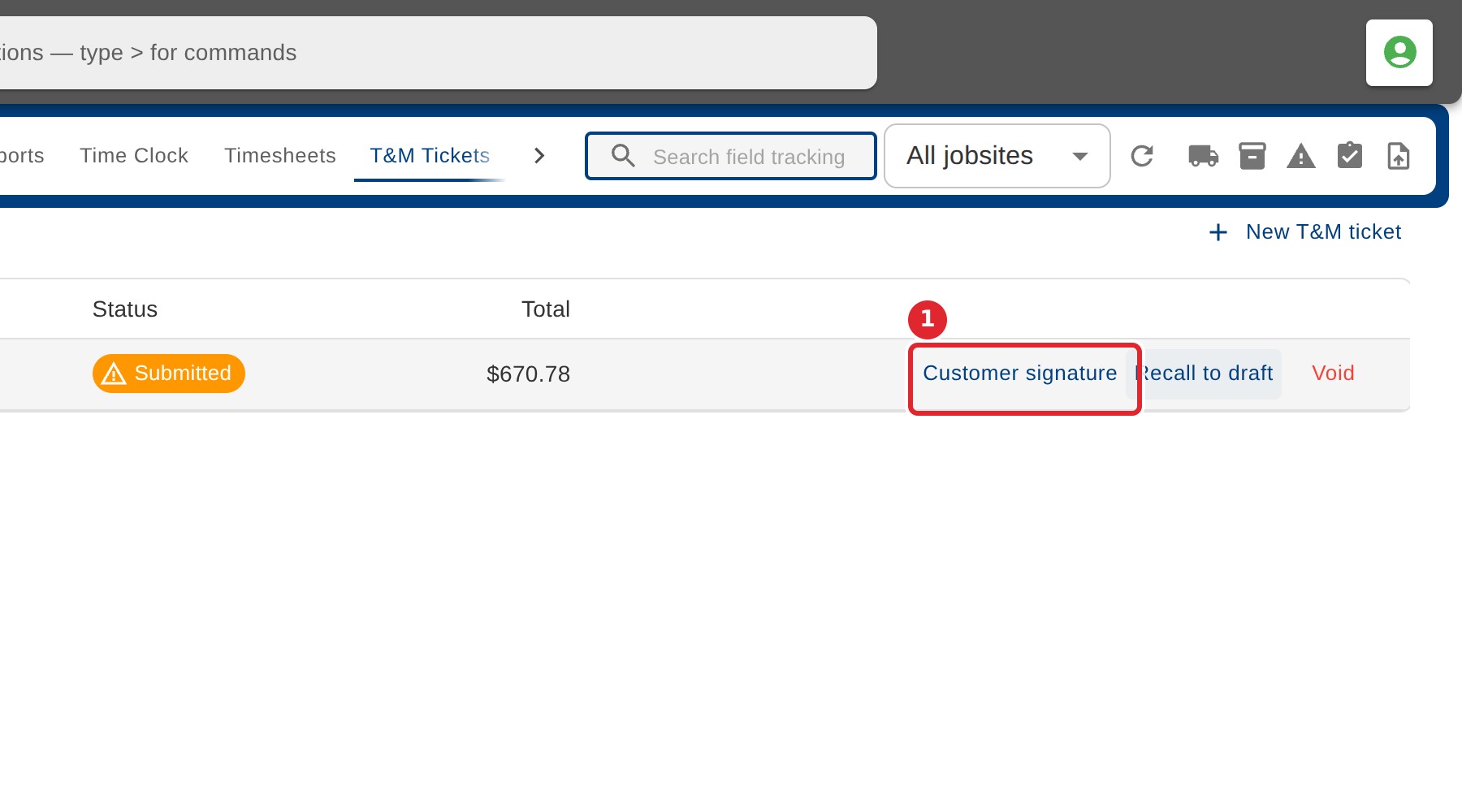
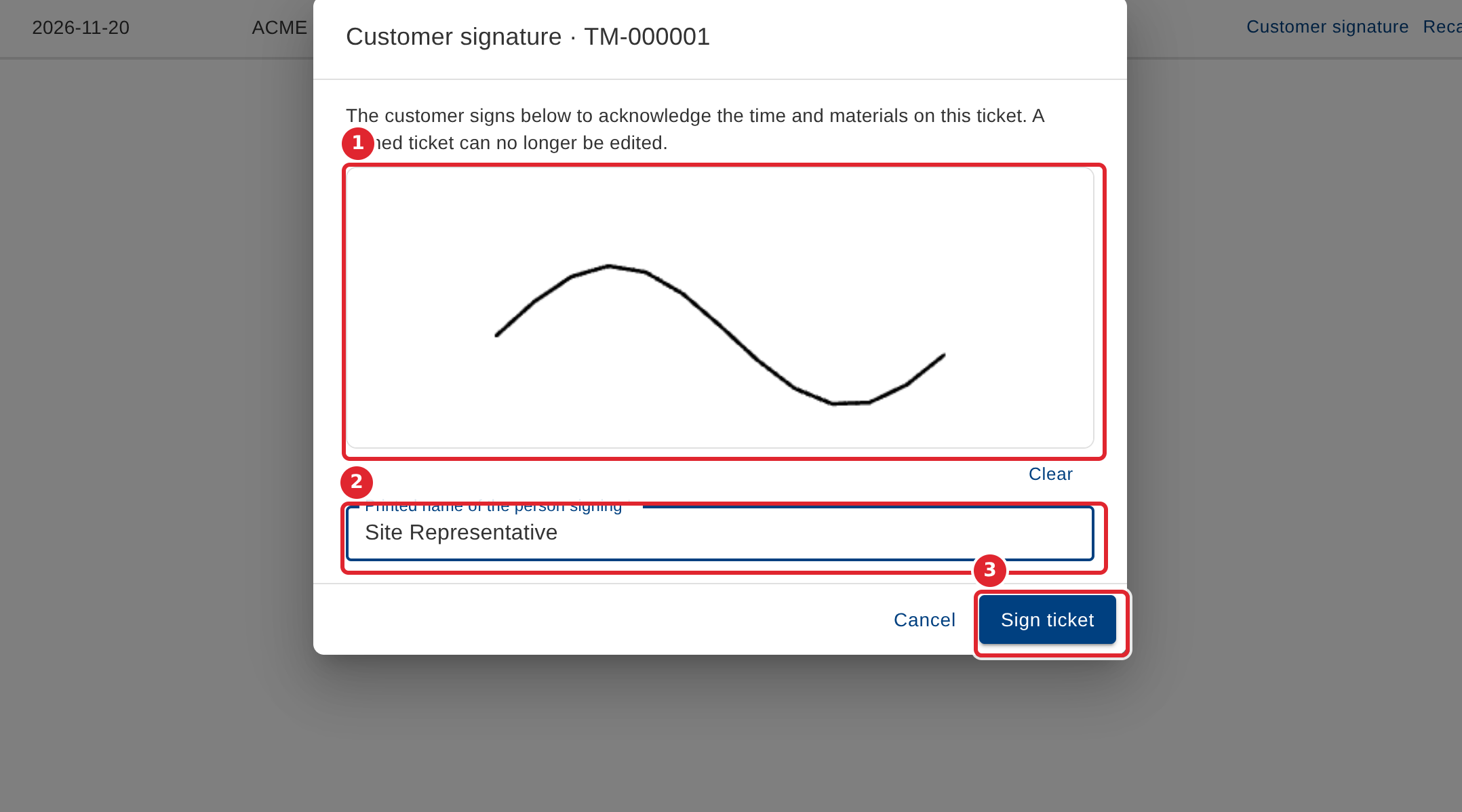
Select Customer signature to have the customer's representative sign on the spot.
The signer draws in the box and their printed name is entered. Select Sign ticket. The signed ticket then waits in Approvals.
Tips
- Jobsite and work date are required, and every line needs a price.
- Hours can be typed as hours and minutes or as a decimal.
- Past draft, a ticket cannot be edited. Recall to draft takes a submitted ticket back.
- The signer must draw a signature and their printed name must be entered before Sign ticket works.