Production Schedule guide · section 8 of 23
Check capacity against load
Find the days and work centers that are overbooked or have room before you move work.
Watch this in the video (0:20)
Steps
In the pictures, a numbered red box marks where to click or type. Where a picture has more than one box, the numbers give the order.
Select Schedule > Capacity.
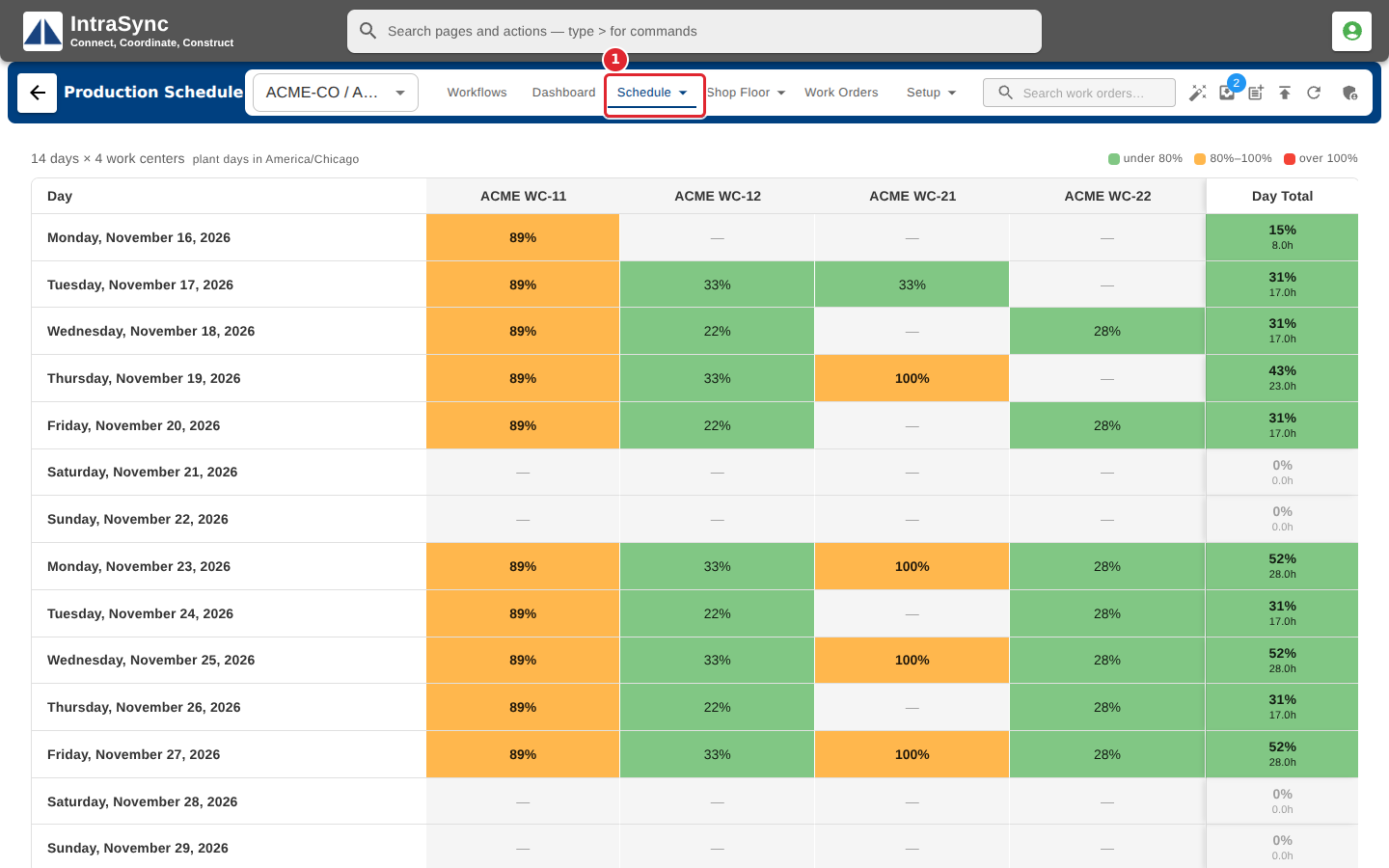
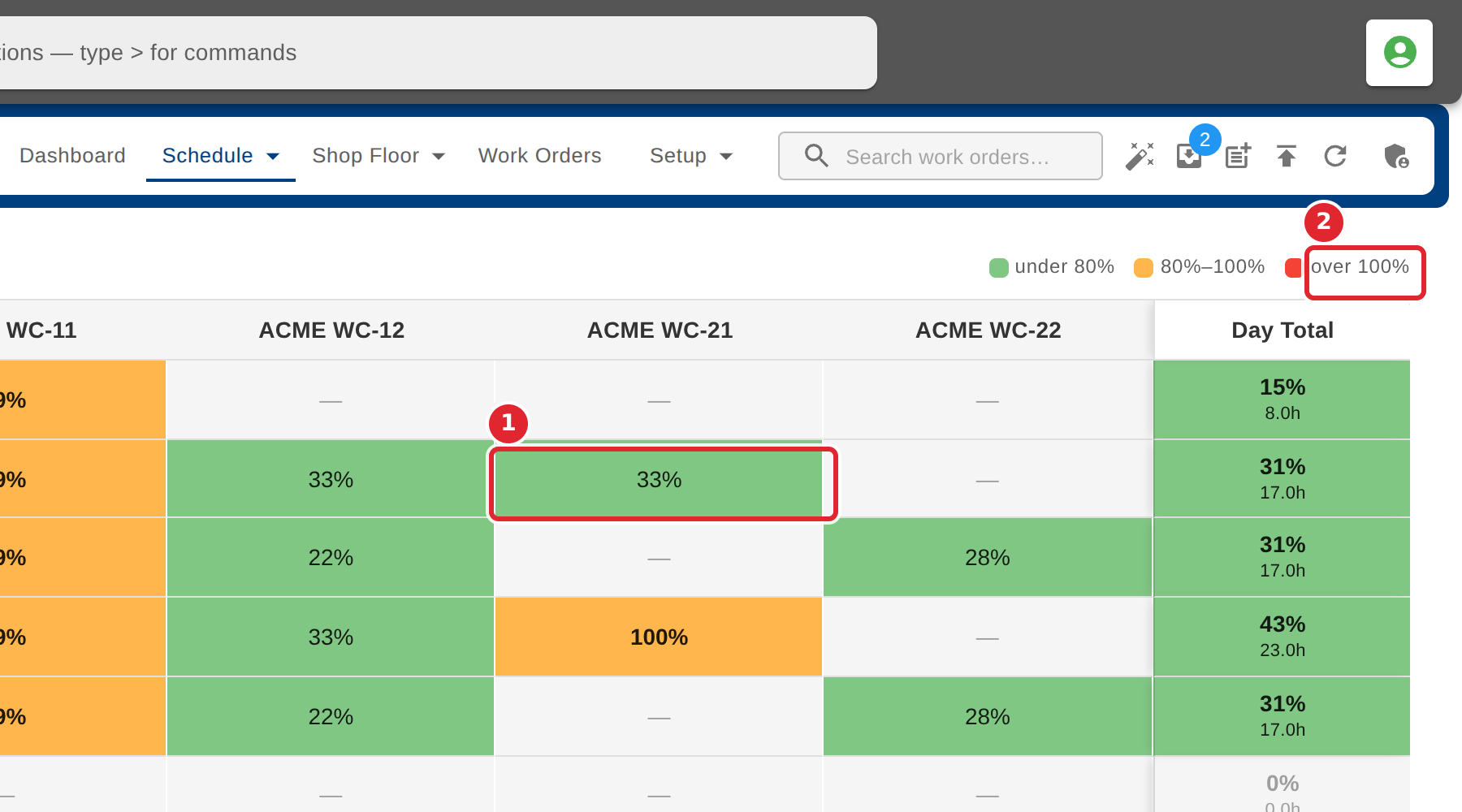
Read each work center's load for each day as a share of its working time. The colours mark under 80%, 80% to 100%, and over 100%.
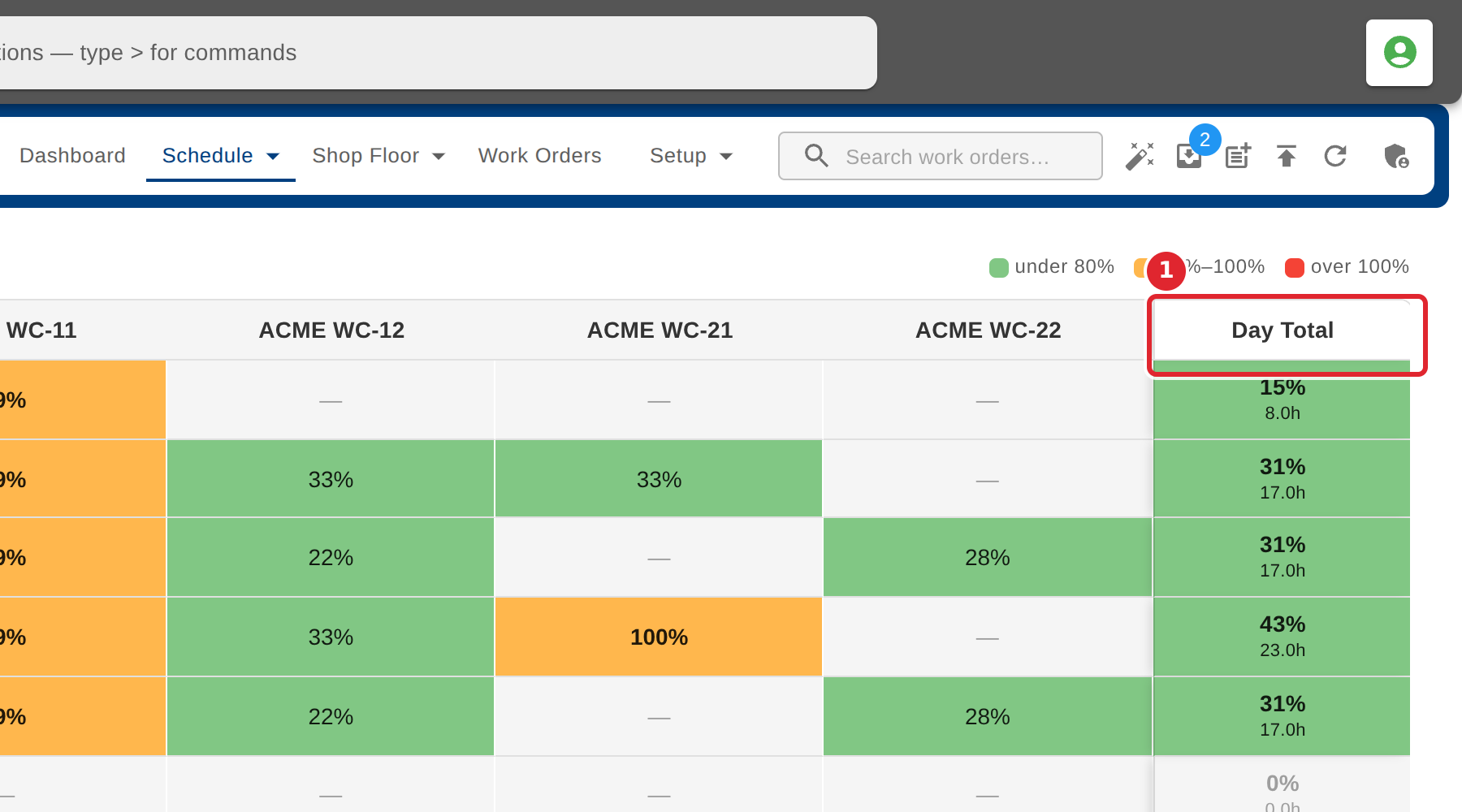
Read the Day Total column for the whole plant.