Production Schedule guide · section 12 of 23
Turn released sales-order lines into work orders
Create the work orders behind released sales-order lines so they can be scheduled.
Before you start
- Sales-order lines must be released before they appear here.
Steps
In the pictures, a numbered red box marks where to click or type. Where a picture has more than one box, the numbers give the order.
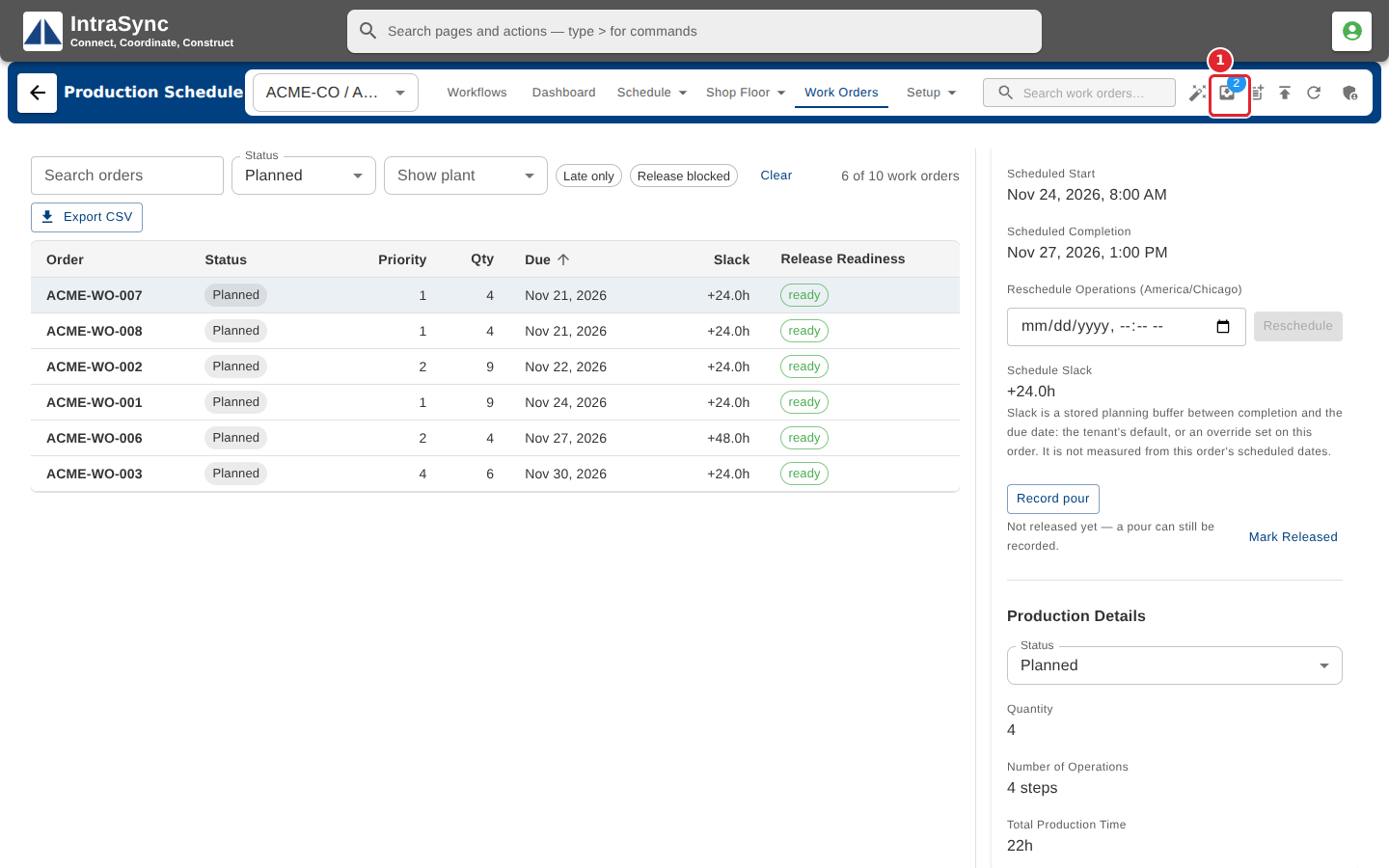
Select Convert sales-order lines. The badge shows how many released lines are waiting.
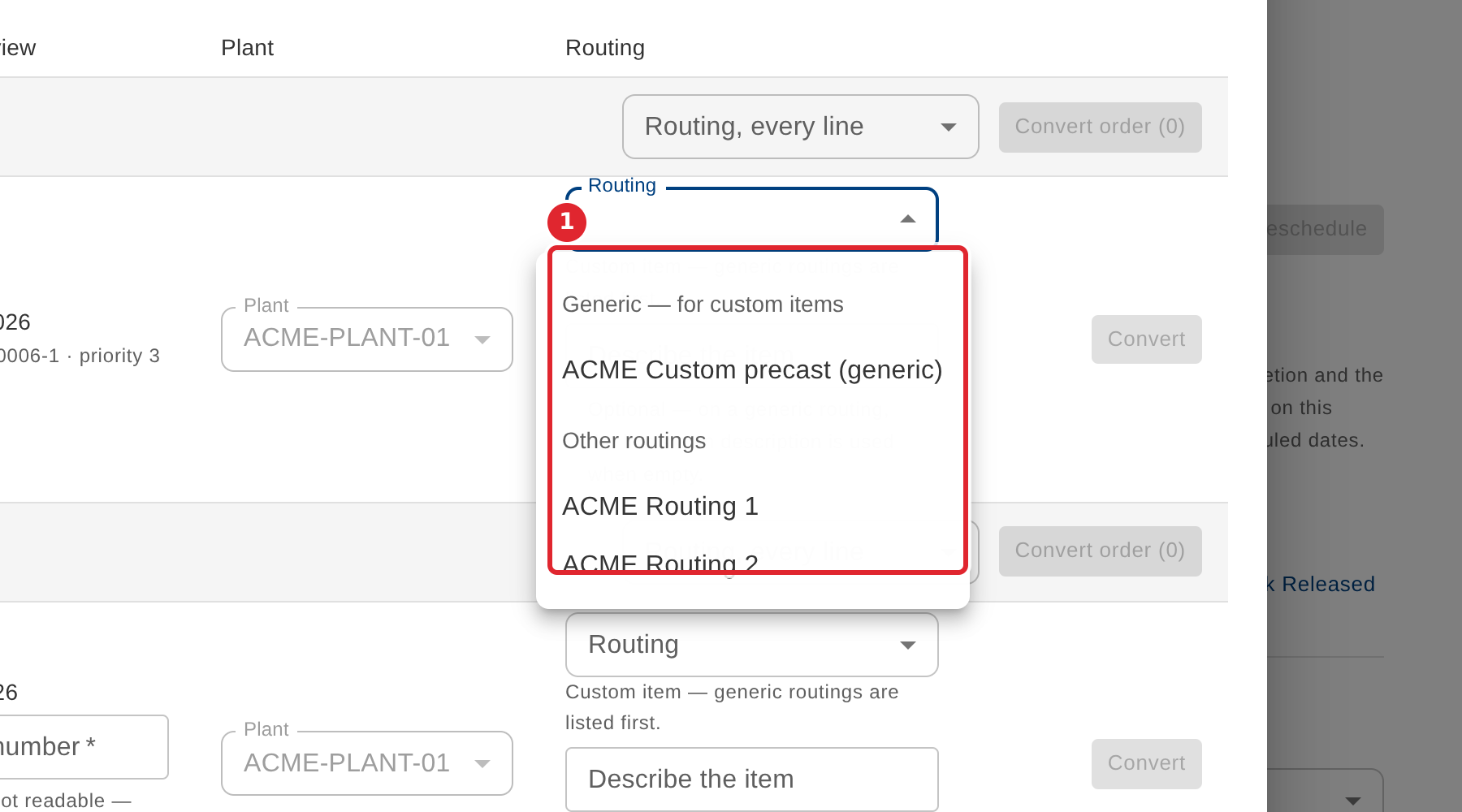
For a line, choose the routing to make it by.
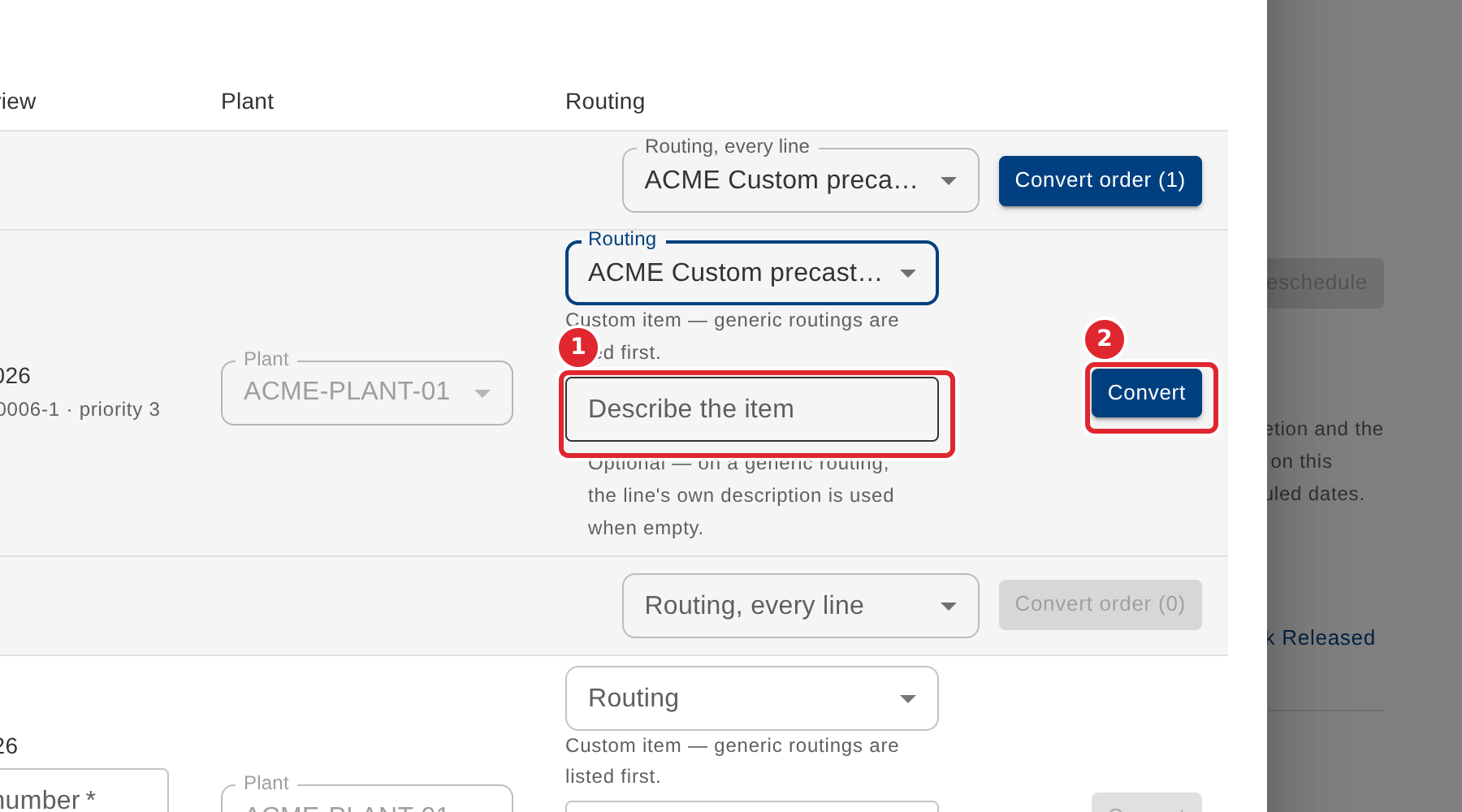
Add an item description if the routing is generic, then select Convert.
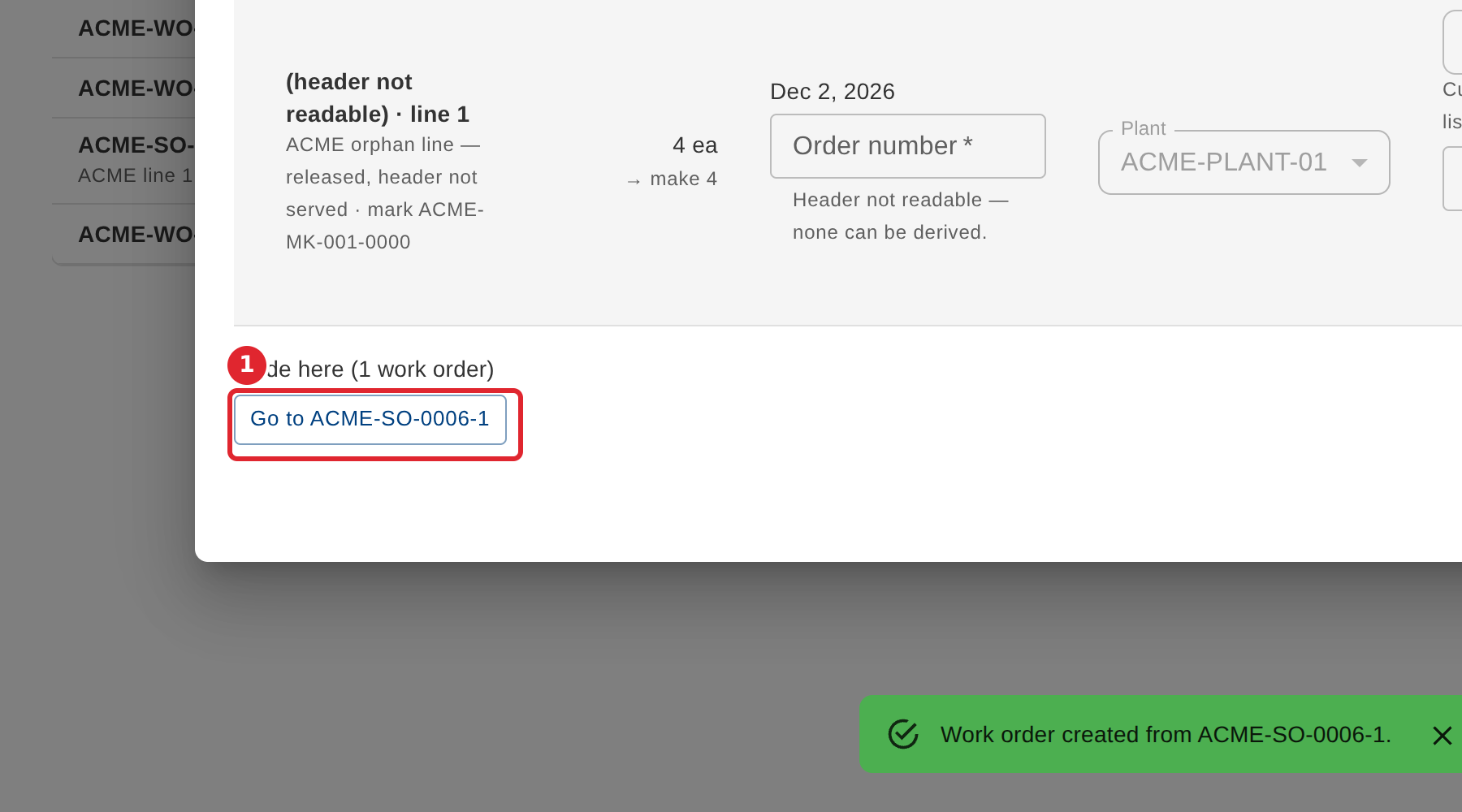
The new work order is created as Planned. Select Go to to open it.
To convert every line of a sales order at once, choose a routing in Routing, every line, then select Convert order.
Tips
- A released line arrives with no routing. Convert stays unavailable until you choose one.
- For a custom item, generic routings are listed first.
- The new work order is created as Planned, ready to be scheduled.