Production Schedule guide · section 11 of 23
Reschedule a work order or change its status
Move one order to a new start, or move it on through its statuses.
Watch this in the video (1:21)
Steps
In the pictures, a numbered red box marks where to click or type. Where a picture has more than one box, the numbers give the order.
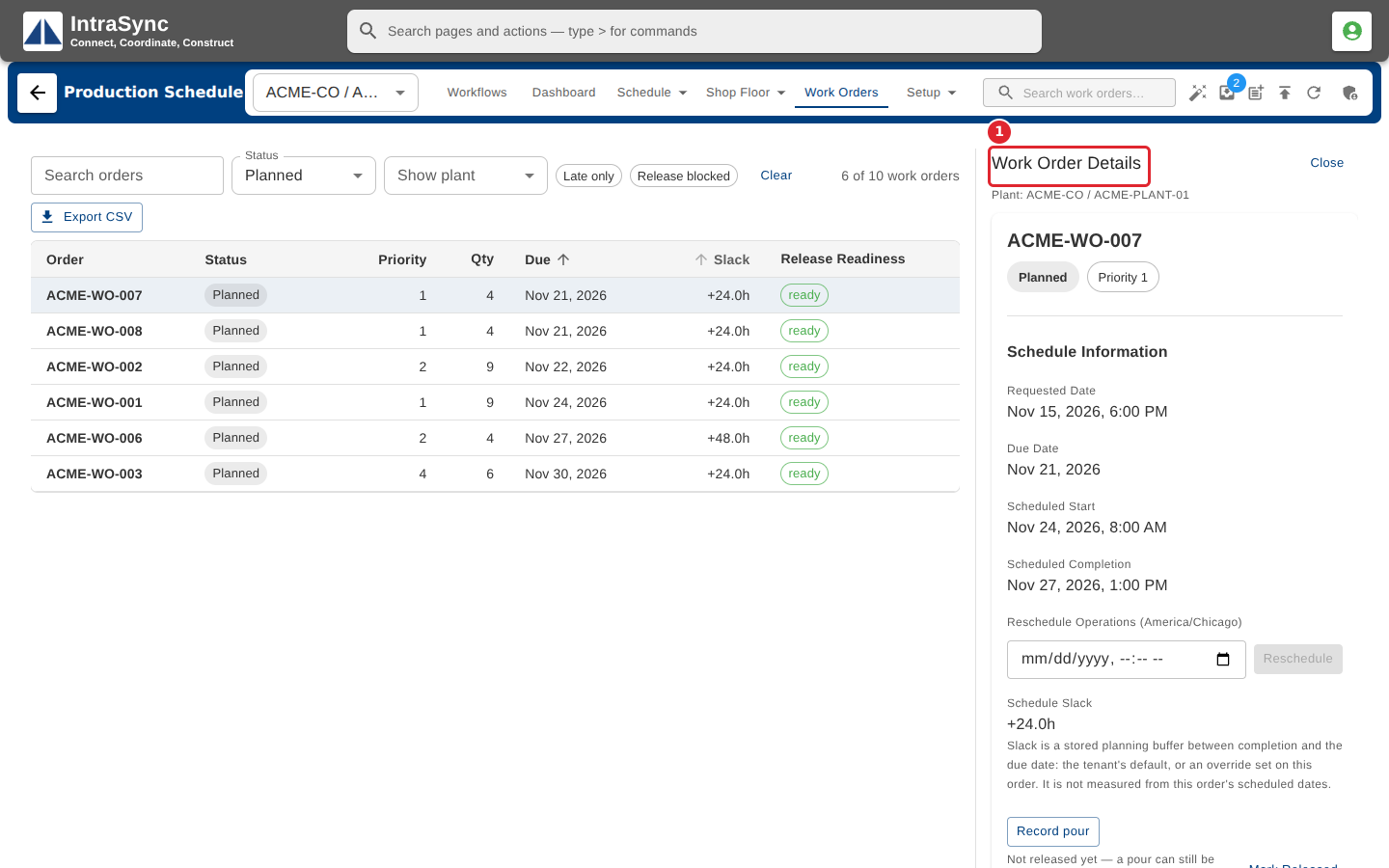
Select a work order to open its details.
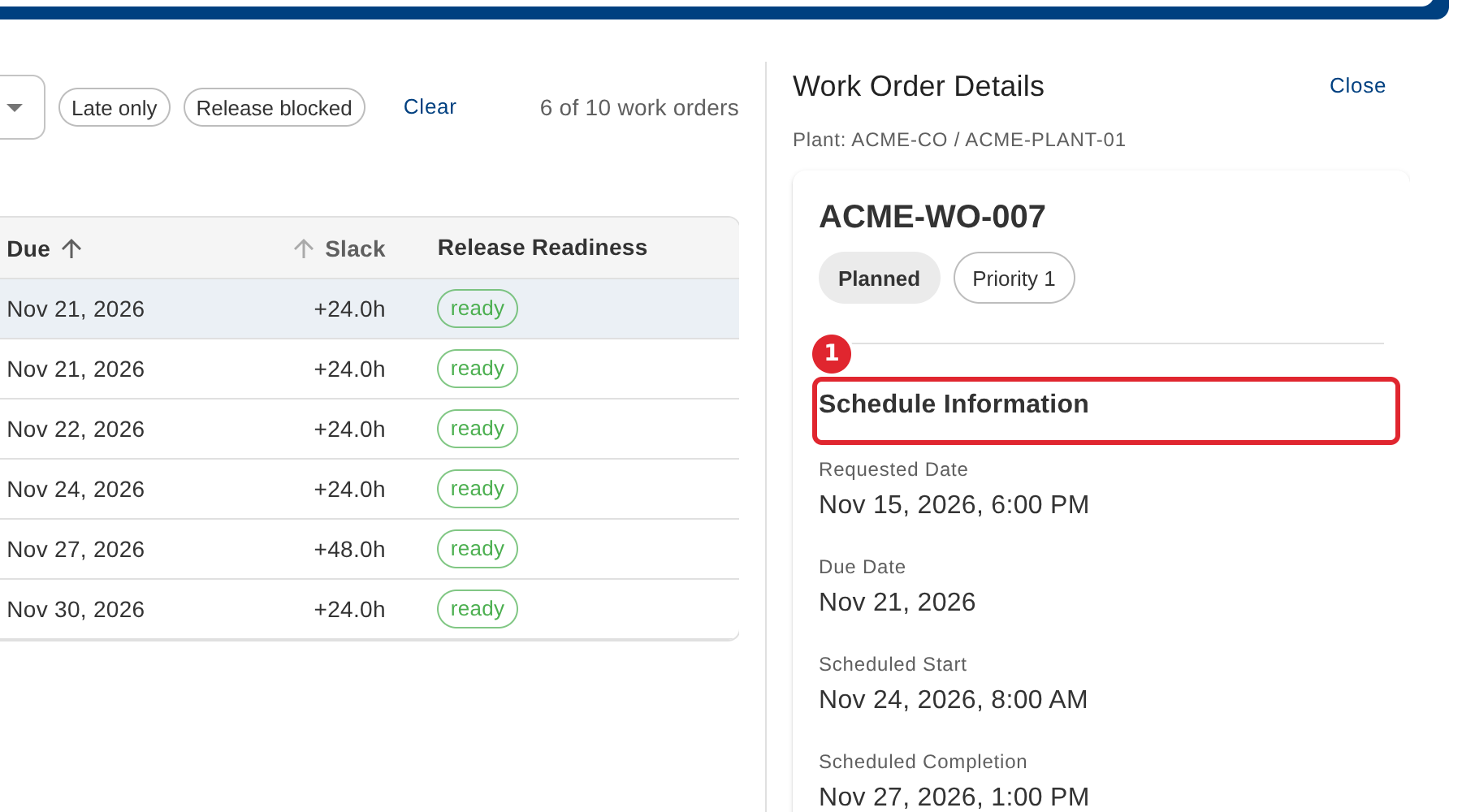
Read its schedule: requested, due, scheduled start and completion, and its slack.
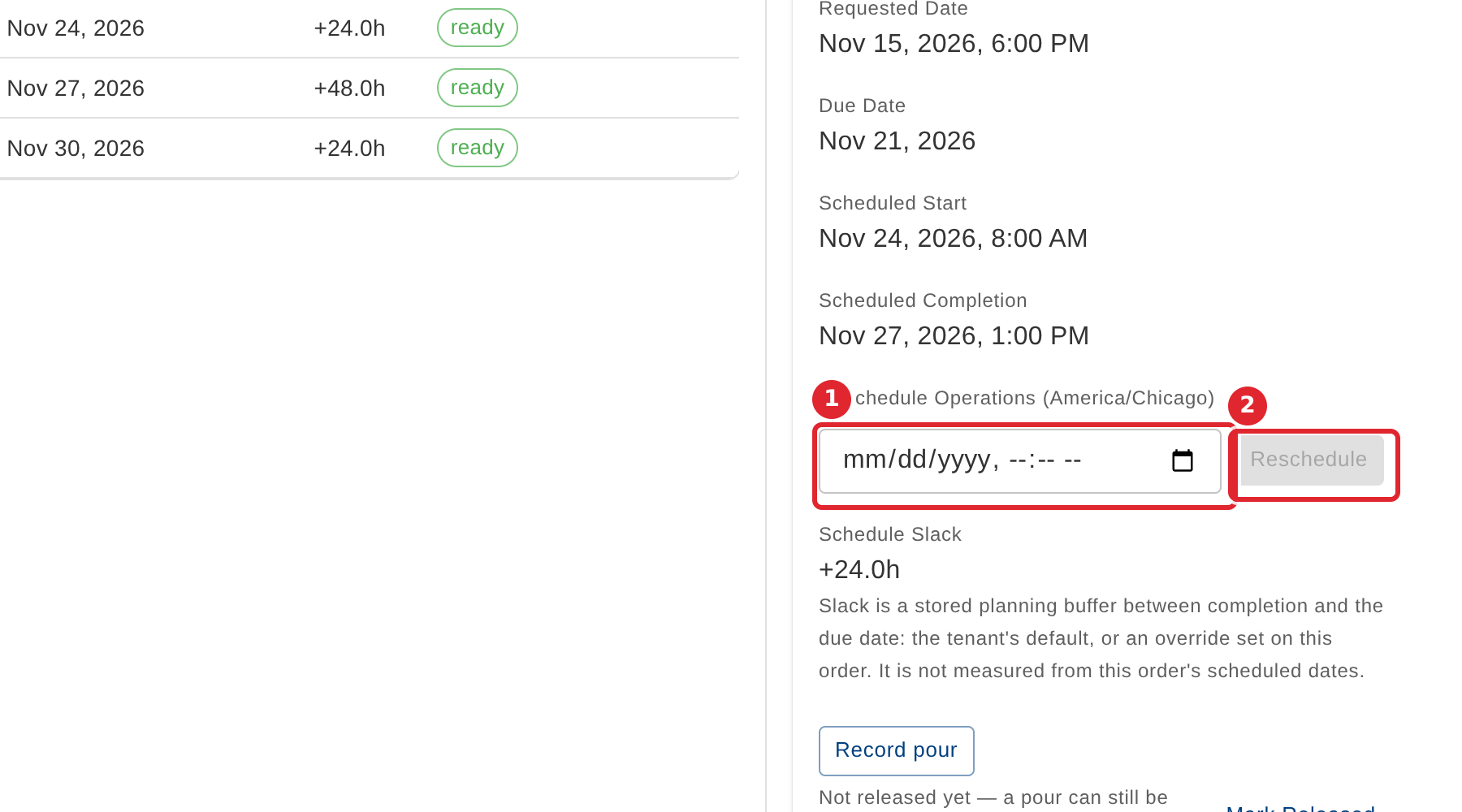
To move the whole order, enter a new start in plant time, then select Reschedule.
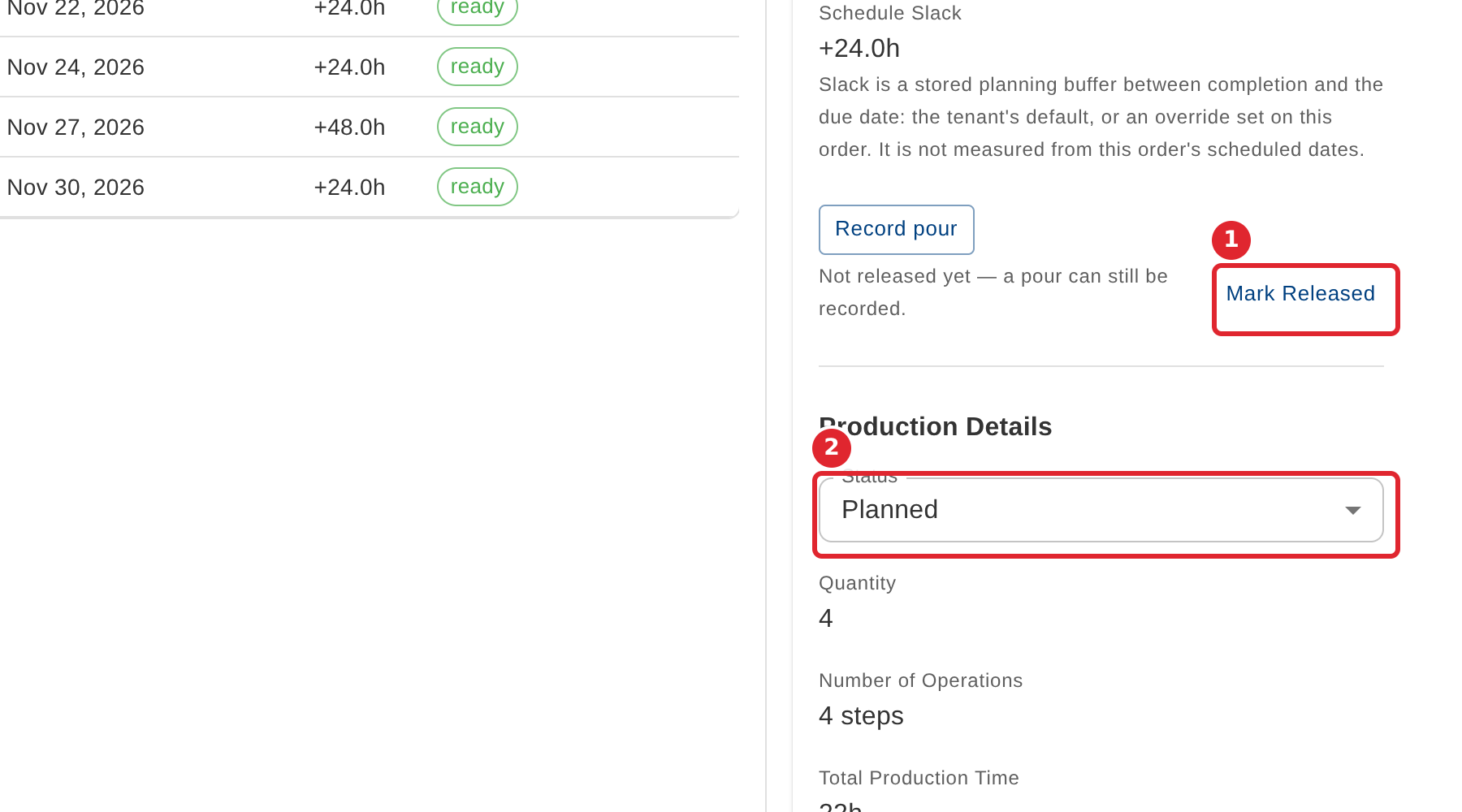
Change the order's status with Mark Released, or pick a status from the list.
Tips
- Reschedule stays unavailable until you enter a new start. The start is in the plant's time zone.
- A status change can be refused by your system's rules, for example a quality check.
- Select Close to put the details away.