Production Schedule guide · section 3 of 23
Check the plan at a glance on the Dashboard
See where the work orders stand, what today holds and how loaded the coming week is, without opening each screen.
Watch this in the video (0:07)
Steps
In the pictures, a numbered red box marks where to click or type. Where a picture has more than one box, the numbers give the order.
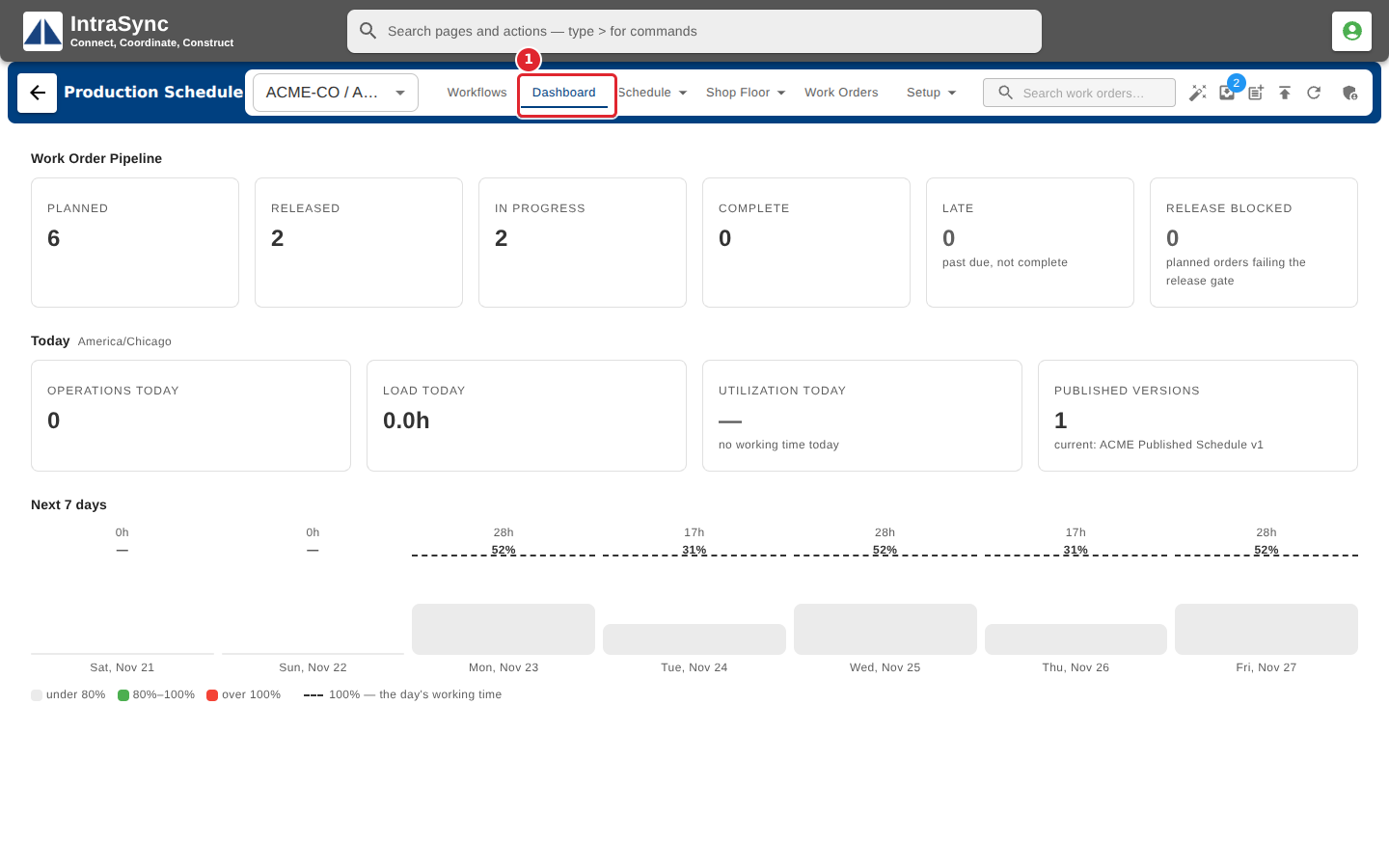
Select Dashboard.
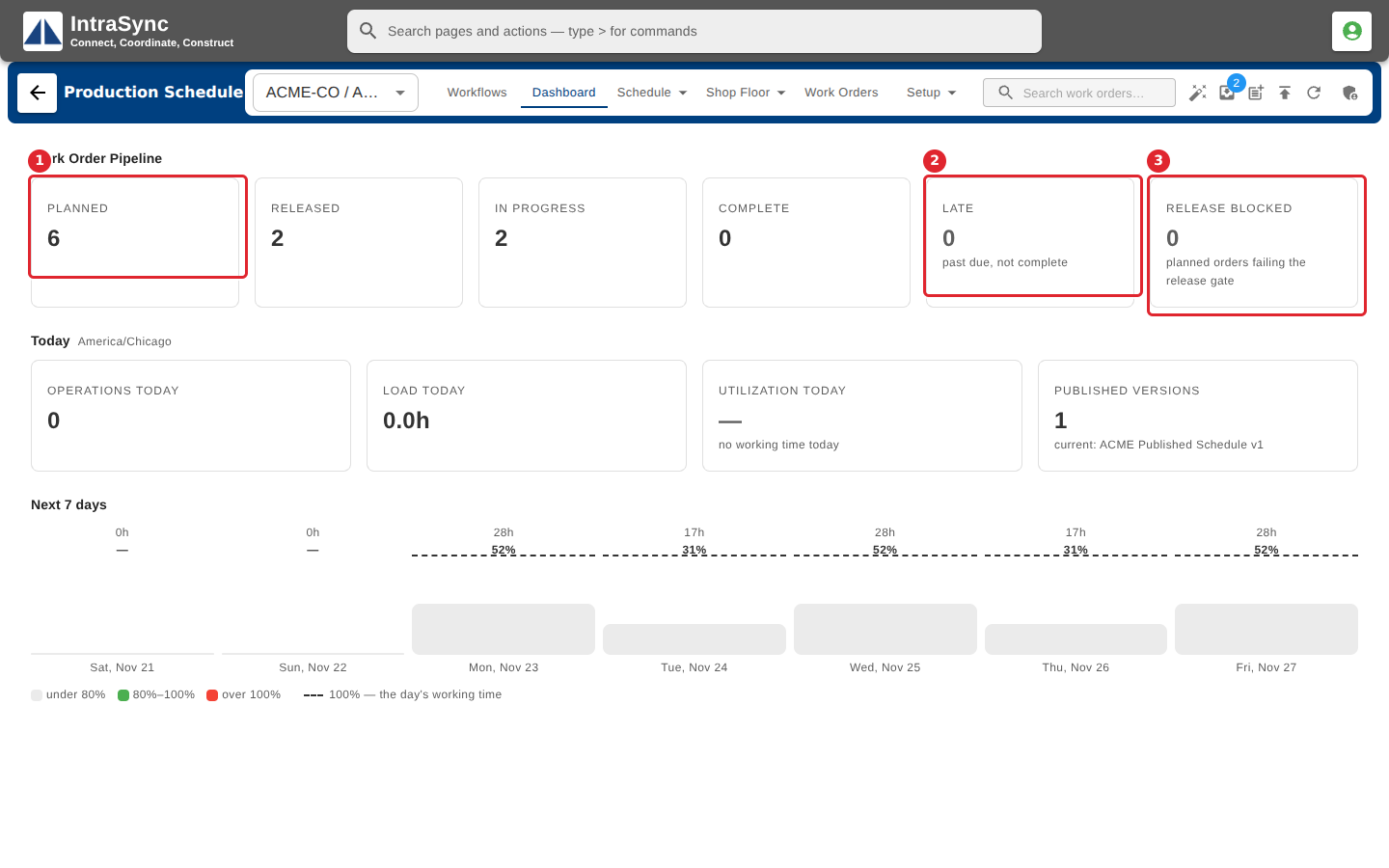
Read the work order pipeline: how many orders are planned, released, in progress, complete, late or blocked.
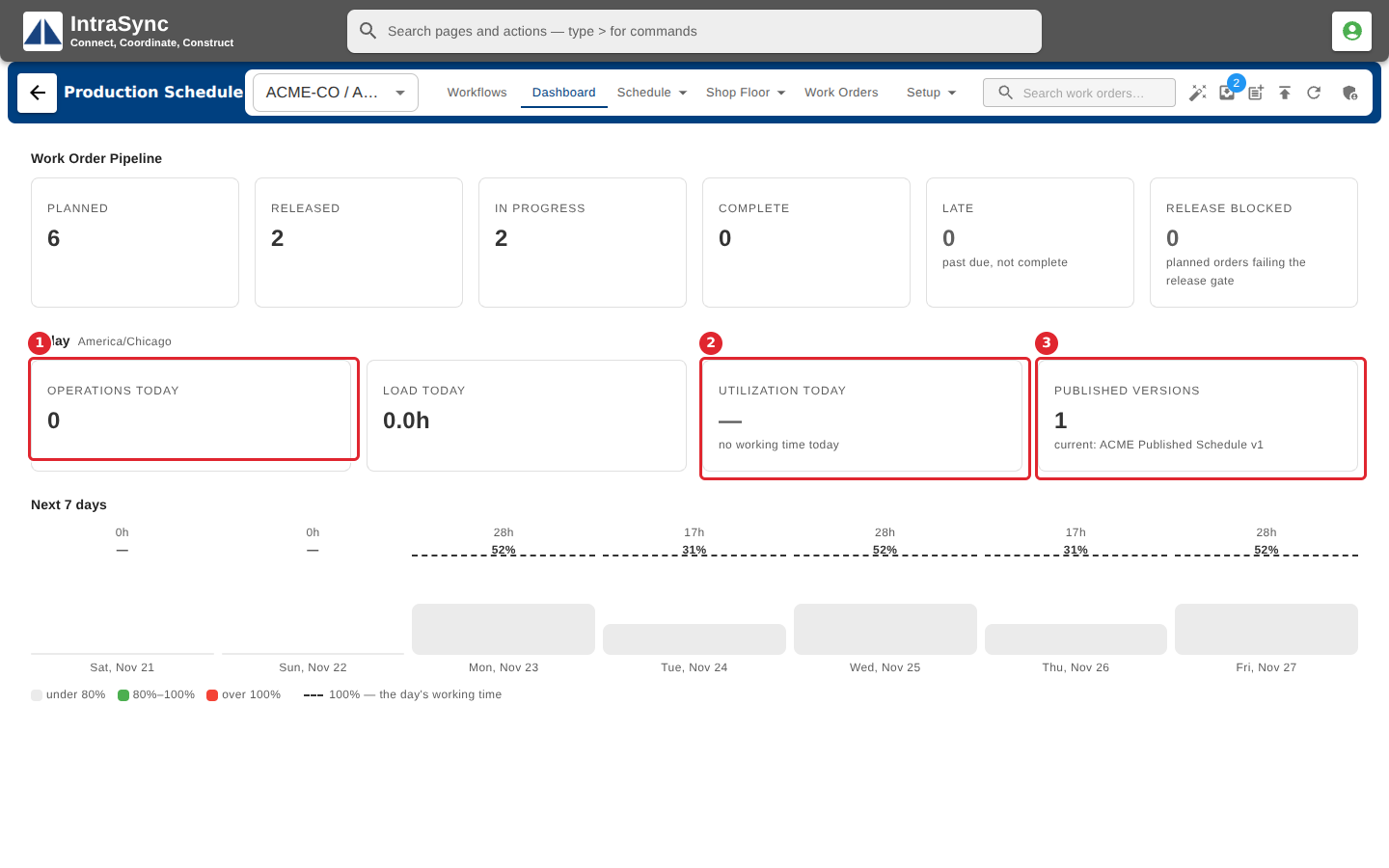
Read today's operations, load and utilization, and the current published version.
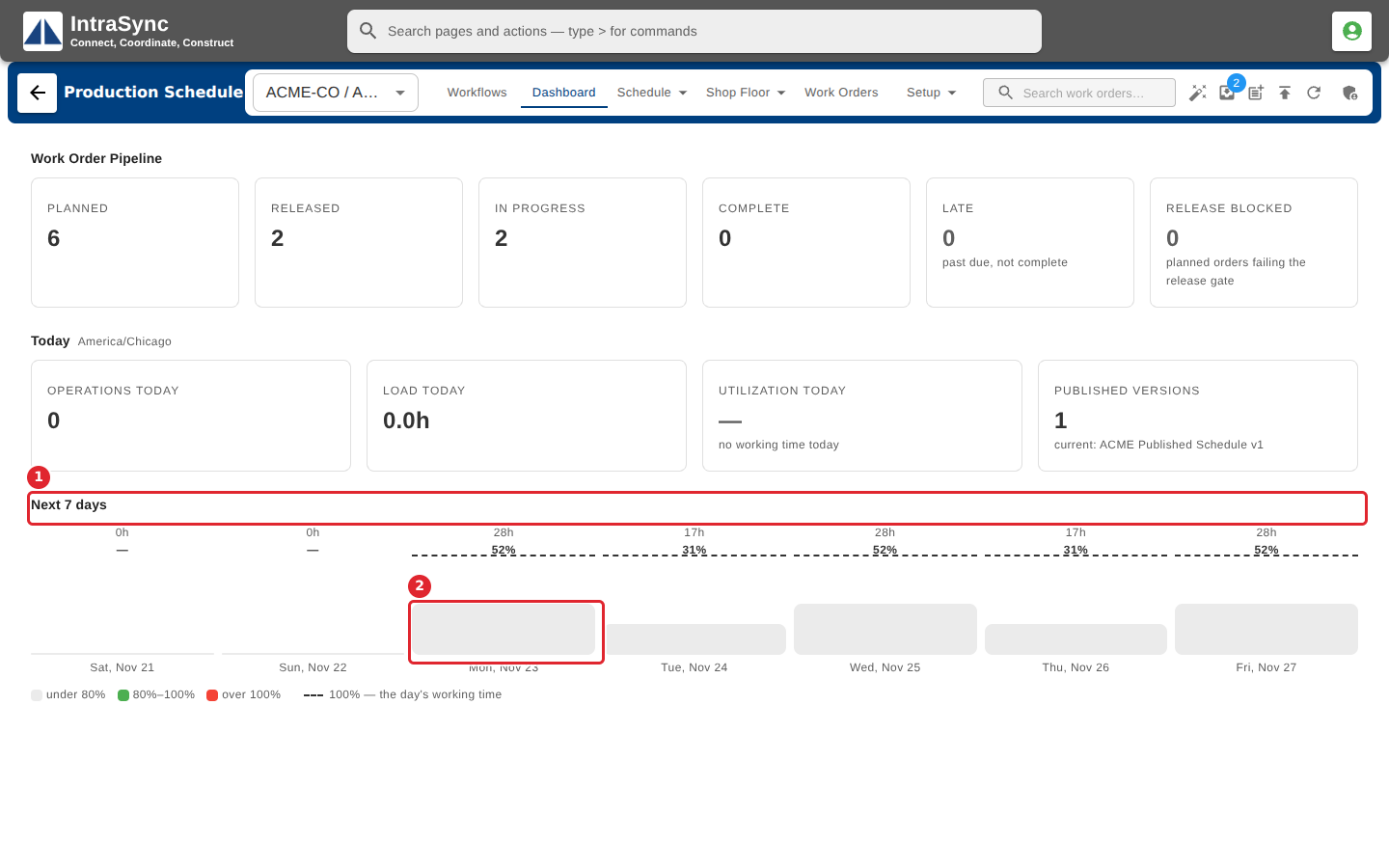
Read the next seven days: the hours booked each day against its working time.
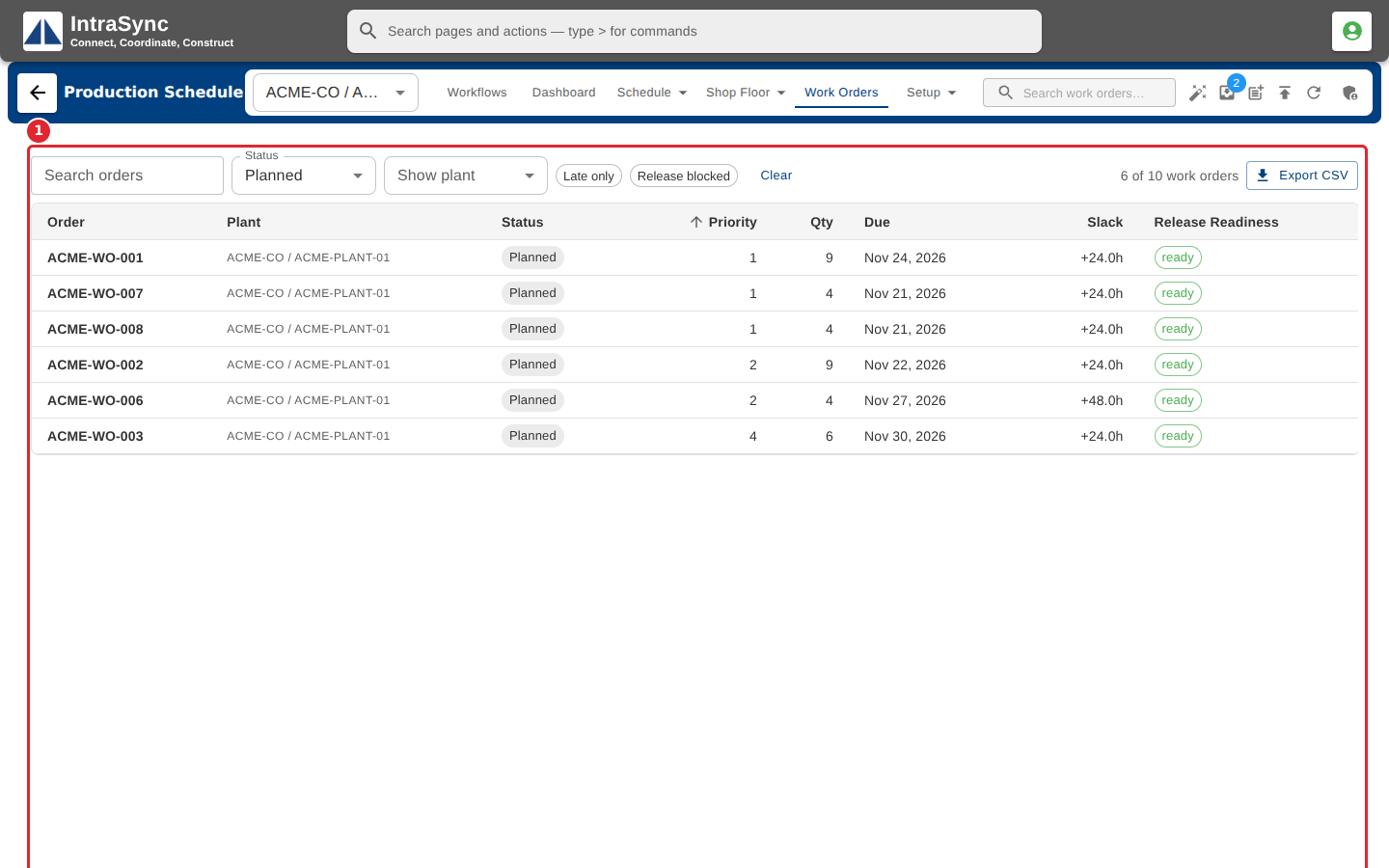
Select a pipeline card to open Work Orders with that filter applied.
Tips
- Late means past its due date and not complete. Release Blocked counts planned orders that fail the release gate.
- The week chart colours each day under 80%, 80% to 100%, or over 100% of the day's working time.
- Days with no working time, such as weekends on a weekday calendar, show a dash instead of a percentage.