Log and close risks and issues
Keep what could go wrong and what already has in one place, with an owner and a due date for each.
Watch this in the video (1:09)
Before you start
- A project is in scope. Adding a risk or an issue needs one.
Steps
In the pictures, a numbered red box marks where to click or type. Where a picture has more than one box, the numbers give the order.
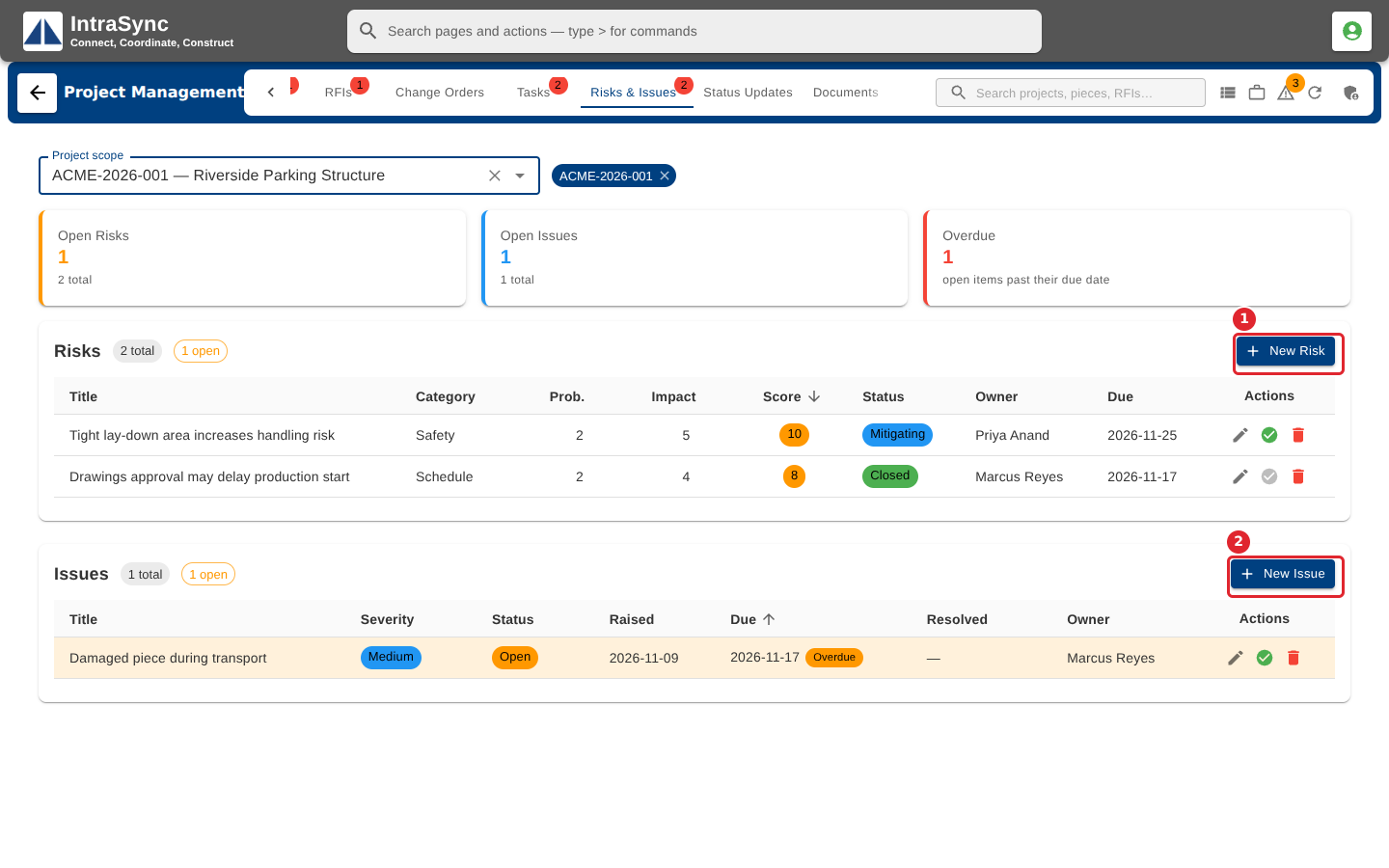
Open the Risks & Issues tab with a project in scope. Risks are what could go wrong; issues are what already has. Select New Risk.
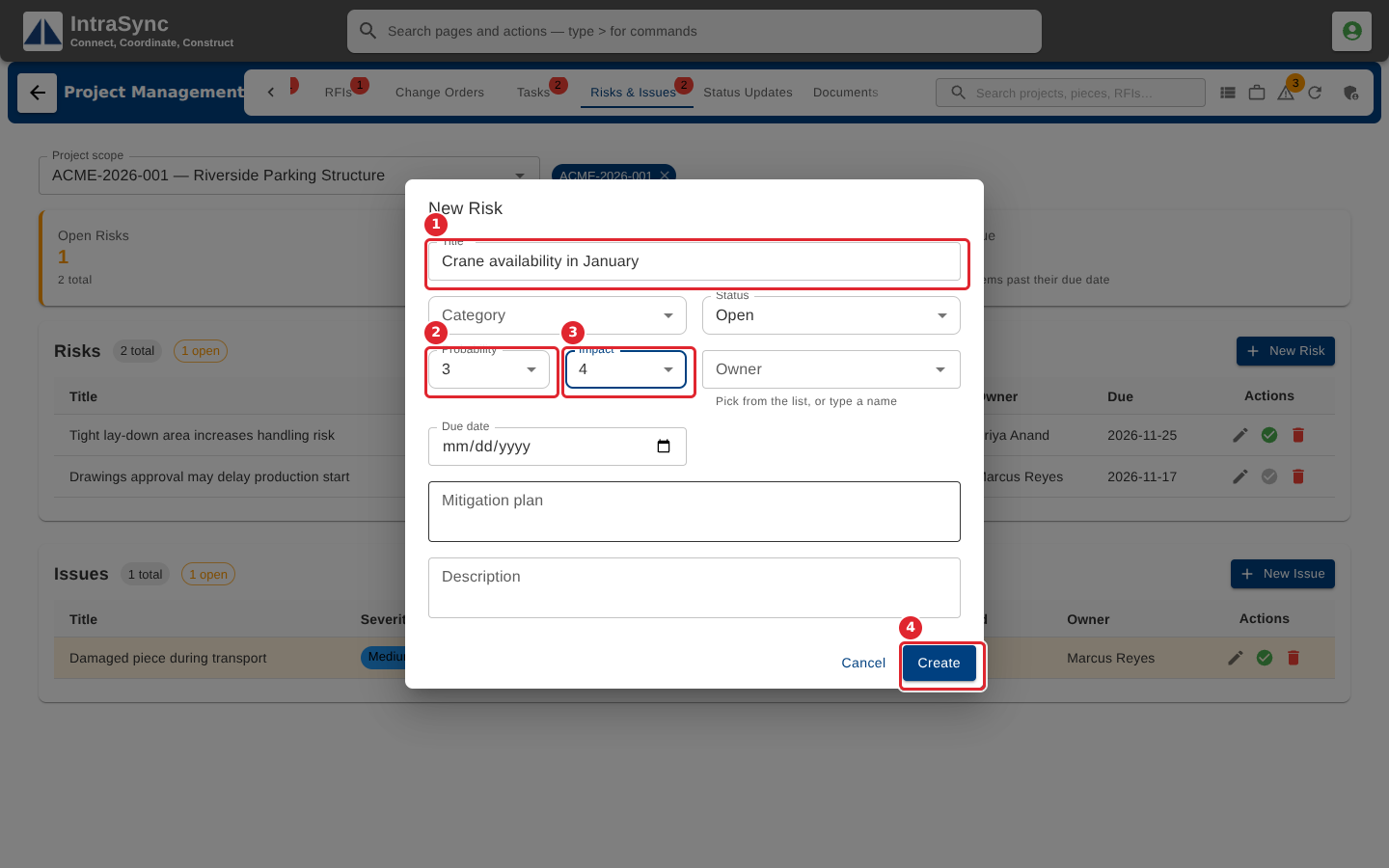
Enter the Title (required), the Category, and the Probability and Impact from one to five. Their product is the risk's score. Add an Owner, a Due date and a Mitigation plan, then select Create.
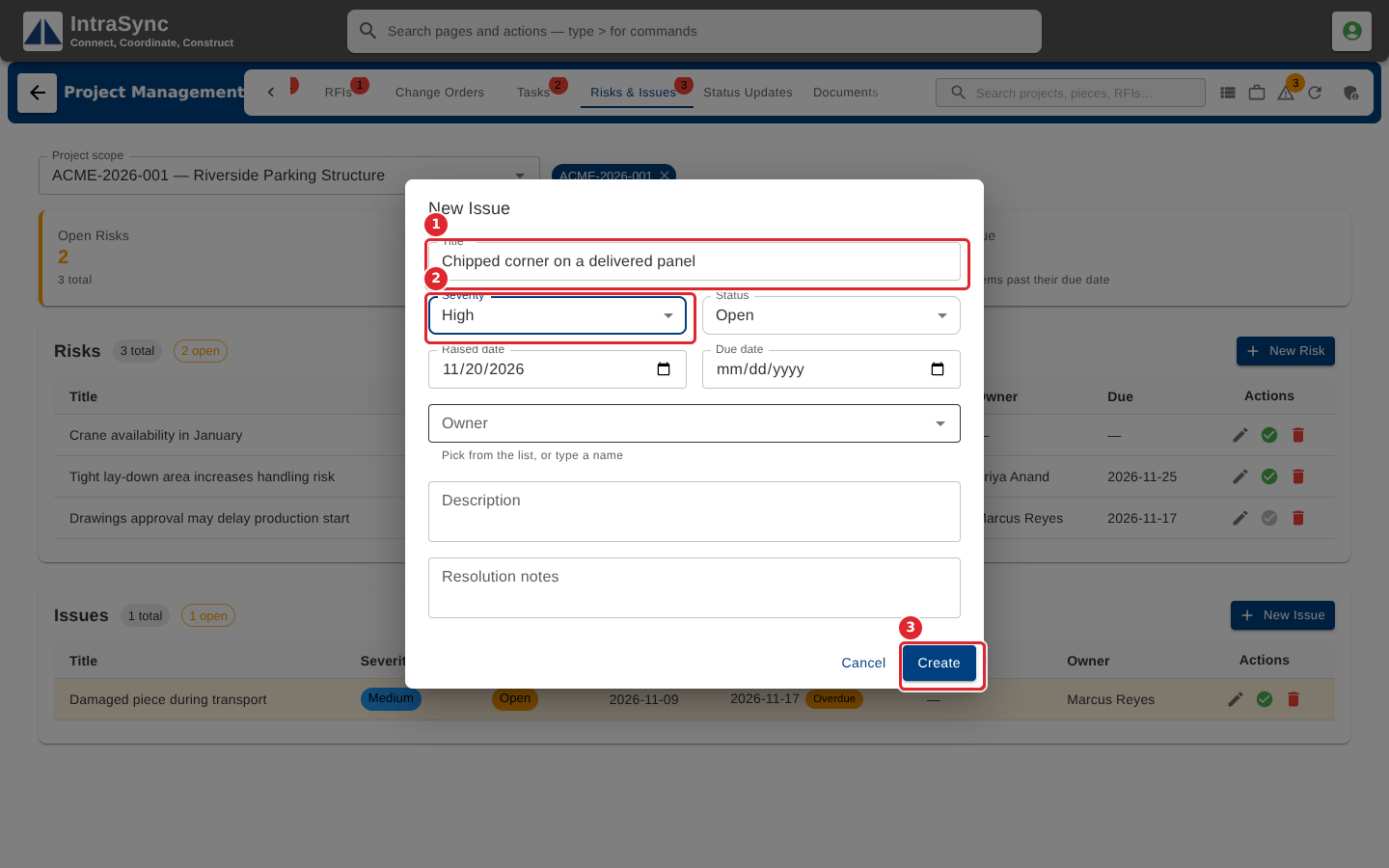
For an issue, select New Issue. Enter the Title (required), the Severity, the Raised and Due dates and the Owner, then select Create.
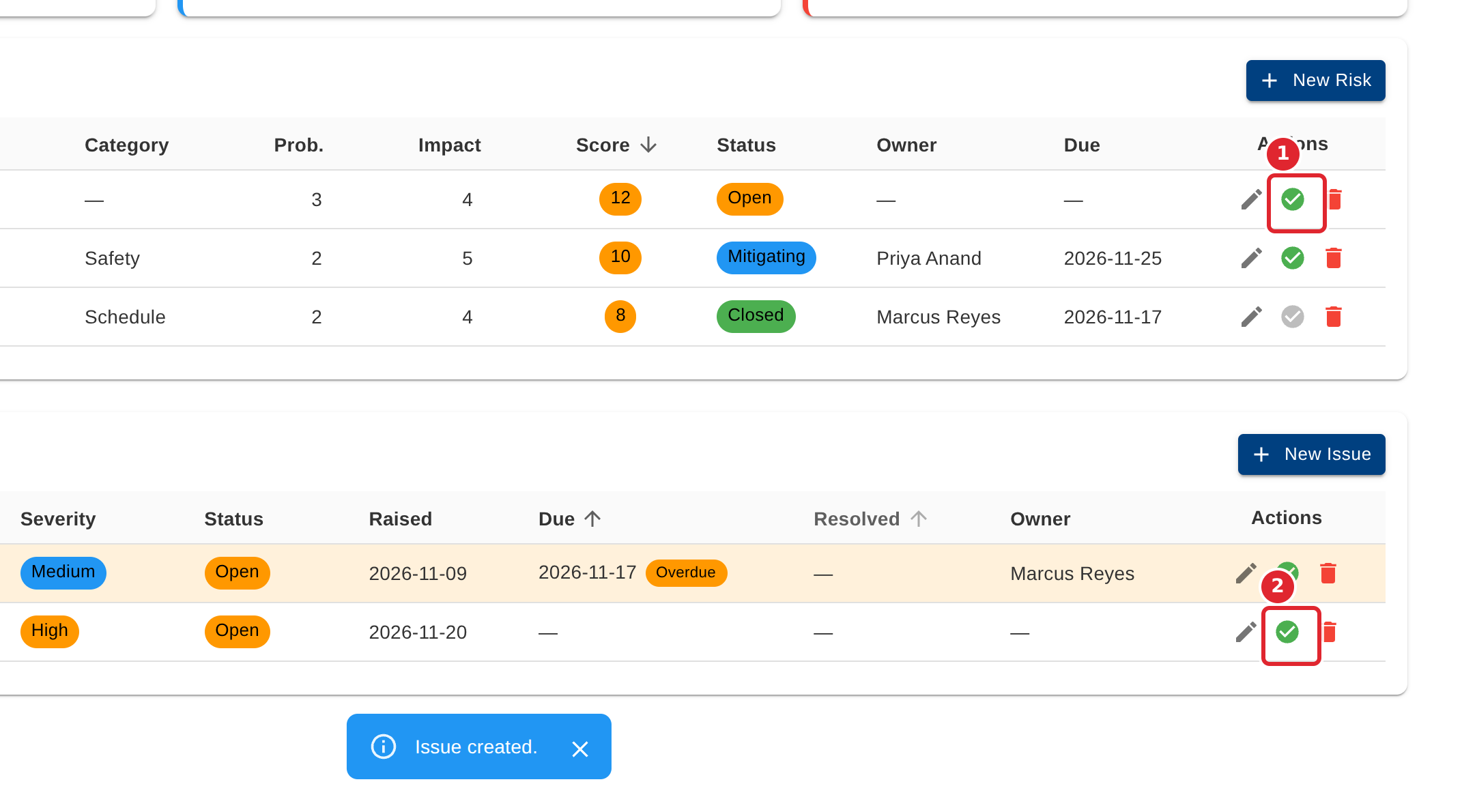
When a risk has passed, select Close risk (the green tick) on its row. When an issue is fixed, select Resolve issue, the green tick on its row.
Tips
- The Title is required for both.
- A risk's score is its probability times its impact; high-exposure open risks appear under Needs attention.
- Closing a risk or resolving an issue happens at once, with no confirmation.