Project Management guide · section 8 of 20
Add, complete and reforecast milestones
Milestones drive the project's red, amber or green health, its slip badges and the portfolio's overdue count.
Before you start
- A project is in scope on the Project Detail tab.
Steps
In the pictures, a numbered red box marks where to click or type. Where a picture has more than one box, the numbers give the order.
On Project Detail, find the Milestones card. The Slip column shows how many days each milestone runs behind plan.
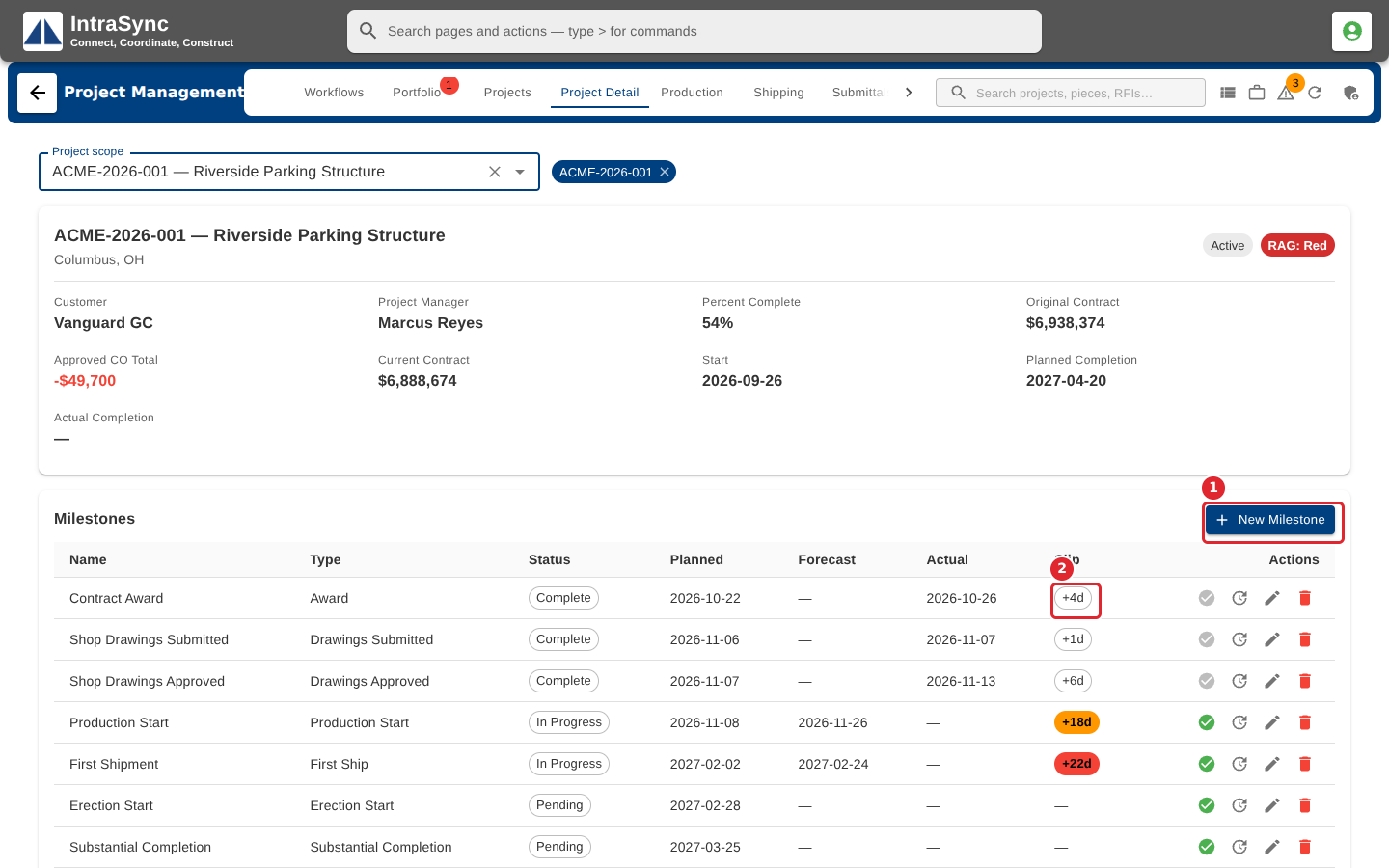
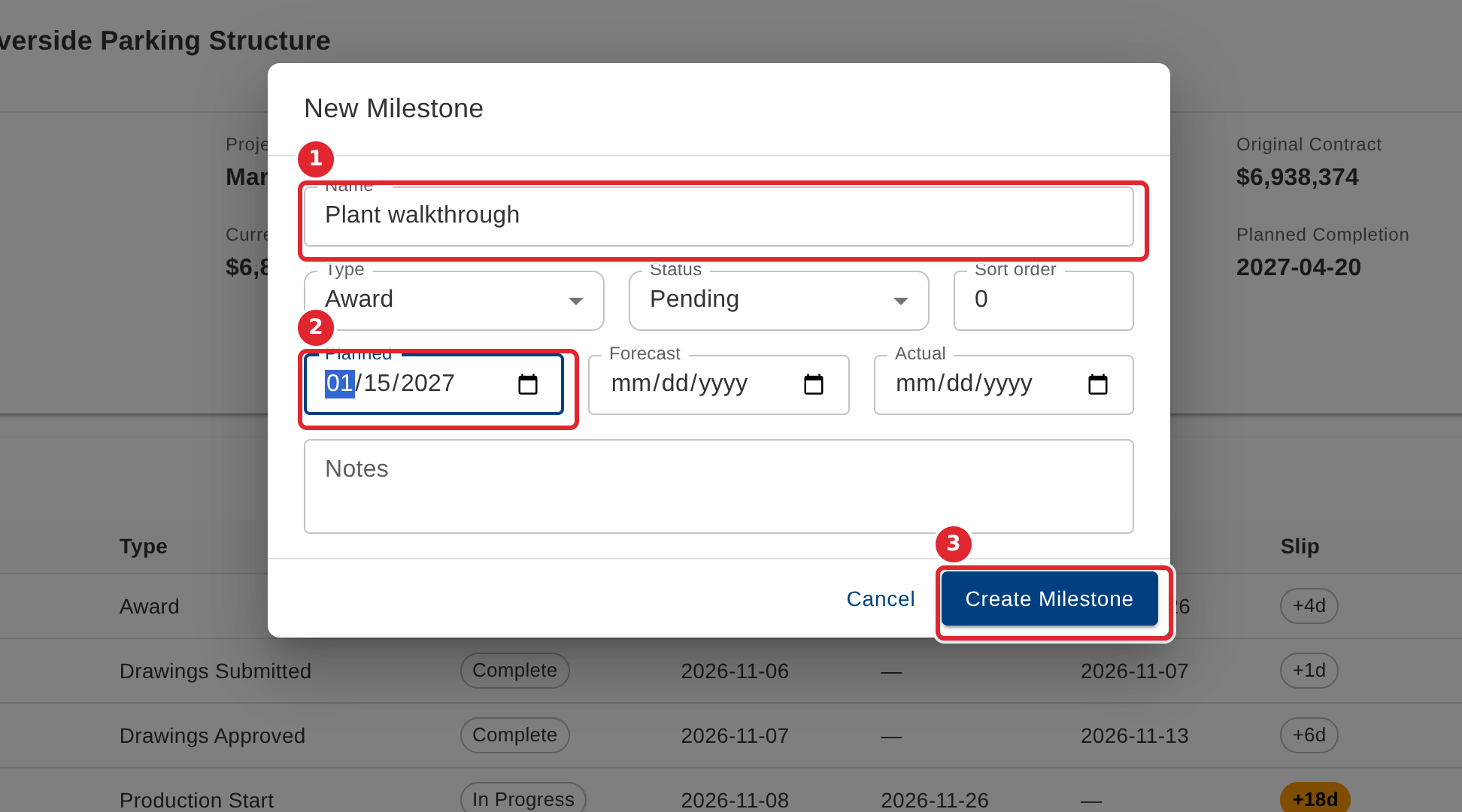
Select New Milestone. Enter the Name (required), the Type, the Status and the Planned date, then select Create Milestone.
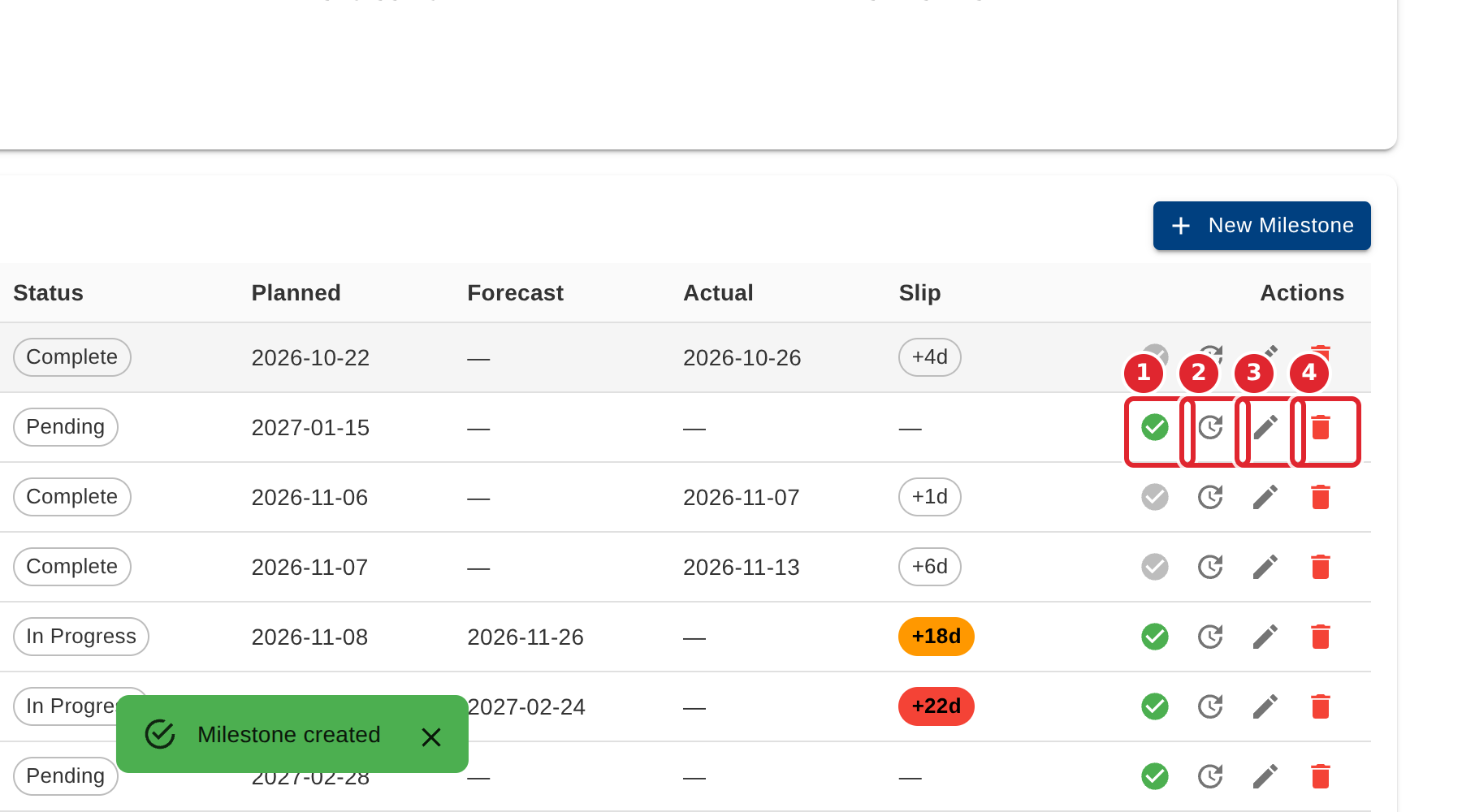
On each row: mark the milestone complete (it records today as the actual date), reforecast it, edit it or delete it.
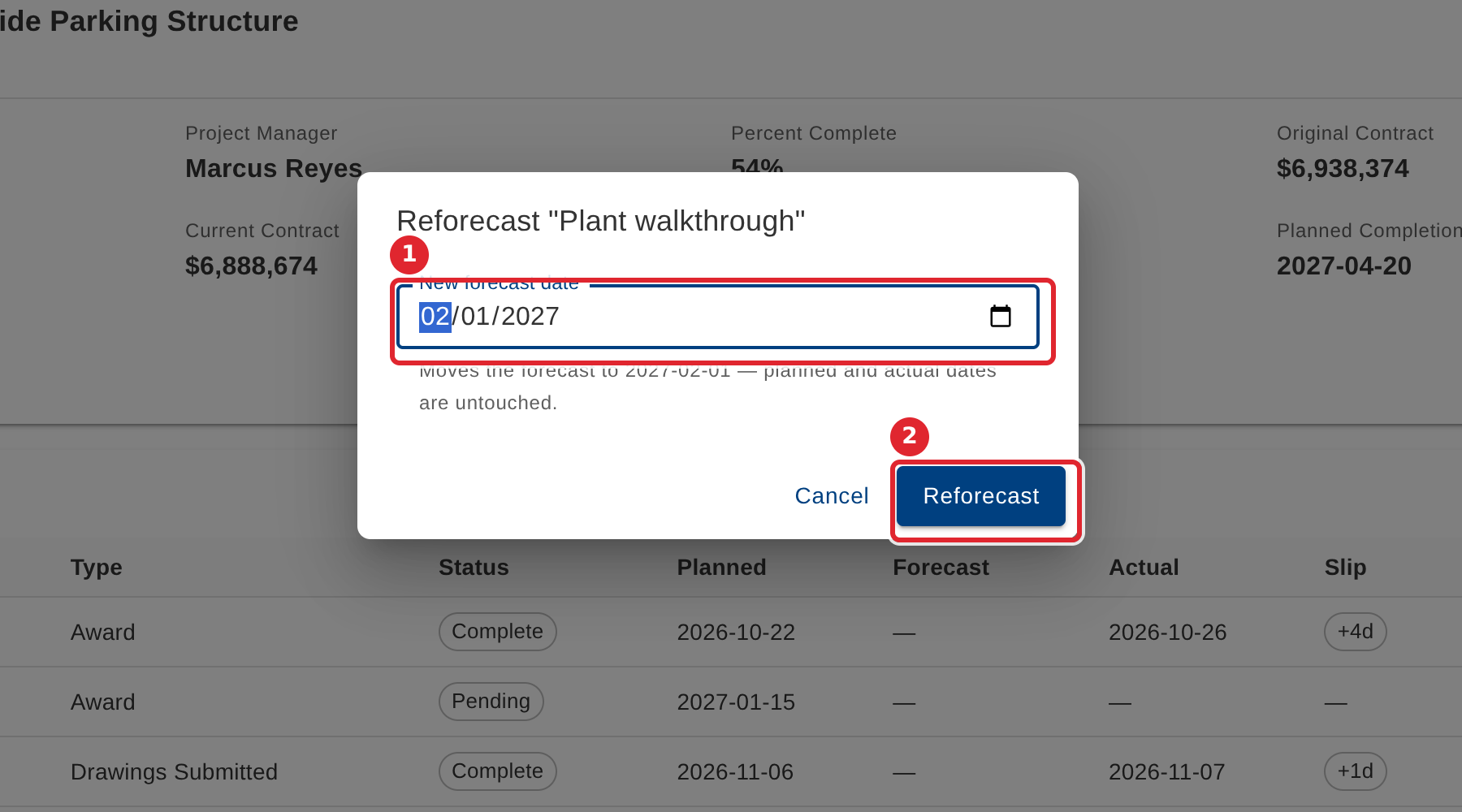
To reforecast, enter the New forecast date and select Reforecast. The planned and actual dates stay as they were.
Tips
- The Name is required; the save button stays unavailable until it is filled in.
- A slip badge turns amber, then red, as a milestone falls further behind plan. Hover the badge to see the thresholds your company uses.
- Mark complete sets the status to Complete and today's date as the actual date.