Sales guide · section 3 of 18
Find an order and see how far its lines are prepped
Every won order arrives in the Workspace. Find the one you need and check which of its lines still need prep.
Watch this in the video (0:06)
Steps
In the pictures, a numbered red box marks where to click or type. Where a picture has more than one box, the numbers give the order.
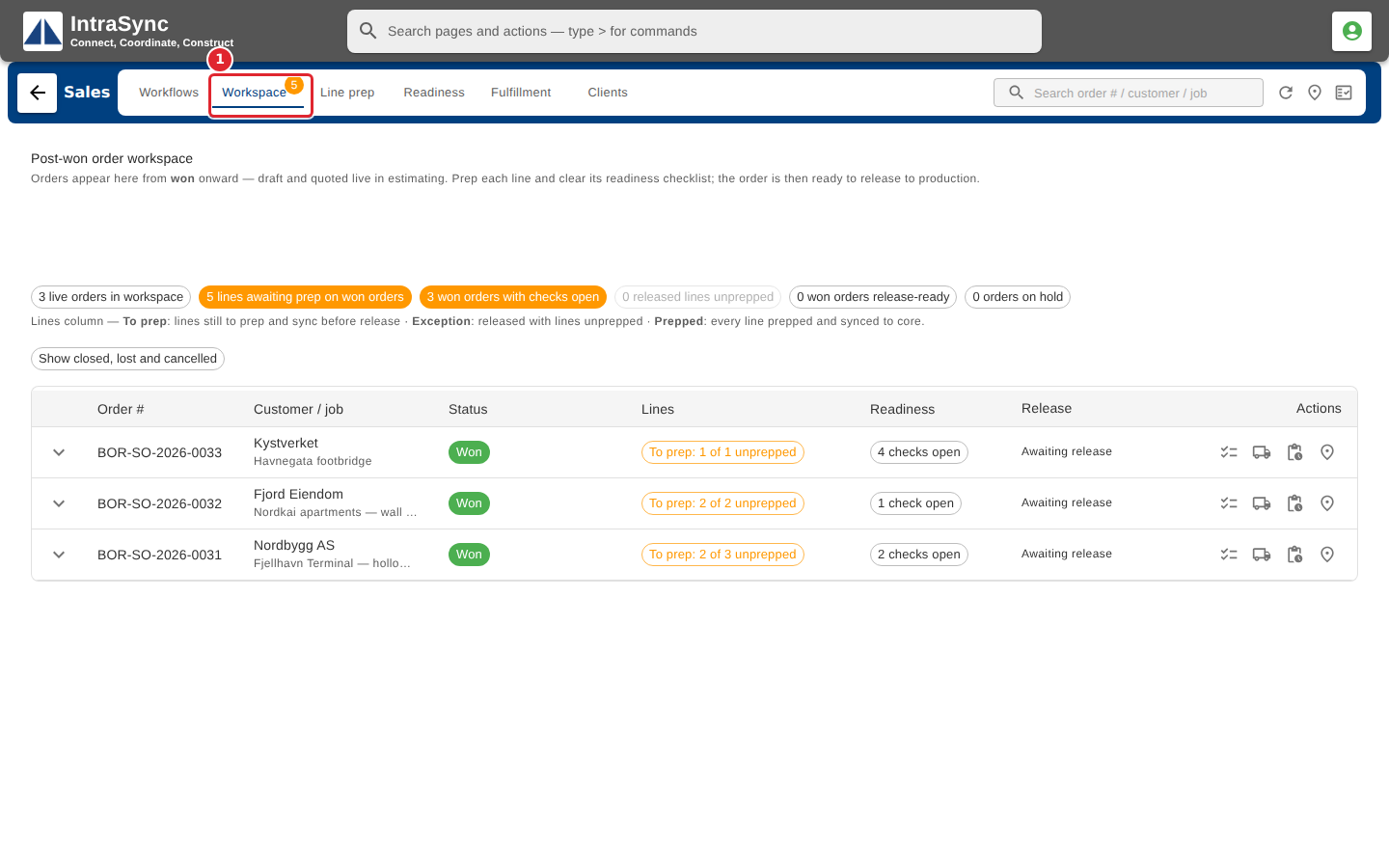
Select Workspace.
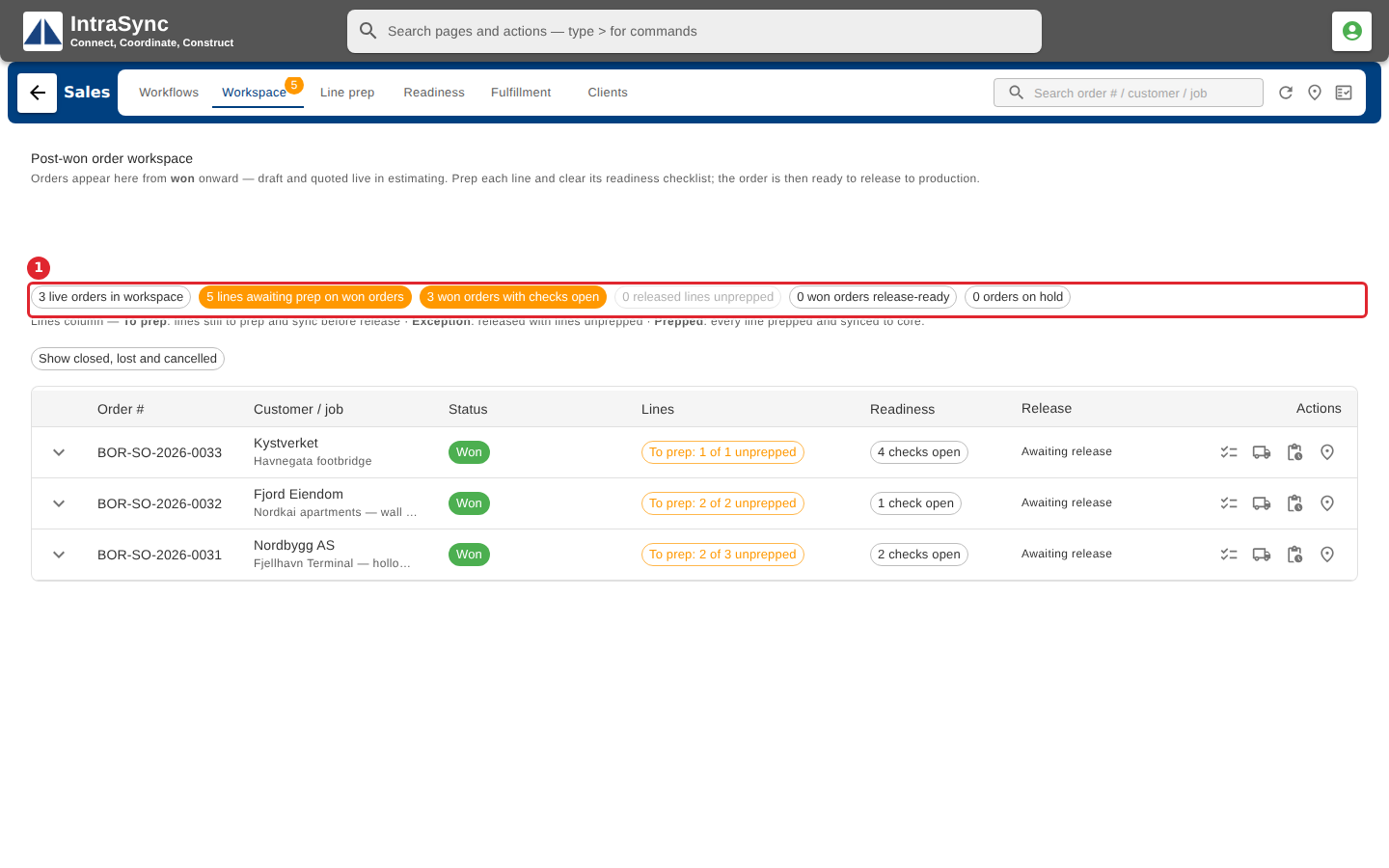
Read the summary: how many orders are live, how many lines still need prep, and how many checks are open.
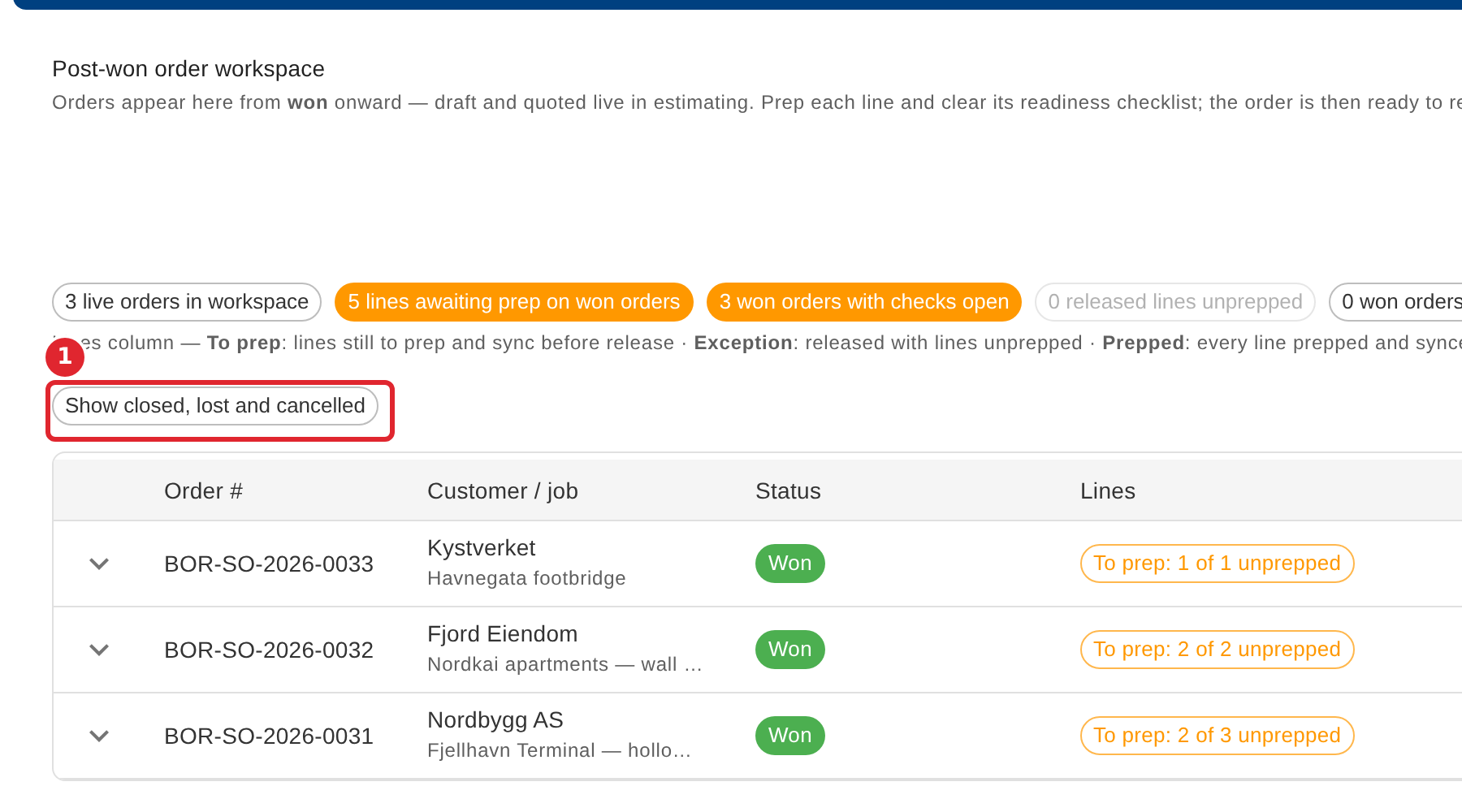
Use the filter chips to narrow the list, or Show closed to include closed, lost and cancelled orders.
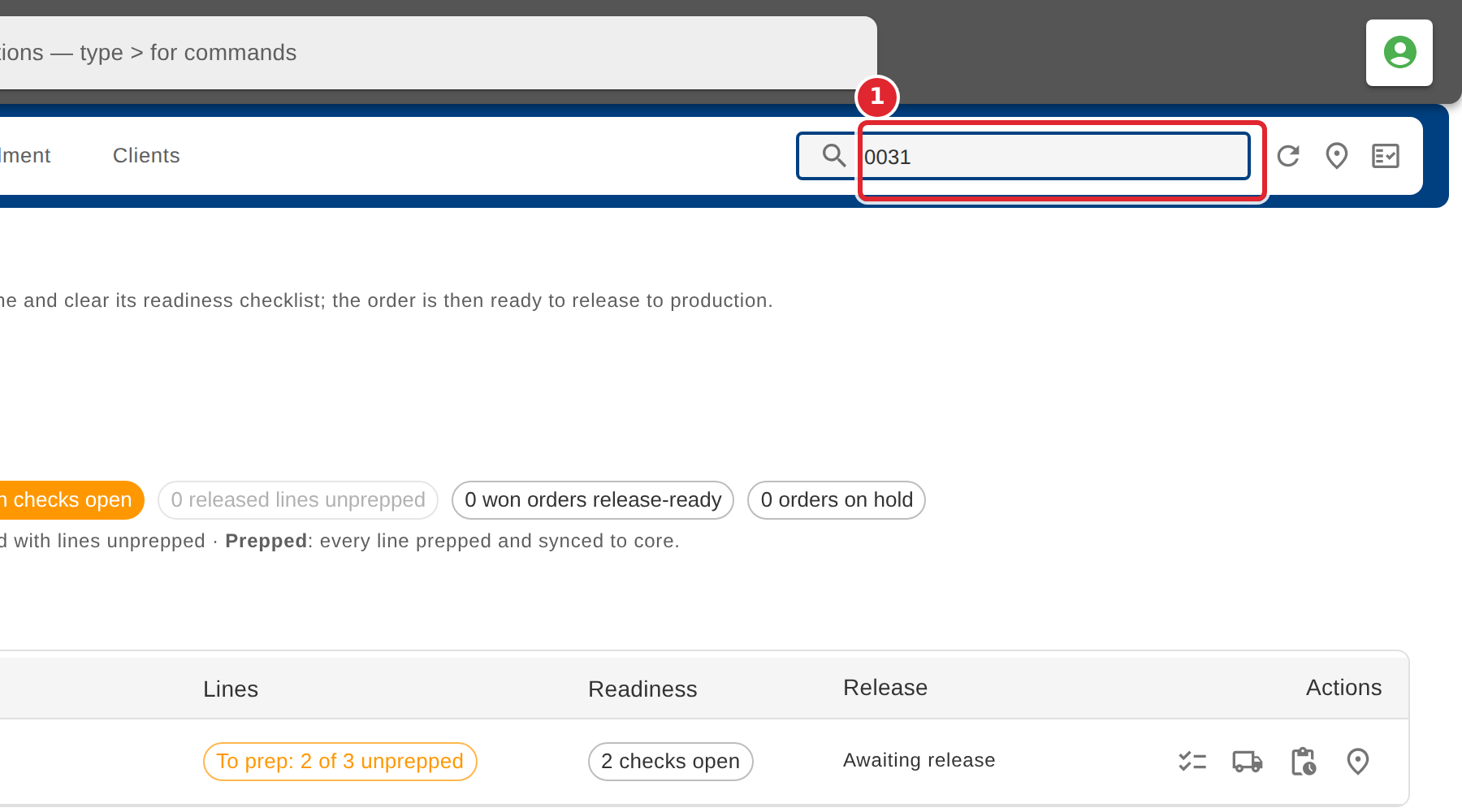
Type part of an order number, a customer or a job in the search box.
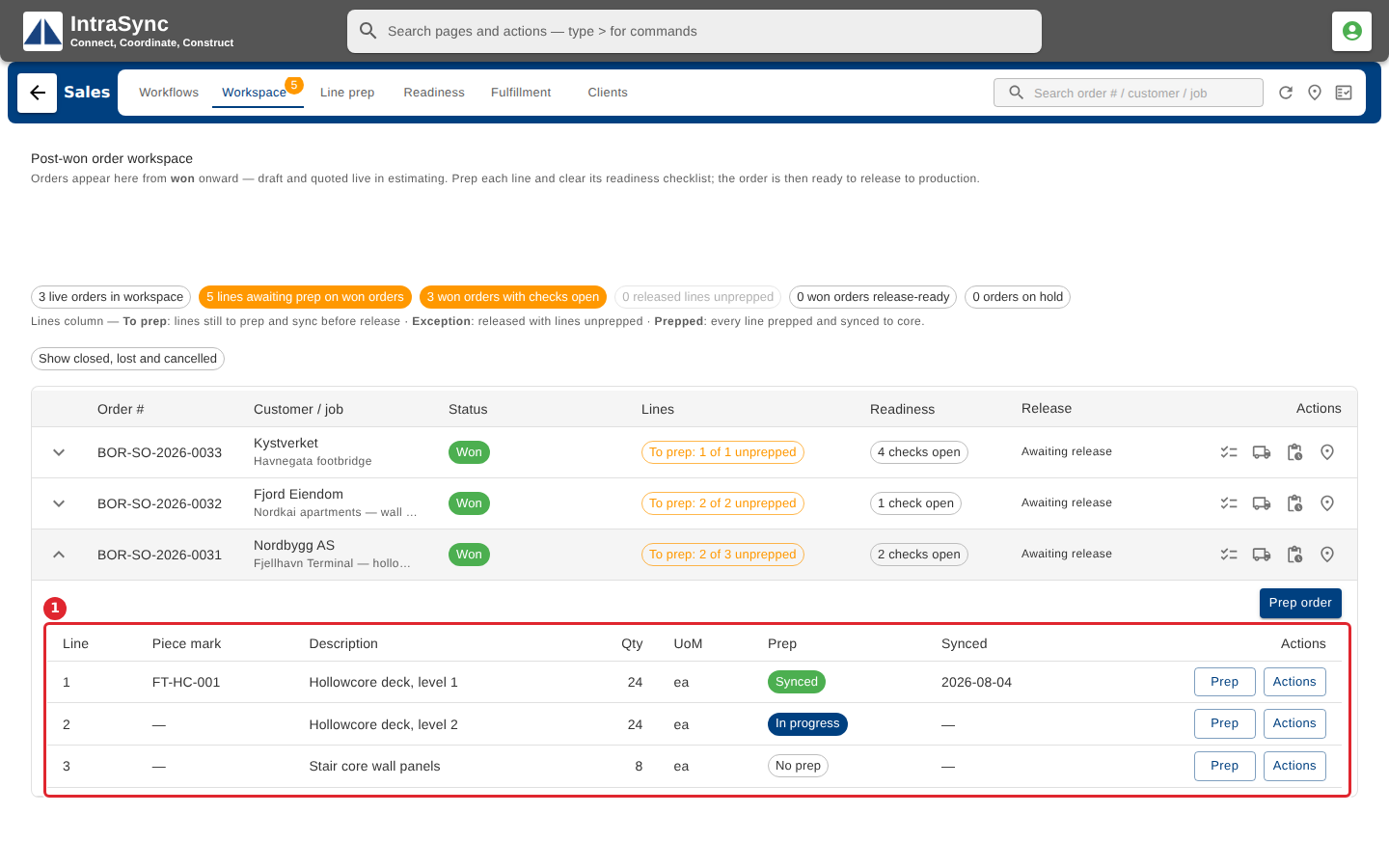
Select an order's row to expand it. Each line shows its piece mark and its prep status.
Tips
- The list puts the most recently changed order first.
- Closed, lost and cancelled orders are hidden until you select Show closed.
- The Lines column leads with a word, To prep, Exception or Prepped, so you can read it without relying on colour.