Start your day from your sales board
See what needs you on your own orders, and jump straight to the work, without searching the hub.
Before you start
- Your company has the Sales Dashboard switched on.
- The figures on this board count your own orders: the ones where you are the salesperson.
Steps
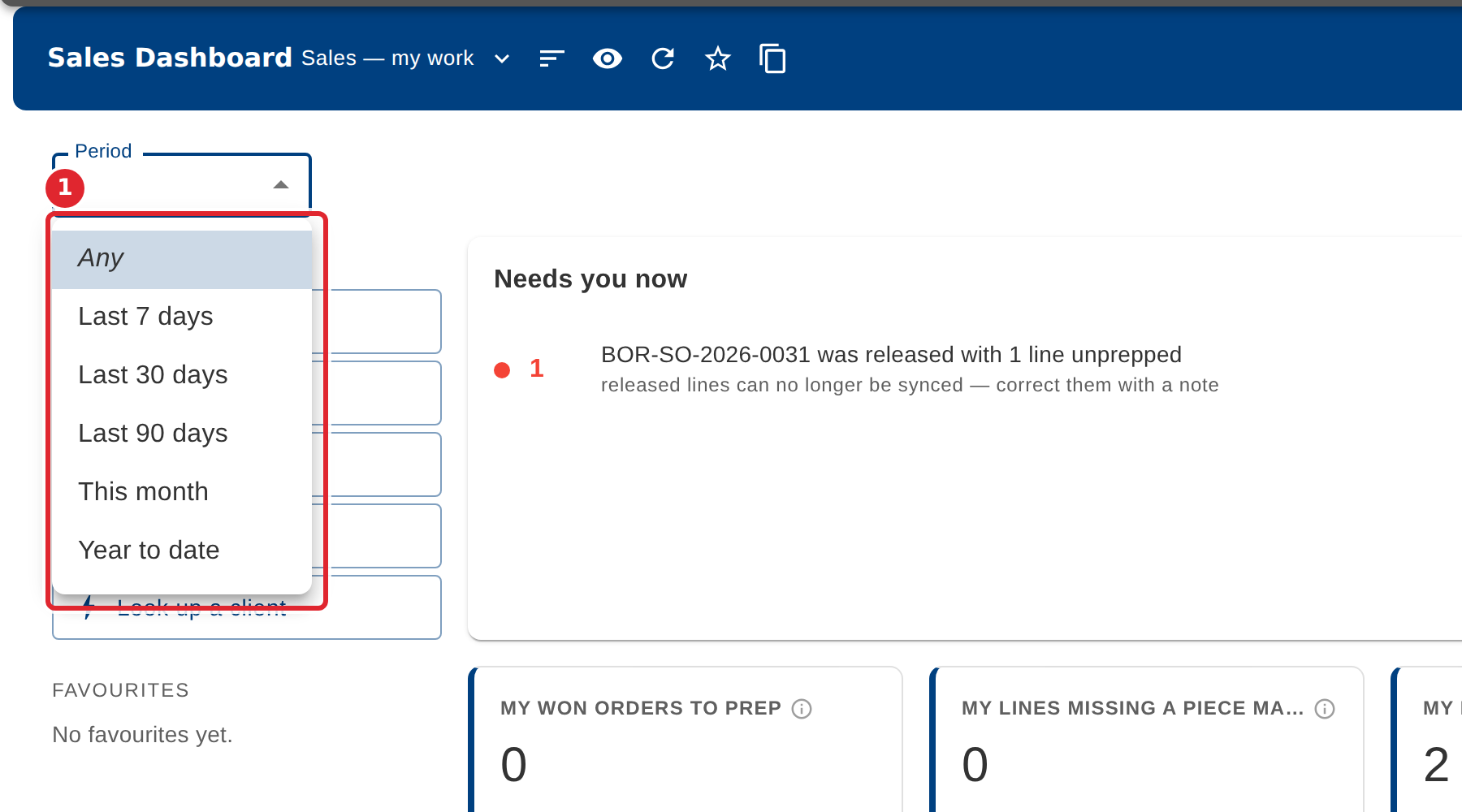
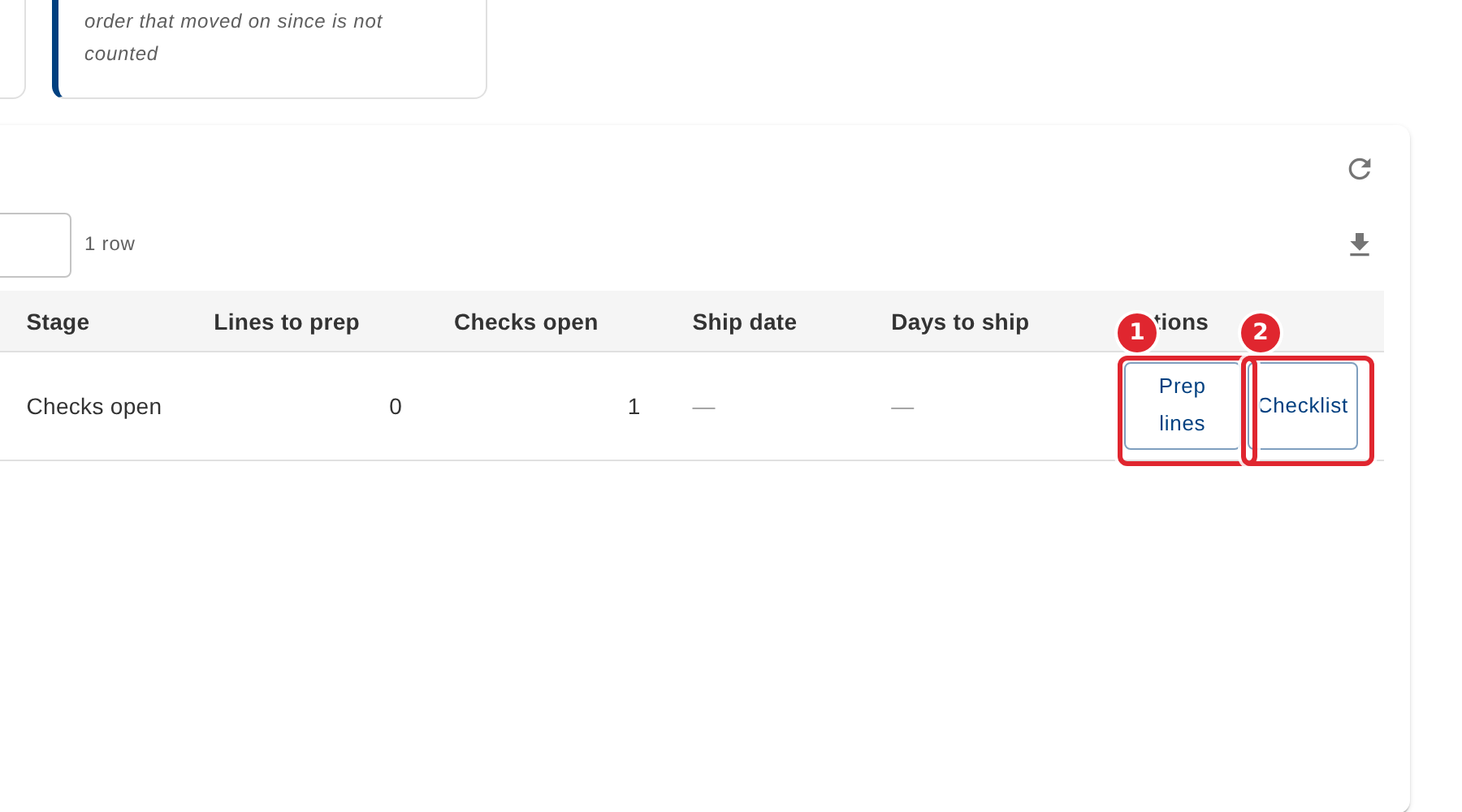
In the pictures, a numbered red box marks where to click or type. Where a picture has more than one box, the numbers give the order.
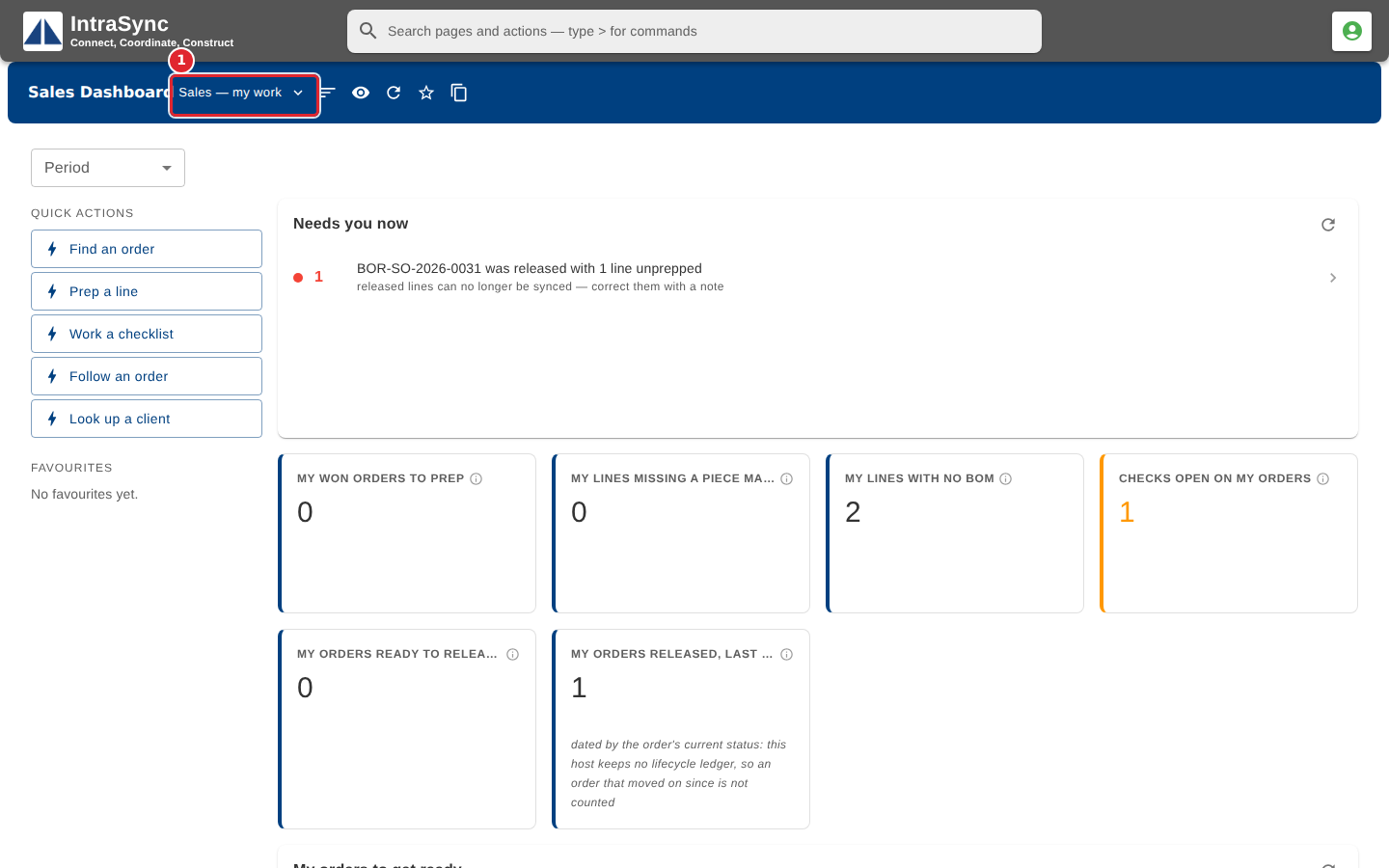
Open the Sales Dashboard. A salesperson lands on their own board, Sales — my work.
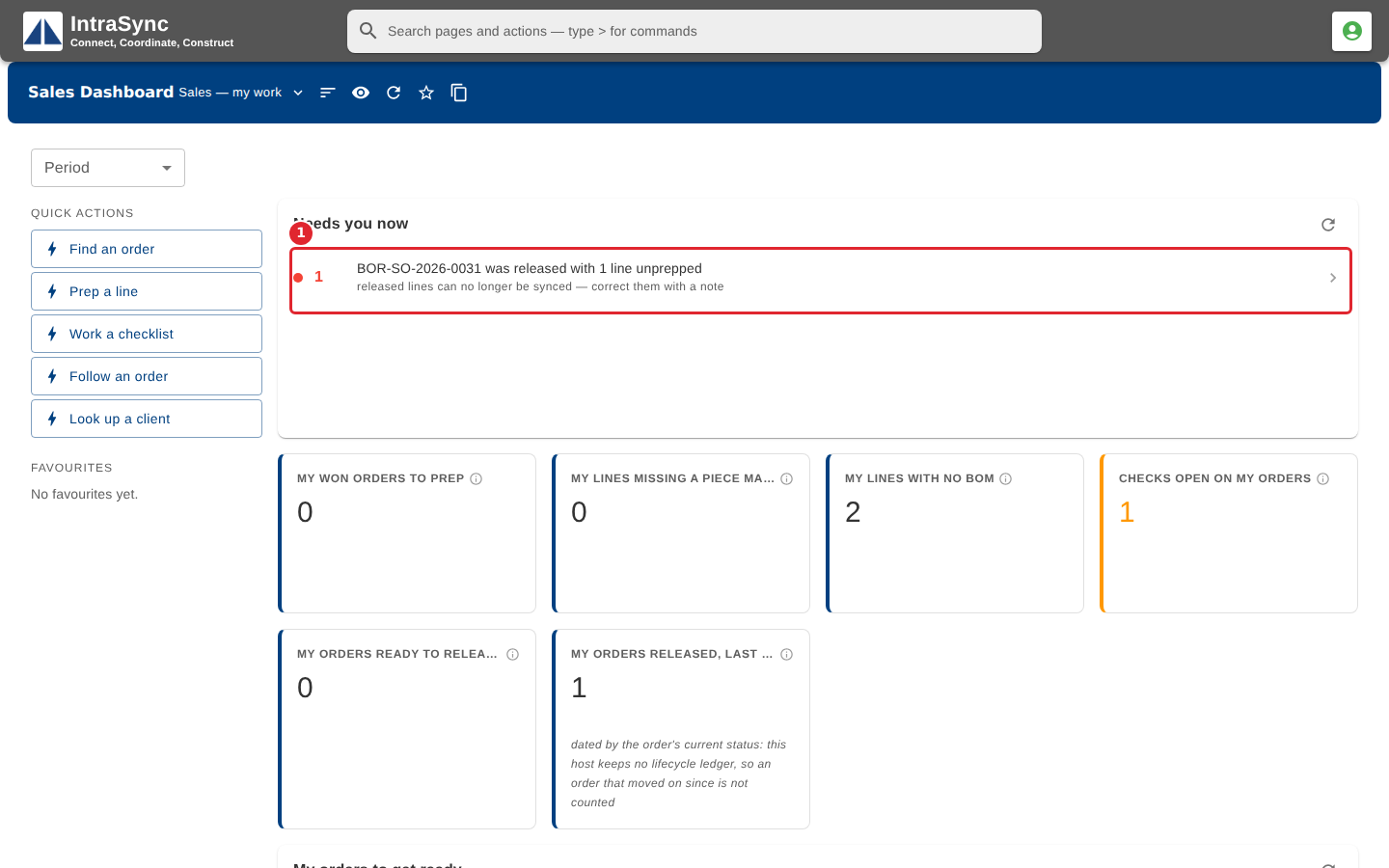
Needs you now lists the most urgent things on your orders, and why each one needs you.
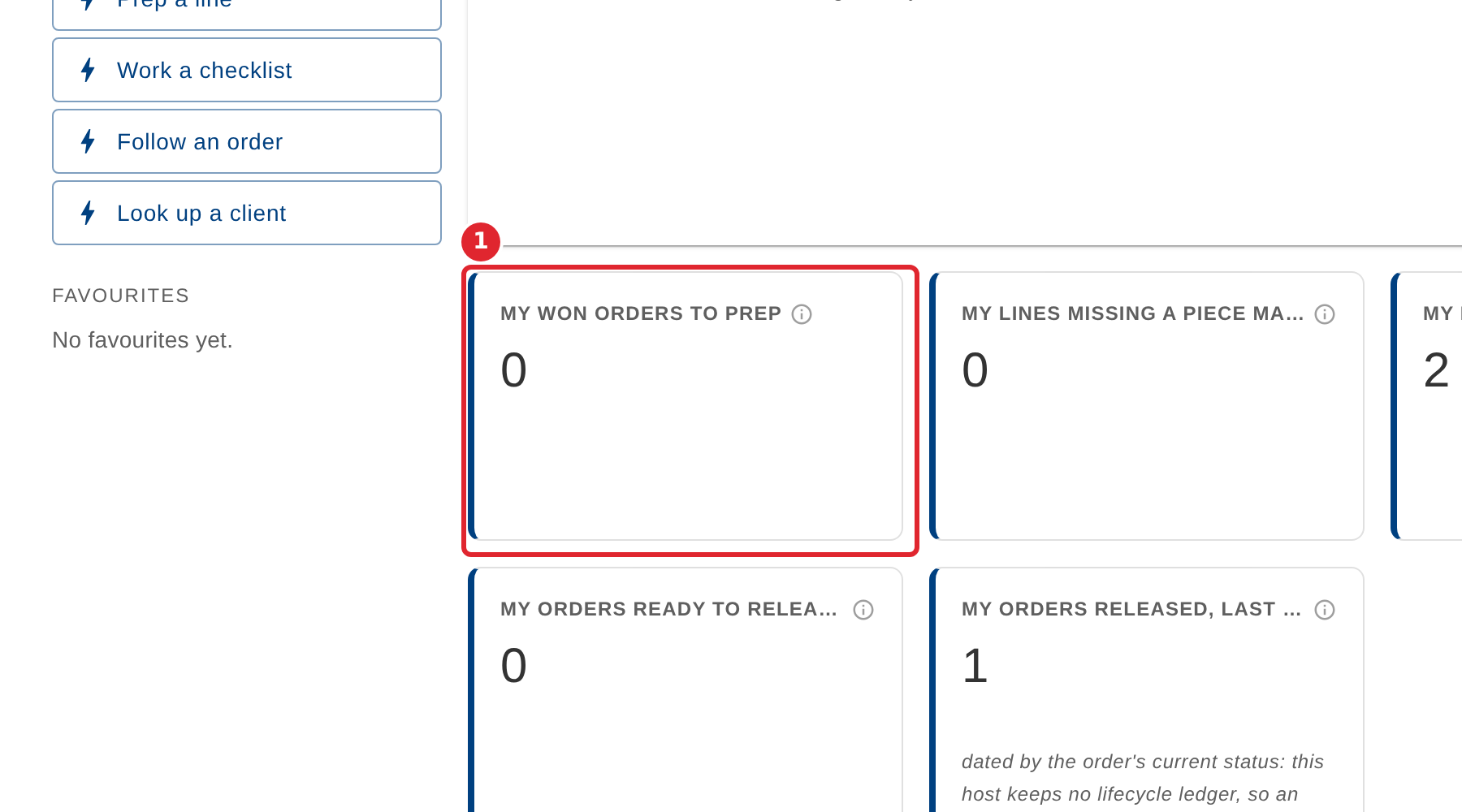
Each tile counts one part of your own work. Point at the information icon beside a tile's title to see what it counts.
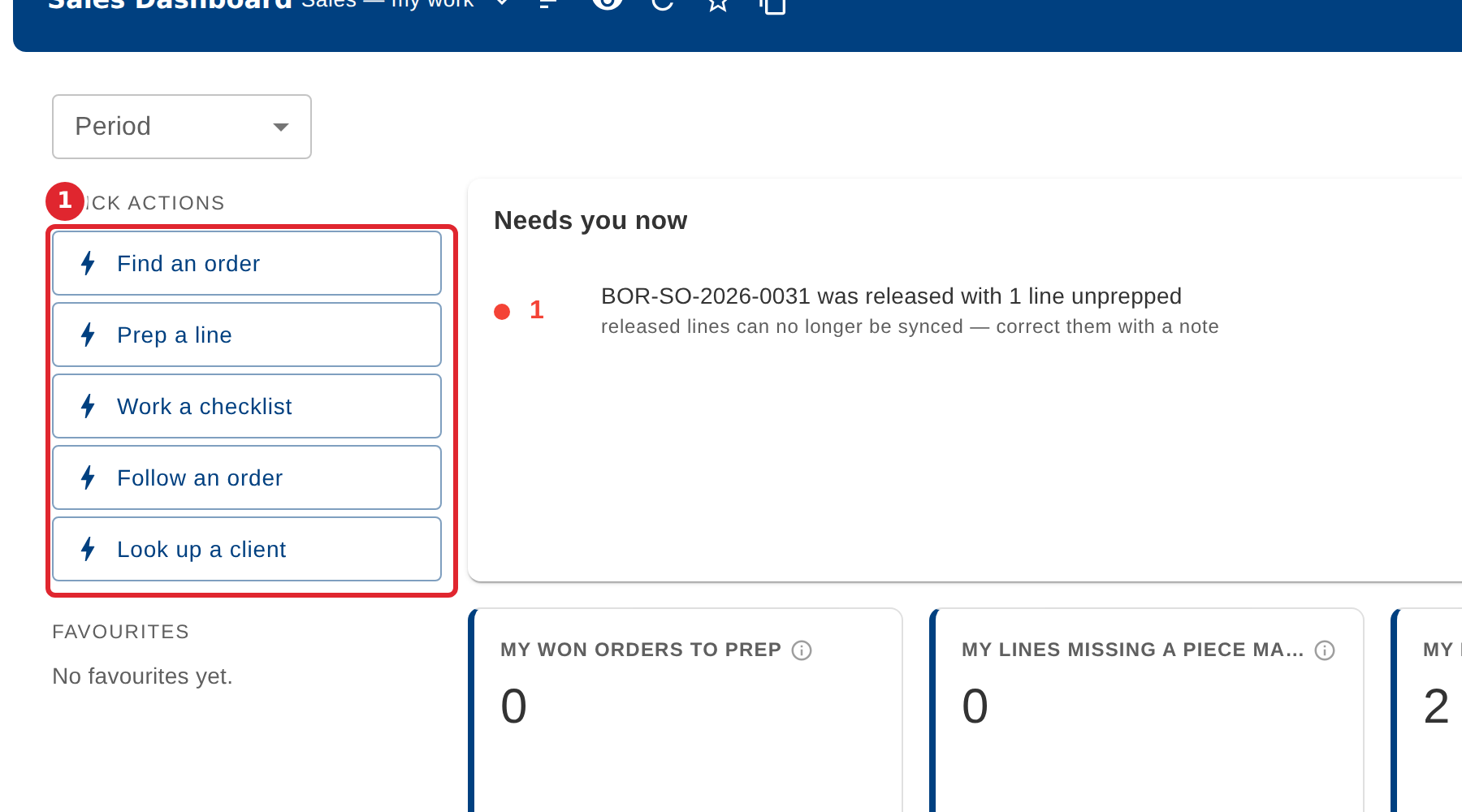
Use Quick actions to go straight to a task in Sales: find an order, prep a line, work a checklist, follow an order or look up a client.
Use Period to choose the window the figures cover, from the last week to the year so far.
My orders to get ready lists your orders still in prep. Select Prep lines or Checklist on a row to go straight to that work.
Tips
- Some tiles carry a note under the figure that says how it is counted. Read it before comparing a figure with another report.
- The star beside the board name makes this board the one you land on when you open the Sales Dashboard.