Sales guide · section 14 of 18
Put an order on hold, and resume it
Pause an order, for example while a customer revises a schedule, and bring it back to exactly where it was.
Watch this in the video (1:48)
Before you start
- You know why the order is being held: the reason is required and is kept with the order.
Steps
In the pictures, a numbered red box marks where to click or type. Where a picture has more than one box, the numbers give the order.
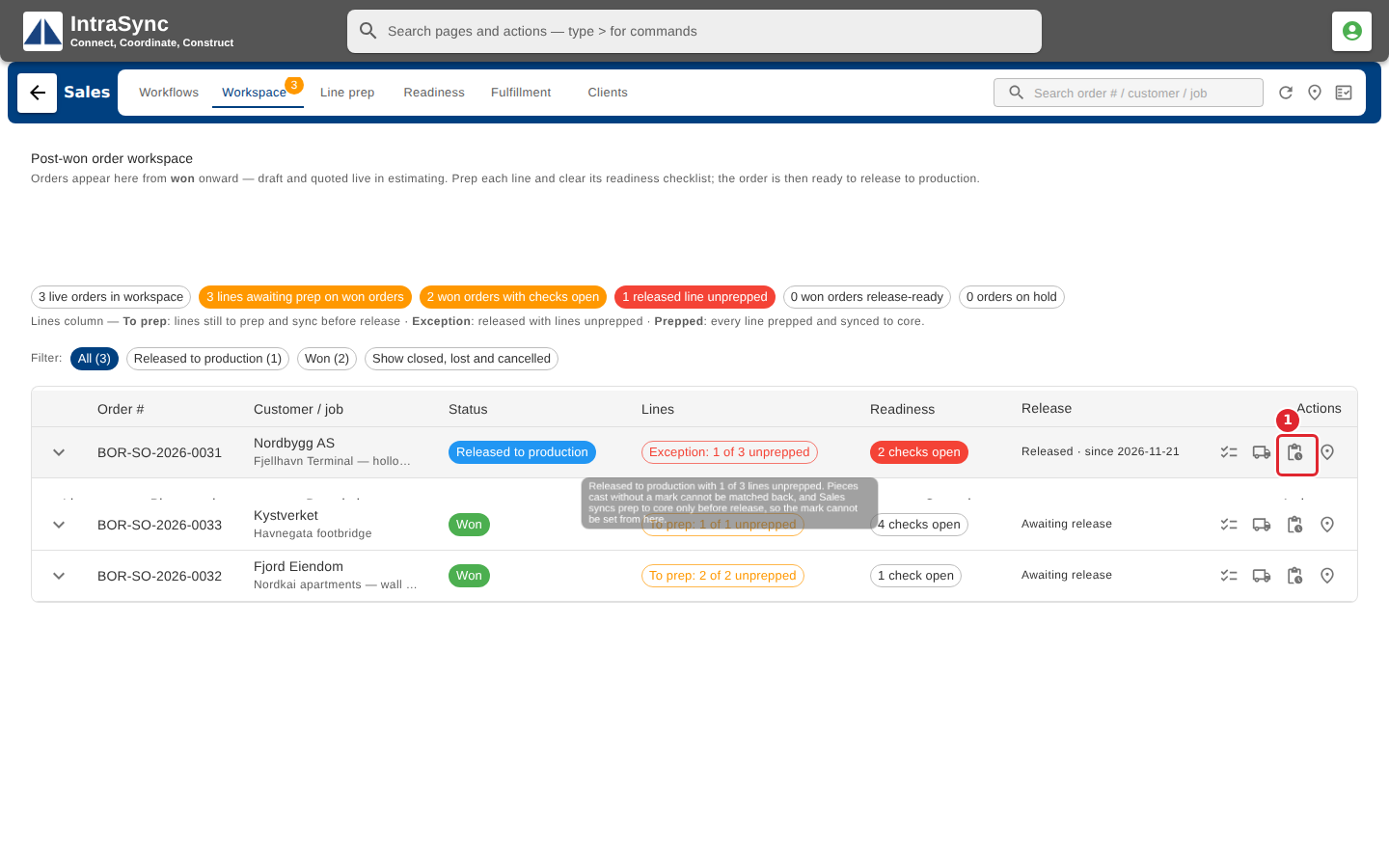
To pause an order, select Actions on the order's row.
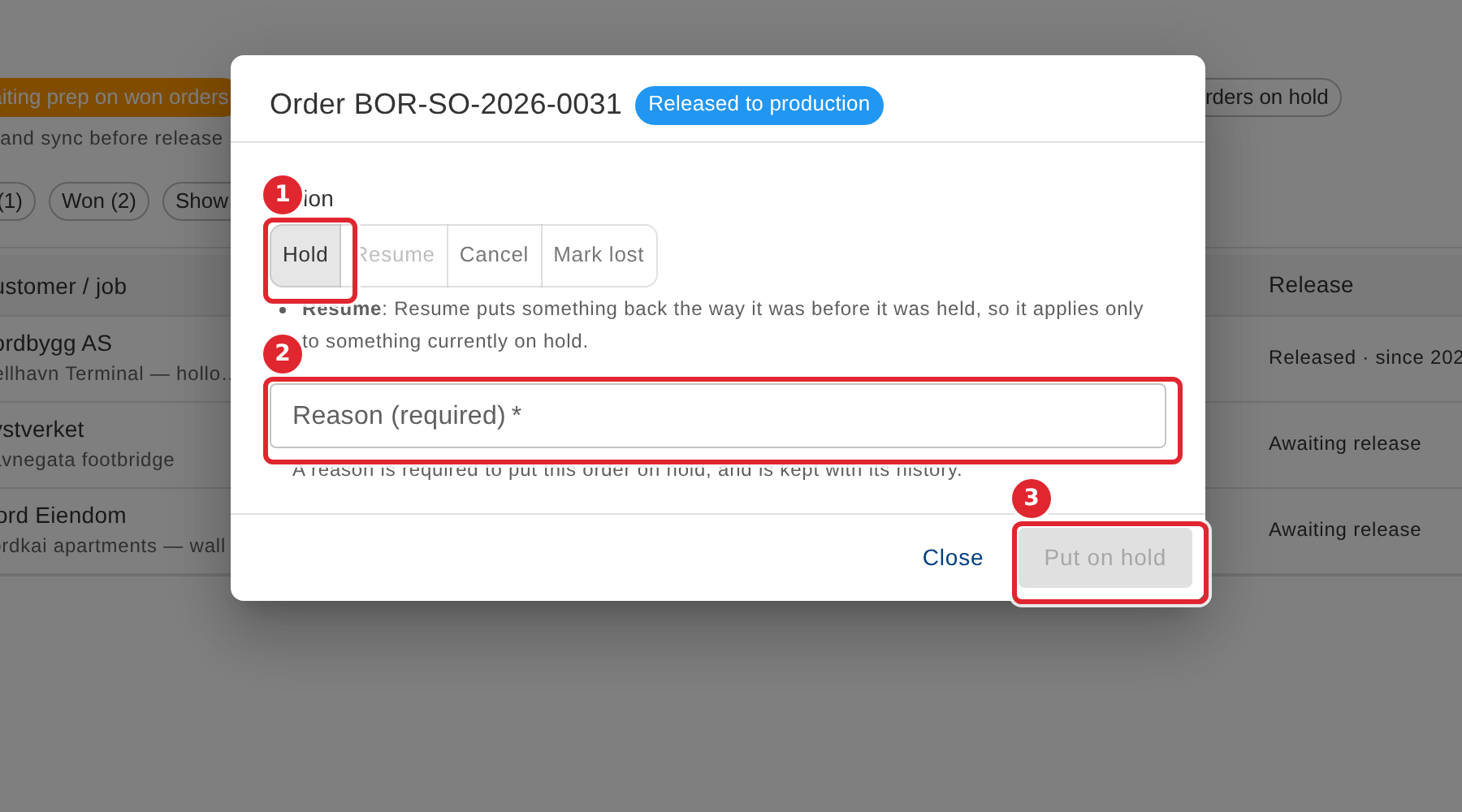
Select Hold. The reason is required, and Put on hold stays off until you enter one.
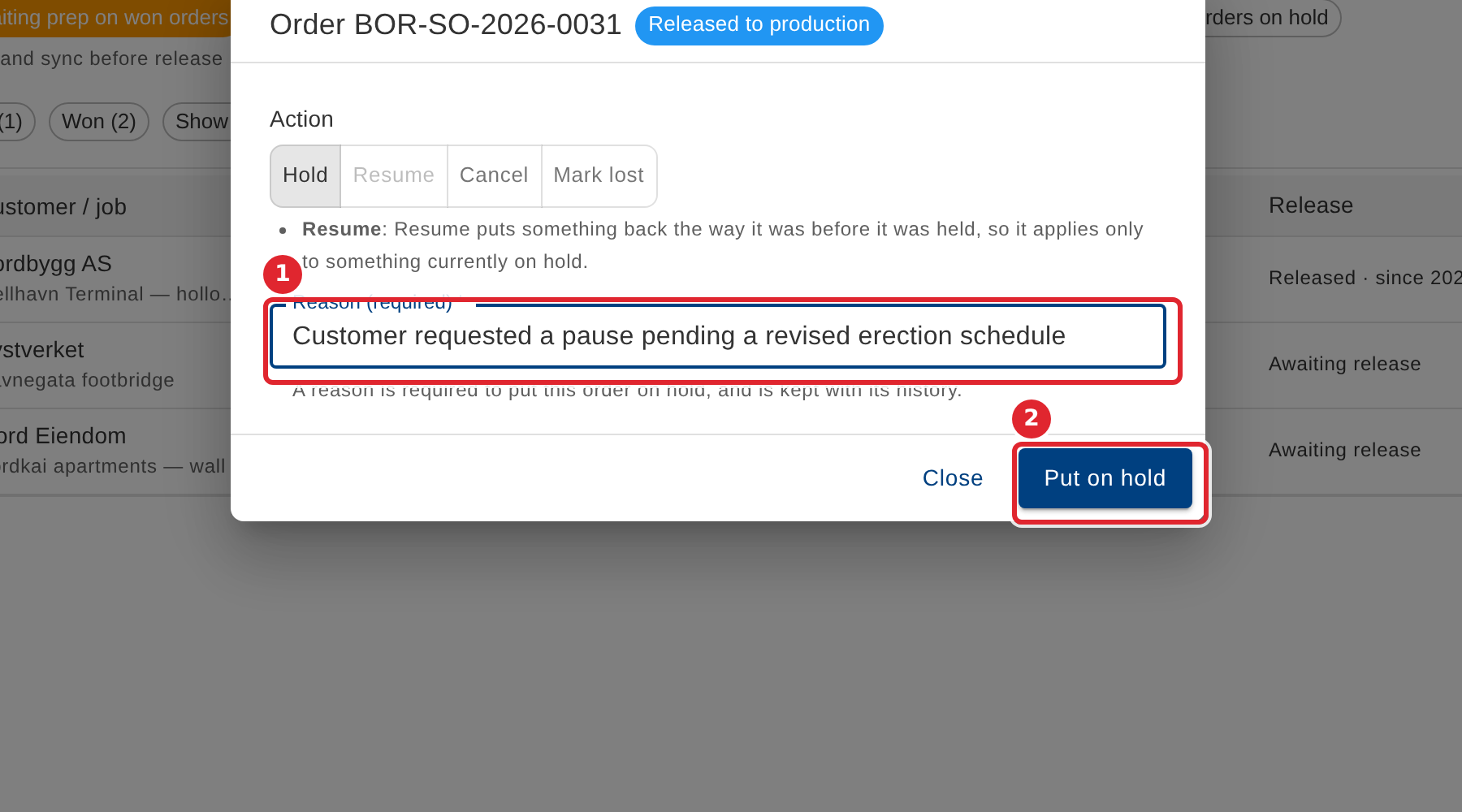
Enter the reason, then select Put on hold.
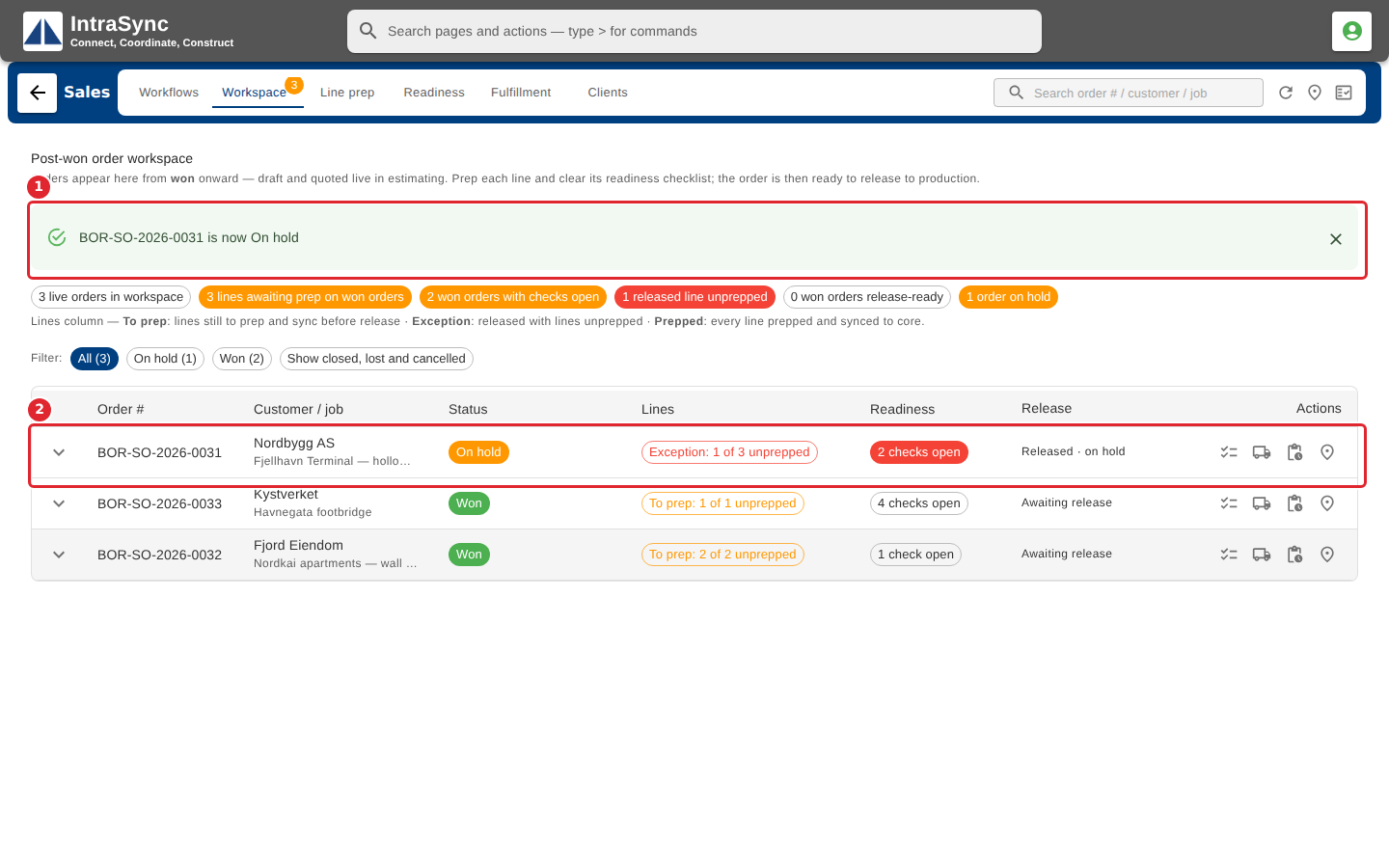
The order shows On hold, and the banner names the order.
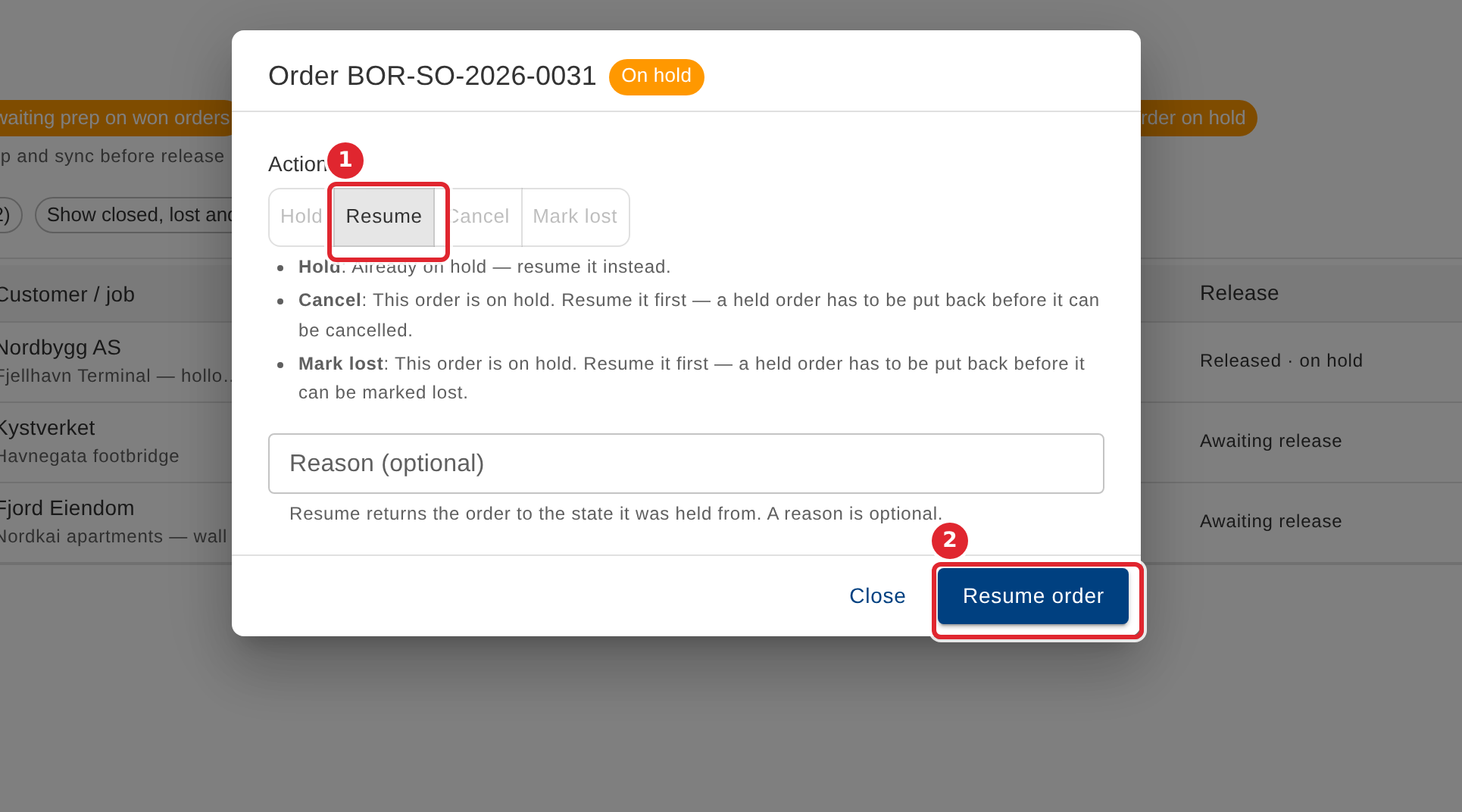
To resume, open Actions again, select Resume, and select Resume order. The order returns to the state it was held from.
Tips
- The same dialog cancels an order or marks it lost. On an order already released, a cancellation is recorded as cancelled, and the dialog says so before you confirm.
- Opening the actions dialog clears the previous confirmation banner, so the banner always describes the latest change.