Sales guide · section 8 of 18
Prep every line of an order in one pass
For an order with several unprepped lines, save and sync them all at once instead of one by one.
Watch this in the video (2:12)
Before you start
- The order is won and has lines without prep.
Steps
In the pictures, a numbered red box marks where to click or type. Where a picture has more than one box, the numbers give the order.
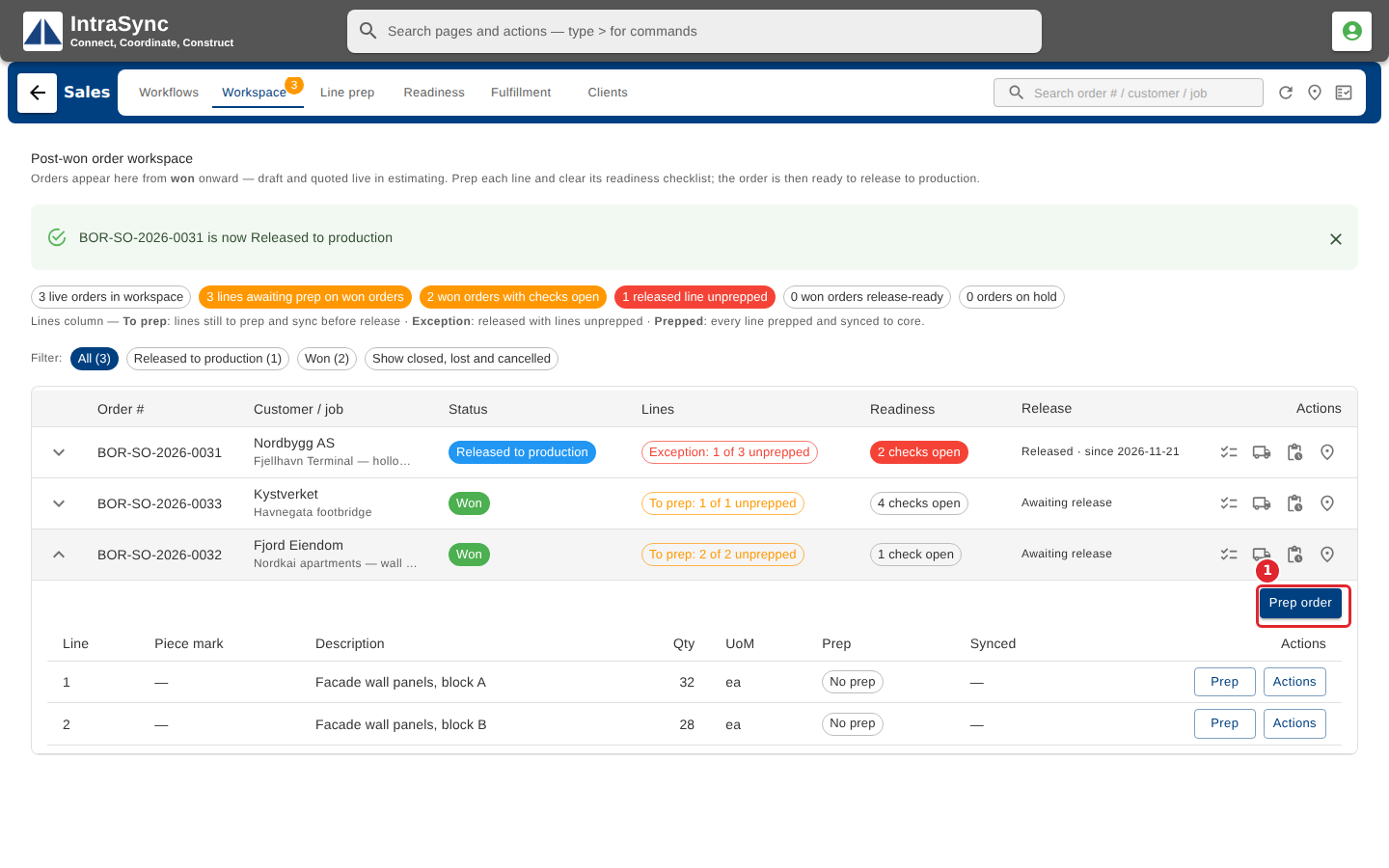
To prep every line of an order at once, expand the order and select Prep order.
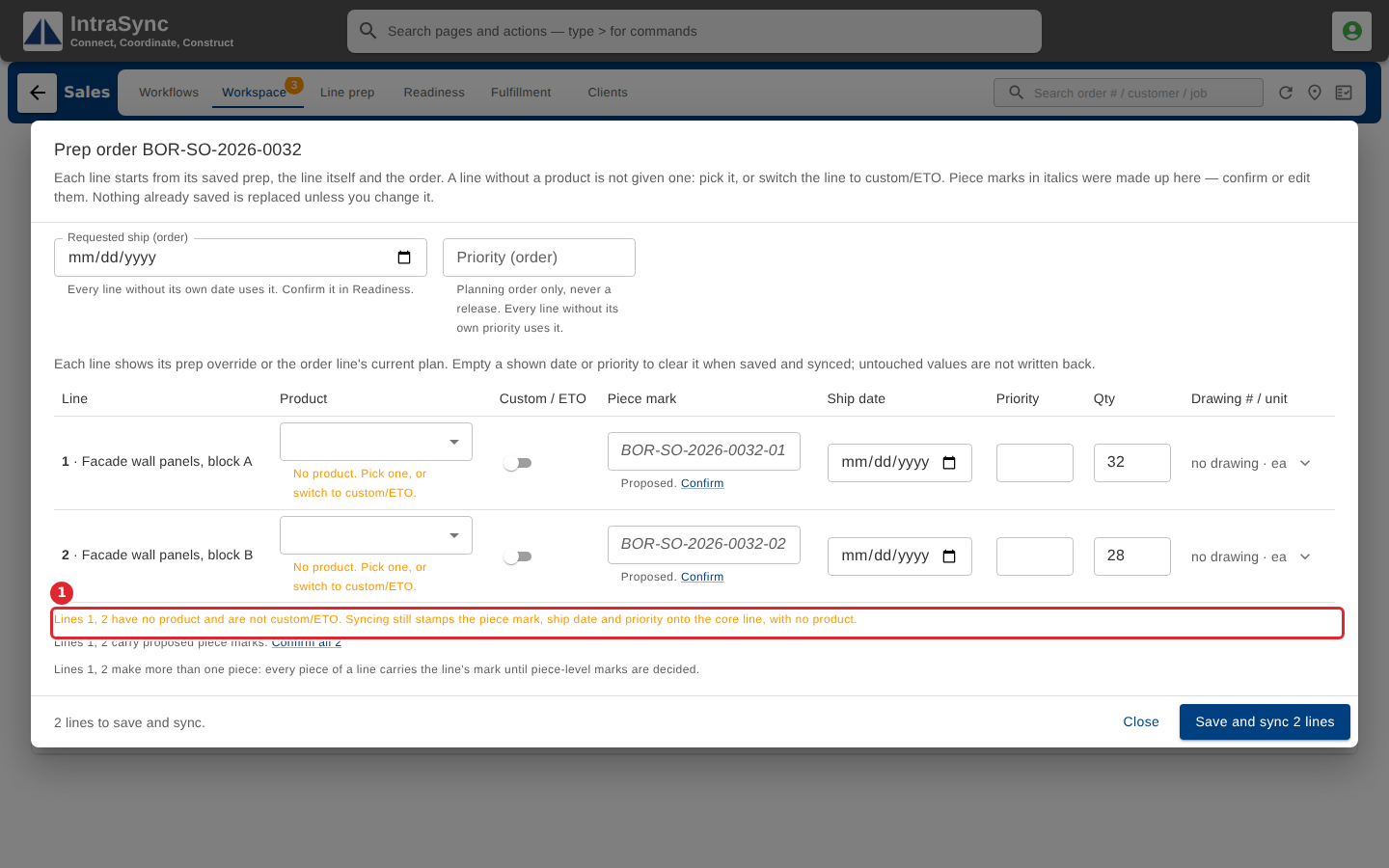
Every line is listed with a proposed piece mark. A line with no product is flagged: pick one, or switch the line to custom or engineered-to-order.
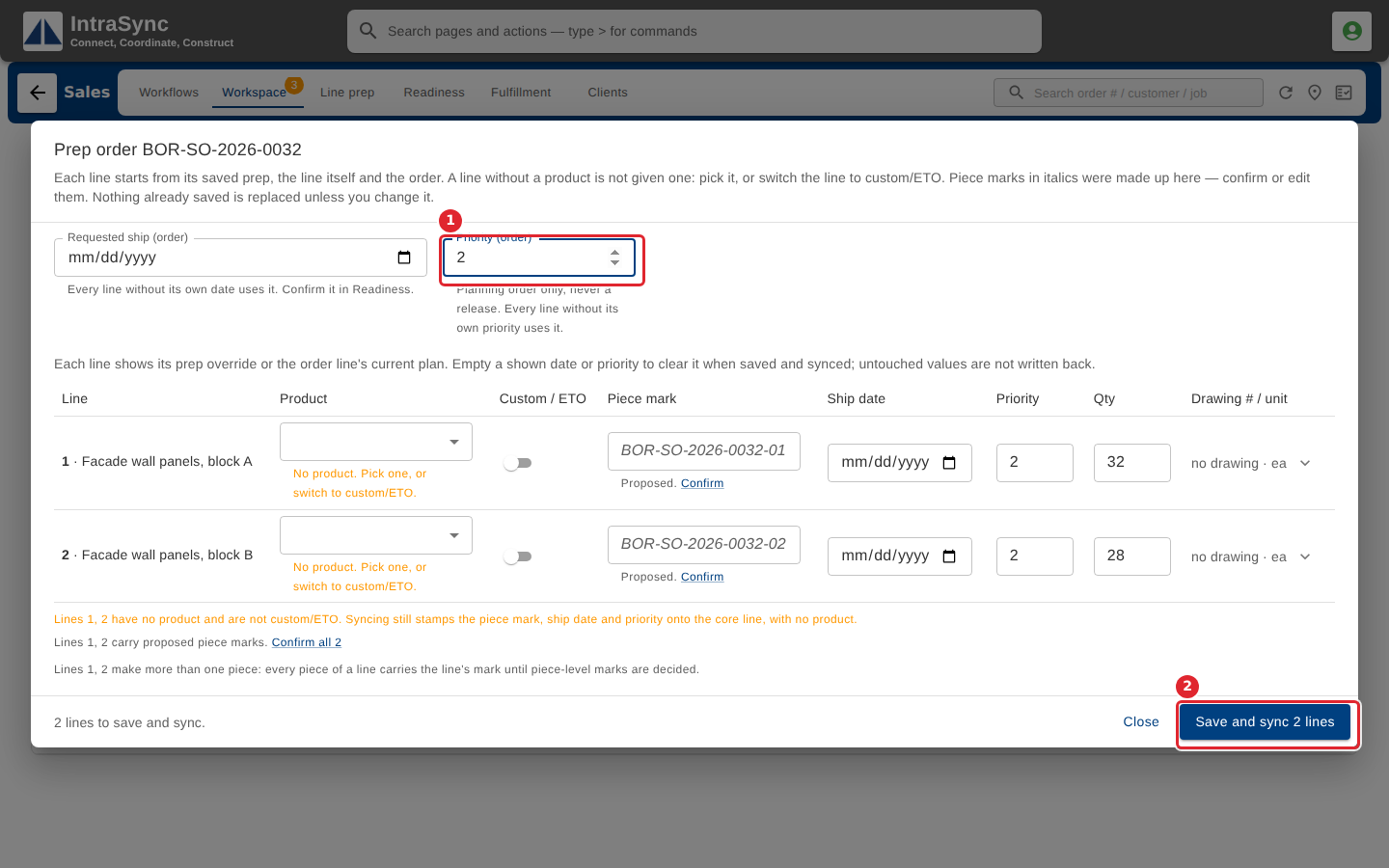
Set an order-level priority or ship date to fill every line that has none, then select Save and sync.
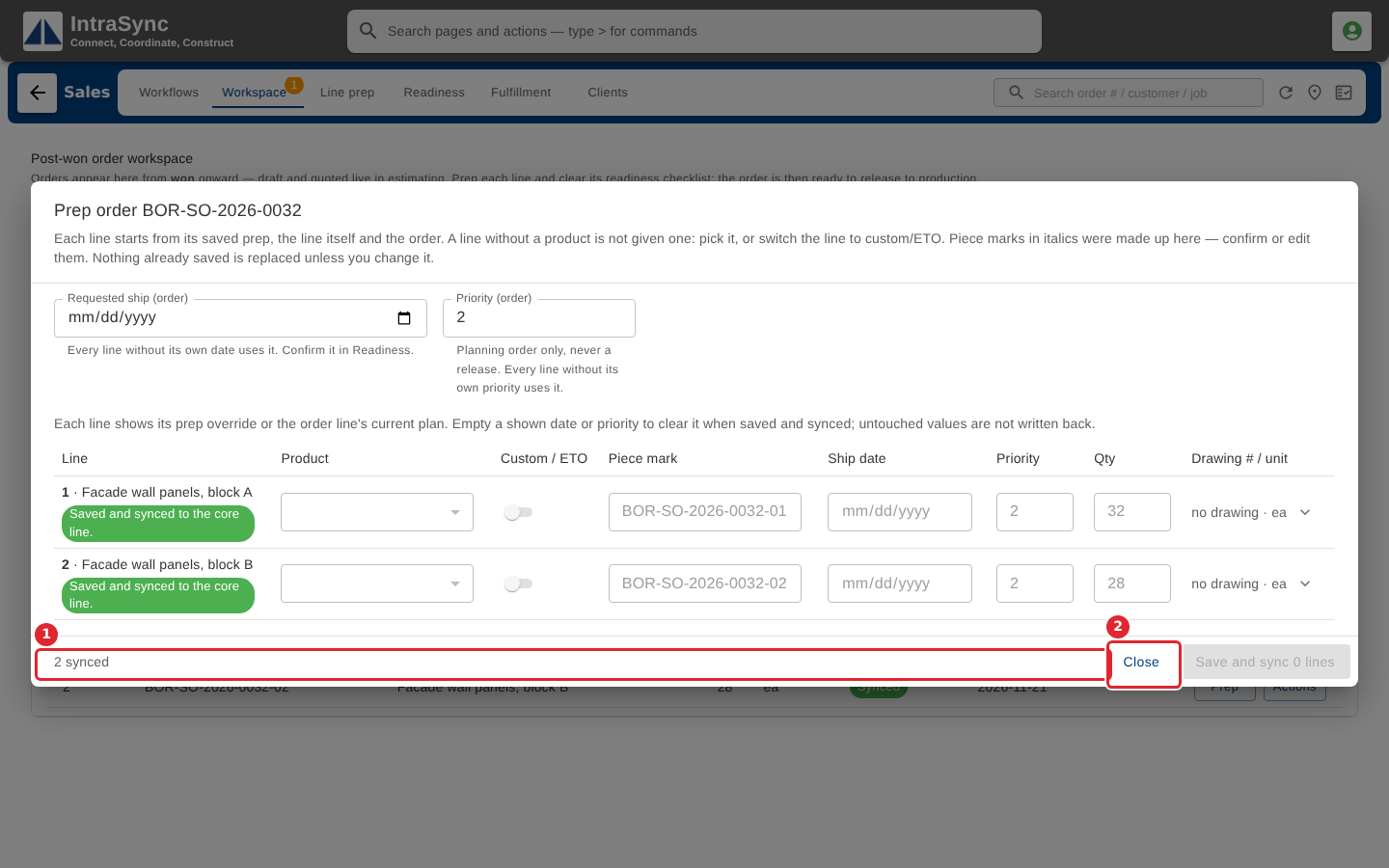
Each line reports its result. Select Close when you are done.
Tips
- Proposed piece marks are shown in italics. Confirm them, or type your own, before you save.
- A line with no product is still saved and synced, with a warning. Pick a product first if production needs one.
- The order-level priority is for planning only. It never releases anything.
- A ship date or priority you cleared on a line stays cleared. The order-level values only fill lines that never had one of their own.