Sales guide · section 7 of 18
Sync a prepped line to the production order
Write the line's product, piece mark, requested ship date and priority onto the production order line, where the plant's planning reads them.
Watch this in the video (0:39)
Before you start
- The line has a saved prep record.
Steps
In the pictures, a numbered red box marks where to click or type. Where a picture has more than one box, the numbers give the order.
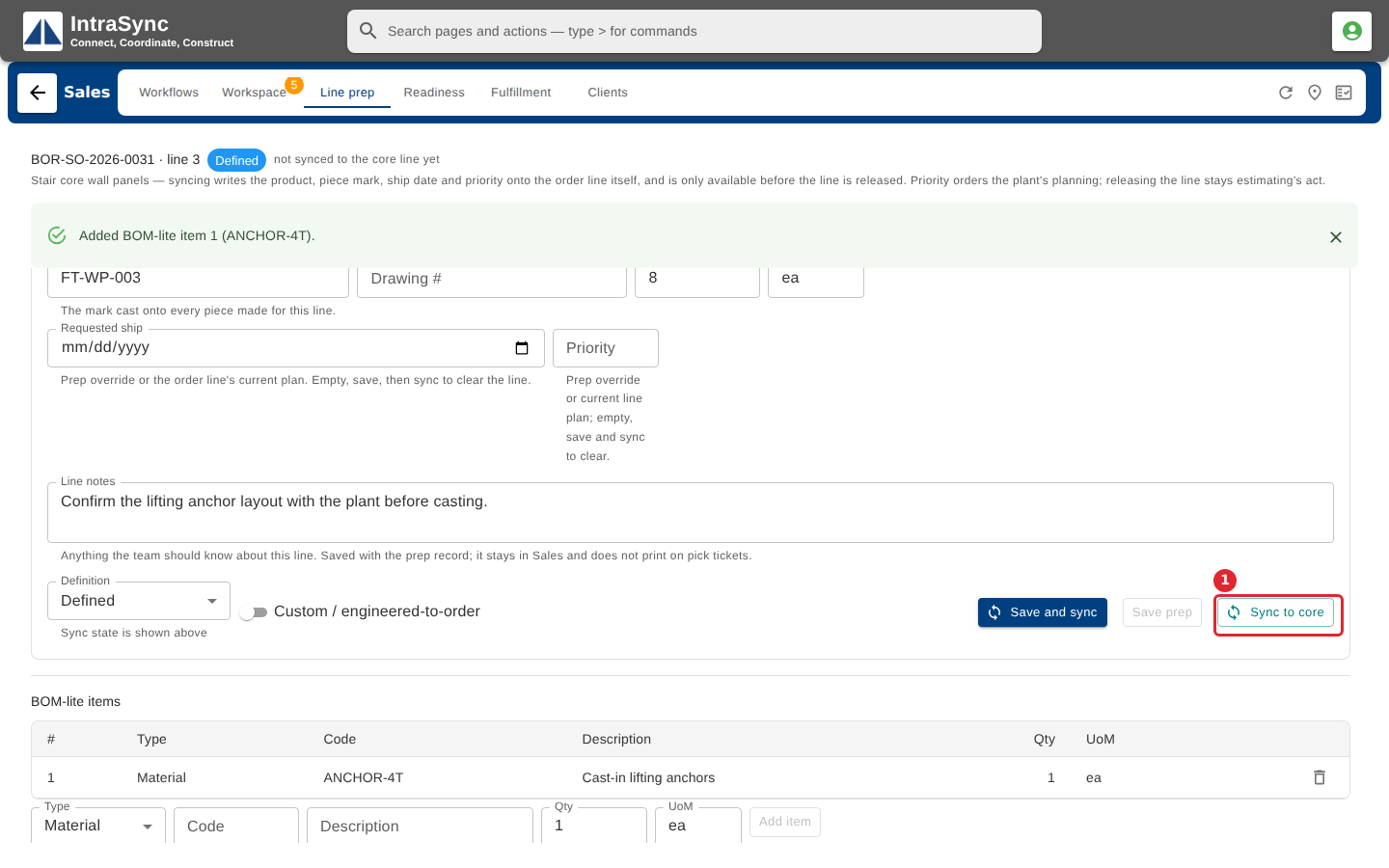
Select Sync to core to write the product and piece mark onto the production order line.
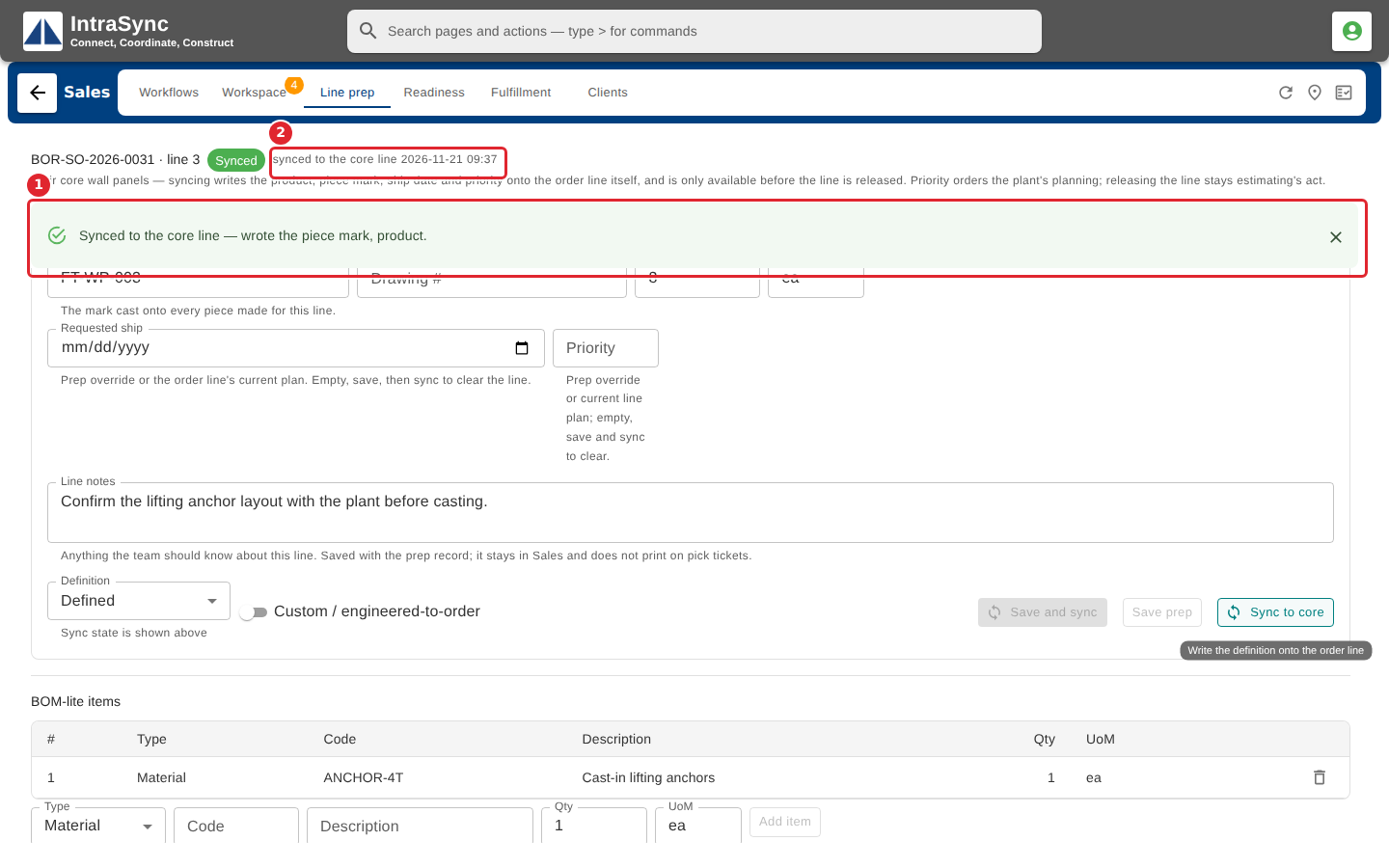
The confirmation names what was written, and the panel now reads synced.
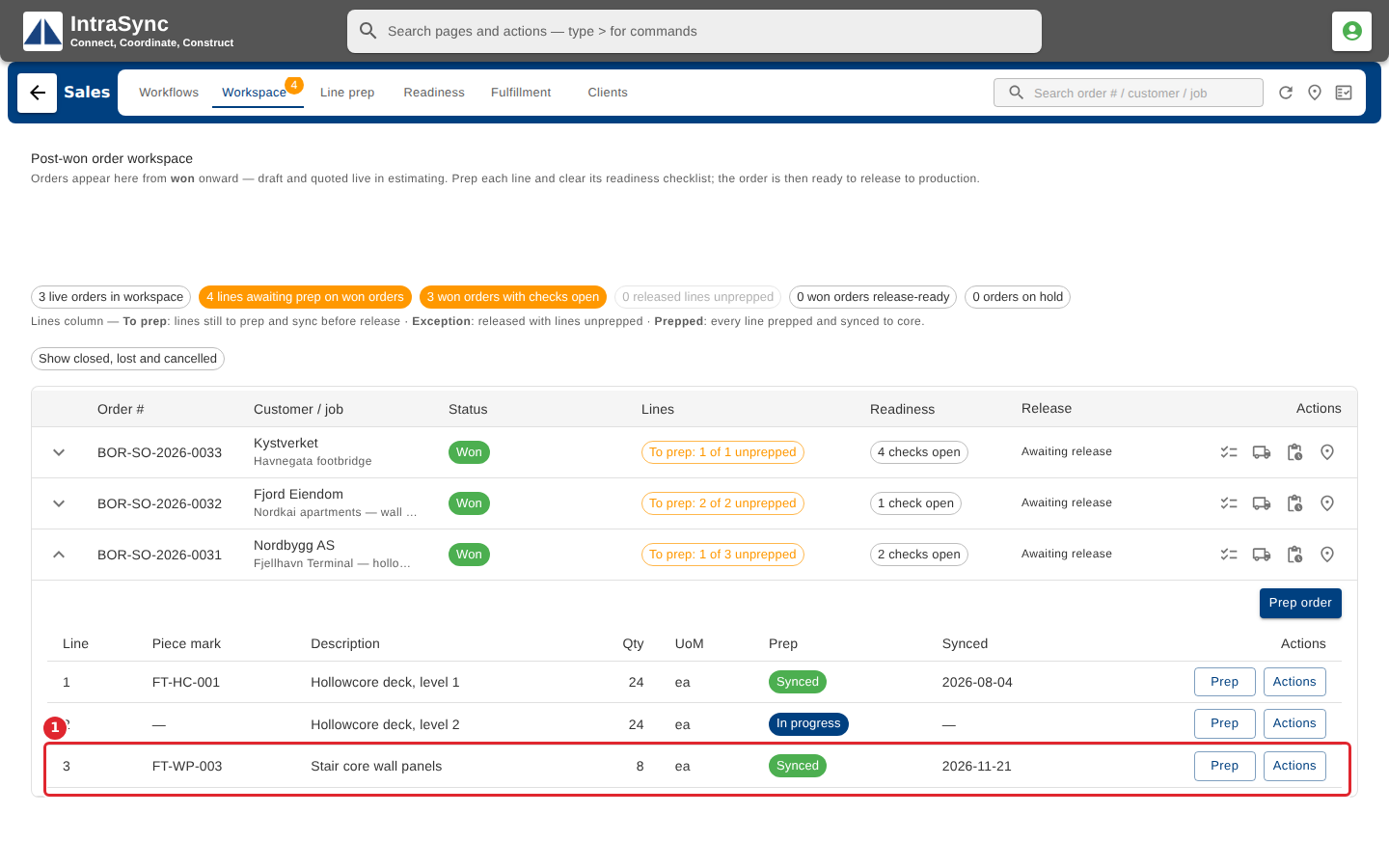
Back on Workspace, the line already shows Synced. No refresh is needed.
Tips
- Syncing never changes an order's status or its prices. It only fills in the line's product, piece mark, requested ship date and priority.